
1. Introduction
This manual provides detailed instructions for the installation, setup, operation, and maintenance of your litillbuly Android 13 Qualcomm Car Radio. This unit is specifically designed for Ford F150 models from 2013 to 2014, featuring a 12.1-inch T-style display. Please read this manual thoroughly before installation and use to ensure proper functionality and safety.
2. Product Features
- Display: 12.1-inch 1080P capacitive touchscreen with Android 13 OS.
- Processor: Powerful Qualcomm QCM6125 (8-core CPU: 4x A73@2.0GHz + 4x A53@1.8GHz) and 900MHz GPU for fast response.
- Memory: 4GB RAM + 64GB ROM for ample storage and smooth operation.
- Connectivity: Built-in Wireless CarPlay and Android Auto via Bluetooth. Dual Bluetooth (BT1 for OBD/BLE devices, BT2 for phone calls/media). 4G for fast internet access.
- Navigation: Triple Navigation (GPS + GLONASS + BeiDou) with up to 50 satellite signals for precise positioning. Supports offline and online map applications.
- Audio: Immersive DTS Surround Sound with 32-band EQ and "Sweet Spot" tuning.
- Vehicle Integration: Retains factory amplifier system, Onstar system, heating and cooling seat control, original camera, reverse camera, and steering wheel controls.
- User Interface: Clean and intuitive UI design with customizable themes, day/night modes, and split-screen navigation.
- Sensors: Built-in 6-axis gyroscope (3-axis accelerometer + 3-axis gyroscope) for precise motion detection.
- Multimedia: Supports 4K@30fps video decoding (H.264) and 1080P@30fps encoding.

Image: The litillbuly 12.1-inch T-Style Android 13 Car Radio unit.

Image: Comparison showing the original Ford F150 radio interface versus the upgraded litillbuly 12.1-inch T-Style Android 13 Car Radio.
3. Package Contents
Verify that all items are present in the package:
- litillbuly Android 13 Car Radio Unit
- Main Harness Adaptor
- RCA Audio Output Cable
- Installation Tools (plastic pry tools, screwdriver)
- Cam Inputs
- Radio Antenna Cable
- USB Cable
- MIC Cable
- Reversing Cable
- GPS Antenna Cable
- 4G Module
- Original Car USB Cable

Image: Overview of all accessories included with the litillbuly Android 13 Car Radio.

Image: Detailed wiring diagram showing various connections including RCA, GPS, 4G, USB, and MIC cables.
4. Installation Guide
Professional installation is recommended. Ensure the vehicle's ignition is off and the battery is disconnected before starting. Refer to the installation video for visual guidance.
Video: Installation guide for the litillbuly Android 13 Car Radio in a Ford F150 (2013-2014). This video demonstrates the step-by-step process of removing the original radio and installing the new unit.
4.1. Preparation
- Gather all necessary tools, including the provided installation tools.
- Ensure the vehicle is turned off and the parking brake is engaged.
- Disconnect the vehicle's battery to prevent electrical shorts.
4.2. Removing Original Components
- Remove Right Storage Drawer: Carefully remove all screws at the bottom of the right storage drawer. Use a pry tool to detach the drawer.
- Unscrew Left Dashboard: Unscrew the screws located above the left dashboard, near the instrument cluster.
- Remove Dashboard Frame Kit: Use a pry tool to carefully remove the dashboard frame kit surrounding the original radio and air vents.
- Unscrew Air Vent Screws: Remove the screws on both sides of the air vents.
- Open Storage Box: Open the storage box located below the climate controls.
- Remove Car Stereo Screws: Locate and remove the screws securing the original car stereo unit.
- Disassemble Original Radio Interface: Carefully pull out the original radio interface and disconnect all electrical connectors.
4.3. Connecting the New Unit
- Plug-in Connectors: Connect the provided wiring harness to the new litillbuly Android 13 Car Radio. Ensure all connections are secure, including the main power harness, RCA cables, USB cables, GPS antenna, and 4G antenna. Refer to the wiring diagram image for correct connections.
- Secure the Unit: Carefully slide the new unit into the dashboard opening. Secure it with the screws removed earlier.
4.4. Testing and Reassembly
- Reconnect Battery: Reconnect the vehicle's battery.
- Power On and Test: Turn on the vehicle's ignition and power on the new radio. Test all functions, including the touchscreen, audio, climate controls, and steering wheel controls.
- Test Air Conditioning UI: If the air conditioning mode (up, middle, down) does not work, navigate to System-Setting > Guide-Car Model/Protocol (password is 8861) > Setting button > Set the Climate UI. Ensure the UI is selected with MODE.
- Reassemble: Once all functions are verified, reassemble the dashboard components in reverse order of removal.
5. Initial Setup
Upon first power-on, the system may guide you through initial setup steps:
- Language Selection: Choose your preferred language.
- Time and Date: Set the correct time zone, date, and time.
- Wi-Fi Connection: Connect to a Wi-Fi network to enable online features, app downloads, and map updates. Go to Settings > Network & Internet > Wi-Fi.
- Google Account: Log in with your Google account to access the Play Store and other Google services.
6. Operating Instructions
6.1. Wireless CarPlay and Android Auto
Connect your iPhone or Android phone wirelessly via Bluetooth to access navigation, calls, messages, and music directly on the car radio display.
- Ensure Bluetooth is enabled on your smartphone and the car radio.
- On the car radio, go to the CarPlay or Android Auto application.
- Pair your phone with the car radio via Bluetooth.
- Follow the on-screen prompts to complete the connection.

Image: Display of Wireless CarPlay and Android Auto interfaces on the litillbuly car radio, showing phone integration for navigation, music, and communication.
Video: Demonstration of the Android 12.1 Inch Car Stereo Radio for Ford F150 2013 2014, highlighting its features and user interface.
6.2. Navigation
The unit supports both offline and online map applications. Connect the supplied GPS antenna for optimal performance.
- Download preferred map applications from the app store (e.g., Google Maps, Waze).
- Use coordinates, zip codes, addresses, or points of interest to plan routes.
- Real-time traffic flow information is available with an internet connection.

Image: The GPS navigation interface displayed on the car radio, alongside a depiction of steering wheel controls.
6.3. Media Playback
Enjoy various media formats including music and video. The unit supports 4K video decoding.
- Access music and video files from internal storage, USB devices, or streaming apps.
- Utilize the 32-band EQ for customized audio settings.
6.4. Bluetooth Connectivity
The unit features dual Bluetooth modules:
- BT1: Connects to OBD devices, BLE devices (keyboards, mice, ambient lights, BT speakers).
- BT2: Dedicated for phone calls and media streaming from your mobile device.

Image: Explanation of the dual Bluetooth mode, detailing BT1 for accessories and BT2 for mobile phones.
6.5. Steering Wheel Control (SWC)
The unit retains the original vehicle's steering wheel control functionality, allowing for safe management of volume, tracks, and calls.
6.6. Reversing Assist
The system supports reversing assist features, including compatibility with the factory original camera and aftermarket reverse cameras (camera not included).
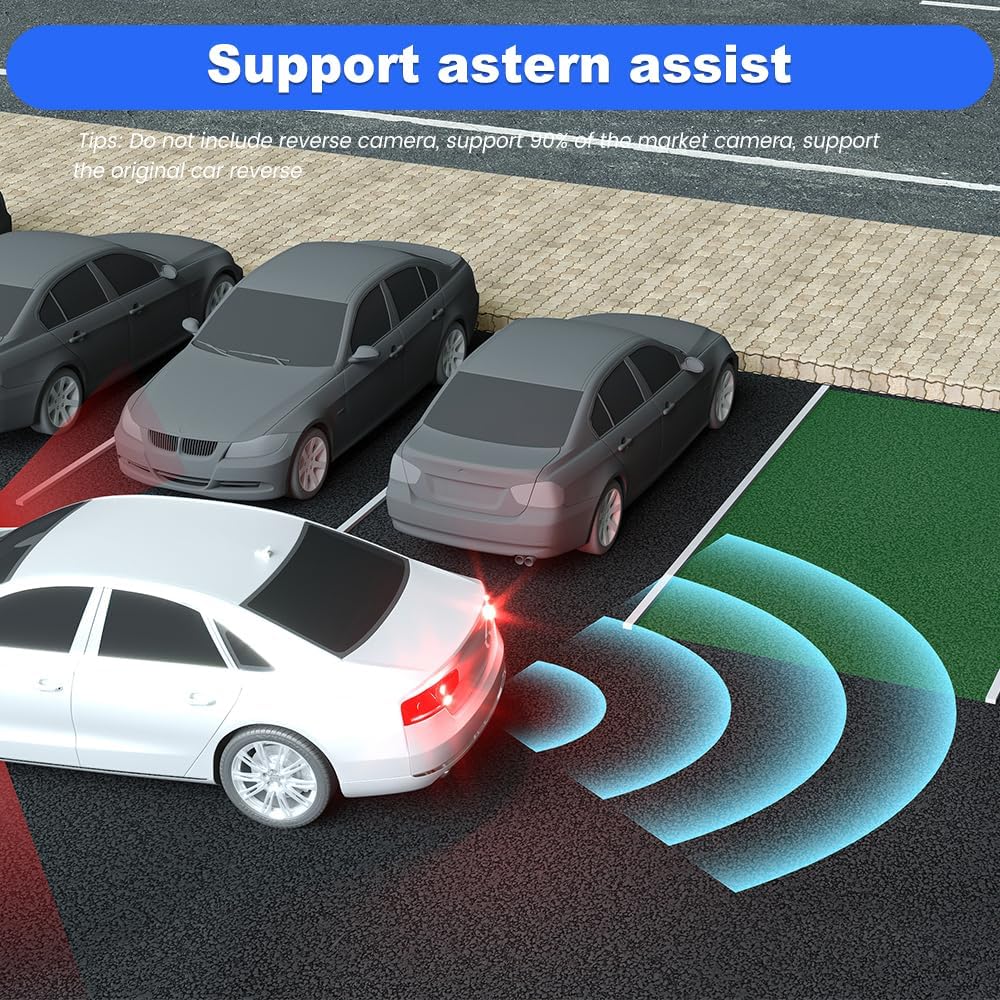
Image: A visual representation of the reversing assist feature, showing parking guidelines on the screen.
6.7. On-Screen Climate Control
Manage your vehicle's climate control settings directly from the large touchscreen display, retaining full functionality of heating and cooling seats.

Image: The on-screen climate control interface, allowing adjustment of temperature, fan speed, and other HVAC functions.
7. Maintenance
- Screen Cleaning: Use a soft, lint-free cloth to clean the touchscreen. Avoid abrasive cleaners or solvents.
- Software Updates: Periodically check for system software updates via the settings menu to ensure optimal performance and access to new features.
- General Care: Keep the unit free from dust and debris. Avoid exposing it to extreme temperatures or direct sunlight for prolonged periods.
8. Troubleshooting
This section addresses common issues you might encounter:
- Unit is Unresponsive: If the unit becomes unresponsive, a system upgrade may be required. Please contact customer support for assistance.
- Air Conditioning Mode Not Working: After the machine is turned on, navigate to System-Setting > Guide-Car Model/Protocol (password is 8861) > Setting button > Set the Climate UI. Ensure the correct Climate UI with MODE is selected.
- Blurry Reversing Camera Picture: If the picture from the original car's reversing camera is blurry, adjust the settings in the reversing screen interface (located at the bottom of the screen).
9. Specifications
| Feature | Detail |
|---|---|
| Item Weight | 7.78 pounds |
| Package Dimensions | 17.25 x 13.25 x 8 inches |
| Display Size | 12.1 Inches |
| Voice Command | Touchscreen |
| Operating System | Android 13 |
| Memory Storage Capacity | 64 GB |
| RAM | 4 GB |
| Processor | Qualcomm QCM6125 (8-core CPU) |
| Connectivity Technology | Wi-Fi, Bluetooth, 4G |
| Special Feature | Bluetooth, Wireless CarPlay, Android Auto, GPS, DSP, SWC, HDMI |
| Map Type | North America |
| Vehicle Service Type | Truck (Ford F150 2013-2014) |
10. Warranty and Support
Your litillbuly Android 13 Qualcomm Car Radio comes with a 2-year warranty.
For technical assistance, troubleshooting, or warranty claims, please contact litillbuly customer support:
- Email: litillbuly@outlook.com
Please provide your product model and purchase details when contacting support to expedite assistance.