
1. Introduction
The Yanmai X1R USB Gaming Microphone is a high-sensitivity condenser microphone designed for clear audio capture in gaming, e-sports, and other applications. It features RGB lighting, a stable tripod, and intelligent noise reduction for an enhanced audio experience. This manual provides instructions for setup, operation, and maintenance of your microphone.
2. Package Contents
Please check the package for the following items:
- 1 x Yanmai X1R USB Gaming Microphone
- 1 x Metal Anti-slip Tripod with Gooseneck Pop Filter
- 1 x USB-A to USB-C Cable (1.8 meters)
- 1 x USB-C Adapter
- 1 x English User Manual
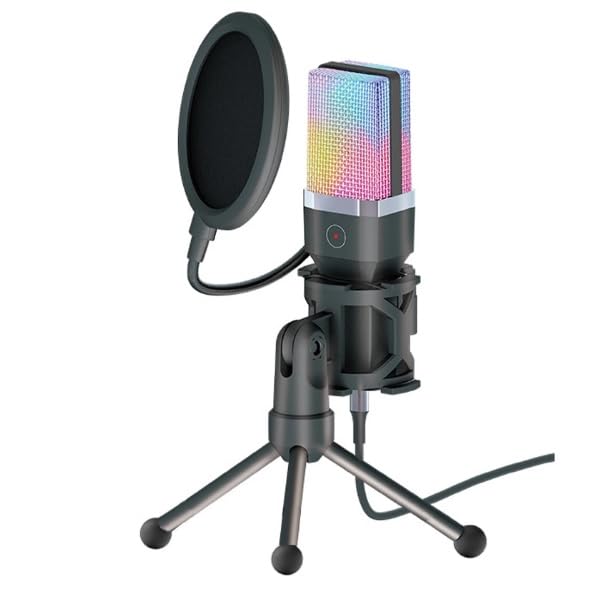
Image: The Yanmai X1R microphone, pop filter, tripod, USB cable, and USB-C adapter.
3. Setup Instructions
Assemble the Tripod and Microphone:
Unfold the metal anti-slip tripod and place it on a stable surface. Attach the microphone to the tripod mount. Secure the gooseneck pop filter to the tripod or microphone stand, positioning it approximately 2-3 inches in front of the microphone capsule.

Image: The Yanmai X1R microphone mounted on its tripod with the pop filter attached.
Connect to Your Device:
Connect the provided USB-A to USB-C cable to the microphone. Then, plug the USB-A end into an available USB port on your PC, laptop, or game console. If your device only has USB-C ports, use the included USB-C adapter.

Image: The Yanmai X1R microphone connected to a laptop, showing the USB-A and USB-C connection options.
Driver Installation (Plug & Play):
The Yanmai X1R is a plug-and-play device. Your operating system (Windows, macOS, PlayStation, etc.) should automatically detect and install the necessary drivers. No manual driver installation is typically required.
Select as Default Audio Input:
After connecting, navigate to your device's sound settings. Select the "Yanmai X1R" or similar name as your default recording (input) device. Adjust the input volume as needed.
4. Operating Instructions
4.1 Power On/Off and RGB Lighting
The microphone powers on automatically when connected to a USB port. The RGB lighting will illuminate, cycling through 7 breathing colors. There is no separate power button.
4.2 Mute Function
The microphone features a one-touch mute button located on the front of the microphone body. Tap this button to instantly mute or unmute the microphone. The indicator light will change to show the mute status (e.g., red for muted).

Image: A finger pressing the one-touch mute button on the Yanmai X1R microphone.
4.3 Optimal Microphone Placement
For best audio quality, position the microphone directly in front of you, approximately 6-12 inches (15-30 cm) from your mouth. Ensure the pop filter is between your mouth and the microphone to reduce plosive sounds (P's and B's).

Image: The Yanmai X1R microphone set up on a desk, being used by a person playing a guitar.
4.4 Noise Reduction
The Yanmai X1R features intelligent noise reduction technology. This helps to minimize background noise, focusing on your voice. No specific user action is required to activate this feature as it operates automatically.

Image: A visual representation of how the microphone's noise reduction feature processes audio, showing "before" and "after" sound wave patterns.
5. Maintenance
- Cleaning: Use a soft, dry cloth to wipe the microphone body and tripod. Do not use liquid cleaners or abrasive materials.
- Pop Filter: The pop filter can be gently cleaned with a damp cloth if necessary. Ensure it is completely dry before reattaching.
- Storage: When not in use, store the microphone in a clean, dry place away from extreme temperatures and direct sunlight.
- Handling: Avoid dropping the microphone or subjecting it to strong impacts, as this can damage internal components.
6. Troubleshooting
| Problem | Solution |
|---|---|
| Microphone not detected by device. |
|
| No sound or low volume. |
|
| Background noise is present. |
|
| RGB lighting is not working. |
|
7. Specifications
| Feature | Detail |
|---|---|
| Brand | Yanmai |
| Model | X1R |
| Connectivity | Wired USB (USB-A / USB-C) |
| Microphone Type | Condenser |
| Polar Pattern | Unidirectional |
| RGB Lighting | 7-color breathing light |
| Sensitivity | -38 ± 3 dB |
| Frequency Response | 20Hz - 20KHz |
| Sampling Rate | 44.1/48 KHz |
| Bit Rate | 16-bit |
| Impedance | ≤2.2 KΩ |
| Power Supply | USB 5V |
| Cable Length | 1.8 meters |
| Special Features | One-touch mute, Intelligent Noise Reduction |
| Compatible Devices | PC, Laptop, Game Consoles |
| Color | Black |
| Item Weight | 598 grams |

Image: Technical drawing illustrating the dimensions of the Yanmai X1R microphone, pop filter, tripod, and cable.
8. Warranty & Support
8.1 Warranty Information
The Yanmai X1R USB Gaming Microphone comes with a one-year warranty from the date of purchase. This warranty covers manufacturing defects and malfunctions under normal use. It does not cover damage caused by misuse, accidents, unauthorized modifications, or improper installation.
Please retain your proof of purchase for warranty claims.
8.2 Customer Support
For technical assistance, troubleshooting, or warranty inquiries, please contact your retailer or the manufacturer's customer support. Refer to the contact information provided with your purchase documentation.