
1. Introduction
This manual provides detailed instructions for the installation, operation, and maintenance of your Dragon Touch OB20 4G LTE Cellular Security Camera. Please read this manual thoroughly before using the product to ensure proper functionality and safety. The OB20 camera offers advanced surveillance capabilities with dual 4K wide-angle lenses, 10x optical zoom, 360° pan and tilt, and flexible 4G LTE or Wi-Fi connectivity.
2. Product Overview
2.1 Package Contents
Verify that all items are present in your package:
- OB20 Security Camera
- Solar Panel
- SIM Card (Niview)
- 64GB SD Card
- Iron Wall Bracket
- Solar Panel Bracket
- Type-C Charging Cable
- Hexagon Wrench
- Screw Packs
- Drilling Positioning Stickers

Image: All components included in the Dragon Touch OB20 security camera package.
2.2 Key Features
- Triple Lens System: Two 4K wide-angle lenses and one 10x optical zoom telephoto lens for comprehensive coverage and detailed views.
- Dual Connectivity: Supports 4G LTE (USA only) or 2.4G/WiFi 6 for flexible network options.
- Solar Powered: Equipped with a 12000mAh battery and 9W solar panel for continuous power.
- 360° Pan and Tilt: 355° horizontal and 90° vertical rotation for wide area monitoring.
- AI Tracking: Detects and tracks people and vehicles.
- 4K Night Vision: Infrared night vision with a 200-lumen spotlight for clear nighttime details.
- Two-Way Audio: Enables real-time communication.
- Weather-Resistant: IP66 certified for outdoor use in various weather conditions.
- Local Storage: Includes a 64GB SD card, expandable up to 128GB.

Image: Overview of the Dragon Touch OB20 camera's primary features.
3. Setup
3.1 Physical Installation
Choose a suitable location for your camera and solar panel. Ensure the solar panel receives adequate direct sunlight for optimal charging. Use the provided iron wall bracket, solar panel bracket, screw packs, and drilling positioning stickers for secure mounting. The camera is IP66 weather-resistant, suitable for outdoor environments.

Image: Dragon Touch OB20 camera and solar panel mounted outdoors.
3.2 SIM Card and SD Card Insertion
Locate the SIM and SD card slots on the camera. Insert the provided Niview SIM card or another compatible mainstream operator's SIM card. Ensure the 64GB SD card is correctly inserted for local storage. The camera supports SD cards up to 128GB.
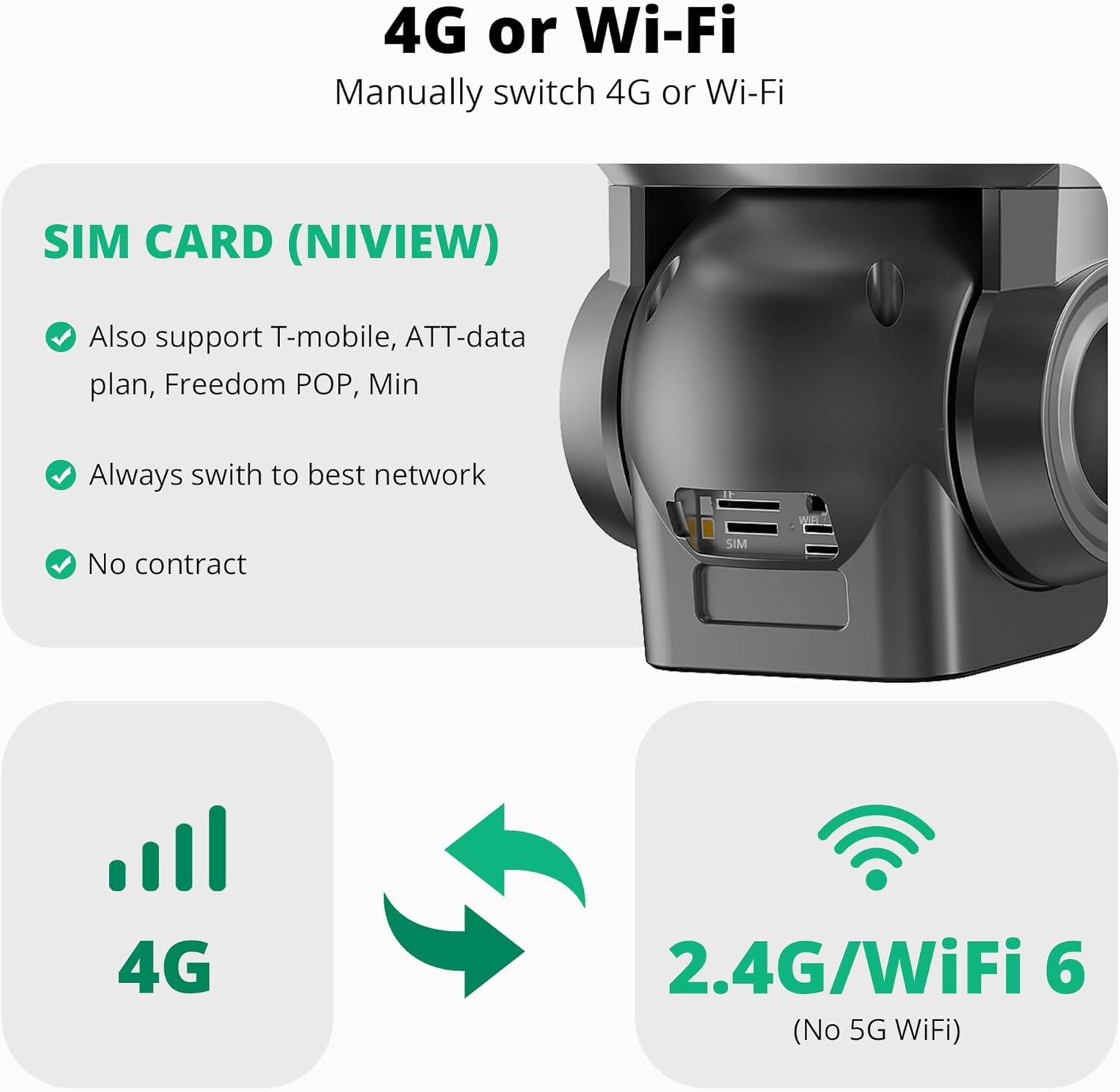
Image: Detail of SIM and SD card insertion points on the camera.
3.3 App Setup and Connectivity
Download the official Dragon Touch security camera application to your smartphone or tablet. Create an account and follow the in-app instructions to add your camera. This typically involves scanning a QR code located on the camera. You can choose between 4G cellular mode (with an active data plan) or Wi-Fi mode (supports 2.4G or WiFi 6). The camera will automatically switch to the best available network.

Image: Dual 4G or Wi-Fi connectivity options for the camera.
4. Operating Instructions
4.1 Camera Control and Viewing
Utilize the mobile application to control the camera's pan (355° horizontally) and tilt (90° vertically) functions. The 10x optical zoom allows for detailed viewing of distant objects. The app provides a live feed from the camera.

Image: Front view of the Dragon Touch OB20 camera.

Image: The camera's 360° recording and AI tracking features.
4.2 AI Tracking and Motion Detection
The camera features AI detection and tracking for people and vehicles. When motion is detected, the camera can automatically track the subject within its range of motion. Configure motion detection sensitivity and notification settings within the app.
4.3 Night Vision and Spotlight
The OB20 provides 4K infrared night vision, capturing clear details in low-light conditions. A built-in 200-lumen spotlight illuminates up to 50 square meters, enhancing visibility and acting as a deterrent. The spotlight can be activated manually or set to trigger upon motion detection.

Image: Comparison of 4K day and night vision capabilities.
4.4 Two-Way Audio
Engage in real-time two-way communication through the camera's built-in microphone and speaker. This feature allows you to speak to visitors or deter unwanted individuals remotely.

Image: Demonstrating the two-way audio function.
4.5 Recording and Storage
The camera captures 15-second video clips on demand via the mobile app. Continuous recording is not supported. Footage is stored on the included 64GB SD card (expandable to 128GB). Cloud storage options are also available, typically with a trial period upon registration.

Image: Secure storage options for the camera.
5. Maintenance
- Cleaning: Regularly clean the camera lenses and solar panel with a soft, damp cloth to ensure clear image quality and efficient solar charging. Avoid abrasive cleaners.
- Firmware Updates: Check the mobile application periodically for available firmware updates to ensure optimal performance and access to new features.
- Battery Health: Monitor the battery level via the app. Ensure the solar panel is free from obstructions to maintain consistent charging.
- Physical Inspection: Periodically inspect mounting hardware and cable connections for security and weather integrity.
6. Troubleshooting
6.1 Camera Not Connecting to Network
- Wi-Fi: Ensure your Wi-Fi network is 2.4GHz (5GHz is not supported) or WiFi 6. Verify the camera is within range of your router.
- 4G LTE: Confirm the SIM card is correctly inserted and has an active data plan. Check cellular signal strength in the camera's location.
- Reboot: Try restarting the camera and your router (if using Wi-Fi).
6.2 Poor Image Quality
- Clean Lenses: Dust or smudges on the lenses can affect clarity. Clean them gently.
- Network Speed: Ensure a stable and sufficient internet connection for optimal streaming quality.
6.3 Battery Not Charging
- Solar Panel Placement: Verify the solar panel is positioned to receive maximum direct sunlight throughout the day.
- Obstructions: Ensure no debris, leaves, or shade is blocking the solar panel.
- Cable Connection: Check that the solar panel cable is securely connected to the camera.
6.4 Motion Detection Issues
- Sensitivity Settings: Adjust the motion detection sensitivity in the app.
- Detection Zones: Configure specific detection zones to avoid false alarms from irrelevant areas.
7. Specifications
| Feature | Specification |
|---|---|
| Model Name | OB20 |
| Video Capture Resolution | 4K |
| Optical Zoom | 10x |
| Pan/Tilt Range | 355° Horizontal, 90° Vertical |
| Connectivity | 4G LTE (USA only), Wi-Fi (2.4G, WiFi 6) |
| Power Source | Solar Powered, 12000mAh Battery |
| Weather Resistance | IP66 |
| Night Vision Range | Up to 30 feet (infrared) |
| Storage | 64GB SD Card (included), Max 128GB |
| Dimensions (L x W x H) | 2.94 x 2.4 x 2.24 inches |
| Item Weight | 3.45 Pounds |
| Operating Temperature | 5°F to 131°F (-15°C to 55°C) |
8. Warranty and Support
For warranty information and technical support, please refer to the documentation included with your purchase or visit the official Dragon Touch website. Contact customer service for assistance with product issues, data plan inquiries, or any other support needs.
