
XIAOMI X7 Pro
POCO X7 Pro 5G Smartphone User Manual
Comprehensive guide for your Xiaomi POCO X7 Pro 5G
1. Introduction
Welcome to the user manual for your new Xiaomi POCO X7 Pro 5G smartphone. This guide provides detailed instructions on how to set up, operate, maintain, and troubleshoot your device. The POCO X7 Pro 5G is equipped with a powerful Dimensity 8400-Ultra CPU, ample RAM and storage options (8GB/12GB RAM, 256GB/512GB ROM), a long-lasting 6000mAh battery with 90W HyperCharge, and a versatile camera system featuring a 50 MP main camera with OIS, an 8 MP ultra-wide camera, and a 20 MP front camera. It also includes advanced features like NFC, Bluetooth 5.4, dual-frequency GPS, an IR blaster, dual speakers, and IP68 water and dust resistance.

Figure 1.1: Rear view of the POCO X7 Pro 5G, highlighting its sleek design and camera array.
2. Setup
2.1 Unboxing and Package Contents
Upon opening the package, ensure all components are present:
- POCO X7 Pro Smartphone
- Power Adapter
- USB Type-C Cable
- SIM Ejection Tool
- Protective Case
- Safety Information
- Quick Start Guide and Warranty Card
2.2 SIM Card and microSD Installation
To install your SIM card(s) and an optional microSD card:
- Locate the SIM card tray on the side of the device.
- Insert the SIM ejection tool into the small hole next to the tray and press firmly until the tray pops out.
- Carefully pull out the tray.
- Place your Nano-SIM card(s) and/or microSD card into the designated slots on the tray, ensuring correct orientation.
- Gently push the tray back into the slot until it clicks into place.

Figure 2.1: Right side of the POCO X7 Pro 5G, indicating button placement.

Figure 2.2: Bottom view of the POCO X7 Pro 5G, showing the charging port and speaker.
2.3 Initial Power On and Setup
To power on your device for the first time:
- Press and hold the Power button (located on the right side) until the POCO logo appears on the screen.
- Follow the on-screen instructions to complete the initial setup, including language selection, Wi-Fi connection, Google account sign-in, and security settings.
2.4 Charging the Device
Your POCO X7 Pro 5G supports 90W HyperCharge for rapid charging.
- Connect the USB Type-C cable to the charging port at the bottom of the phone and the other end to the power adapter.
- Plug the power adapter into a wall outlet.
- It is recommended to fully charge the device before its first use.
3. Operating Your POCO X7 Pro 5G
3.1 Basic Navigation
The POCO X7 Pro 5G features an intuitive AMOLED touchscreen display for navigation.
- Tap: Select an item or open an application.
- Swipe: Scroll through screens or lists.
- Pinch: Zoom in or out on images and web pages.
- Power Button: Press to lock/unlock the screen, press and hold to power off or restart.
- Volume Buttons: Adjust media volume, ringtone volume, or notification volume.
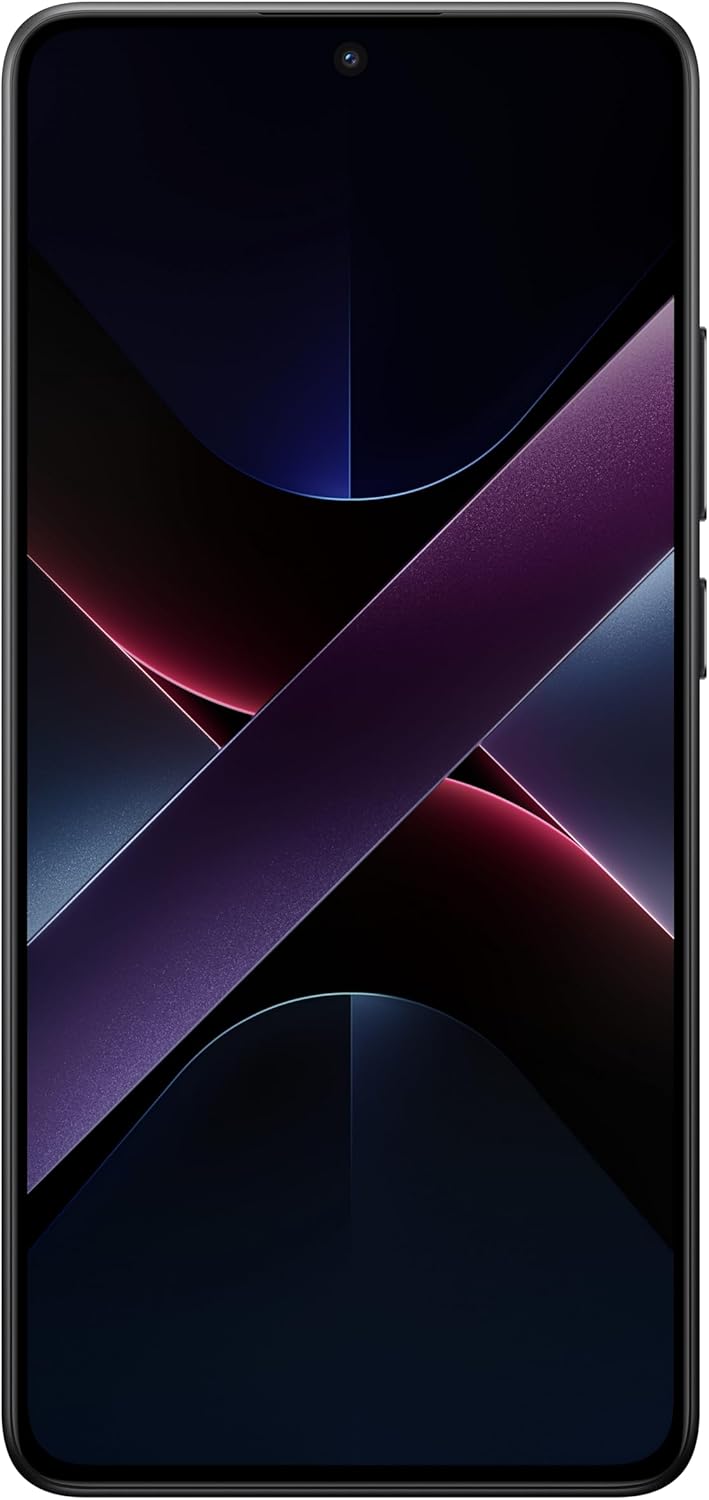
Figure 3.1: Front view of the POCO X7 Pro 5G, showcasing its vibrant display.
3.2 Camera Usage
Capture high-quality photos and videos with the POCO X7 Pro 5G's advanced camera system.
- Open the Camera application from your home screen or app drawer.
- Switch between the 50 MP main camera (with OIS), 8 MP ultra-wide camera, and 20 MP front camera using the on-screen controls.
- Tap the shutter button to take a photo.
- Switch to video mode to record videos.
- Explore various modes such as Portrait, Night, Pro, and more for enhanced photography.

Figure 3.2: Angled rear view, highlighting the dual camera setup.
3.3 Connectivity
Your device supports a range of connectivity options:
- 5G Mobile Data: Enjoy high-speed internet connectivity.
- Wi-Fi: Connect to wireless networks for internet access. Go to Settings > Wi-Fi.
- Bluetooth 5.4: Pair with wireless headphones, speakers, and other Bluetooth devices. Go to Settings > Bluetooth.
- NFC: Use for contactless payments and quick pairing with compatible devices.
- GPS: Utilize dual-frequency GPS for accurate location services and navigation.
- IR Blaster: Control compatible home appliances like TVs and air conditioners.
3.4 Battery Management
The POCO X7 Pro 5G is equipped with a 6000mAh battery and 90W HyperCharge technology.
- To check battery usage, go to Settings > Battery.
- Enable Battery Saver mode to extend battery life when needed.
- For optimal battery health, avoid extreme temperatures and use the provided charger.
3.5 Security Features
Protect your device and data with various security options:
- Fingerprint Unlock: Register your fingerprints for quick and secure access.
- Face Unlock: Use facial recognition to unlock your phone.
- PIN, Pattern, and Password: Set up a secure lock screen method.
- Find My Device: Enable this feature to locate, lock, or erase your device remotely if it's lost or stolen.
4. Maintenance and Care
4.1 Cleaning Your Device
To keep your POCO X7 Pro 5G in optimal condition:
- Use a soft, lint-free cloth to wipe the screen and body.
- Avoid using harsh chemicals, abrasive cleaners, or aerosol sprays.
- For stubborn smudges, slightly dampen the cloth with water.
4.2 Software Updates
Regular software updates provide new features, performance improvements, and security patches.
- Ensure your device is connected to Wi-Fi and has sufficient battery before performing an update.
- Go to Settings > About phone > System update to check for and install available updates.
4.3 Storage Management
With 256GB or 512GB of internal storage, you have ample space, but managing it is still important.
- Regularly delete unnecessary files, photos, and videos.
- Uninstall unused applications.
- Utilize cloud storage services to back up large files.
- If you have a microSD card, move media files to it to free up internal storage.
4.4 Water and Dust Resistance (IP68)
The POCO X7 Pro 5G is rated IP68 for water and dust resistance, meaning it is protected against dust ingress and can withstand immersion in up to 1.5 meters of fresh water for up to 30 minutes. However, this is not permanent and resistance might decrease over time with normal wear. Avoid exposing the device to saltwater, chlorinated water, or other liquids. If the device gets wet, dry it thoroughly before charging.
5. Troubleshooting
This section addresses common issues you might encounter with your POCO X7 Pro 5G.
| Issue | Possible Solution |
|---|---|
| Device not turning on | Ensure the battery is charged. Connect to the charger for at least 15 minutes. If it still doesn't turn on, try holding the Power button for 10-15 seconds to force a restart. |
| Battery draining fast | Check battery usage in Settings to identify power-hungry apps. Reduce screen brightness, disable unnecessary features (GPS, Bluetooth, Wi-Fi when not in use), and close background apps. Ensure software is up to date. |
| Connectivity issues (Wi-Fi, Bluetooth, 5G) | Toggle Wi-Fi/Bluetooth/Mobile Data off and on. Restart the phone. For Wi-Fi, forget the network and reconnect. For Bluetooth, unpair and re-pair the device. Ensure your SIM card is properly inserted for 5G. |
| Applications crashing or freezing | Force close the app and reopen it. Clear the app's cache and data in Settings > Apps. Ensure the app and your phone's operating system (Android 15) are updated to the latest versions. Restart the device. |
| Device overheating | Close background applications, especially resource-intensive ones like games. Avoid using the phone while charging, especially with HyperCharge. Reduce screen brightness. If using a protective case, remove it temporarily. Ensure no apps are running excessively in the background (e.g., fitness apps as noted in some user reviews). |
| Camera not working | Restart the camera app. Clear the camera app's cache and data. Ensure there are no physical obstructions on the camera lenses. Restart the phone. |
6. Technical Specifications
Below are the key technical specifications for the POCO X7 Pro 5G (Model: X7 Pro).
| Feature | Specification |
|---|---|
| Brand | XIAOMI |
| Model Name | Poco X7 Pro |
| Certification | ANATEL: 092432409185/Model: 24094RAD4G |
| Year | 2025 |
| RAM | 12 GB (also available in 8 GB) |
| Internal Storage | 256 GB (also available in 512 GB) |
| Operating System | Android 15 |
| Screen Size | 6.67 Inches |
| Display Type | AMOLED |
| Battery Capacity | 6000 mAh (typical) |
| Charging | 90W HyperCharge |
| Main Camera | 50 MP with OIS |
| Ultra-wide Camera | 8 MP |
| Front Camera | 20 MP |
| Connectivity | 5G, Bluetooth 5.4, Dual-frequency GPS, NFC |
| Water & Dust Resistance | IP68 |
| Weight | 400 g |
| Dimensions (Package) | 17.8 x 9.3 x 5.2 cm |
| Included Components | POCO X7 Pro, Adapter, USB Type-C Cable, SIM Ejection Tool, Protective Case, Safety Info, Quick Start Guide, Warranty Card |
7. Warranty and Support
7.1 Manufacturer's Warranty
The POCO X7 Pro 5G comes with a manufacturer's warranty of three months. Please refer to the warranty card included in your package for specific terms and conditions. This warranty covers manufacturing defects and malfunctions under normal use.
7.2 Customer Support
For technical assistance, troubleshooting beyond this manual, or warranty claims, please contact Xiaomi customer support through their official website or authorized service centers. Keep your proof of purchase handy when contacting support.
For regulatory information regarding the product's certification, you can access the ANATEL system at: sistemas.anatel.gov.br/sch
Related documentsX7 Pro


Ask a question about this manual
Ask about setup, troubleshooting, compatibility, parts, safety, or missing instructions. Manuals+ will review the question and use this page’s manual context to help answer it.