
1. Introduction
The Senzooe PICKIT3 PIC Kit3 Programmer is a versatile in-circuit debugger and programmer for Microchip PIC and dsPIC microcontrollers. This device facilitates the development and debugging of embedded systems by allowing users to program and test their microcontrollers directly on the target board. It connects to a host computer via a USB interface and supports a wide range of Microchip devices.
2. Safety Information
- Always handle the programmer and associated components with care to prevent damage.
- Ensure proper grounding to avoid electrostatic discharge (ESD) which can harm sensitive electronic components.
- Do not expose the device to moisture, extreme temperatures, or direct sunlight.
- Only use the provided USB cable and Dupond wires. Using incompatible accessories may damage the device.
- Disconnect the programmer from the power source and target device before cleaning or performing any maintenance.
3. Package Contents
Verify that all items are present in your package:
- 1 x PICKIT3 PIC Kit3 Programmer (Red)
- 1 x USB Cable
- 1 x Dupond Wire Set
4. Setup
4.1 Hardware Connection
- Connect the small end of the provided USB cable to the mini-USB port on the PICKIT3 programmer.
- Connect the standard USB-A end of the cable to an available USB port on your computer.
- Using the Dupond wires, connect the PICKIT3 programmer's ICSP (In-Circuit Serial Programming) header to the corresponding ICSP pins on your target microcontroller board. Ensure correct pin orientation (VPP/MCLR, VDD, VSS, PGD, PGC).
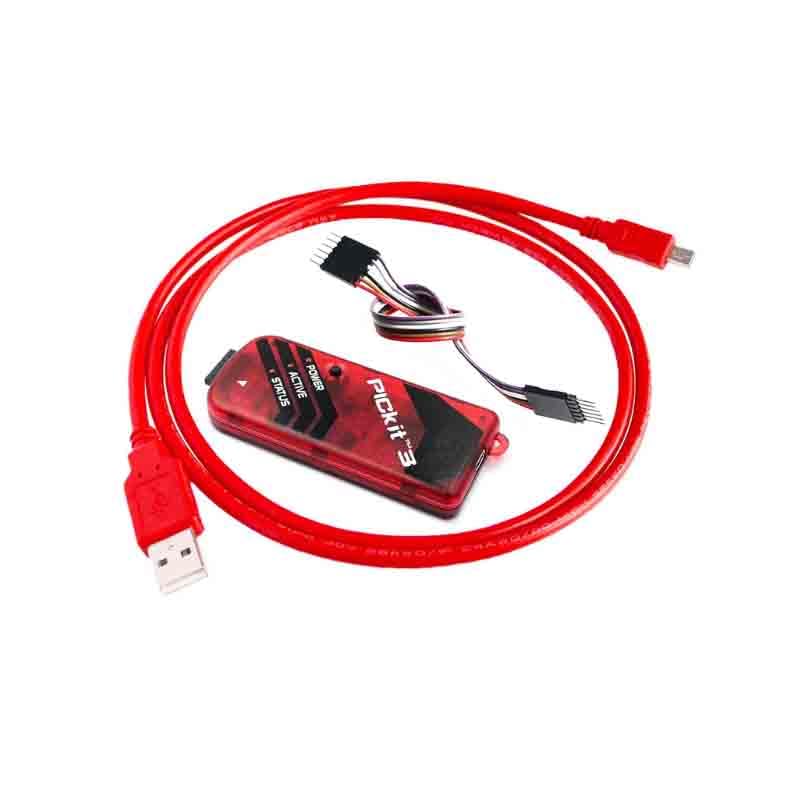
Figure 1: PICKIT3 Programmer connected with USB cable and Dupond wires.
4.2 Software Installation
Before using the PICKIT3, you must install the necessary software and drivers on your computer. The primary software suite for Microchip development is MPLAB X IDE, which includes the required drivers for the PICKIT3.
- Download the latest version of MPLAB X IDE from the official Microchip website.
- Follow the on-screen instructions to install MPLAB X IDE. The installation package typically includes the necessary drivers for the PICKIT3.
- After installation, connect the PICKIT3 to your computer. The operating system should automatically detect the device and install the drivers. If not, refer to the MPLAB X IDE documentation for manual driver installation steps.
5. Operating Instructions
5.1 Basic Programming Steps
Once the hardware is connected and software is installed, you can proceed with programming your PIC microcontroller:
- Launch MPLAB X IDE on your computer.
- Open or create your project for the target PIC microcontroller.
- In MPLAB X IDE, select the PICKIT3 as your programming tool. This is usually done in the project properties or toolbar.
- Ensure your target microcontroller is correctly powered and connected to the PICKIT3.
- Click the 'Program' or 'Make and Program Device' button within MPLAB X IDE to compile your code and upload it to the microcontroller.
- Observe the LED indicators on the PICKIT3 for status feedback during the programming process.
5.2 LED Indicators
The PICKIT3 programmer features three LED indicators that provide status information:
- POWER (Green): Indicates that the PICKIT3 is receiving power from the USB port.
- ACTIVE (Blue): Illuminates when the PICKIT3 is actively communicating with the host computer or the target device. It flashes during programming or debugging operations.
- STATUS (Red): Indicates an error condition or a warning. Refer to MPLAB X IDE for specific error messages if this LED is lit.
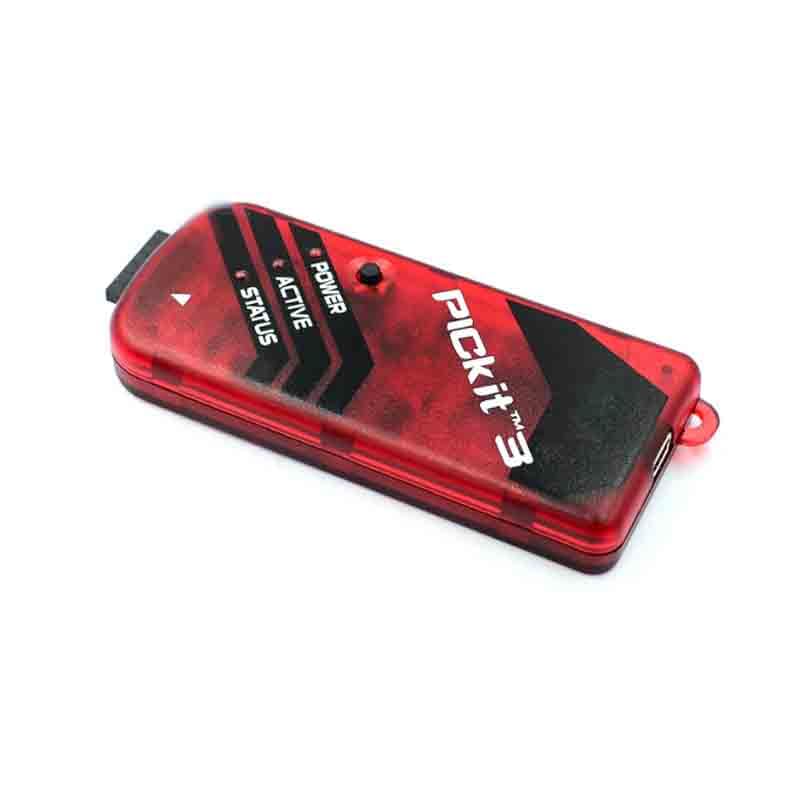
Figure 2: PICKIT3 Programmer with visible LED indicators.
6. Maintenance
6.1 Cleaning
To maintain the longevity and performance of your PICKIT3 programmer:
- Ensure the device is disconnected from all power sources and target boards before cleaning.
- Use a soft, dry, lint-free cloth to wipe the exterior of the programmer.
- Do not use liquid cleaners, solvents, or abrasive materials, as these can damage the casing or internal components.
- Gently clean the connector pins with a dry brush if necessary, ensuring no debris remains.
6.2 Storage
When not in use, store the PICKIT3 programmer in a cool, dry place, away from direct sunlight and excessive dust. Keep it in its original packaging or a protective case to prevent physical damage.
7. Troubleshooting
If you encounter issues with your PICKIT3 programmer, refer to the following common problems and solutions:
- Programmer Not Detected:
- Ensure the USB cable is securely connected to both the programmer and the computer.
- Verify that the POWER LED is lit green. If not, try a different USB port or cable.
- Check if the drivers are correctly installed. Reinstall MPLAB X IDE if necessary.
- Try connecting the PICKIT3 to a different computer to rule out host computer issues.
- Programming Failed / Target Device Not Found:
- Confirm that the Dupond wires are correctly connected to the ICSP pins on your target board, paying close attention to pin assignments (VPP/MCLR, VDD, VSS, PGD, PGC).
- Ensure the target microcontroller is receiving adequate power.
- Verify that the correct microcontroller device is selected in MPLAB X IDE.
- Check for any short circuits or open circuits on the target board.
- If the STATUS LED is red, consult the output window in MPLAB X IDE for specific error messages.
- Slow Programming Speed:
- Ensure you are using a high-quality USB cable.
- Close any unnecessary applications running on your computer to free up system resources.
8. Specifications
| Feature | Specification |
|---|---|
| Model Number | 763312627913 |
| Brand | Senzooe |
| Hardware Interface | USB |
| Compatible Devices | Laptop, Desktop, Personal Computer, Tablet, Printer, Router, Monitor |
| Operating System Compatibility | Windows, macOS, Linux |
| Parcel Dimensions | 17.1 x 9.1 x 2.4 cm |
| Item Weight | 120 g |
| Country of Origin | China |

Figure 3: Rear view of the PICKIT3 Programmer.
9. Warranty Information
This product is covered by a standard manufacturer's warranty against defects in materials and workmanship. The warranty period typically begins from the date of purchase. Please retain your proof of purchase for warranty claims. For specific warranty terms and conditions, refer to the documentation provided by the retailer or contact the manufacturer directly.
10. Customer Support
For technical assistance, troubleshooting, or inquiries regarding your Senzooe PICKIT3 PIC Kit3 Programmer, please refer to the following resources:
- Manufacturer's Website: Visit the official Senzooe website for product information, FAQs, and support contact details.
- Retailer Support: Contact the retailer from whom you purchased the product for assistance with returns, exchanges, or initial setup issues.
- Online Forums: Community forums for Microchip products (e.g., Microchip Forums) can be a valuable resource for peer support and solutions to common programming challenges.