
1. Introduction
Thank you for choosing the ATUMAN Smart Door Lock Model 702. This manual provides essential information for the proper installation, operation, and maintenance of your smart lock. Please read it thoroughly before installation and keep it for future reference.
The ATUMAN Smart Door Lock offers multiple convenient and secure access methods, including fingerprint, keypad code, Tuya Wi-Fi app control, and traditional key. It is designed for easy integration into your home, hotel, office, or apartment security system.
2. Product Overview
2.1 Components and Dimensions
Familiarize yourself with the main components and dimensions of your smart door lock.

Image: Product diagram illustrating the smart lock's external and internal components, including the keypad, fingerprint sensor, handles, and battery compartment. Key dimensions are also shown.
- Password/Swipe Area: For entering codes or using access cards.
- Outdoor Handle: Exterior part of the handle.
- Fingerprint Sensor: For biometric authentication.
- Emergency Keyhole: For traditional key access.
- Interior Handle: Interior part of the handle.
- Battery Holder: Compartment for batteries.
3. Setup
3.1 Installation
The ATUMAN Smart Door Lock is designed for easy installation, typically taking 10 to 15 minutes. No additional drilling is required for the keypad assembly. It is suitable for most single-cylinder doors and can be installed on both right-handed and left-handed doors. The lock is compatible with 4585 mortise locks and suitable for door thicknesses between 4 cm and 10 cm.
Refer to the included installation guide for detailed step-by-step instructions and diagrams.
3.2 Tuya App Setup
The Tuya App allows for remote control and monitoring of your smart lock.
- Download the Tuya Smart app from your device's app store.
- Register or log in to your account.
- Follow the in-app instructions to add your ATUMAN Smart Door Lock. Ensure your lock is within Wi-Fi range.

Image: A smartphone displaying real-time notifications from the Tuya app, indicating various lock activities and user access, enhancing security awareness.
Through the Tuya App, you can remotely unlock the door, share temporary access, monitor the lock's status, and view guest entry records.
4. Operating Instructions
4.1 Multiple Unlock Methods
Your ATUMAN Smart Door Lock supports five distinct methods for unlocking:

Image: Visual representation of the five available unlock methods: Tuya WiFi App, Fingerprint, Card Unlock, Keypad Code, and Traditional Key, offering versatile access options.
- Fingerprint: Place your registered finger on the sensor for quick biometric identification.
- Keypad Code: Enter your personalized passcode on the tactile keypad.
- Tuya Wi-Fi App: Use the Tuya Smart app on your smartphone to remotely unlock the door.
- Card Unlock: Swipe a registered access card over the designated area.
- Traditional Key: For manual override, use the physical key in the emergency keyhole.
4.2 Fingerprint Unlock
The fingerprint sensor provides rapid and secure access.
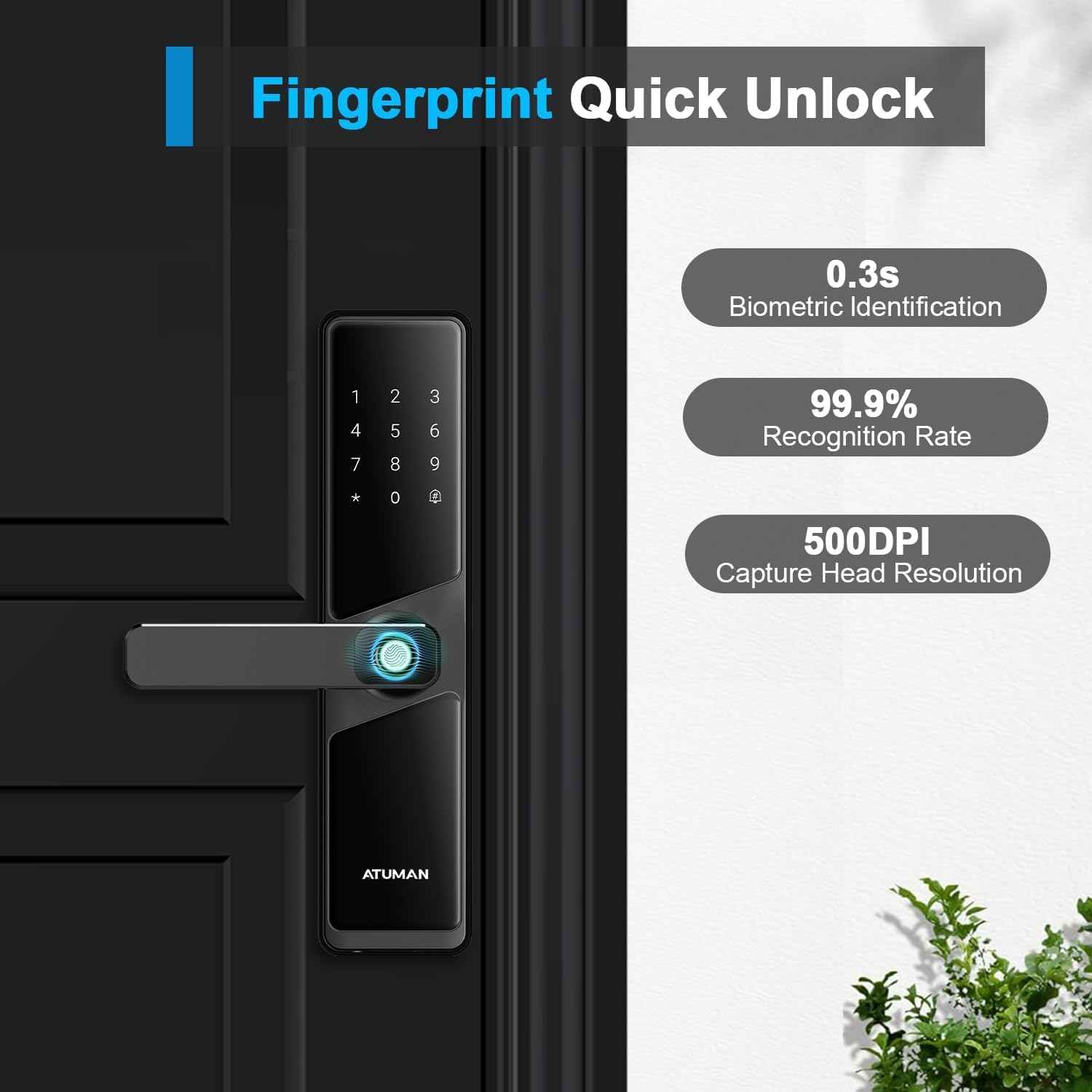
Image: A close-up of the fingerprint sensor in use, highlighting its fast biometric identification (0.3s), high recognition rate (99.9%), and capture resolution (500DPI).
- Registration: Follow the app or lock's voice prompts to register new fingerprints.
- Unlocking: Place your registered finger firmly on the sensor. The lock will unlock within 0.3 seconds upon successful identification.
4.3 Keypad Code and Anti-Peep Function
Enter your passcode on the tactile keypad. The anti-peep function enhances security by allowing you to enter random digits before or after your actual code, preventing others from guessing your entry sequence.

Image: A user interacting with the smart lock's keypad, demonstrating the anti-peep feature where extra digits can be entered around the actual code for privacy. Also shows remote code sharing via app.
- To Unlock: Enter any random numbers, then your correct passcode, then any more random numbers, followed by the '#' key.
- Temporary Codes: Generate one-time or time-limited passcodes via the Tuya app for guests or service providers.
4.4 Language Switching
The lock supports multiple languages. Language switching must be set in the initial state.
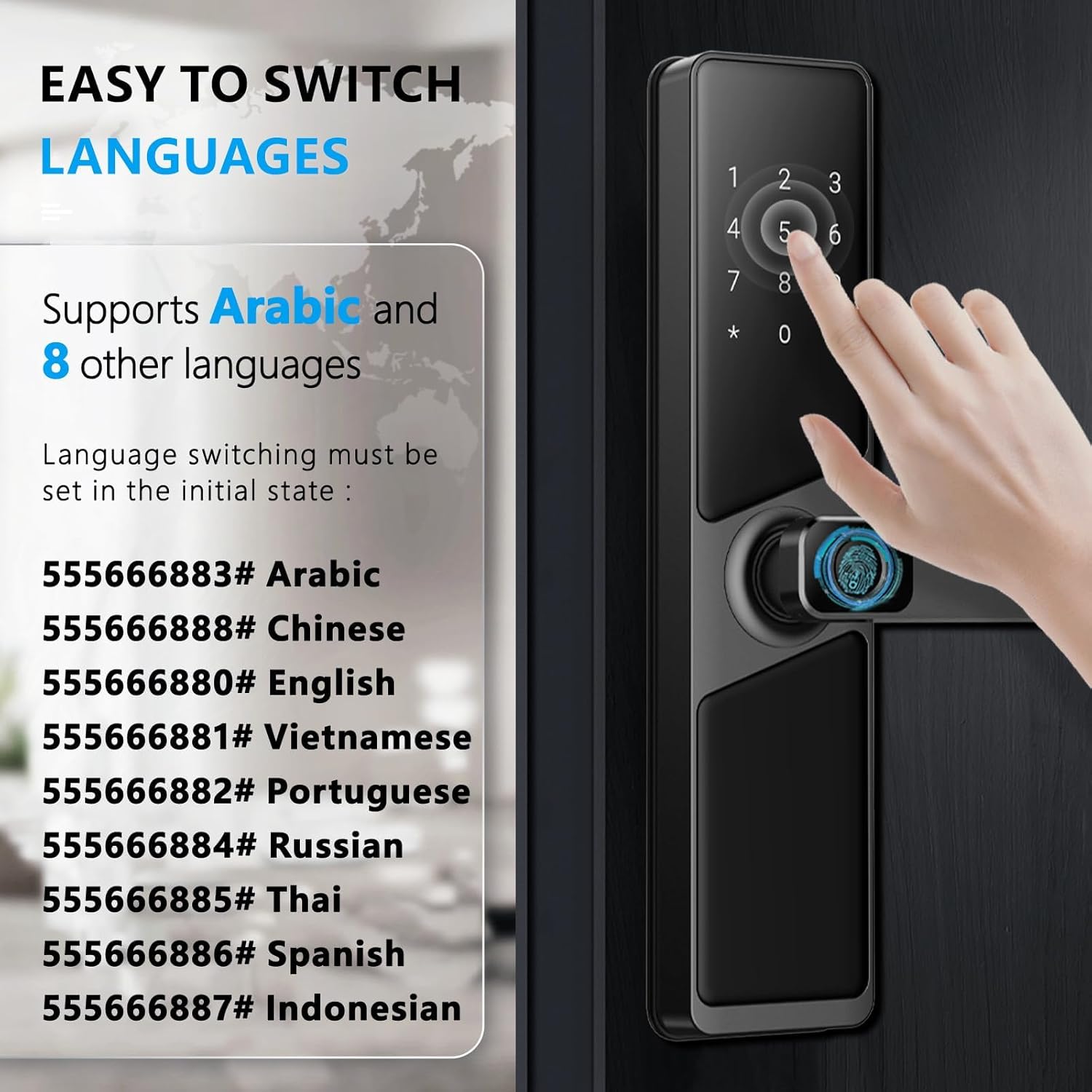
Image: Instructions for switching the lock's voice prompt language using specific keypad codes. Supported languages include Arabic, Chinese, English, Vietnamese, Portuguese, Russian, Thai, Spanish, and Indonesian.
To switch languages, enter the corresponding code on the keypad:
- 555666883#: Arabic
- 555666888#: Chinese
- 555666880#: English
- 555666881#: Vietnamese
- 555666882#: Portuguese
- 555666884#: Russian
- 555666885#: Thai
- 555666886#: Spanish
- 555666887#: Indonesian
5. Maintenance
5.1 Battery Replacement
The ATUMAN Smart Door Lock operates on 4 AA batteries, providing power for at least 6 months. The lock features an audible low battery alert to notify you when the power is running low.
- When the low battery warning sounds, replace all 4 AA batteries promptly.
- Use high-quality alkaline batteries for optimal performance and longevity.
5.2 Emergency Power
In case the batteries completely drain before you can replace them, the lock can be temporarily powered using an external power bank via its emergency charging port. This allows you to unlock the door and then replace the internal batteries.
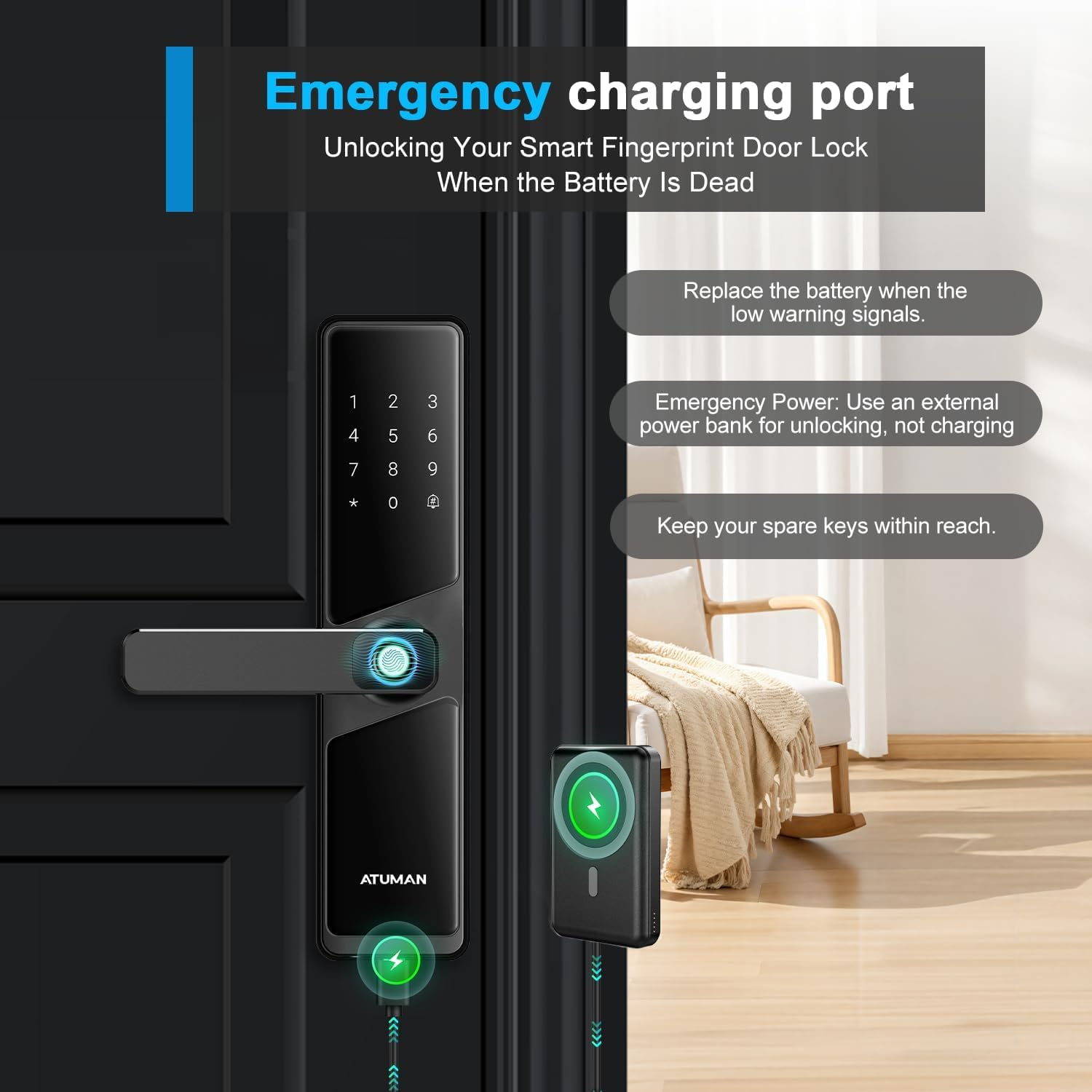
Image: The smart lock being temporarily powered by an external power bank connected to its emergency port, enabling unlocking when internal batteries are dead. It also advises keeping spare keys accessible.
- Connect a standard power bank to the emergency charging port (usually a Micro-USB or USB-C port).
- This port is for emergency power to unlock, not for recharging the internal AA batteries.
- Always keep your spare traditional keys within reach for any unforeseen circumstances.
5.3 Cleaning
Clean the lock's exterior with a soft, dry cloth. Avoid using abrasive cleaners or solvents that could damage the finish or electronic components.
6. Troubleshooting
- Lock not responding: Check battery levels. If low, replace batteries or use emergency power. Ensure the lock is properly installed and all connections are secure.
- Fingerprint not recognized: Ensure your finger is clean and dry. Try re-registering your fingerprint if the issue persists. Ensure the sensor is clean.
- Keypad code not working: Verify the code is correct. Ensure you are using the anti-peep function correctly (random numbers + actual code + random numbers + #).
- App connectivity issues: Ensure your phone and the lock are within Wi-Fi range. Check your Wi-Fi connection. Restart the app and the lock if necessary.
- Lock is making a low battery alert: Replace the 4 AA batteries immediately.
7. Specifications
| Feature | Detail |
|---|---|
| Model Number | 702 |
| Brand | ATUMAN |
| Unlock Methods | Fingerprint, Passcode, Tuya App, Card, Traditional Key |
| Material | Aluminum |
| Color | Black |
| Finish Type | Polished Gloss |
| Product Dimensions (L x W x H) | 6.6 x 5 x 27.9 cm |
| Product Weight | 2.03 kg |
| Power Source | 4 x AA Batteries (not 1 Lithium Ion as per feature bullets, clarifying based on more consistent info) |
| Battery Life | Approx. 6 months |
| Communication Protocol | Wi-Fi |
| Control Method | Touch, Remote, App |
| Compatible Door Thickness | 4 - 10 cm |
| Lock Type | Deadbolt, Keypad, Biometric |
| Recommended Uses | Home, Hotel, Office, Apartment, Bedroom |
8. Warranty and Support
For warranty information and technical support, please refer to the documentation included with your product packaging or visit the official ATUMAN website. Keep your purchase receipt as proof of purchase for warranty claims.
If you encounter any issues not covered in this manual, please contact ATUMAN customer service for assistance.