
Introduction
The SwitchBot Smart Plug Mini transforms your traditional appliances into smart devices, allowing for remote control, voice command integration, and energy monitoring. This compact plug supports both Wi-Fi (2.4GHz) and Bluetooth connectivity, offering flexibility in managing your home electronics.
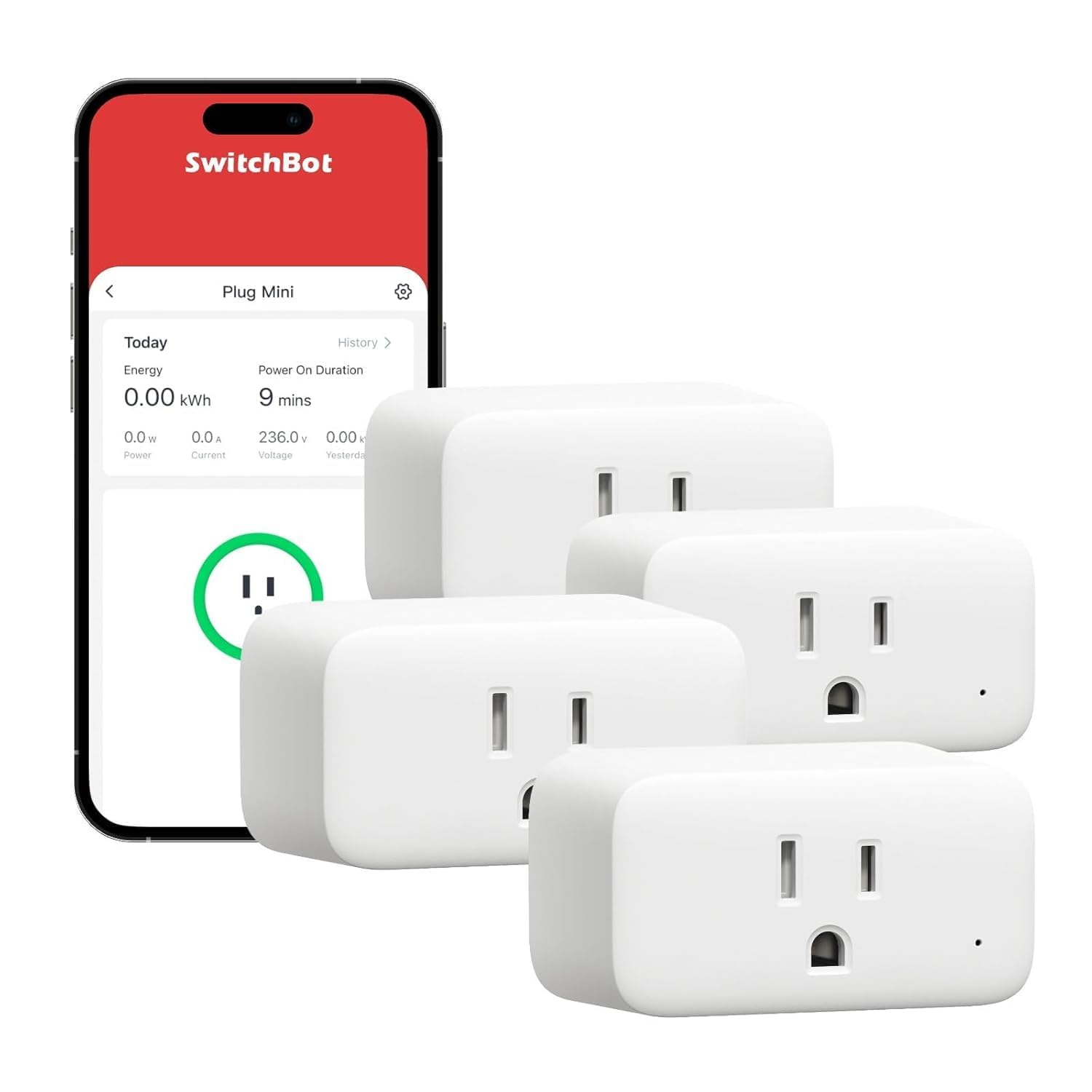
Image: The SwitchBot Smart Plug Mini shown alongside a smartphone displaying its control interface, highlighting remote management capabilities.
1. Setup
1.1 What's in the Box
- SwitchBot Smart Plug Mini (quantity as purchased)
- User Manual (this document)
1.2 Initial Setup
- Download the SwitchBot App from your device's app store.
- Plug the SwitchBot Smart Plug Mini into a standard electrical outlet.
- Open the SwitchBot App and follow the on-screen instructions to add the device. Ensure your smartphone is connected to a 2.4GHz Wi-Fi network for the initial connection.
- Once connected, you can rename the plug for easier identification (e.g., "Living Room Lamp").

Image: A SwitchBot Smart Plug Mini is shown in a home setting, demonstrating its ability to control energy remotely via a smartphone app.
1.3 Setup Demonstration Video
Video: An official SwitchBot video demonstrating the setup process and various features of the SwitchBot Plug Mini, including remote control and integration with other smart home devices.
2. Operating Instructions
2.1 Remote Control via App
After successful setup, you can control the connected appliance from anywhere using the SwitchBot App. Simply tap the power icon next to your plug's name to toggle it on or off.
2.2 Voice Control
The Smart Plug Mini is compatible with popular voice assistants. Link your SwitchBot account to Alexa, Google Assistant, Siri Shortcuts, or SmartThings to enable voice commands. For example, say "Alexa, turn on the living room lamp."

Image: A SwitchBot Smart Plug Mini is shown connected to a lamp, with an Alexa Echo Show nearby, illustrating voice control functionality.
2.3 Setting Timers and Schedules
Automate your devices by setting schedules and timers within the SwitchBot App. This feature helps conserve energy and adds convenience. You can set specific on/off times or use sunrise/sunset modes.

Image: Multiple SwitchBot Smart Plug Minis are shown connected to different appliances (lamp, humidifier, fan), with the app displaying various timer and schedule settings.
2.4 Energy Monitoring
Monitor the energy consumption of devices connected to the Smart Plug Mini directly through the SwitchBot App. The app provides detailed consumption data, which can also be exported for analysis.

Image: A SwitchBot Smart Plug Mini is shown plugged into an outlet, with a graphic overlay displaying energy consumption data and power-on duration from the app.
3. Safety Guidelines
- The device features V-0 flame retardant material for enhanced safety.
- Overload protection is integrated to prevent damage from high-wattage appliances.
- Keep the device dry and away from hot, humid, or other extreme environments to prevent accidents such as fire, burns, injury, or electric shock.
- The plug includes a child-resistant shutter design to make it harder for children to insert objects into the outlets.

Image: An exploded view of the SwitchBot Smart Plug Mini highlights its internal safety features, including a fire-resistant cover, overload protection, and a safety-based shutter design.
4. Product Specifications
| Feature | Specification |
|---|---|
| Model Number | W1901400 |
| Brand | SwitchBot |
| Connectivity | Wi-Fi (2.4GHz), Bluetooth |
| Voltage | 120 Volts (AC) |
| Current Rating | 15A |
| Material | Polycarbonate (PC) |
| Color | White |
| Dimensions | 5.67 x 3.35 x 2.72 inches |
| Weight | 11.99 ounces |
| Compatibility | Alexa, Google Assistant, Siri Shortcuts, SmartThings |
5. Troubleshooting
5.1 Connection Issues
- Cannot connect to Wi-Fi: Ensure your router is broadcasting a 2.4GHz network. The Smart Plug Mini does not support 5GHz Wi-Fi. Move the plug closer to your router if the signal is weak.
- App not finding the device: Make sure Bluetooth is enabled on your smartphone during the initial pairing process. Try resetting the plug by unplugging it for 10 seconds and plugging it back in.
5.2 Device Unresponsive
- Plug not responding to app/voice commands: Check your internet connection. If the internet is down, the plug can still be controlled via Bluetooth if you are within range. Ensure the plug's indicator light is on.
- Manual override: The plug has a physical button on the side. Press it to manually turn the connected appliance on or off if remote control is unavailable.
6. Warranty and Customer Support
SwitchBot products come with a standard manufacturer's warranty. For specific warranty details, please refer to the warranty card included with your product or visit the official SwitchBot website. If you encounter any issues or require technical assistance, please contact SwitchBot customer support through their official website or the support section within the SwitchBot App.
For further information and updates, visit the SwitchBot Store on Amazon.


