
1. Introduction
Thank you for choosing the XinFuture Smart WiFi Solar Sprinkler Timer. This device is designed to provide efficient and automated watering for your garden, lawn, or patio. Featuring solar and USB charging, app control, and voice assistant compatibility, it simplifies your irrigation tasks. Please read this manual thoroughly before installation and operation to ensure optimal performance and longevity of your device.
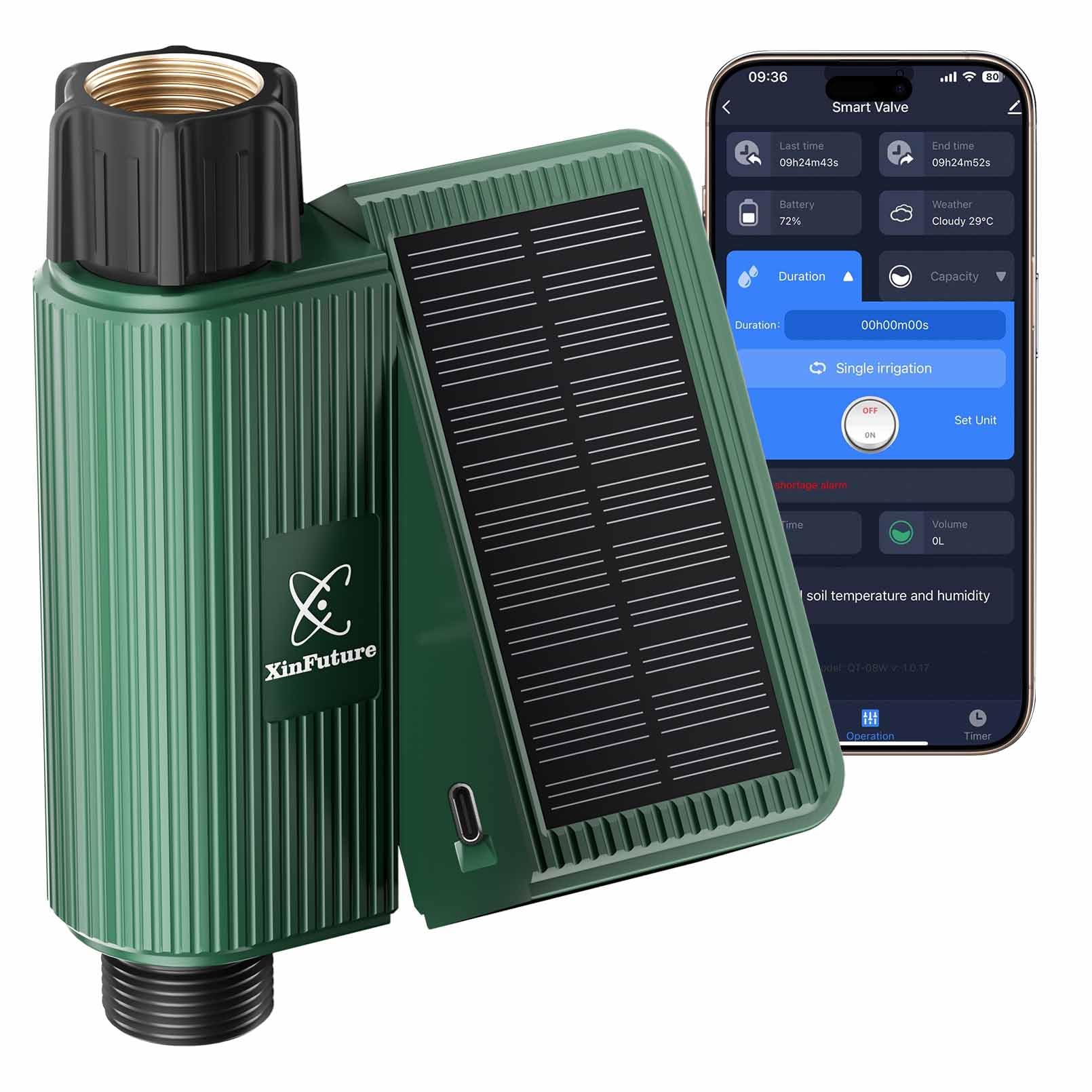
Image 1: XinFuture Smart WiFi Solar Sprinkler Timer
2. Product Overview
2.1. Components
- Water Inlet: Connects to your faucet. Features a built-in brass inlet and filter to prevent clogging.
- Solar Panel: Integrated and adjustable for efficient solar charging.
- Indicator Light: Provides status feedback (e.g., pairing mode, power).
- On-Off/Networking Button: Used for manual control, exiting sleep mode, and entering pairing mode.
- Type-C Charging Port: For alternative USB charging.
- Water Outlet: Connects to your garden hose or irrigation system (3/4 inch).
2.2. Key Features
- Solar & USB Rechargeable: Dual charging options for continuous operation.
- Smart WiFi Connectivity: Connects to 2.4GHz WiFi (no gateway required).
- Multiple Watering Modes: Auto, Manual, and Rain Delay.
- App & Voice Control: Manage schedules and operations via app or voice assistants (Alexa, Google Assistant).
- IP65 Waterproof Rating: Durable, weatherproof construction for outdoor use.
- Precise Water Flow Control: Set specific water volumes and track usage.
- 10 Customizable Programs: Tailor watering schedules to your needs.
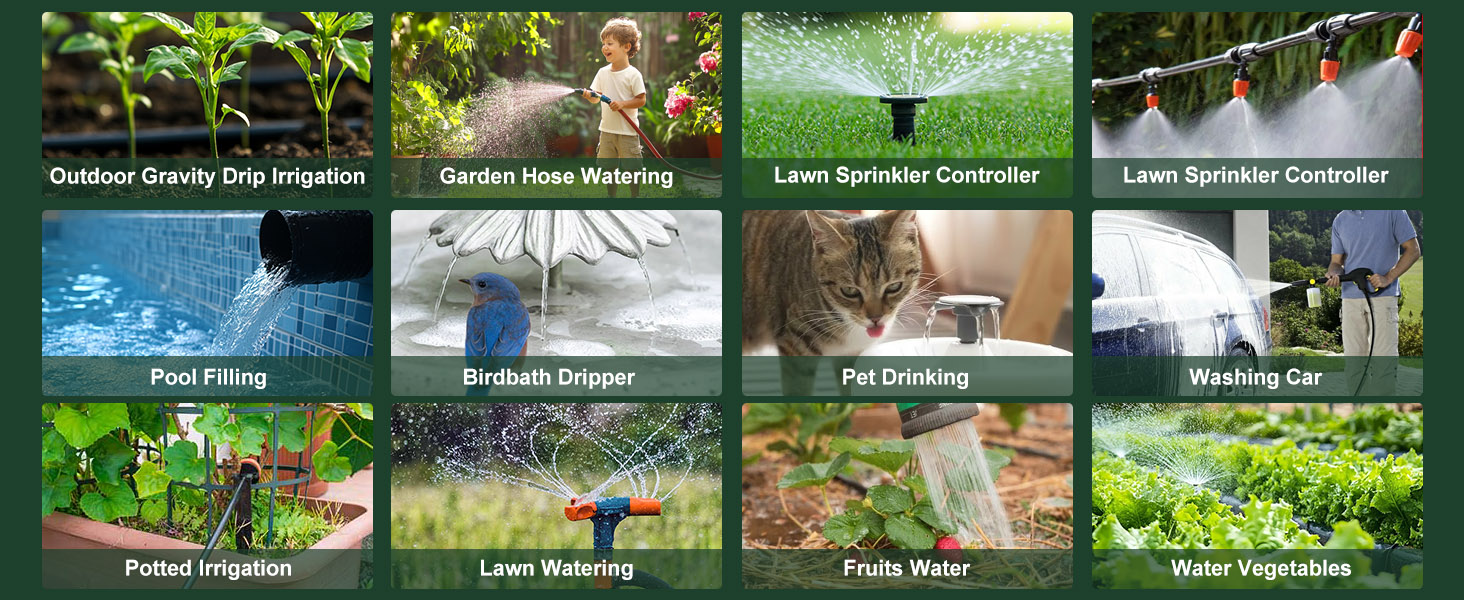
Image 2: Product Components and Features
3. Setup
Follow these steps to install your Smart WiFi Solar Sprinkler Timer:
- Power Check: Before installation, ensure the device has sufficient battery power. The solar panel can charge the device in direct sunlight for 1 hour, or use the USB-C port for 10 minutes.
- Attach to Faucet: Securely screw the water inlet of the timer onto your outdoor faucet. Ensure the built-in filter is in place.
- Connect Hose: Attach your garden hose or irrigation system to the 3/4 inch water outlet at the bottom of the timer.
- Position Solar Panel: Adjust the tilt of the solar panel to maximize sunlight absorption.
Video 1: Installation of the Smart WiFi Solar Sprinkler Timer
4. Charging Methods
The XinFuture Smart WiFi Solar Sprinkler Timer offers two convenient charging methods:
- Solar Charging: The integrated solar panel efficiently converts sunlight into energy to charge the internal super capacitor (4V 550F). Place the timer in direct sunlight for approximately 1 hour for a full charge.
- USB Charging: For situations with limited sunlight or faster charging, connect the device to a 5V 1-3A USB adapter via the Type-C port. A 10-minute charge via USB is typically sufficient. To access the charging port, twist the top half of the device.
A fully charged battery can last up to 15 days with one watering cycle per day without additional sunlight.
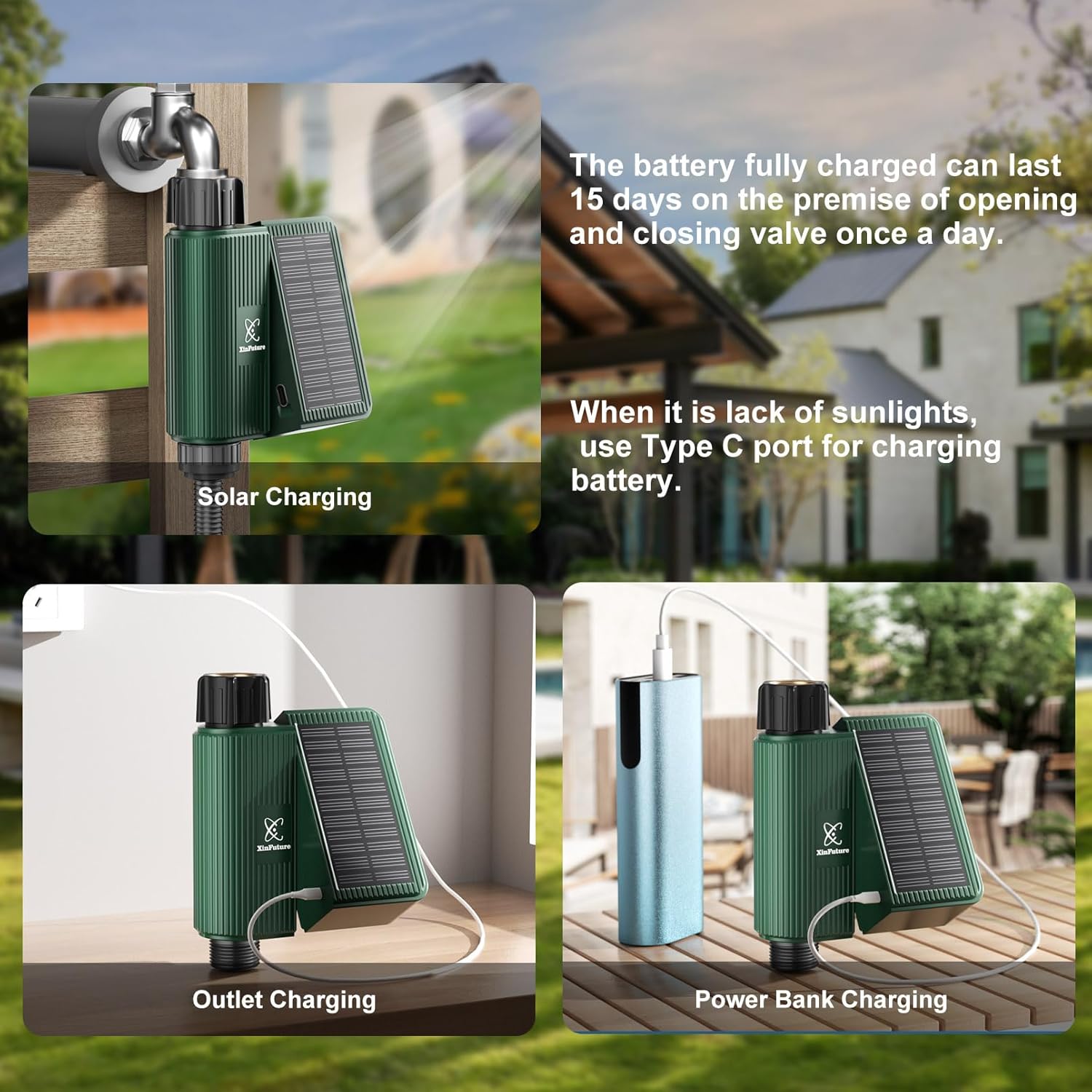
Image 3: Solar and USB Charging Options
5. App Installation & Device Pairing
To control your sprinkler timer remotely, download the companion app and pair your device:
- Read the Manual: Always refer to the full manual for detailed instructions.
- Download App: Download the Tuya Smart App or Smart Life App from your mobile device's app store.
- Activate Timer: Long-press the button on the smart water valve for 5 seconds to exit sleep mode. (Note: The factory timer defaults to sleep mode.)
- Enter Pairing Mode: Long-press and hold the switch button for another 5 seconds to enter pairing mode. The indicator light will blink.
- Connect to 2.4GHz WiFi: Ensure your phone is connected to a 2.4GHz WiFi network (the device only supports 2.4GHz WiFi, not 5GHz).
- Open App & Add Device: Open the app, tap "Add Device" or the "+" icon in the upper-right corner.
- Select Device: The app will search for devices automatically. Select your timer (e.g., "Valve Controller") from the list.
- Setup Complete: Follow any on-screen prompts to complete the setup.
Video 2: App Pairing and Initial Setup

Image 4: App Pairing Steps
6. Operating Modes
The timer supports various watering modes to suit your needs:
- Automatic Mode: Program up to 10 customizable schedules via the app. Once programmed, the timer can operate offline.
- Manual Mode: For immediate watering, use the manual control button on the device or activate it through the app.
- Rain Delay Mode: Prevent overwatering by setting a rain delay (e.g., 24h, 48h, 72h) through the app.
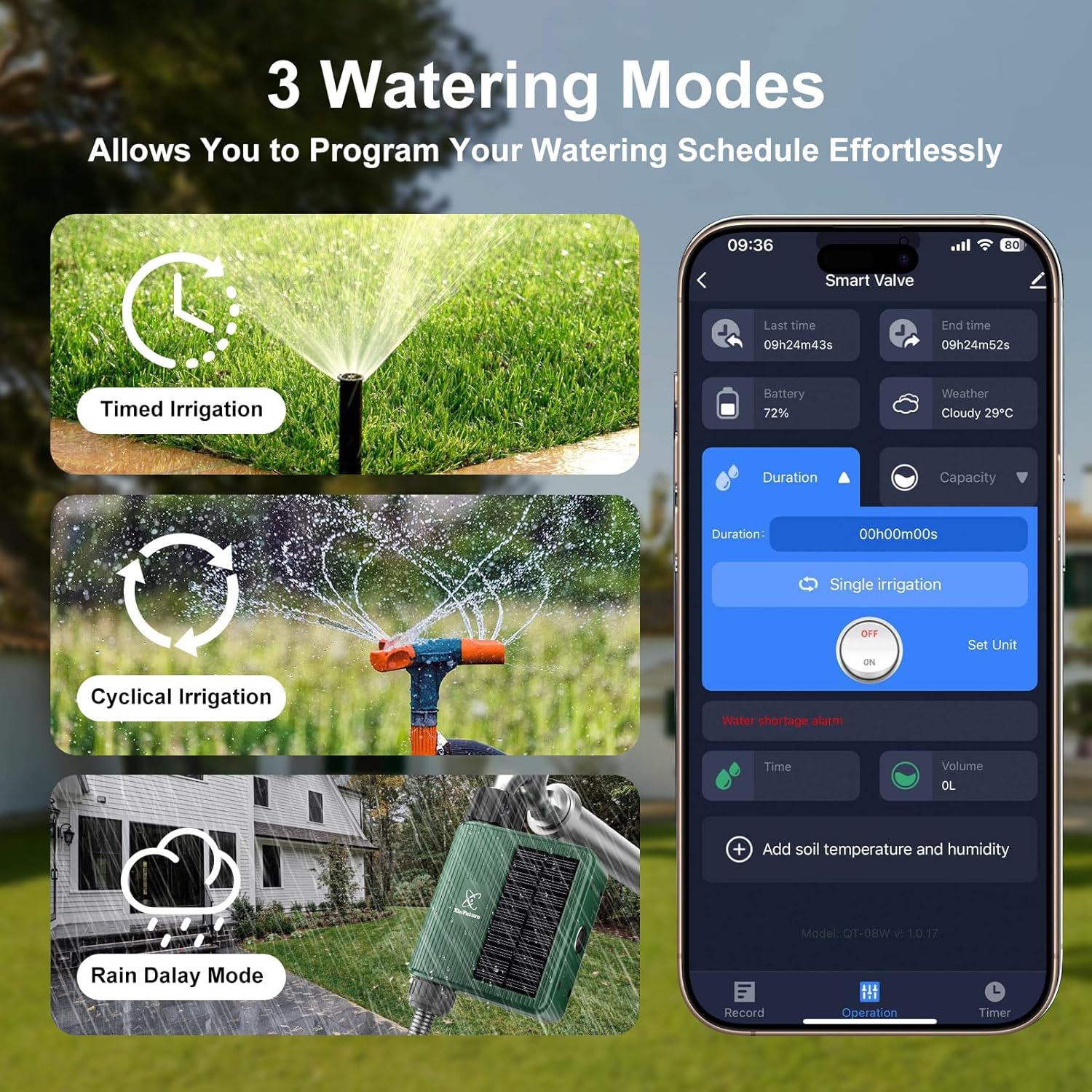
Image 5: Three Watering Modes

Image 6: Rain Delay Mode

Image 7: Manual Control
7. Voice Control
Integrate your Smart WiFi Solar Sprinkler Timer with voice assistants for hands-free control:
- Link Account: In the Tuya Smart or Smart Life app, navigate to "Third-Party Services" and select your preferred voice assistant (e.g., Alexa or Google Assistant).
- Follow Prompts: Follow the on-screen instructions to link your app account with your voice assistant account.
- Enjoy Voice Commands: Once linked, you can use voice commands such as "Alexa, turn on the Solar Water Timer" or "Hey Google, start watering the garden."
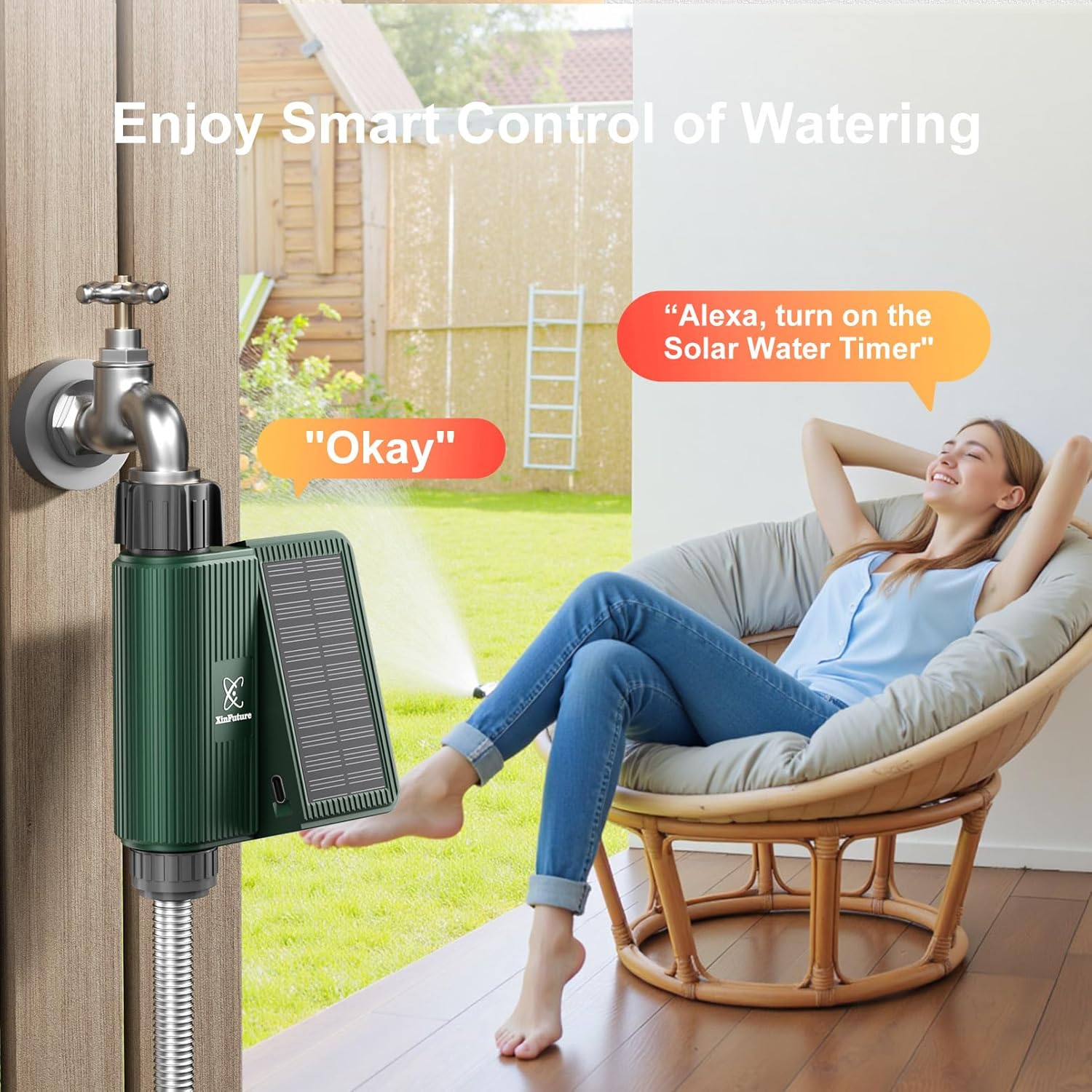
Image 8: Smart Control with Voice Assistants

Image 9: Voice Control Setup Steps
8. Water Flow Control
The app allows for precise control over water volume and provides real-time usage tracking. This ensures your plants receive the exact amount of water needed, optimizing efficiency and promoting a healthy garden.
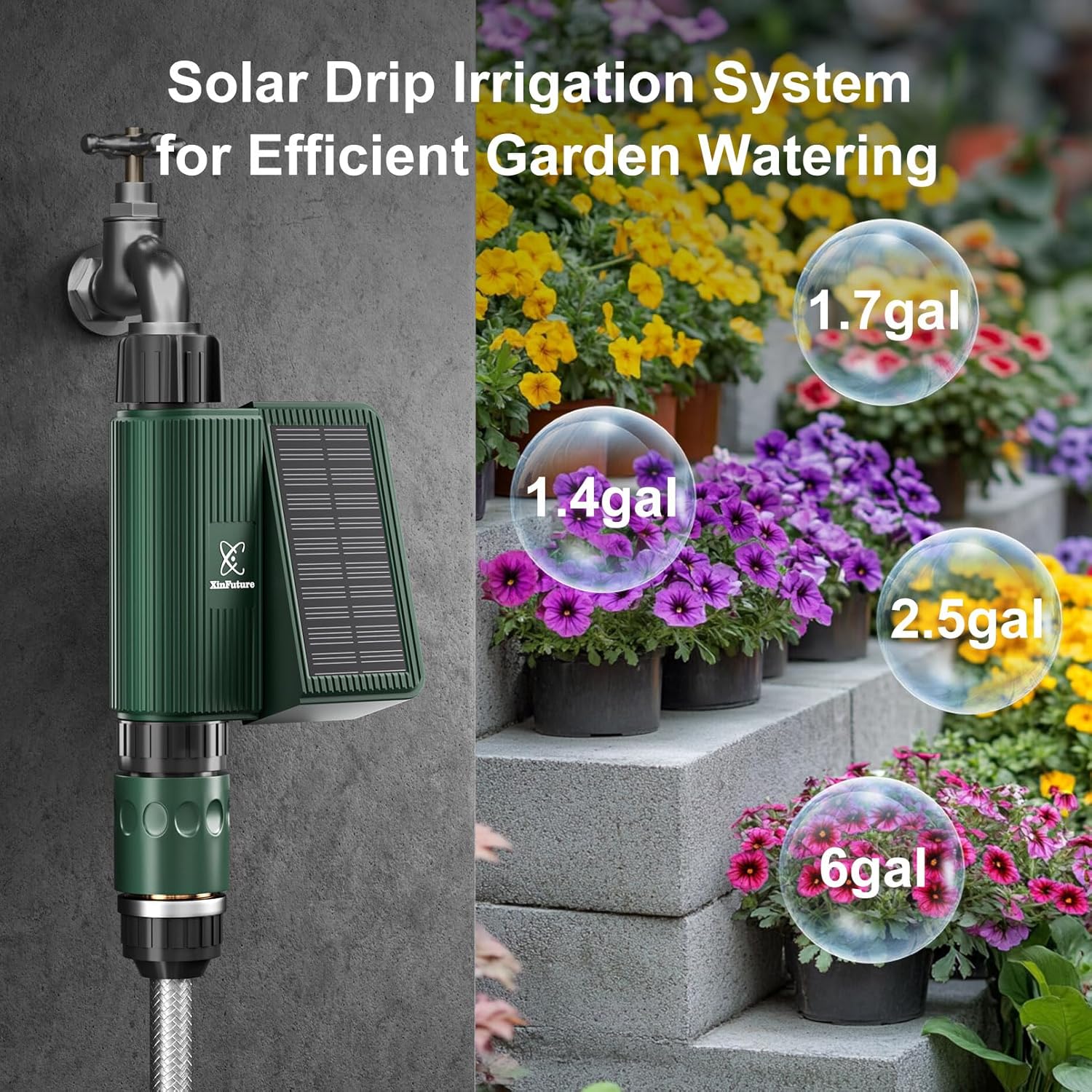
Image 10: Precise Water Flow Control for Drip Irrigation
9. Troubleshooting: Smart WiFi Solar Sprinkler Timer Won't Connect to the App
If you encounter issues connecting your timer to the app, follow these troubleshooting steps:
- Check Your Phone's WiFi Connection: The device only supports 2.4GHz WiFi (not 5GHz). Ensure your phone is connected to a 2.4GHz network. Check your router settings if unsure.
- Verify Pairing Mode: The timer's indicator light should blink when ready to pair. If not pairing:
a. Hold the button for 5 seconds to wake the device, then hold again for 5 seconds to enter pairing mode.
b. If the light is solid or off, the battery might be low. Recharge via USB or place in direct sunlight to power up before retrying. - Improve WiFi Signal Strength: Move the timer closer to your router during setup to avoid weak signal issues.
- Confirm WiFi Password: Double-check the password entered in the app. Typos can cause connection failures.
- Download the Correct App: Ensure you have downloaded either the Tuya Smart App or Smart Life App.
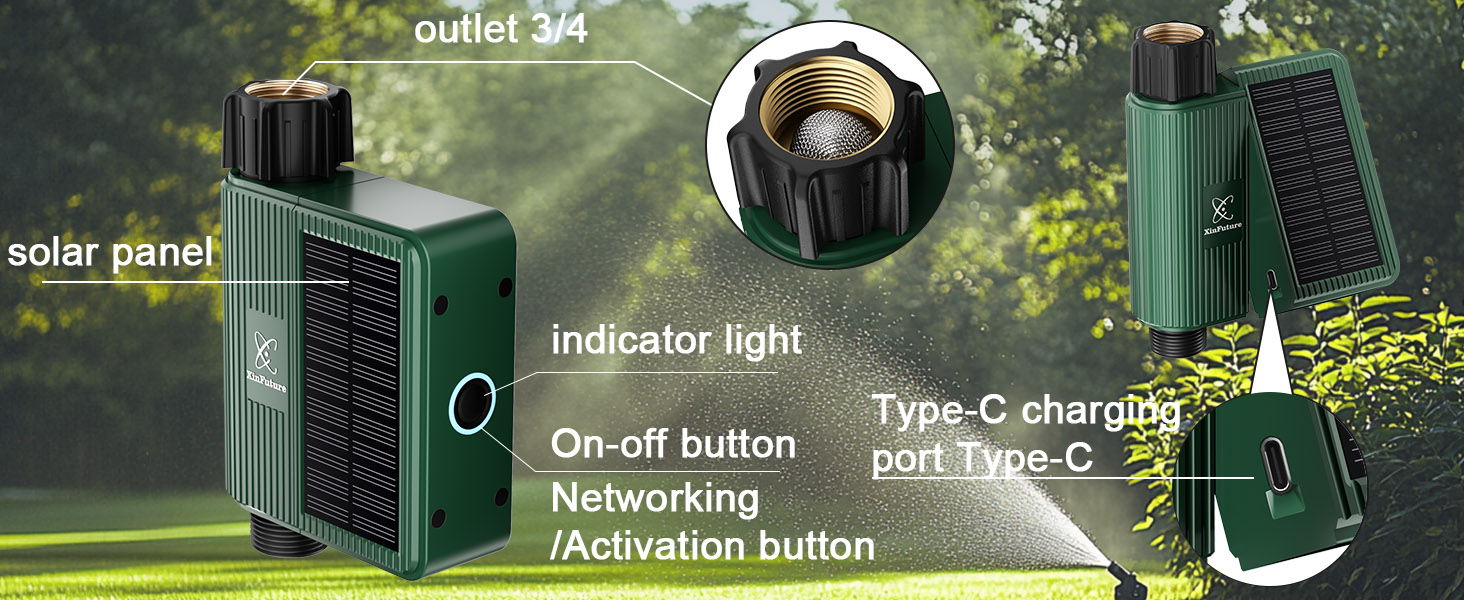
Image 11: Troubleshooting Steps for App Connection
Video 3: Common Questions & Quick Fixes
10. Specifications
| Feature | Detail |
|---|---|
| Model Number | QT-08W |
| Brand | XinFuture |
| Color | Green |
| Material | Metal, Plastic |
| Product Dimensions (D x W x H) | 6.97" x 4.41" x 1.85" |
| Item Weight | 0.99 Pounds |
| Number of Settings | 10 (customizable programs) |
| Smart Home Compatibility | Alexa, Google Assistant |
| WiFi Frequency | 2.4GHz Only |
| Waterproof Rating | IP65 |
11. Maintenance
- Clean Filter: Regularly check and clean the built-in filter at the water inlet to prevent clogging and ensure optimal water flow.
- Solar Panel Cleaning: Keep the solar panel clean from dirt and debris to maintain charging efficiency.
- Winterization: In freezing temperatures, disconnect the timer from the faucet and store it indoors to prevent damage.
12. Warranty and Support
For warranty information and technical support, please refer to the product packaging or contact XinFuture customer service directly. Keep your purchase receipt as proof of purchase.