
1. Introduction
This manual provides detailed instructions for the installation, operation, and maintenance of your XTRONS 12.3-inch Android 13 Car Stereo. Please read this manual thoroughly before using the product to ensure proper functionality and safety.
2. Applicable Models & Years
This unit is designed for the following vehicle models:
- AUDI A6 S6 RS6 (Typ C7) (2016-2018) with MiB System - Left Hand Drive
- AUDI A7 S7 RS7 (Typ C7) (2016-2018) with MiB System - Left Hand Drive
3. Main Features
- Operating System: Octa-core with Latest Android 13, 4GB DDR4 RAM, 64GB Solid State ROM.
- Display: 1920*720 resolution, 12.3-inch IPS Touch Screen with 178° Viewing Angle.
- Connectivity: Bluetooth 5.0, Dual Wi-Fi Band (2.4GHz/5GHz), Global 4G LTE (Micro-SIM card required, data only).
- Smartphone Integration: Built-in Wireless CarPlay and Wireless/Wired Android Auto.
- Multimedia: Multi-task Display, Picture-in-Picture (PIP) functionality.
- Vehicle Integration: Retains original car functions (speed, fuel level, safety warnings, fiber optic sound system, radio, CD player, Bluetooth).
4. Package Contents
Verify that all items are present in the package:
- 1 x ISO Wiring Harness
- 1 x GPS Antenna
- 1 x Audio Cable
- 1 x AMI Cable
- 1 x 4G Antenna
- 1 x Mini Speaker
- 1 x Fitting Frame
- 3 x Screws
- 1 x User Manual
- 1 x Installation Instruction

Figure 4.1: Included Accessories
5. Setup and Installation
For detailed installation steps, refer to the included 'Installation Instruction' manual. Below are key considerations:
5.1 Compatibility Check
Before installation, verify your factory stereo software version. Navigate to "Setup or Menu - setup MMI - Settings - version information" on your factory stereo. Compatible versions include MSTD, MHI2, and MHIG.

Figure 5.1: Software Version Compatibility
5.2 Audi Music Interface (AMI) Connection
If your vehicle is equipped with an Audi music interface, connect the provided XTRONS AMI cable (firstly connected with the audio extension cable) to the Audi music interface.

Figure 5.2: Audi Music Interface Connection
5.3 Physical Installation
The unit features a fully-laminated, ultra-slim design with a tailor-made bezel for seamless integration into your Audi's dashboard.

Figure 5.3: Installed XTRONS Car Stereo

Figure 5.4: Screen Size and Multi-tasking Display
6. Operating Instructions
6.1 User Interface and Navigation
The unit runs on Android 13, offering a responsive and intuitive touch screen interface. Navigate through applications and settings using the IPS touch screen.
6.2 Wireless CarPlay and Android Auto
Connect your iPhone wirelessly via Bluetooth for CarPlay, or your Android phone wirelessly via Bluetooth or with a USB cable for Android Auto. This allows access to GPS, calls, music, Google Assistant, and Siri directly from the car stereo screen.

Figure 6.1: Wireless CarPlay and Android Auto Interface
6.3 Global 4G LTE Connectivity
Insert a Micro-SIM card into the designated slot to enable 4G mobile broadband connection. This provides internet access for navigation, streaming, and app downloads. Note: This feature supports data only, not phone calls.
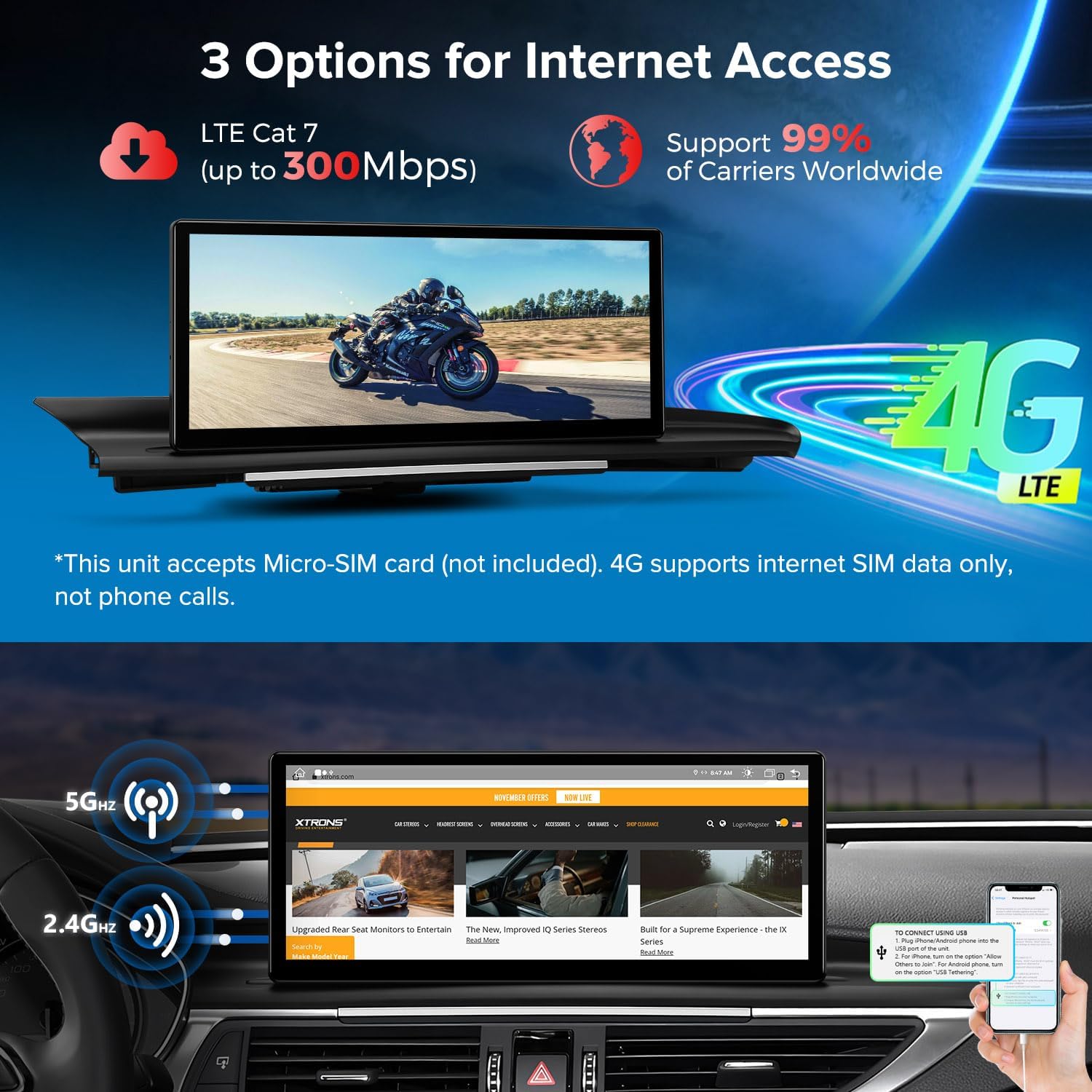
Figure 6.2: 4G LTE and Dual Wi-Fi Connectivity
6.4 Original Car Information Display
The car stereo seamlessly integrates and displays OEM car-centric functions such as speed, engine speed, remaining fuel, temperature, parking brake status, and seat belt reminders on its screen.

Figure 6.3: Original Car Information Display
6.5 Multi-tasking and Picture-in-Picture (PIP)
The system supports running two applications simultaneously on the 12.3-inch IPS screen, allowing for easier multi-tasking. The Picture-in-Picture feature ensures you don't miss video content while switching between other applications.
7. Specifications
- Model Number: 3dc0b50e-2f04-4346-a5f5-a6927a99377e
- Connectivity Technology: Bluetooth, HDMI, USB
- Controller Type: Android
- Special Feature: Touchscreen, Voice Control
- Compatible Devices: Smartphone, Speaker, Television, Personal Computer, Game Console
- Connector Type: 3.5mm Jack, USB
- Audio Output Mode: Stereo, Surround
- Surround Sound Channel Configuration: 5.1
- Video Encoding: H.264, H.265/HEVC, MPEG-4
- Number of Channels: 6
8. Troubleshooting
If you encounter any issues with your XTRONS car stereo, please refer to the following general troubleshooting tips:
- No Power: Check all power connections and ensure the vehicle's ignition is on.
- No Sound: Verify volume settings, check speaker connections, and ensure the correct audio source is selected.
- Touch Screen Unresponsive: Try restarting the unit. If the issue persists, perform a factory reset (refer to the 'Settings' menu).
- GPS Signal Loss: Ensure the GPS antenna is properly installed and has a clear view of the sky.
- Bluetooth Connection Issues: Ensure Bluetooth is enabled on both the stereo and your device. Try unpairing and re-pairing the devices.
- CarPlay/Android Auto Not Connecting: Check USB cable connection (if wired), ensure Bluetooth is on (if wireless), and verify your phone's settings for CarPlay/Android Auto.
- Slow Performance: Close unnecessary applications and clear cache. Consider a factory reset if performance remains poor.
For more specific issues, consult the detailed installation and user manuals provided with the product or contact XTRONS customer support.
9. Maintenance
To ensure the longevity and optimal performance of your XTRONS car stereo, follow these maintenance guidelines:
- Cleaning: Use a soft, dry cloth to clean the screen and exterior. Avoid abrasive cleaners or solvents.
- Software Updates: Regularly check for and install software updates to ensure the system runs efficiently and has the latest features and security patches.
- Environmental Conditions: Avoid exposing the unit to extreme temperatures, direct sunlight for prolonged periods, or excessive moisture.
- Cable Management: Ensure all cables are securely connected and not pinched or damaged.
10. Warranty and Support
For warranty information, please refer to the warranty card included in your product packaging or visit the official XTRONS website. For technical support, product inquiries, or service requests, please contact XTRONS customer service through their official channels.


