
CORBOBO SM850
SOLAKAKA SM850 Wireless Gaming Mouse User Manual
Model: SM850
1. Introduction
Thank you for choosing the SOLAKAKA SM850 Wireless Gaming Mouse. This high-performance gaming mouse is designed for precision, speed, and comfort, featuring a lightweight build, tri-mode connectivity, and customizable buttons. This manual provides detailed instructions on setting up, operating, and maintaining your SM850 mouse to ensure optimal performance.

Image: The SOLAKAKA SM850 Wireless Gaming Mouse in white, showcasing its ergonomic design and the included USB receiver.
2. Package Contents
Please verify that all items are present in your package:
- SOLAKAKA SM850 Wireless Gaming Mouse
- USB-C Charging Cable
- USB 2.4G Wireless Receiver (stored in the mouse)
- User Manual (this document)
3. Product Overview
Familiarize yourself with the various components and buttons of your SM850 mouse:
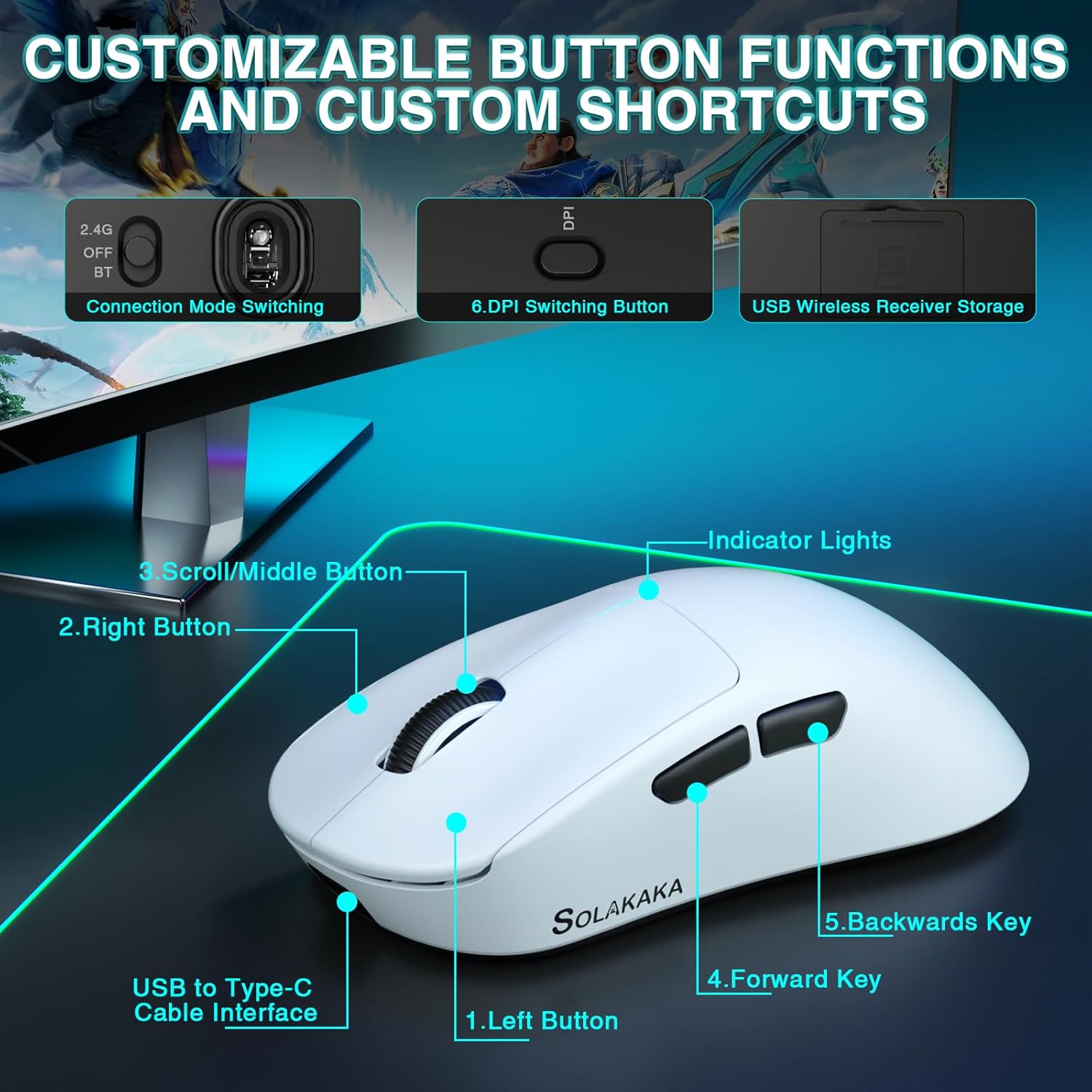
Image: Labeled diagram of the SM850 mouse, highlighting its buttons and features.
- Left Button: Standard left-click function.
- Right Button: Standard right-click function.
- Scroll/Middle Button: Scroll wheel for navigation and middle-click function.
- Forward Key: Navigates forward in web browsers or applications.
- Backwards Key: Navigates backward in web browsers or applications.
- DPI Switching Button: Cycles through preset DPI levels.
- Connection Mode Switching: Switch between 2.4G, OFF, and BT (Bluetooth) modes.
- USB Wireless Receiver Storage: Compartment for the 2.4G USB receiver.
- USB to Type-C Cable Interface: Port for wired connection and charging.
- Indicator Lights: Provide visual feedback for DPI, battery, and connection status.
4. Setup & Connectivity
The SM850 mouse offers three connectivity options: 2.4G wireless, Bluetooth 5.1, and USB-C wired.
4.1. 2.4G Wireless Connection
- Locate the USB 2.4G wireless receiver stored in the compartment on the underside of the mouse.
- Plug the receiver into an available USB port on your computer.
- Slide the connection mode switch on the bottom of the mouse to the "2.4G" position.
- The mouse will automatically connect to your computer.
4.2. Bluetooth 5.1 Connection
- Slide the connection mode switch on the bottom of the mouse to the "BT" position.
- The indicator light on the mouse will begin to flash, indicating it is in pairing mode.
- On your computer, navigate to Bluetooth settings and search for new devices.
- Select "SM850" from the list of available devices to pair.
- Once paired, the indicator light will become solid.
4.3. USB-C Wired Connection
- Connect one end of the provided USB-C cable to the mouse's USB-C port.
- Connect the other end of the cable to an available USB port on your computer.
- The mouse will function immediately in wired mode and will also begin charging.
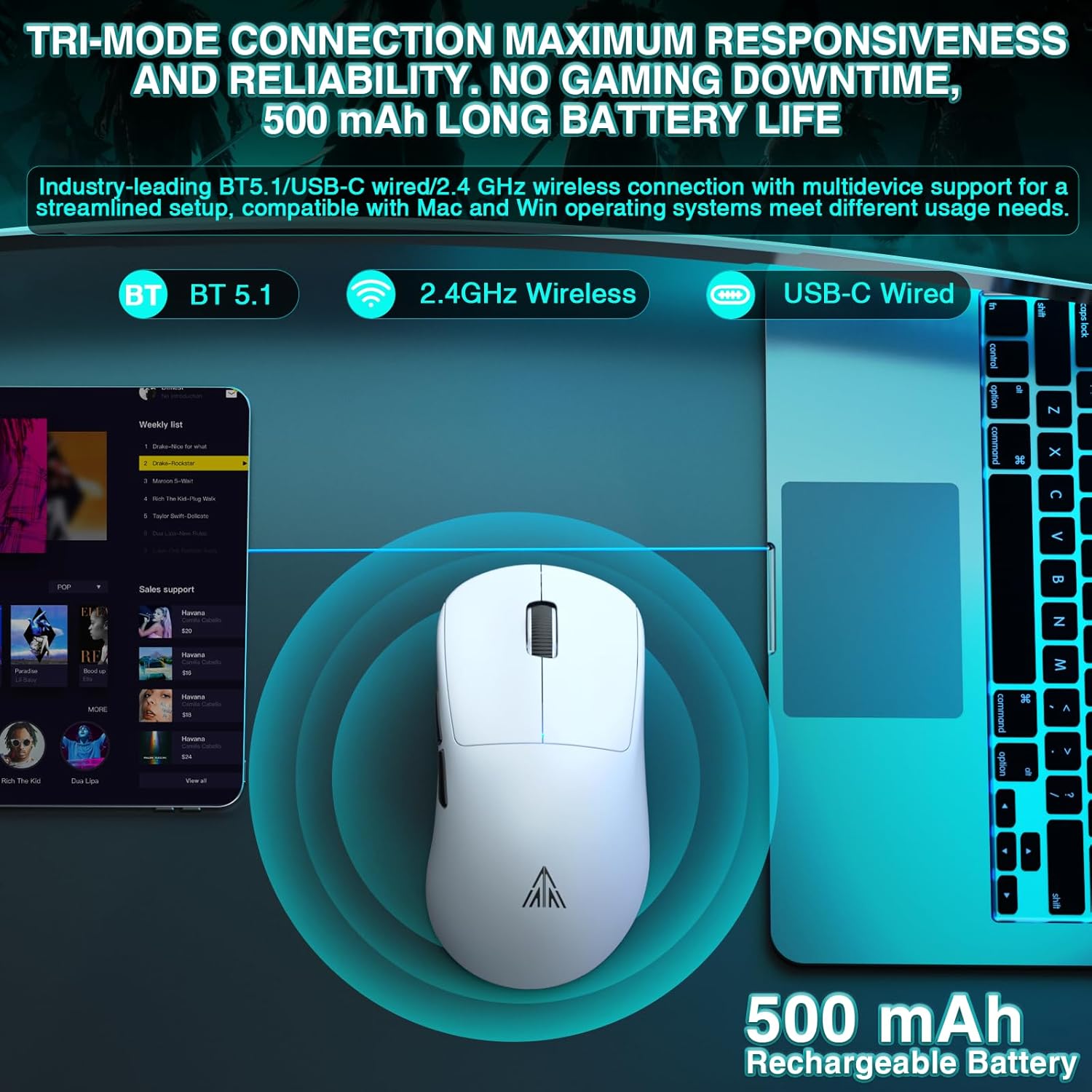
Image: Visual representation of the SM850 mouse utilizing its tri-mode connectivity options (Bluetooth, 2.4GHz Wireless, USB-C Wired).
5. Operation
5.1. DPI Adjustment
The SM850 mouse features a dedicated DPI switching button to cycle through 6 adjustable DPI levels: 1200, 1600, 2400, 3200, 6400, and 12000. Each level is indicated by a specific color on the mouse's indicator lights.
- 1200 DPI: (Color indication may vary, refer to software)
- 1600 DPI: (Color indication may vary, refer to software)
- 2400 DPI: (Color indication may vary, refer to software)
- 3200 DPI: (Color indication may vary, refer to software)
- 6400 DPI: (Color indication may vary, refer to software)
- 12000 DPI: (Color indication may vary, refer to software)
For advanced customization, the DPI can be adjusted up to 24000 DPI via the dedicated driver software.
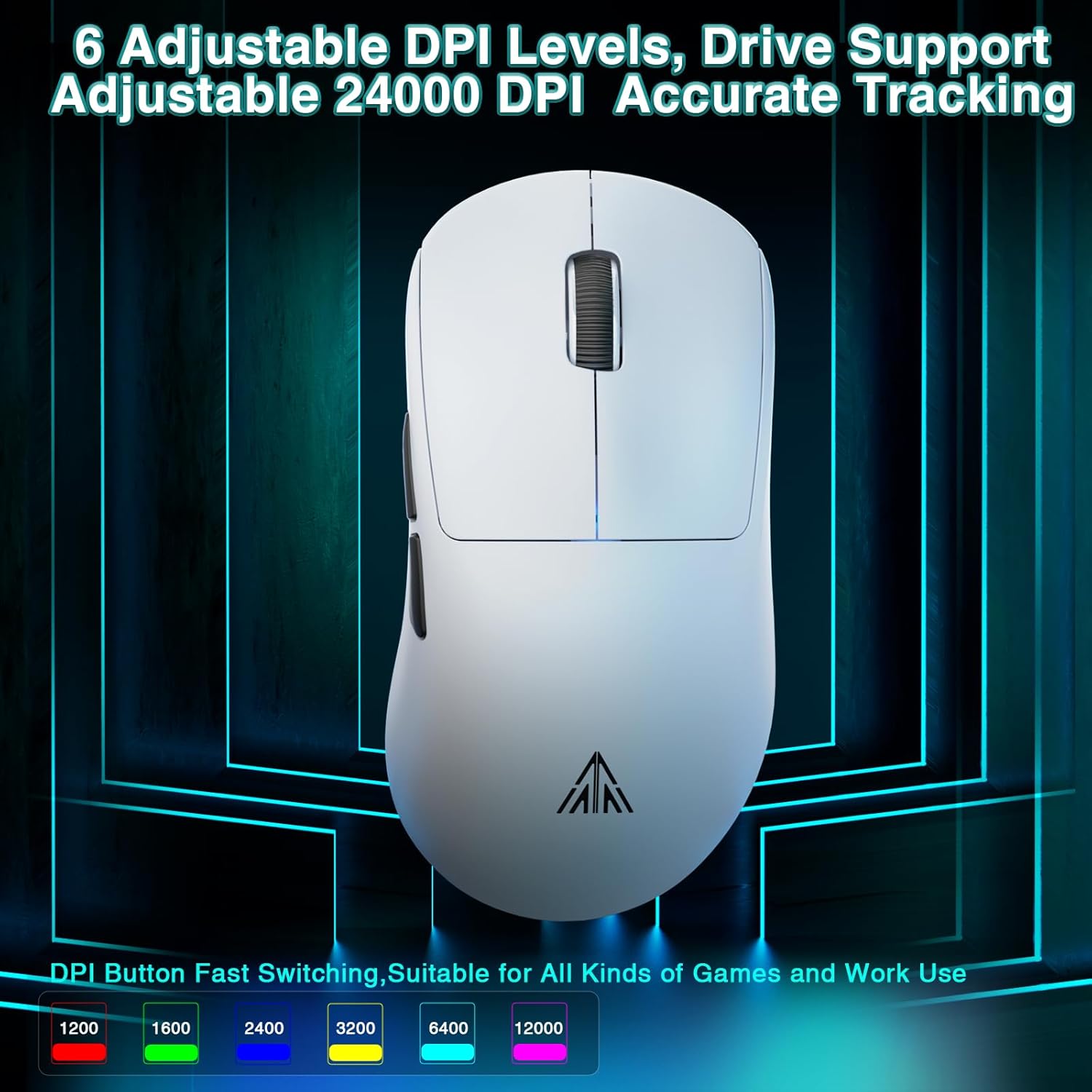
Image: Illustration of the SM850 mouse's adjustable DPI levels and accurate tracking capabilities.
5.2. Programmable Buttons & Software
The SM850 features 6 programmable buttons that can be customized to suit your gaming and office needs. Each button supports macro programming, allowing you to assign complex commands.
To access full customization options, including DPI adjustment, button remapping, and macro creation, download the official software.
- Software Download Address: bit.ly/m/corbobo
- Note: The software is only compatible with Windows operating systems.
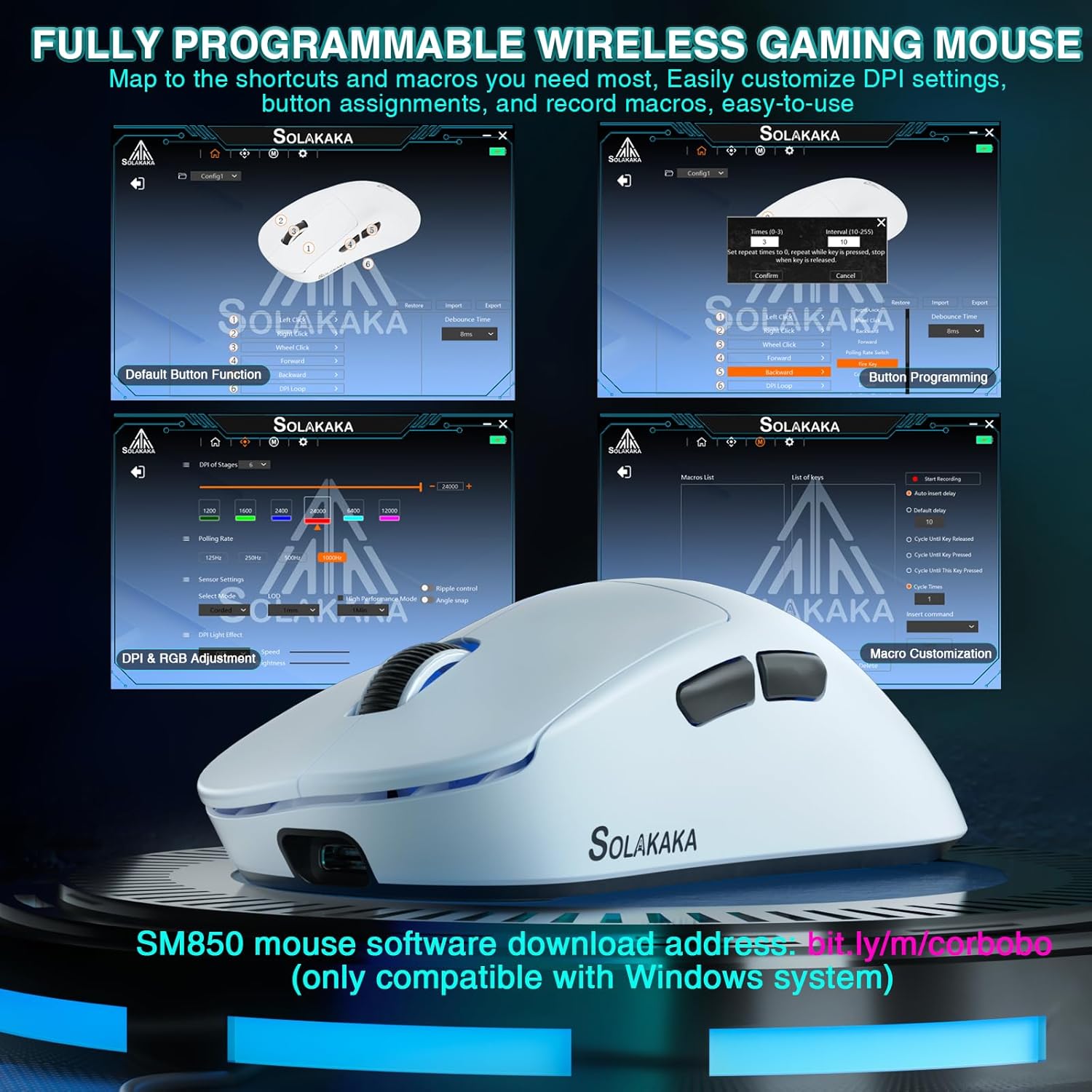
Image: Screenshots of the SM850 mouse's customization software interface, showing options for button programming, DPI adjustment, and macro creation.
6. Battery & Charging
The SM850 mouse is equipped with a built-in 500mAh high-efficiency battery, providing up to 250 hours of usage on a single charge.
- To charge the mouse, connect it to your computer using the provided USB-C cable.
- The mouse can be used in wired mode while charging, ensuring uninterrupted gaming or work.
- An indicator light on the mouse will show the charging status (e.g., blinking while charging, solid when fully charged).
7. Maintenance & Care
To ensure the longevity and optimal performance of your SM850 mouse, follow these care guidelines:
- Cleaning: Use a soft, dry cloth to wipe the surface of the mouse. For stubborn dirt, a slightly damp cloth can be used, but ensure no liquid enters the mouse.
- Protection: The mouse features anti-scratch, anti-dust, and water-resistant properties, designed to withstand sweat and minor liquid splashes. However, avoid submerging the mouse in water or exposing it to excessive moisture.
- Storage: When not in use for extended periods, store the mouse in a cool, dry place.
- Avoid Extreme Conditions: Do not expose the mouse to extreme temperatures, direct sunlight, or corrosive substances.
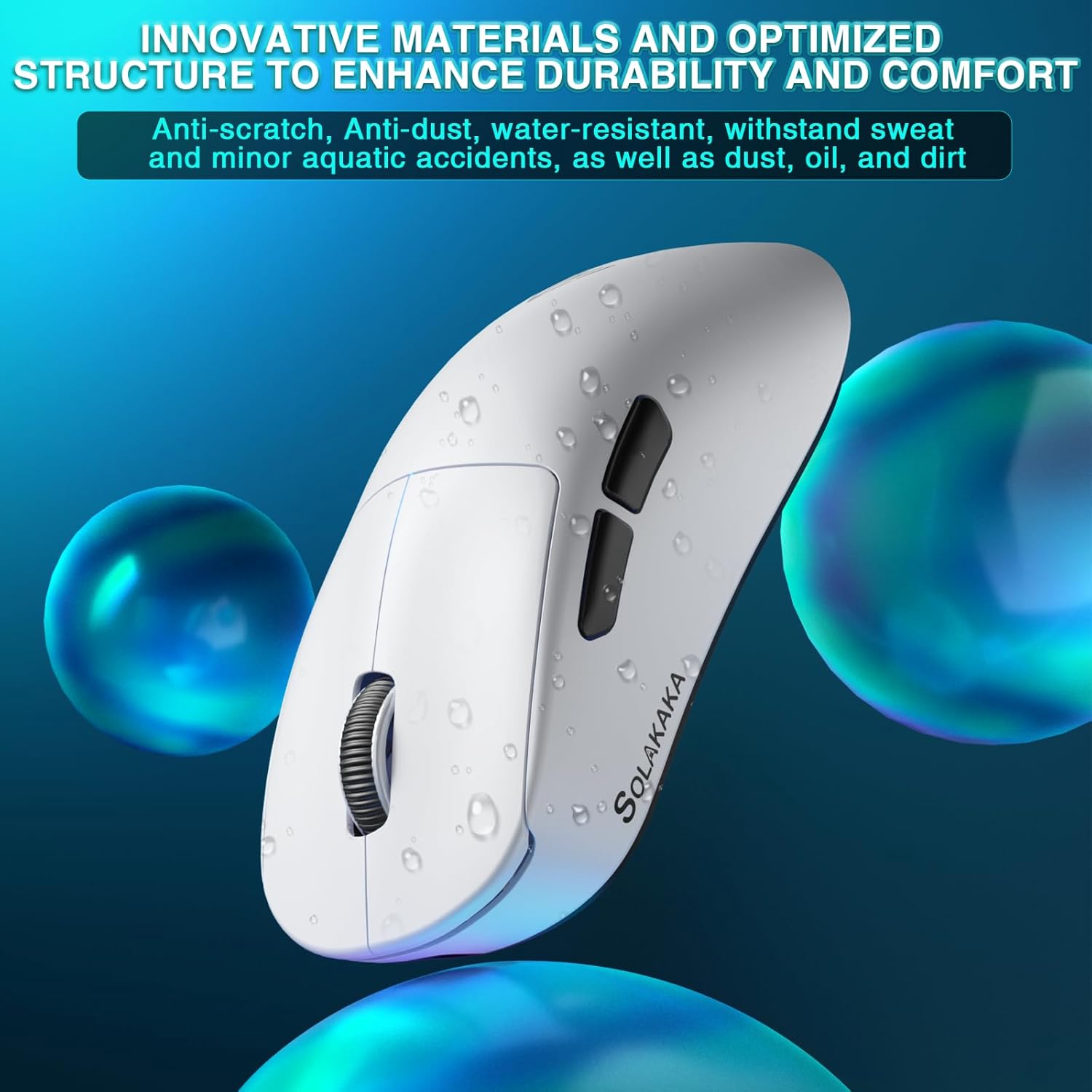
Image: The SM850 mouse with water droplets, illustrating its water-resistant and durable material properties.
8. Troubleshooting
If you encounter issues with your SM850 mouse, please refer to the following common solutions:
| Problem | Possible Solution |
|---|---|
| Mouse not responding (Wireless) |
|
| Lag or erratic movement |
|
| Buttons not working |
|
| Battery not charging |
|
9. Specifications
| Feature | Detail |
|---|---|
| Model Number | SM850 |
| Connectivity Technology | Bluetooth 5.1, 2.4G Wireless, USB-C Wired |
| Sensor | PAW3311 Optical Sensor |
| DPI Levels | 1200/1600/2400/3200/6400/12000 (Up to 24000 via driver) |
| Tracking Speed | 300 IPS |
| Acceleration | 35G |
| Polling Rate | 125Hz - 1000Hz |
| Buttons | 6 Programmable Buttons |
| Battery Type | Built-in 500mAh Rechargeable Battery |
| Battery Life | Up to 250 hours |
| Weight | 55g (1.28 ounces) |
| Dimensions (L x W x H) | 4.72 x 3.07 x 0.04 inches |
| Manufacturer | SOLAKAKA |
| Country of Origin | China |
10. Warranty & Support
For warranty information and technical support, please refer to the warranty card included with your product or visit the official CORBOBO website. You may also contact CORBOBO customer service directly for assistance with product inquiries, troubleshooting, or replacement parts.
Brand: CORBOBO
Website: CORBOBO Amazon Store
Ask a question about this manual
Ask about setup, troubleshooting, compatibility, parts, safety, or missing instructions. Manuals+ will review the question and use this page’s manual context to help answer it.