
1. Introduction
The FDUCE D30+ is a versatile USB/XLR dynamic microphone kit designed for high-quality audio capture in various applications, including gaming, podcasting, streaming, and vocal recording. It features dual connectivity options (USB and XLR), controllable RGB lighting, and intuitive controls for an enhanced user experience. This manual provides comprehensive instructions for setting up, operating, maintaining, and troubleshooting your microphone kit.
2. Package Contents
Upon unboxing your FDUCE D30+ microphone kit, please verify that all the following components are included:
- Dynamic Microphone (D30+)
- 2m USB-C to USB-A/C Cable
- Cantilever Bracket (Boom Arm)
- Desktop Mounting Clamp
- Cable Ties (4x)
- User Manual

Figure 2.1: All components included in the FDUCE D30+ microphone kit package.
Official Unboxing Video
Video 2.1: An official unboxing video demonstrating the contents and initial setup of the FDUCE D30+ microphone kit.
3. Setup
3.1 Boom Arm Installation
The FDUCE D30+ comes with an adjustable boom arm for flexible positioning. To install:
- Attach the desktop mounting clamp to a sturdy surface, such as a desk or table edge. Ensure the surface thickness is less than 2.56 inches (6.5 cm) for proper fit.
- Insert the base of the cantilever bracket (boom arm) into the clamp and tighten securely.
- Attach the microphone to the boom arm. The microphone features built-in 3/8" and 5/8" threads for broad compatibility with various stands and arms.
- Adjust the boom arm to your desired height and angle. The arm allows for 270° rotation at the microphone attachment point, 180° at the elbow, and 360° at the base clamp for optimal positioning.
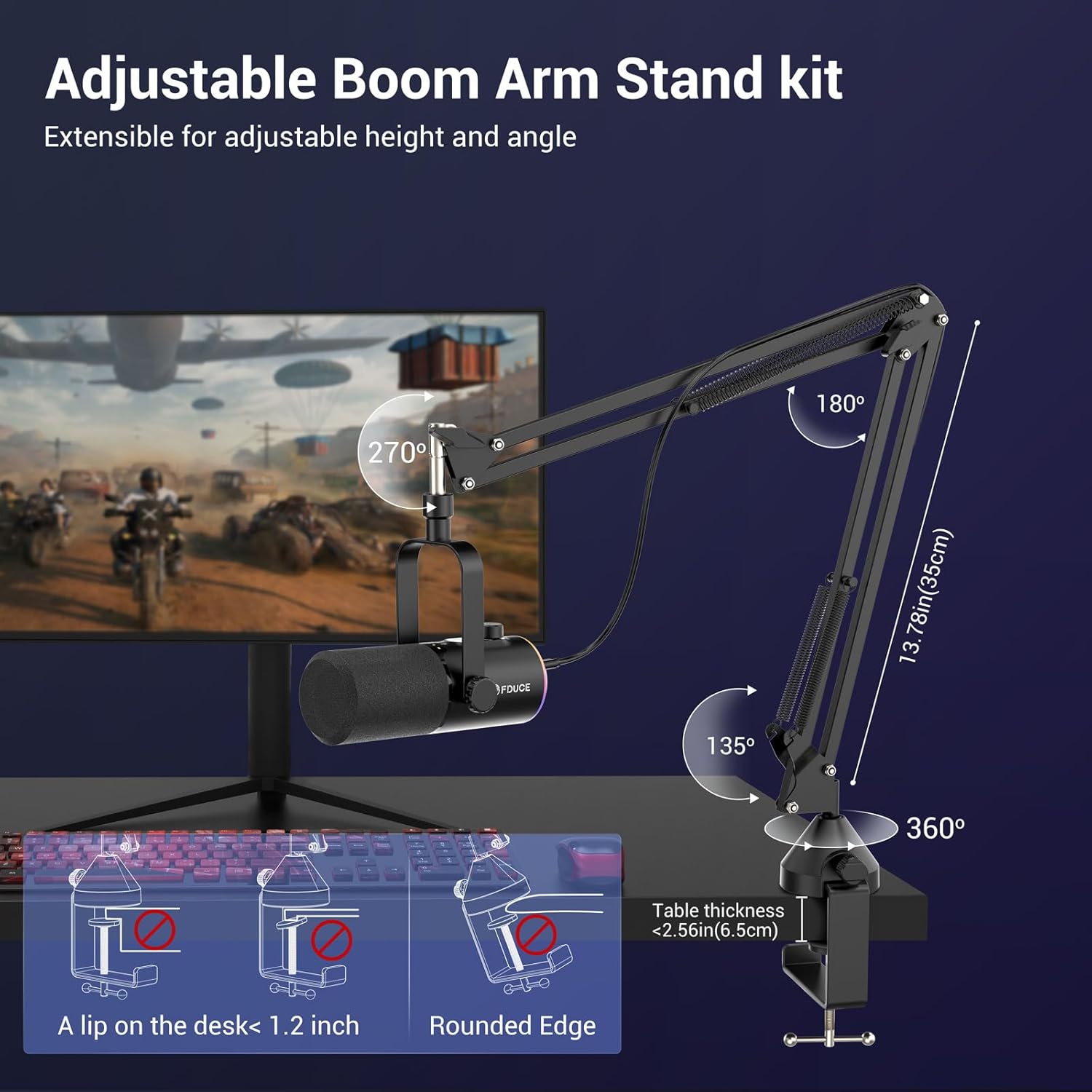
Figure 3.1: Installation and adjustability of the boom arm stand.

Figure 3.2: The microphone's compatibility with both 3/8" and 5/8" screw threads.

Figure 3.3: The microphone's ability to rotate 360 degrees for flexible positioning.
3.2 Connecting the Microphone
The FDUCE D30+ offers both USB and XLR connectivity:
- USB Connection: For direct plug-and-play use with PCs, laptops, PS4/PS5, or smartphones with a Type-C port, connect the provided 2m USB-C to USB-A/C cable to the USB-C port on the microphone and your device. No additional drivers are typically required.
- XLR Connection: For professional audio setups, connect an XLR cable (not included) from the XLR port on the microphone to an audio interface or mixer. This provides balanced transmission for higher fidelity and interference-free audio.
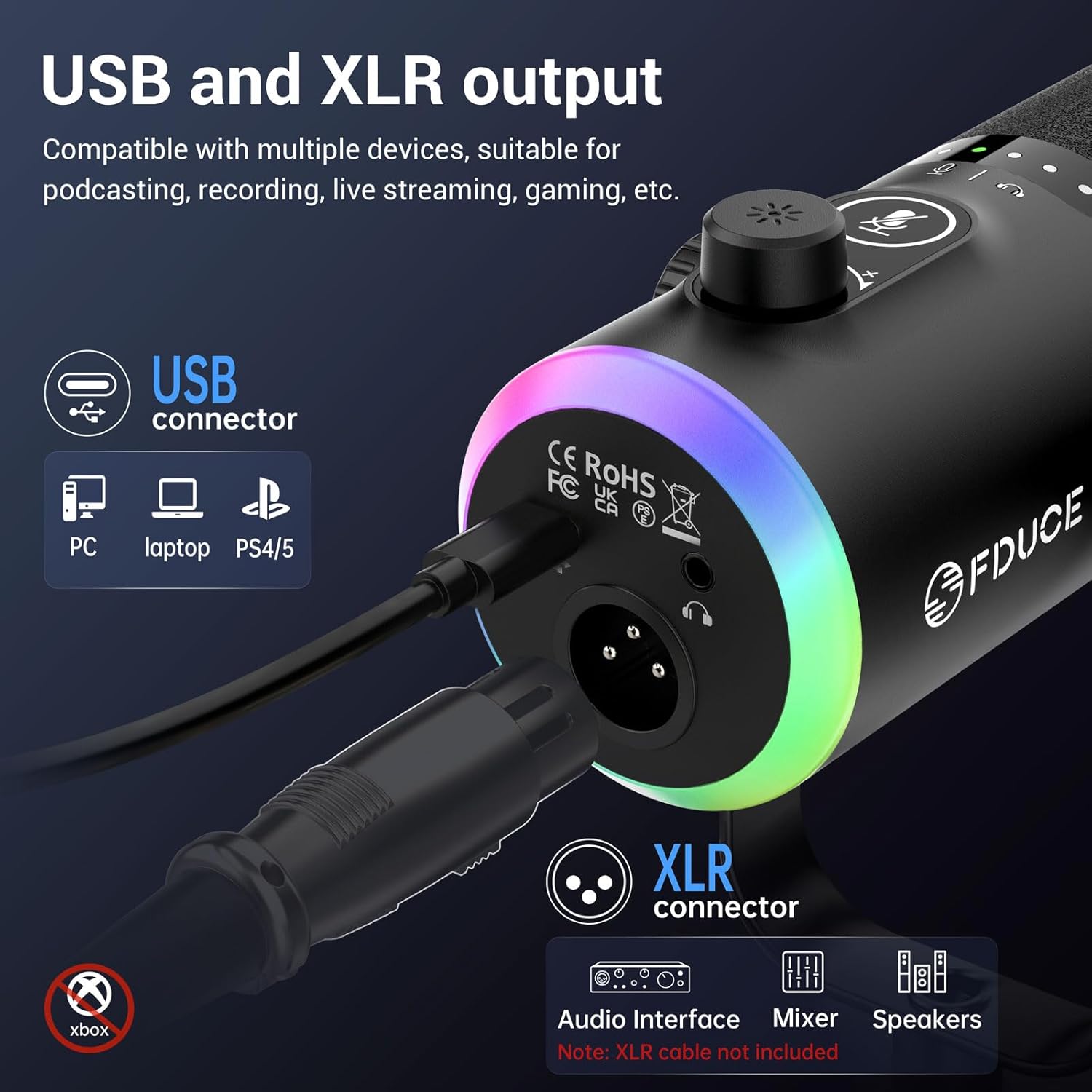
Figure 3.4: USB-C and XLR output ports on the FDUCE D30+ microphone.
4. Operating Instructions
4.1 Microphone Controls
The FDUCE D30+ features intuitive controls on its front panel for easy adjustment:
- One-touch Mute Button: Located on the front panel, simply touch to mute/unmute the microphone. Red indicator lights signify mute status. (USB mode only)
- 3-in-1 Smart Knob: This rotary knob controls both microphone gain and headphone monitoring volume.
- Long Press: Switches between microphone volume control (green indicator lights) and headphone volume control (blue indicator lights).
- Rotate: Adjusts the selected volume level.
- RGB Light Button: Located below the smart knob.
- Short Press: Cycles through various RGB lighting modes and colors.
- Long Press: Turns the RGB lighting on/off.
- Headphone Monitoring Jack: Located at the bottom of the microphone (next to USB/XLR ports), allows real-time monitoring of your voice.

Figure 4.1: Detailed view of the multi-function controls on the microphone.
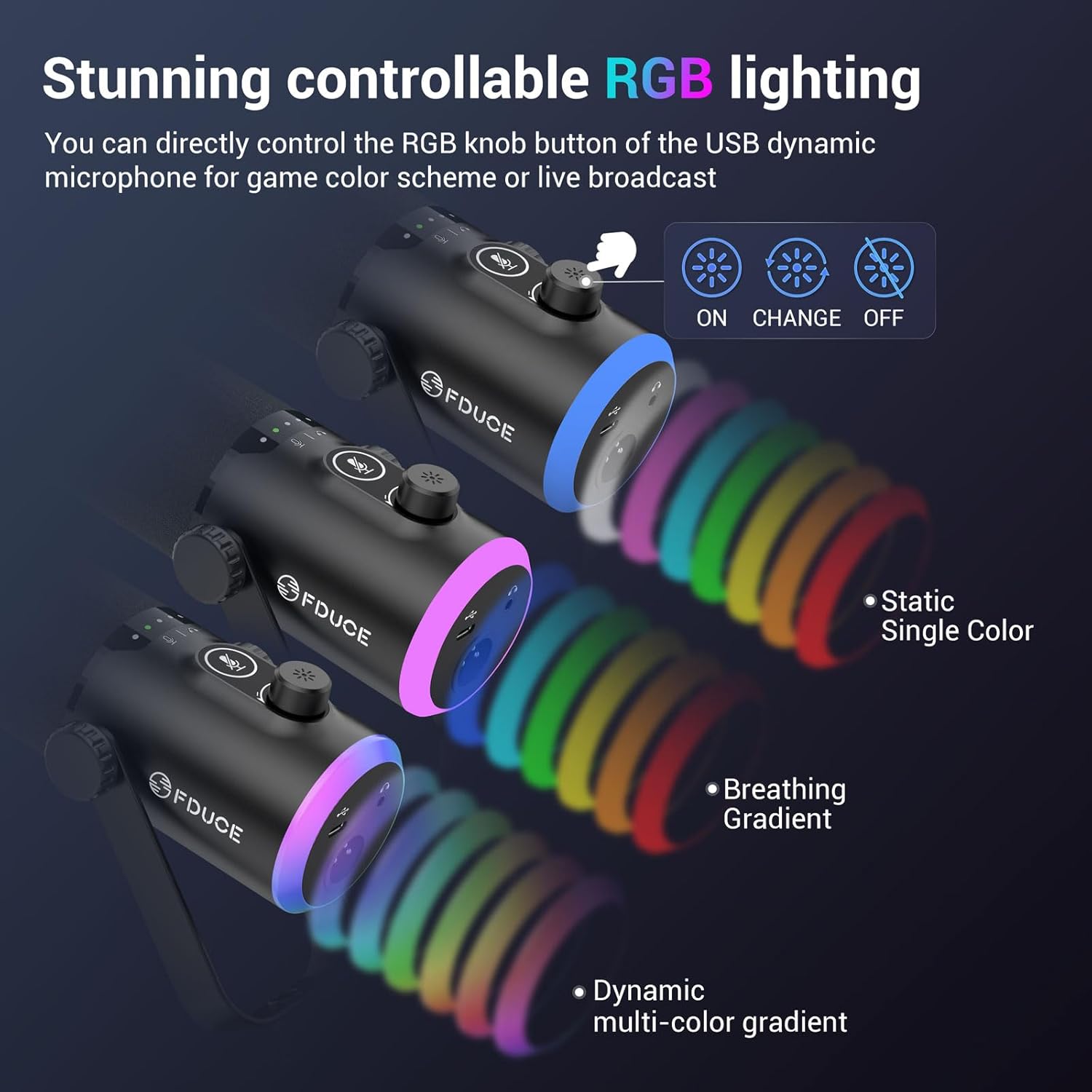
Figure 4.2: Various controllable RGB lighting modes for personalization.
4.2 Optimal Sound Capture
The FDUce D30+ features a directional cardioid dynamic pickup pattern, designed to capture sound directly in front of the microphone while rejecting off-axis noise. For best results:
- Position the top of the microphone directly facing the audio source (e.g., your mouth).
- Maintain a recommended recording range of 2 to 6 inches from the microphone.
- The microphone's 50Hz-16KHz frequency response and 24 Bit/192kHz high sampling rate ensure rich and clear audio details.
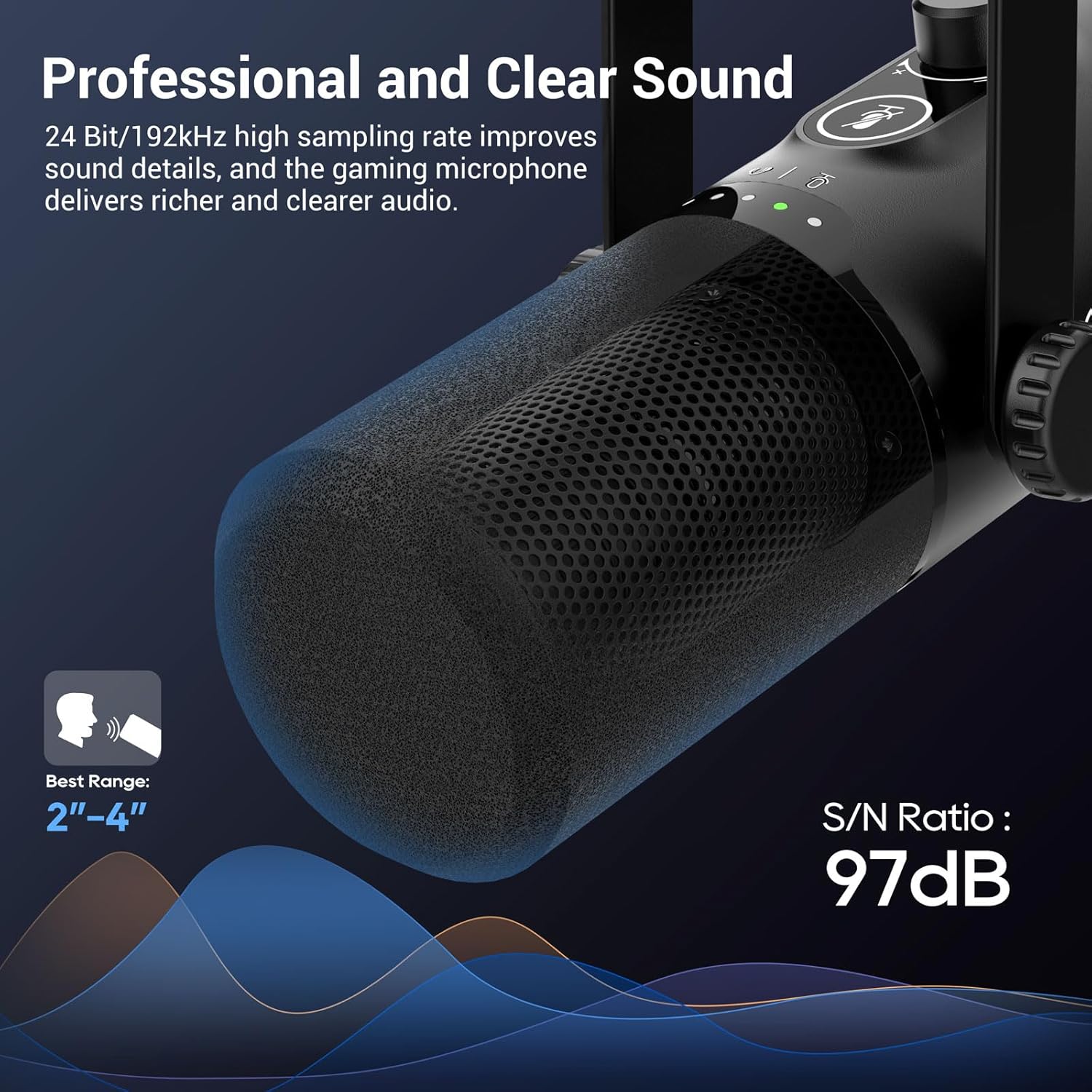
Figure 4.3: Optimal microphone positioning for professional and clear sound capture.

Figure 4.4: Diagram illustrating the cardioid polar pattern for accurate sound pickup and noise rejection.
Official Product Overview Video
Video 4.1: An official product overview video highlighting the key features and benefits of the FDUCE D30+ microphone.
5. Maintenance
To ensure the longevity and optimal performance of your FDUCE D30+ microphone, follow these maintenance guidelines:
- Cleaning: Use a soft, dry cloth to wipe down the microphone body and stand. Avoid using harsh chemicals, solvents, or abrasive materials. For the foam windscreen, gently remove and clean with a mild soap solution if necessary, ensuring it is completely dry before reattaching.
- Storage: When not in use, store the microphone in a clean, dry environment away from extreme temperatures, humidity, and direct sunlight.
- Handling: Avoid dropping the microphone or subjecting it to strong impacts, as this can damage internal components.
- Cable Care: Always grasp the plug, not the cable, when disconnecting. Avoid kinking or sharply bending cables.
6. Troubleshooting
If you encounter issues with your FDUCE D30+ microphone, refer to the following common problems and solutions:
| Problem | Possible Cause | Solution |
|---|---|---|
| No sound output (USB) | Microphone muted; incorrect input device selected; loose cable connection. |
|
| No sound output (XLR) | Incorrect input selection on audio interface/mixer; phantom power not enabled (if required by interface). |
|
| RGB lights not working | Not in USB mode; lights turned off; power issue. |
|
| Distorted or low audio quality | Incorrect gain setting; microphone too far/close; background noise. |
|
7. Specifications
| Feature | Detail |
|---|---|
| Brand | FDUCE |
| Model Number | D30 |
| Connectivity Technology | USB, XLR |
| Connector Type | USB Type-C, XLR |
| Polar Pattern | Unidirectional (Cardioid) |
| Frequency Range | 50Hz-16kHz |
| Signal-to-Noise Ratio | 97 dB |
| Impedance | 600 Ohm |
| Sampling Rate | 24 Bit/192kHz |
| Material | Plastic |
| Color | Black+RGB |
| Item Weight | 2.73 pounds (1.24 Kilograms) |
| Product Dimensions (L x W x H) | 3.94 x 5.51 x 15.75 inches |
| Recommended Uses | Gaming, Streaming, Vocal Recording, Podcasting, Video Creation, Online Chat |
| Special Features | USB/XLR, RGB Lights, Mute Button, Gain Knob, Volume Control, RGB Key, Headphones Jack, Boom Arm |
8. Warranty and Support
For warranty information and technical support regarding your FDUCE D30+ microphone kit, please refer to the official FDUCE website or contact their customer service directly. Keep your purchase receipt as proof of purchase for any warranty claims.
You can visit the FDUCE Store for more information: FDUCE Store on Amazon

