
1. Overview
The Vansuny 2TB Portable External SSD is a compact and high-performance solid-state drive designed for fast data transfer and reliable storage. Its durable metal casing ensures longevity and efficient heat dissipation. This device offers broad compatibility with various operating systems and devices, making it a versatile solution for expanding your storage.

Image: The Vansuny Portable SSD connected to a laptop via a USB-C cable, highlighting its ultra-fast USB 3.1 Gen 2 transmission with indicated read and write speeds.
- Ultra-Fast Transfer Speed: Achieves read speeds up to 500MB/s and write speeds up to 450MB/s for efficient data backup and retrieval.
- Mini Design & Lightweight: Smaller than a palm, making it highly portable and easy to carry.
- Durable Construction: Features a metal-made design for enhanced solidity, durability, and fast heat dissipation.
- Excellent Performance: Offers stable and secure data transfer, with waterproof, shockproof, and wear-resistant properties.
- Strong Compatibility: Compatible with Windows, Mac OS, and Android systems, supporting PCs, laptops, and smartphones with USB or Type-C ports.
2. What's in the Box
Verify that all items are present in the package:
- 1 x Vansuny 2TB Portable External SSD
- 1 x Type-A to Type-C Data Adapter
- 1 x Type-A to Type-C Data Cable
- 1 x Storage Bag
- 1 x Quick Start Guide
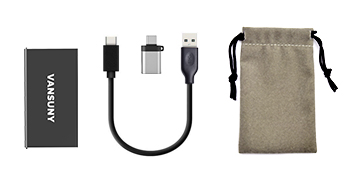
Image: The package contents laid out, showing the Vansuny SSD, a USB-C to USB-A cable, a USB-A to USB-C adapter, and a protective storage bag.
3. Setup
The Vansuny Portable SSD is designed for plug-and-play functionality, requiring no additional drivers for most operating systems.
- Connect the Cable: Insert the USB-C end of the provided data cable into the USB-C port on the Vansuny SSD.
- Connect to Device:
- For USB-C Ports (Laptops, Phones, Tablets): Connect the other USB-C end of the cable directly to your device's USB-C port.
- For USB-A Ports (Older PCs, Laptops): Attach the Type-A to Type-C data adapter to the USB-C end of the cable, then connect the USB-A adapter to your device's USB-A port.
- Power Indicator: A blue LED light on the SSD will illuminate when it is successfully connected and receiving power.
- Accessing the Drive: Your operating system should automatically detect the SSD. It will appear as an external drive in your file explorer (Windows) or Finder (Mac). For Android devices, access it through a file management application.

Image: The Vansuny Portable SSD connected to a laptop, smartphone, and tablet, showcasing its strong compatibility across different device types using the included cables and adapter.
4. Operating Instructions
Once connected, the Vansuny Portable SSD functions like any other external storage device.
- Data Transfer: Drag and drop files or folders to and from the SSD. Utilize its high-speed capabilities for large files and backups.
- Formatting: If the drive is not recognized or you wish to change its file system (e.g., for specific operating system compatibility or larger file support), you may need to format it. Refer to your operating system's documentation for instructions on how to format an external drive. Note: Formatting will erase all data on the drive.
- Gaming and Media Storage: The SSD can be used to expand storage for gaming consoles like PS4, PS5, or Xbox, or to store large media files for video editing and music production.
- Safe Ejection: Always safely eject the SSD from your device before disconnecting it to prevent data corruption. This can typically be done through your operating system's taskbar (Windows) or by dragging the drive icon to the Trash (Mac).
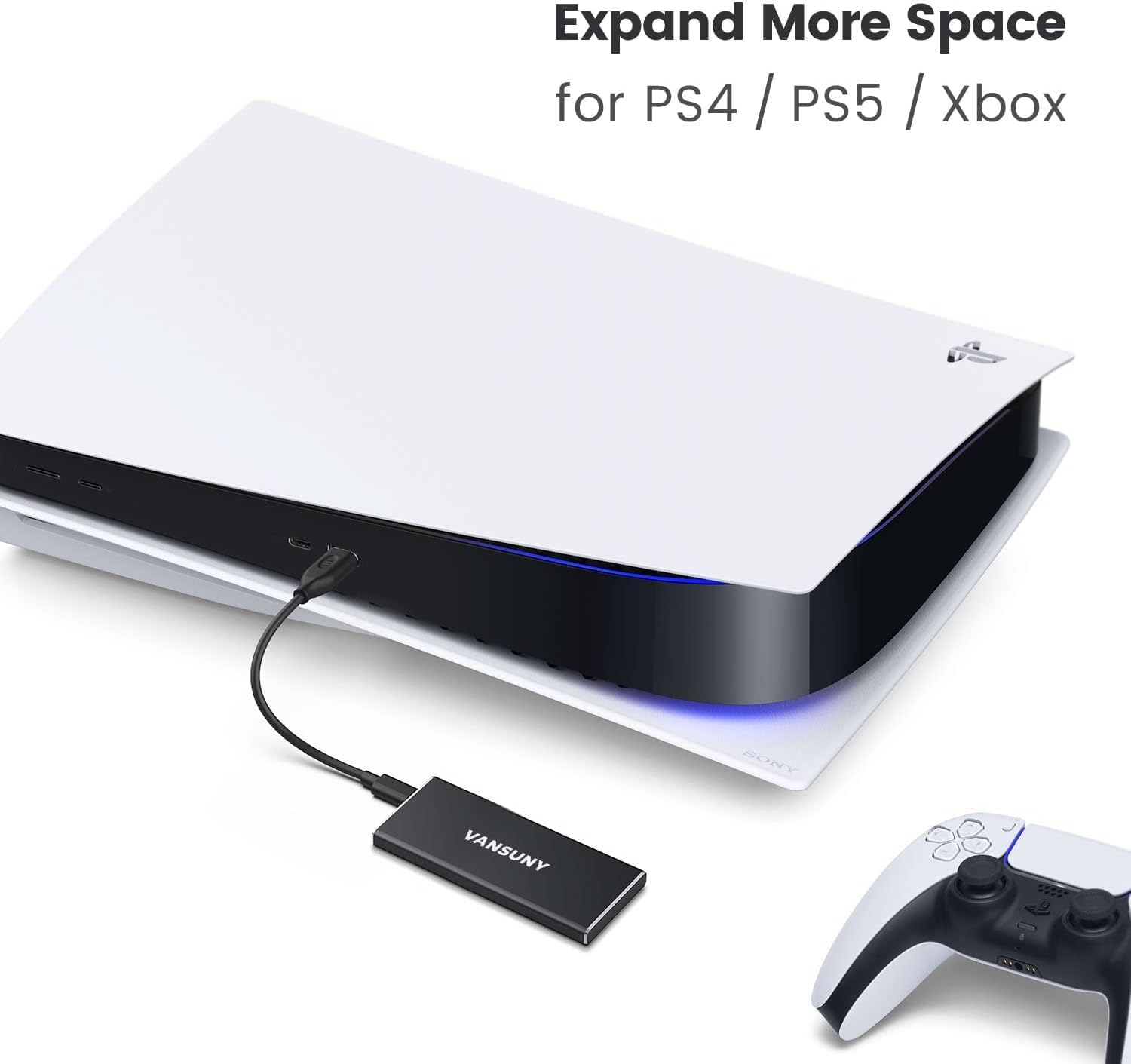
Image: The Vansuny Portable SSD connected to a PlayStation 5 console, demonstrating its capability to expand storage for gaming systems.
5. Maintenance
To ensure the longevity and optimal performance of your Vansuny Portable SSD, follow these maintenance guidelines:
- Physical Protection: The metal casing provides robust protection against shocks and wear. However, avoid dropping the device from significant heights or subjecting it to extreme physical impact.
- Water Resistance: The SSD is designed to be waterproof. While it can withstand splashes, avoid prolonged submersion in water.
- Temperature: Operate and store the SSD within recommended temperature ranges to prevent damage. Avoid exposing it to extreme heat or cold.
- Cleaning: Use a soft, dry cloth to clean the exterior of the SSD. Do not use harsh chemicals or abrasive materials.
- Storage: When not in use, store the SSD in the provided storage bag to protect it from dust and scratches.

Image: The Vansuny Portable SSD, highlighting its durable full-metal design and rugged aluminum alloy casing, which provides excellent shock and drop resistance.
6. Troubleshooting
If you encounter issues with your Vansuny Portable SSD, refer to the following common troubleshooting steps:
- SSD Not Recognized:
- Ensure the cable is securely connected to both the SSD and your device.
- Try connecting the SSD to a different USB port on your computer or device.
- If using the adapter, ensure it is properly attached and functioning.
- Test the SSD with a different cable if available.
- Check your device's Disk Management (Windows) or Disk Utility (Mac) to see if the drive is detected but unformatted or uninitialized.
- Slow Transfer Speeds:
- Ensure you are using a USB 3.0/3.1/3.2 compatible port on your device for optimal speeds. Older USB 2.0 ports will result in significantly slower transfers.
- Verify that your device's drivers are up to date.
- Avoid transferring many small files simultaneously, as this can reduce overall transfer speed compared to large single files.
- LED Indicator Not Lighting Up:
- Confirm the SSD is properly connected to a powered USB port.
- Try a different USB port or device.
7. Specifications
| Feature | Detail |
|---|---|
| Digital Storage Capacity | 2 TB |
| Hard Disk Interface | USB 2.0/3.0 |
| Connectivity Technology | USB |
| Brand | Vansuny |
| Special Feature | Portable |
| Hard Disk Form Factor | 2.5 Inches |
| Hard Disk Description | Solid State Drive |
| Compatible Devices | Laptop, PC, Phones, Tablets, PS4, PS5, Xbox |
| Installation Type | External Hard Drive |
| Color | Black |
| Read Speed | 500 Megabytes Per Second |
| Media Speed (Write Speed) | 450 MB/s |
| Data Transfer Rate | 500 Megabits Per Second (USB 3.1 Gen2) |
| Form Factor | 2.5-inch |
| Hardware Connectivity | USB 3.1 Type C |
| Enclosure Material | Aluminum |
| Model Number | Vansuny-2TB-Portable-External-SSD |
| Item Weight | 0.09 Kilograms |
8. Warranty and Support
The Vansuny Portable External SSD comes with a manufacturer's warranty to cover defects in materials and workmanship.
- Warranty Period: 2 months from the date of purchase.
- Return Policy: This product is eligible for a refund or replacement within 30 days of purchase, subject to the retailer's return policy.
- Customer Support: For technical assistance, warranty claims, or product inquiries, please refer to the contact information provided in the Quick Start Guide or visit the official Vansuny website.