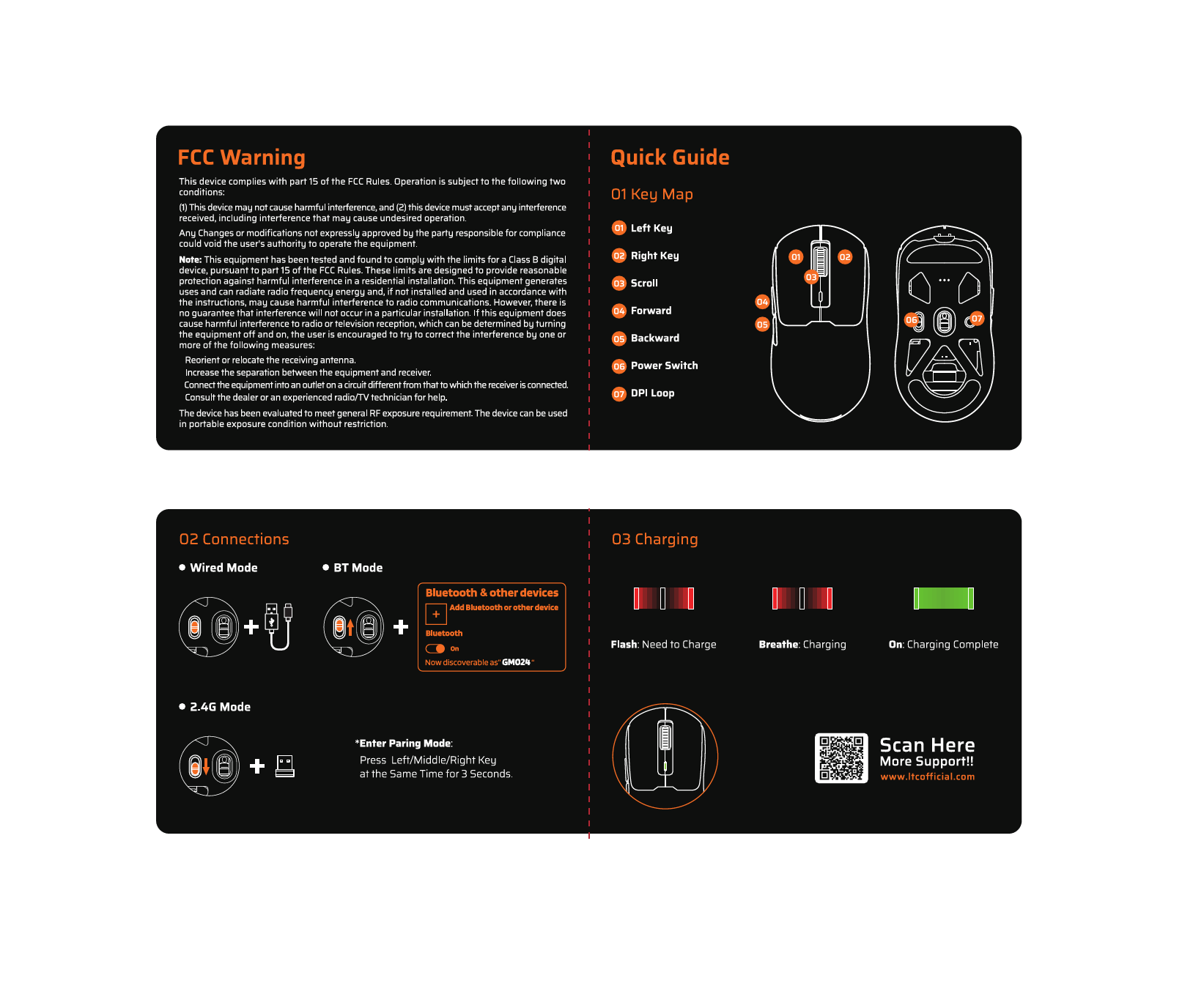
1. Introduction
This manual provides detailed instructions for the setup, operation, and maintenance of your LTC GM023 Tri-Mode Wireless Gaming Mouse. Designed for precision and comfort, the GM023 offers versatile connectivity options and customizable features to enhance your gaming and work experience.

Image: Overview of the LTC GM023 Wireless Gaming Mouse highlighting its key features.
2. Product Features
- Triple Mode Connectivity: Supports Bluetooth 5.0, 2.4Ghz wireless, and wired USB-C connections for versatile use.
- Reliable PAW3104 Sensor: Delivers precision with a 1000Hz polling rate, 15G acceleration, and 45 IPS tracking speed. Adjustable DPI up to 8000.
- Lightweight Honeycomb Design: Weighs only 79g with a breathable ergonomic honeycomb shell for enhanced airflow and comfort during extended use.
- 6 Programmable Buttons & Onboard Memory: Customize functions and save up to 3 profiles directly to the mouse.
- Pro Software Support: Assign macros, remap key functions, redefine DPI, and fine-tune polling rate.

Image: Detailed view of the PAW3104 Pro Sensor and its performance metrics.

Image: The lightweight honeycomb design of the GM023 mouse, emphasizing comfort and reduced sweat.
3. Package Contents
Ensure all items are present in the package:
- LTC GM023 Gaming Mouse
- Flexible Paracord Type-C Cable
- User Guide
4. Setup
4.1. Connectivity Modes
The LTC GM023 supports three connection modes: 2.4Ghz Wireless, Bluetooth 5.0, and Wired USB-C.
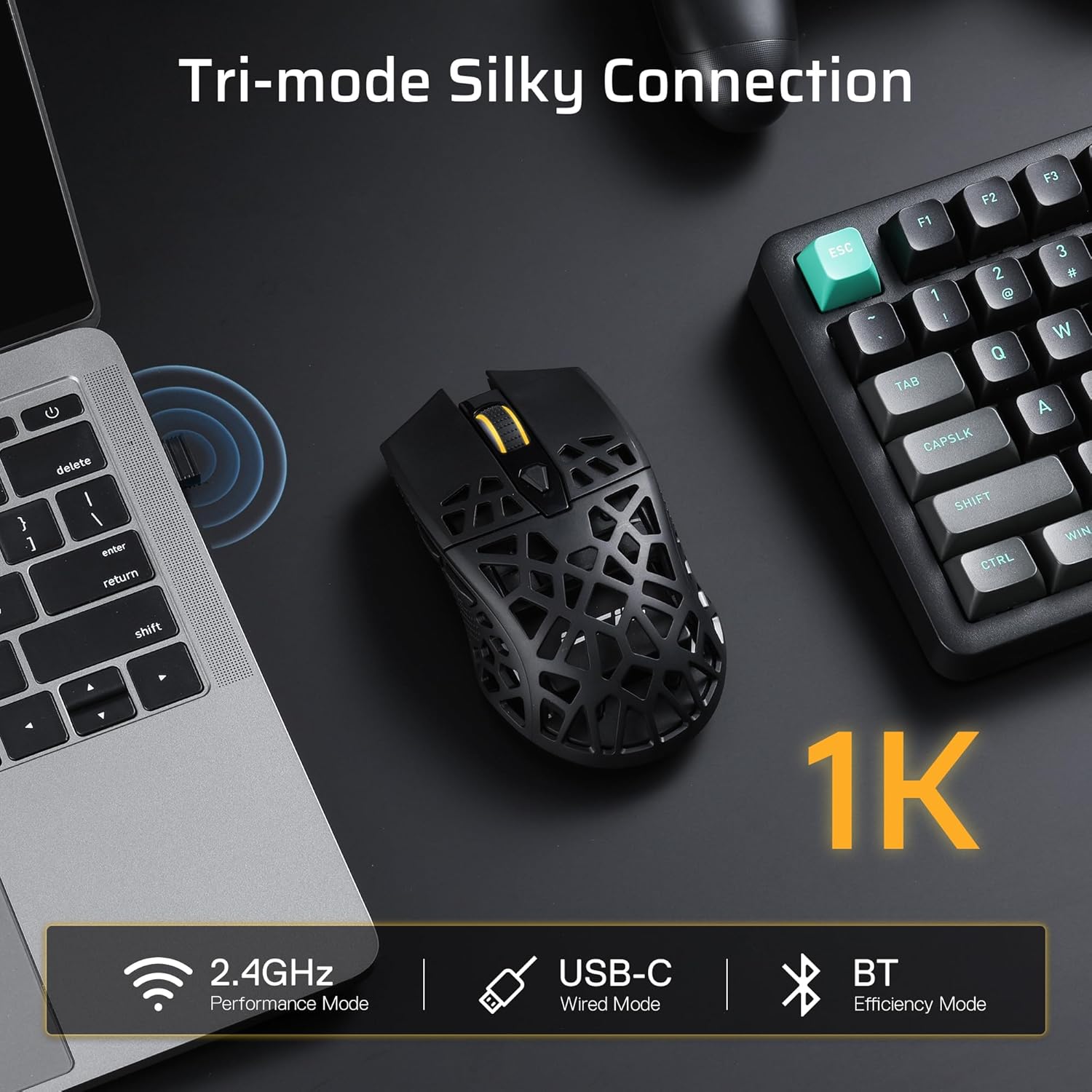
Image: Visual representation of the mouse's tri-mode connectivity options: 2.4GHz, USB-C Wired, and Bluetooth.
2.4Ghz Wireless Mode:
- Locate the 2.4Ghz USB receiver stored in the compartment on the underside of the mouse.
- Plug the USB receiver into an available USB port on your computer.
- Switch the mode selector on the bottom of the mouse to '2.4G'.
- The mouse will automatically connect to your computer.
Bluetooth 5.0 Mode:
- Switch the mode selector on the bottom of the mouse to 'BT'.
- On your computer, navigate to Bluetooth settings and enable Bluetooth.
- Search for new devices and select 'LTC GM023' from the list to pair.
Wired USB-C Mode:
- Connect the provided USB-C cable to the front port of the mouse.
- Connect the other end of the cable to an available USB port on your computer.
- The mouse will function in wired mode and charge simultaneously.

Image: The underside of the mouse, indicating the mode switch (BT/OFF/2.4G) and the storage slot for the 2.4G dongle.
4.2. Charging the Mouse
The LTC GM023 features a rechargeable 500mAh battery. Connect the USB-C cable to the mouse and a USB power source (computer, wall adapter) to charge. The mouse can be used while charging in wired mode.
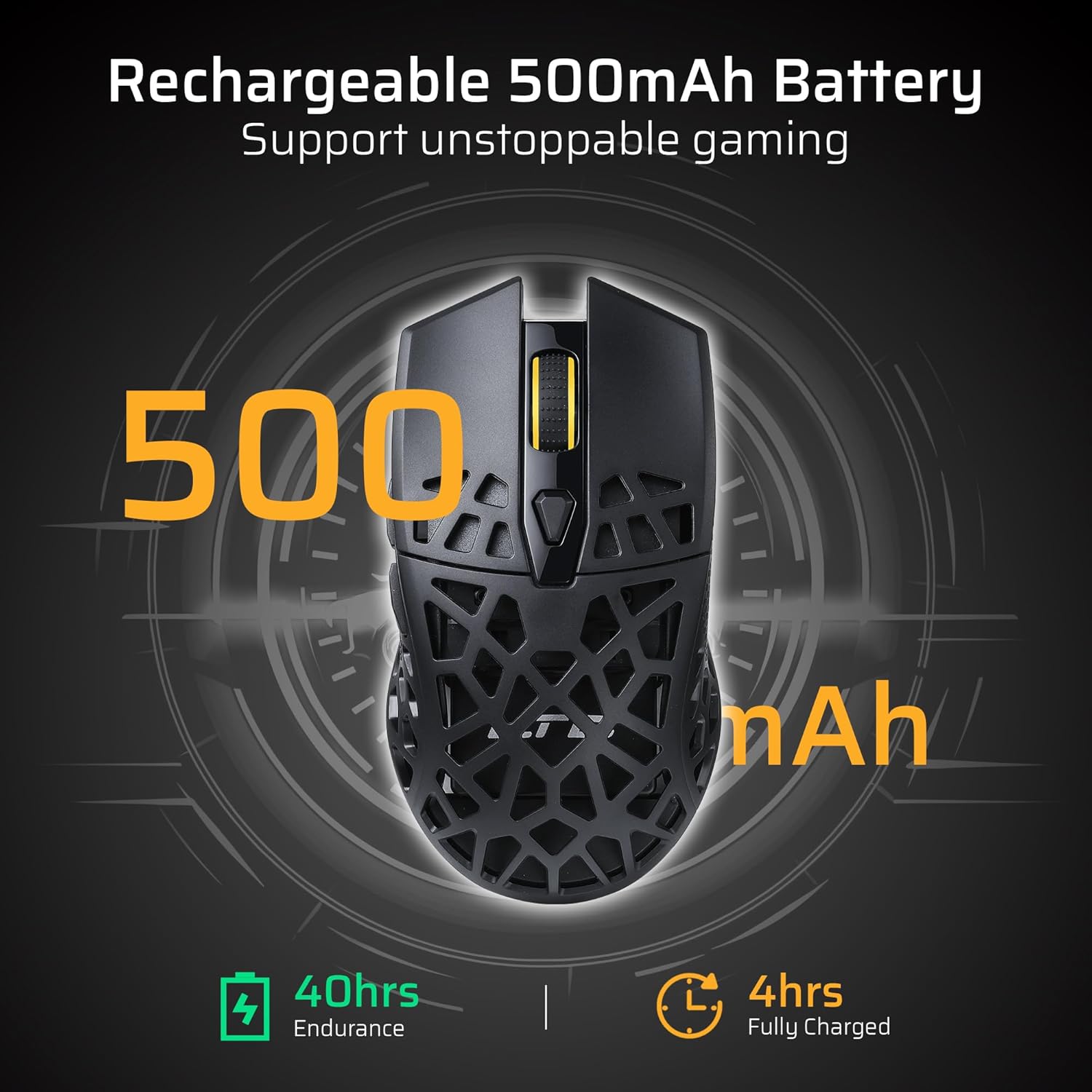
Image: The mouse's rechargeable 500mAh battery, indicating 40 hours of endurance and 4 hours for a full charge.
5. Operating Instructions
5.1. DPI Adjustment
The mouse offers 6 adjustable DPI settings up to 8000 DPI. Use the dedicated DPI button (usually located near the scroll wheel) to cycle through the sensitivity levels. Each level may be indicated by a different LED color or pattern.
5.2. Programmable Buttons
The LTC GM023 has 6 programmable buttons. To customize these buttons, download and install the LTC Pro Software from the official LTC website. The software allows you to:
- Assign complex macro functions.
- Remap key functions.
- Redefine 6-Step DPI settings.
- Fine-tune polling rate.
- Save up to 3 ready-to-play profiles directly to the mouse.
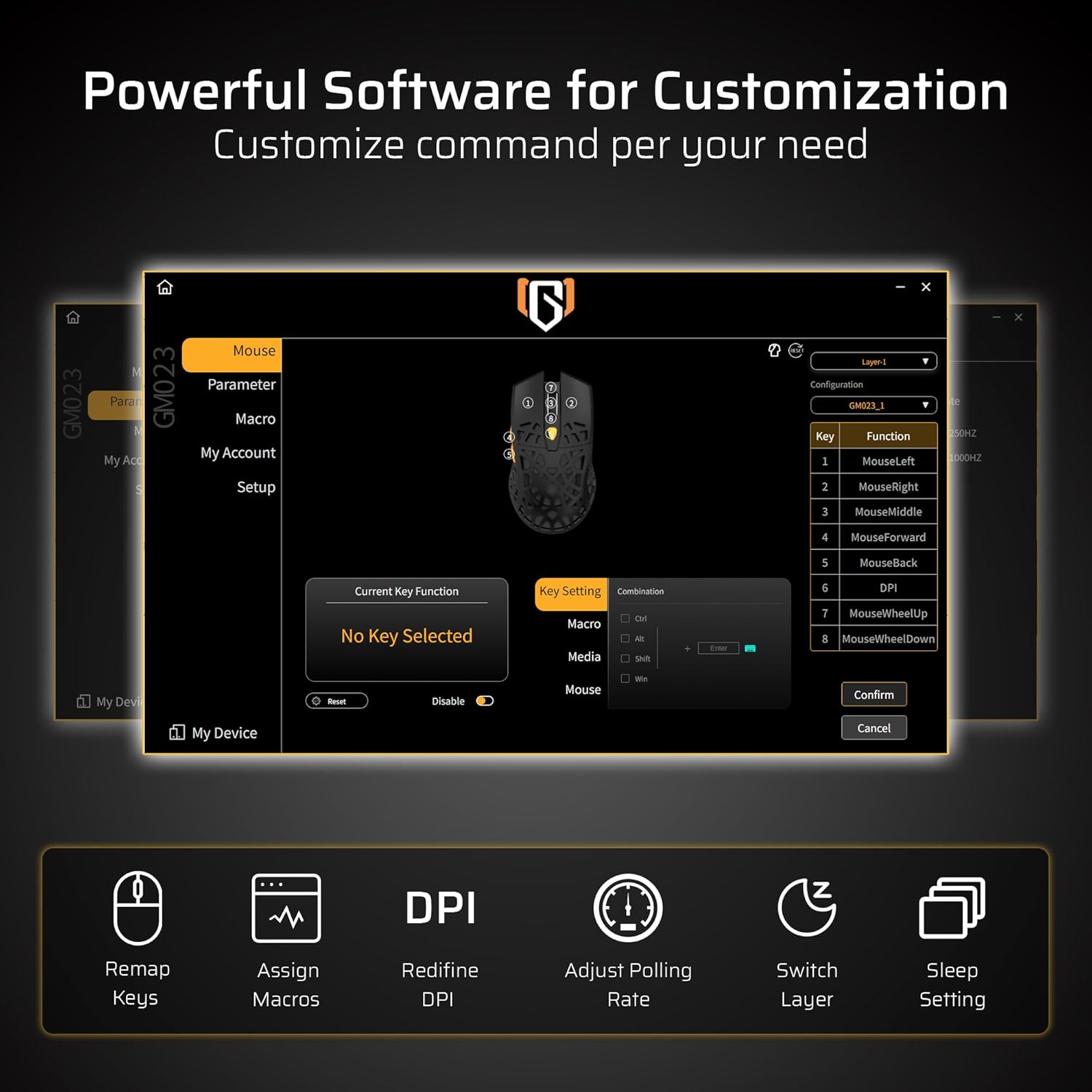
Image: The powerful software interface for customizing the GM023 mouse, showing options for key remapping, macro assignment, DPI adjustment, and more.

Image: Further illustration of the customization options available through the mouse's software, including sleep settings and layer switching.
6. Maintenance
To ensure the longevity and optimal performance of your LTC GM023 mouse:
- Clean the mouse regularly with a soft, dry cloth.
- Avoid exposing the mouse to extreme temperatures or humidity.
- Do not disassemble the mouse, as this may void the warranty.
- Keep the USB receiver in its storage compartment when not in use to prevent loss.
7. Troubleshooting
7.1. Mouse Not Responding:
- Ensure the mouse is powered on.
- Check the battery level and charge if necessary.
- For 2.4Ghz mode, ensure the USB receiver is securely plugged in and the mode switch is set correctly.
- For Bluetooth mode, ensure Bluetooth is enabled on your device and the mouse is paired. Try re-pairing if connection is lost.
- For wired mode, ensure the USB-C cable is securely connected to both the mouse and the computer.
7.2. Cursor Movement is Erratic:
- Clean the optical sensor on the bottom of the mouse.
- Ensure you are using the mouse on a suitable surface (e.g., a mouse pad).
- Adjust the DPI settings to a comfortable level.
8. Specifications
| Feature | Specification |
|---|---|
| Product Dimensions | 4.8 x 2.6 x 0.1 inches |
| Item Weight | 2.01 ounces |
| Item Model Number | GM023 |
| Batteries | 1 Lithium Polymer battery (included) |
| Connectivity Technology | Bluetooth, Radio Frequency (2.4Ghz), USB-C |
| Special Features | LED Lights, Lightweight, Programmable Buttons, Rechargeable, Wireless |
| Movement Detection Technology | Optical |
9. Warranty and Support
For warranty information and technical support, please refer to the official LTC website or contact customer service through your purchase platform. Keep your proof of purchase for warranty claims.
10. Official Product Videos
LTC GM023 GM024 Wireless Gaming Mouse
Video: An overview of the LTC GM023 and GM024 wireless gaming mice, showcasing their design and features.
LTC GM023 GM024 Tri-Mode Wireless Gaming Mouse
Video: A detailed look at the tri-mode connectivity of the LTC GM023 and GM024 wireless gaming mice.
LTC GM023 Wireless Gaming Mouse, 79g Ultra-Light Honeycomb
Video: Highlighting the ultra-lightweight 79g honeycomb design of the LTC GM023 wireless gaming mouse.