
Introduction
This manual provides detailed instructions for the setup, operation, and maintenance of your BORN4SHIP Thermal Bluetooth 4x6 Label Printer, Model 422B. Please read this manual thoroughly before using the printer to ensure proper functionality and to extend the product's lifespan. This thermal printer is designed for efficient label printing without the need for ink or toner, supporting various label sizes and operating systems.
What's in the Box
Verify that all items are present in the package:
- BORN4SHIP Thermal Bluetooth Label Printer
- Power Adapter
- USB Cable
- USB Flash Drive (containing drivers and software)
- User Manual
- 4x6 Shipping Labels (sample roll)
Setup
1. Unpacking and Initial Inspection
Carefully remove the printer from its packaging. Inspect the printer for any signs of damage. If any damage is found, do not proceed with setup and contact customer support.
2. Loading Labels
The printer supports thermal label rolls with a maximum diameter of 10cm (approximately 250 units for 4x6 labels). It does not support 500-unit 4x6 rolls.
- Open the top cover of the printer.
- Place the label roll into the internal label holder, ensuring the labels feed from the bottom.
- Pull the first label through the print head mechanism until it extends slightly past the cutter.
- Adjust the label guides to fit the width of your labels snugly, without creasing them.
- Close the top cover. The printer will automatically detect the label gap and calibrate.

Image: BORN4SHIP thermal label printer showing support for multiple label sizes from 1 inch to 4.25 inches wide, including 4x6 shipping labels and smaller custom labels. It illustrates the process of loading a label roll into the printer.
3. Connecting to Power
Connect the power adapter to the printer's power port and then plug it into a wall outlet. Turn on the printer using the power button.
4. Driver Installation (for PC/Laptop via USB)
For Windows, Mac, Linux, and Chromebook systems, connect the printer via the provided USB cable.
- Insert the included USB flash drive into your computer.
- Locate and run the appropriate driver installer for your operating system (Windows, Mac, Linux, Chromebook).
- Follow the on-screen instructions to complete the driver installation.
- After installation, connect the printer to your computer using the USB cable. The system should recognize the printer.

Image: BORN4SHIP label printer showing connectivity options via USB for Windows, Mac, Linux, Chromebook, and Bluetooth for Android, iOS, and Tablets. This visual confirms the broad operating system support.
5. Bluetooth Pairing (for Mobile Devices via Ezlabel App)
For Android, iPhone, and iPad devices, use the "Ezlabel" application for wireless printing.
- Download the "Ezlabel" app from the Google Play Store (for Android) or the Apple App Store (for iOS/iPadOS).
- Ensure Bluetooth is enabled on your mobile device.
- Open the "Ezlabel" app and follow the in-app instructions to search for and connect to your BORN4SHIP printer via Bluetooth.
- Once connected, you can print PDFs and customize labels directly from the app.
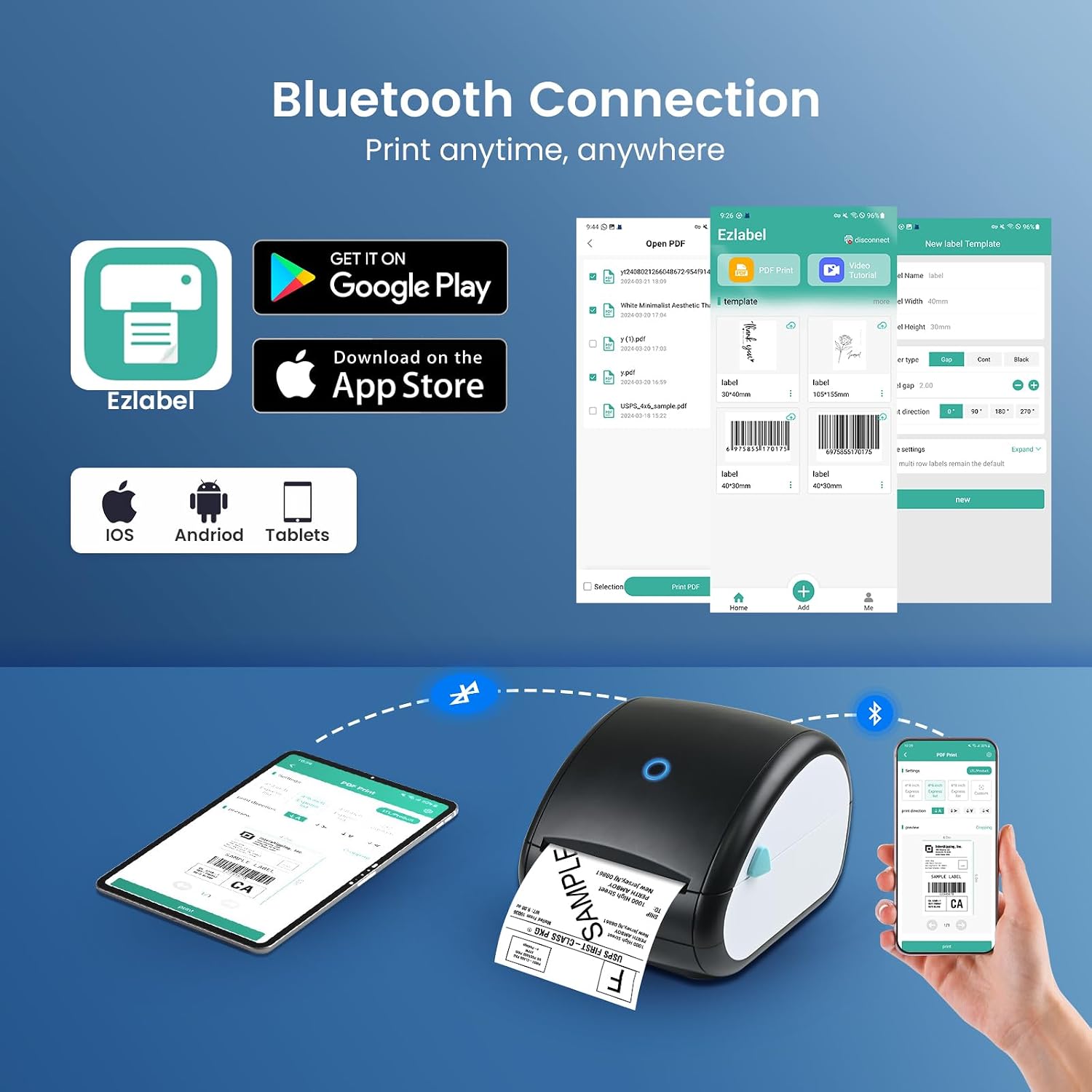
Image: Step-by-step guide on how to print labels from a smartphone using the Ezlabel app with the BORN4SHIP thermal label printer, including app download, Bluetooth pairing, and print settings. This visual aids in understanding the mobile printing process.
Operating Instructions
1. Printing from a Computer (USB Connection)
After driver installation and connecting via USB:
- Open the document or label file you wish to print (e.g., a shipping label PDF).
- Select "Print" from your application's menu.
- Choose the BORN4SHIP printer from the list of available printers.
- In the printer settings, ensure the paper size matches your labels (e.g., 4x6 inches) and select "Continuous" or "Label" mode if available, to prevent misfeeds.
- Click "Print".

Image: BORN4SHIP label printer demonstrating one-click Bluetooth printing compatibility with various platforms like ShipStation, UPS, DHL, Shopify, and Etsy. This image highlights the printer's integration with common e-commerce and shipping services.
2. Printing from a Mobile Device (Bluetooth Connection)
Using the "Ezlabel" app:
- Ensure your printer is paired via Bluetooth with your mobile device and connected within the "Ezlabel" app.
- Within the app, select the PDF document or create a custom label.
- Adjust label size and other settings as needed.
- Initiate the print command from the app.
3. Supported Label Types and Sizes
The BORN4SHIP printer is compatible with direct thermal labels ranging from 1 inch (25.4 mm) to 4.5 inches (115 mm) in width. The maximum print width is 4.25 inches (108 mm), and the maximum print length is 70 inches. It is suitable for various label types:
- 4x6 inch shipping labels
- Storage labels
- Address labels
- Round labels
- Barcode and identification labels
- Custom labels (e.g., nutrition facts, thank you labels, product labels)

Image: Various applications of labels printed by the BORN4SHIP printer, including shipping, barcode, nutrition, thank you, attention, and handmade stickers. This visual demonstrates the versatility of the printer for different labeling needs.
Maintenance
1. Cleaning the Print Head
Regular cleaning of the print head ensures optimal print quality and extends the printer's life.
- Turn off the printer and unplug the power cord.
- Open the top cover to access the print head.
- Gently wipe the print head surface with an alcohol swab or a soft, lint-free cloth lightly dampened with isopropyl alcohol.
- Allow the print head to dry completely before closing the cover and turning the printer back on.
2. General Care
- Keep the printer in a clean, dust-free environment.
- Avoid exposing the printer to direct sunlight, high temperatures, or excessive humidity.
- Use only recommended thermal labels to prevent damage to the print head.
Troubleshooting
Refer to the following table for common issues and their solutions:
| Issue | Possible Cause | Solution |
|---|---|---|
| No Power | Power cable disconnected; power outlet fault. | Check power connections; try a different outlet. |
| Poor Print Quality / Faded Prints | Dirty print head; incorrect label type; low print density setting. | Clean the print head (see Maintenance); ensure you are using direct thermal labels; adjust print density in software settings. |
| Labels Not Feeding Correctly | Labels loaded incorrectly; label guides not adjusted; incorrect paper type setting in software. | Reload labels correctly; adjust label guides; ensure "Continuous" or "Label" mode is selected in print settings. |
| Cannot Connect via Bluetooth | Bluetooth off on device; printer not in pairing mode; app not detecting printer. | Ensure Bluetooth is on; restart printer and app; try re-pairing from app. |
| Cannot Print via USB | Driver not installed; incorrect USB port; cable fault. | Install drivers from USB flash drive; try a different USB port; replace USB cable. |

Image: BORN4SHIP label printer producing clear, high-resolution labels with 99.99% scannable barcodes, demonstrated with a barcode scanner. This image highlights the importance of clear printing for scannable barcodes, which can be affected by print quality issues.
Specifications
| Feature | Detail |
|---|---|
| Model Name | DB403 |
| Model Number | 422B |
| Printing Technology | Direct Thermal |
| Connectivity Technology | Bluetooth, USB |
| Print Resolution | 203 x 203 dpi |
| Max Print Speed | Up to 75 4x6 labels per minute (150 mm/s) |
| Max Label Width | 4.5 inches (115 mm) |
| Max Print Width | 4.25 inches (108 mm) |
| Max Print Length | 70 inches |
| Compatible Label Types | Direct Thermal Labels |
| Compatible Operating Systems | Windows XP/7/8/10+, Linux, Chromebook, Mac, iOS, Android |
| Duplex Printing | No (Simplex) |
| Product Dimensions | 28.5 x 21.5 x 19.5 cm |
| Product Weight | 2.06 kg |
| Power Input | AC 100-240V, 50/60Hz (via power adapter) |
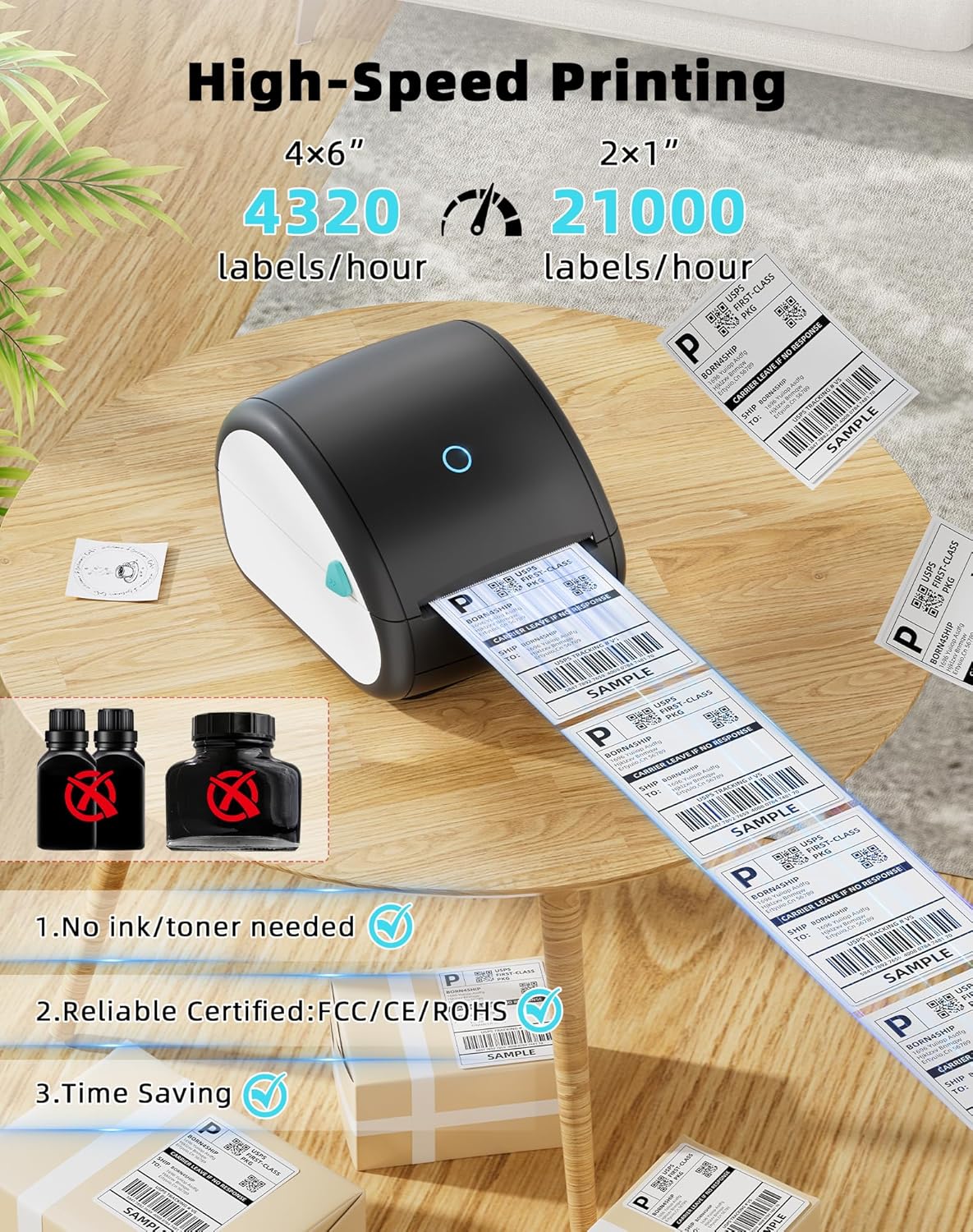
Image: BORN4SHIP label printer rapidly printing a continuous roll of 4x6 labels, highlighting high-speed, inkless thermal printing. This image visually represents the printer's efficiency and core thermal technology.
Warranty and Support
Warranty Information
This BORN4SHIP printer comes with a limited warranty. Please refer to the warranty card included in your package or contact customer support for specific terms and conditions.
Customer Support
For technical assistance, troubleshooting, or any inquiries regarding your BORN4SHIP printer, a professional after-sales support team is available. Support options typically include:
- Online Chat
- Remote Assistance
- Email Support
Please consult the contact information provided in your product packaging or on the official BORN4SHIP website for the most up-to-date support channels.