
SIXWIN A4053
SIXWIN Single Din Car Stereo P2 Instruction Manual
Model: A4053
1. Product Overview
The SIXWIN Single Din Car Stereo P2 is a versatile car multimedia player featuring a 7-inch full HD touchscreen. It integrates wireless CarPlay and Android Auto for seamless smartphone connectivity, Bluetooth for hands-free communication and audio streaming, FM radio, and steering wheel control compatibility. This unit is designed to enhance your in-car entertainment and navigation experience.

Image: Front view of the SIXWIN Single Din Car Stereo P2 with its 7-inch touchscreen display.
2. What's in the Box
Upon unboxing, verify that all components are present:
- SIXWIN Single Din Car Stereo P2 unit
- Power Cable
- Horn Cable
- Microphone (Mic)
- User Manual
- Remote Control
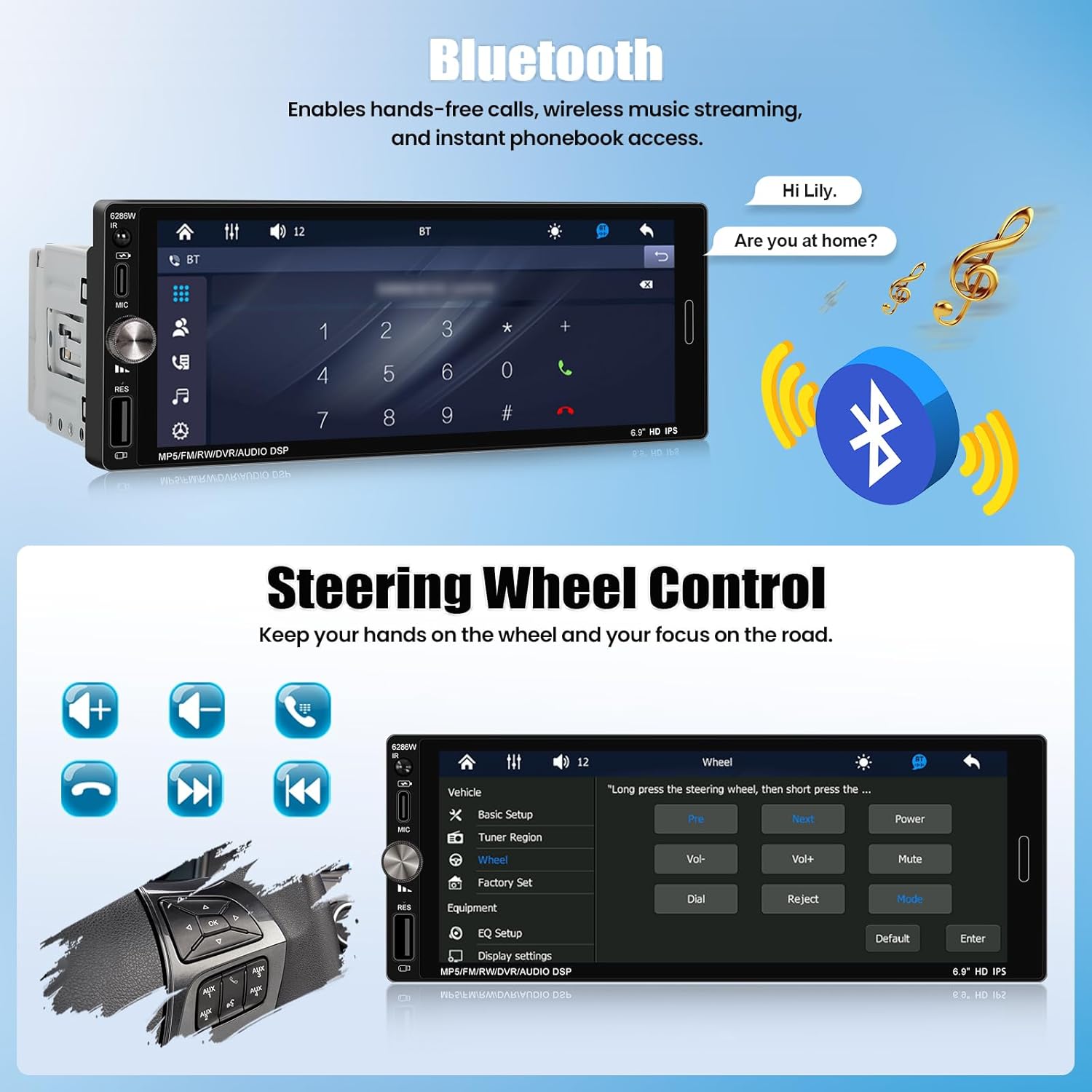
Image: Diagram showing the car stereo unit with its dimensions and a list of included accessories: horn cable, power cable, user manual, and remote control.
3. Installation Guide
Proper installation is crucial for optimal performance. If you are unsure about any steps, consult a professional car audio installer.
3.1 Wiring Diagram
Refer to the detailed wiring diagram provided in the physical user manual for specific connections. Ensure all connections are secure to prevent malfunctions.
- Power Cable: Connect to the vehicle's power supply (ACC, B+, Ground).
- Horn Cable: Connect to the vehicle's speaker outputs.
- Radio Antenna: Connect the vehicle's antenna to the unit's radio antenna input.
- USB Interface: For media playback and charging.
- RCA Outputs (R-OUT, L-OUT): For connecting external amplifiers.
- Video Input (CAMIN): For connecting a rearview camera (if applicable).
- Steering Wheel Control (SW): Connect to your vehicle's steering wheel control wires.
Image: Rear view of the car stereo showing various input/output ports including D-BUS, L-OUT, CAMIN, Horn Cable, Power Cable, USB Interface, R-OUT, and CVBSIN.
3.2 Mounting the Unit
Insert the single DIN unit into the vehicle's dashboard opening. Secure it using the provided mounting hardware. Ensure the unit is flush with the dashboard for a proper fit.

Image: A comparison showing a car dashboard with an old single DIN radio (Before) and the SIXWIN 7-inch touchscreen stereo installed (After).
4. Operating Instructions
4.1 Wireless CarPlay & Android Auto
This unit supports wireless CarPlay for iOS devices and wireless Android Auto for Android devices, allowing access to navigation, calls, messages, and music directly from the stereo's screen.
- Ensure Bluetooth and Wi-Fi are enabled on your smartphone.
- On the car stereo, select the "CarPlay" or "Android Auto" icon.
- Follow the on-screen prompts to pair your phone via Bluetooth.
- Once paired, the system will automatically connect for wireless CarPlay or Android Auto functionality.

Image: The car stereo display showing a navigation map and music playback, with icons for CarPlay and Android Auto on the right, and illustrations of iPhone and Android phones connecting wirelessly.
4.2 Mirror Link Function
The Mirror Link feature allows you to mirror your smartphone's screen onto the car stereo display. This function supports one-way control for iOS and two-way control for Android devices. Note: This feature is not compatible with Samsung devices.
- Connect your smartphone to the stereo via a USB cable.
- Select the "Mirror Link" option on the stereo.
- Follow the instructions on the stereo screen and your phone to establish the connection.
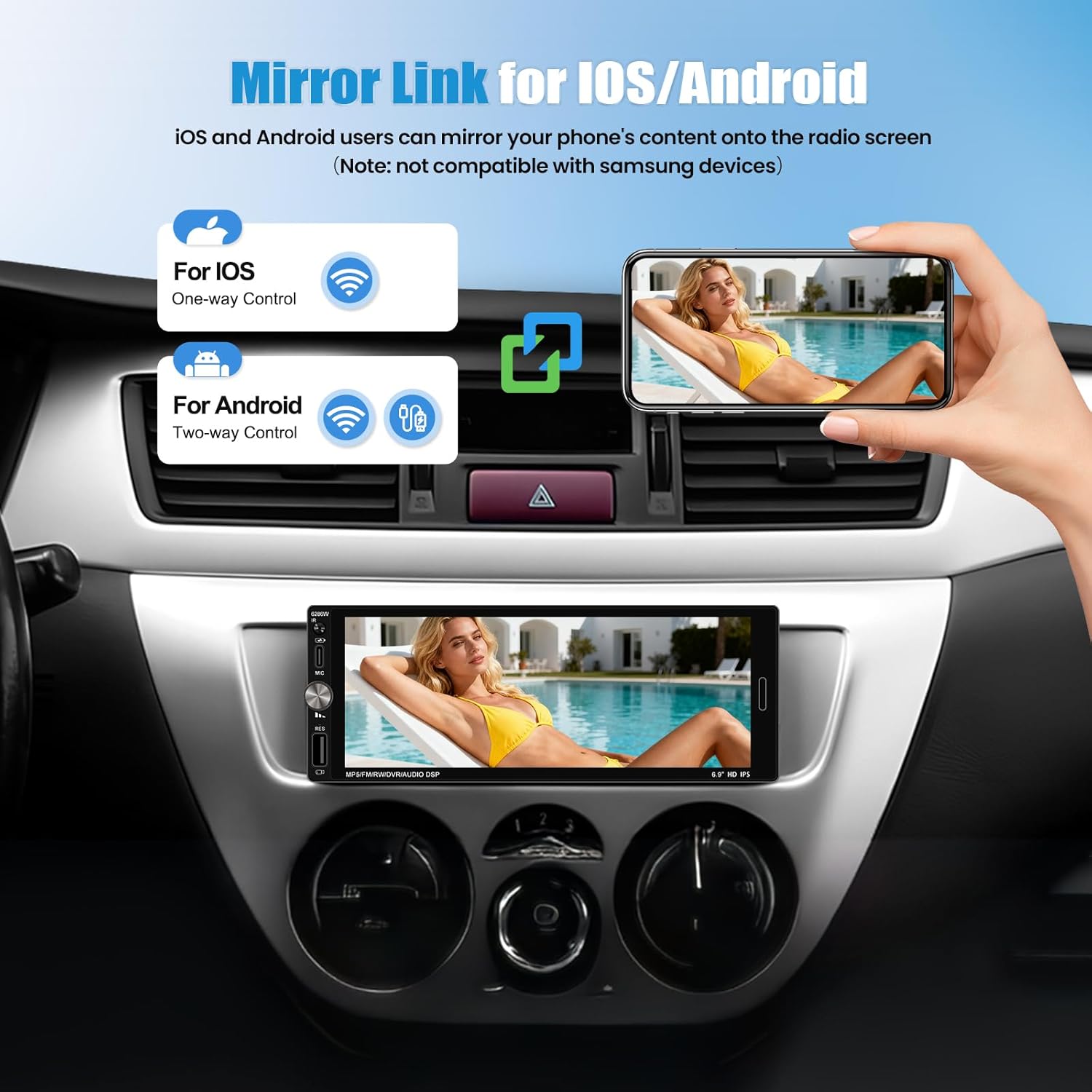
Image: A hand holding a smartphone mirroring its display onto the car stereo screen, illustrating the Mirror Link function for iOS (one-way control) and Android (two-way control).
4.3 Bluetooth Connectivity
Connect your phone via Bluetooth for hands-free calling, wireless music streaming, and access to your phonebook.
- On the stereo, navigate to the "Bluetooth" menu.
- Enable Bluetooth on your smartphone and search for available devices.
- Select "SIXWIN P2" (or similar name) from the list on your phone and confirm pairing.
- Once connected, you can make/receive calls and play audio wirelessly.

Image: The car stereo display showing the Bluetooth dialing interface, with a phone icon and a speech bubble indicating a hands-free call.
4.4 FM Radio Operation
Access your favorite radio stations with clear signal reception.
- Select the "FM Radio" icon from the main menu.
- Use the on-screen controls to scan for stations, manually tune, or select from preset stations.
- The unit supports 18 preset stations.
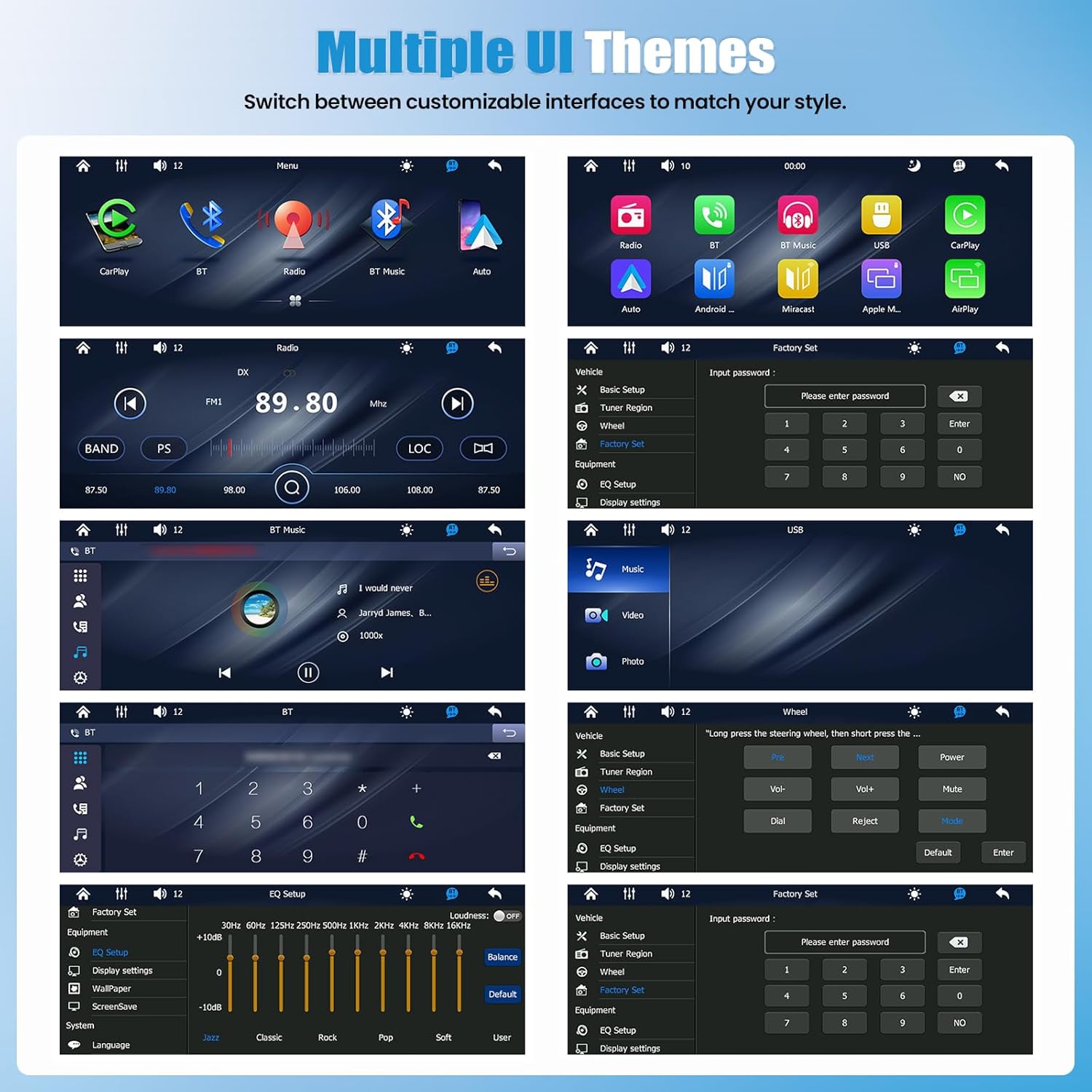
Image: The car stereo display showing the FM radio interface with frequency display (89.80 MHz) and controls for scanning and presets.
4.5 Steering Wheel Control
If your vehicle supports steering wheel controls, you can configure them to operate the stereo, allowing you to manage audio and calls without taking your hands off the wheel.
- Access the "Steering Wheel Control" settings in the system menu.
- Follow the on-screen instructions to program each button on your steering wheel to the desired function (e.g., volume up/down, next/previous track, answer/end call).
Image: The car stereo display showing the "Steering Wheel Control" setup menu, with options to assign functions like volume, track skip, and call answer/reject to physical steering wheel buttons.
4.6 EQ Settings
Customize your audio output with the built-in equalizer settings to match your preferences.
- Navigate to the "EQ Settings" menu.
- Adjust frequency bands (e.g., 30Hz, 60Hz, 125Hz) to boost or cut specific audio ranges.
- Select from preset equalizer modes (e.g., Jazz, Classic, Rock, Pop, Soft) or create a custom profile.
Image: The car stereo display showing the "EQ Setup" menu with sliders for adjusting various frequency bands and options for preset sound modes like Jazz, Classic, Rock, Pop, and Soft.
4.7 Multiple UI Themes
Personalize your stereo's appearance by switching between various customizable user interface themes.
- Access the "Display Settings" or "Theme" menu.
- Browse and select your preferred UI theme.
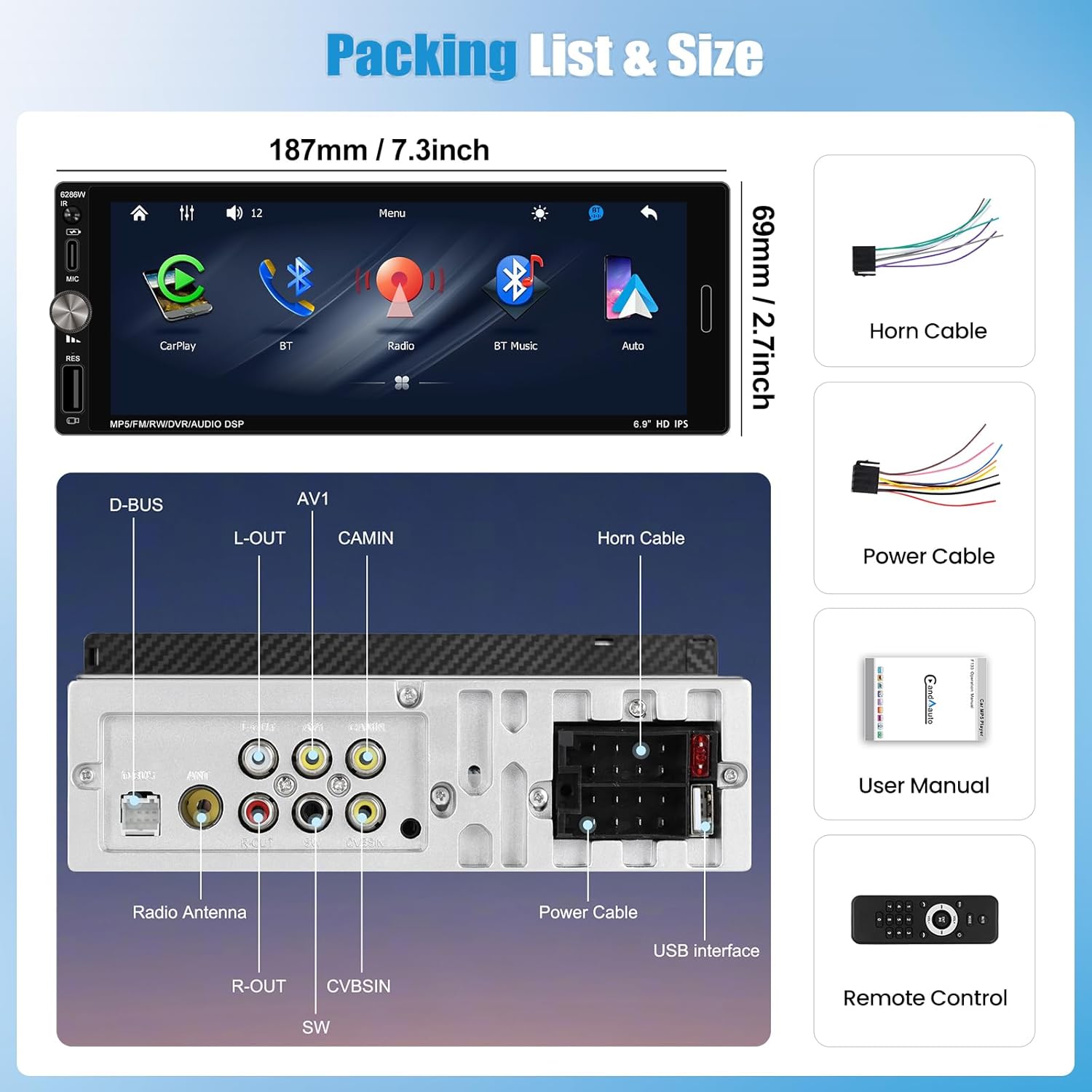
Image: A collage of several different user interface themes available on the SIXWIN car stereo, showing variations in icon styles, background colors, and layout for different functions like radio, Bluetooth, and media playback.
4.8 Multi-Port Playback & Charging
The unit features USB and Type-C inputs for direct media playback from storage devices and fast charging of compatible smartphones.
- Connect a USB drive or Type-C device to the corresponding port for media playback.
- Use the Type-C port to charge your smartphone while driving.

Image: The car stereo installed in a dashboard, with a smartphone connected via a Type-C cable for charging and a USB drive inserted into a USB port for data transmission.
5. Specifications
| Brand | SIXWIN |
| Model Number | A4053 |
| Display | 7-inch Full HD Touch Screen (1280*480 resolution) |
| Connectivity Technology | Wireless CarPlay, Wireless Android Auto, Bluetooth, FM Radio, Mirror Link |
| Controller Type | Touchscreen |
| Compatible Devices | Smartphone (iOS, Android - excluding Samsung for Mirror Link) |
| Connector Type | Mini USB, Type-C |
| Audio Output Mode | Stereo |
| Output Power | 4 Watts |
| Wattage | 45 Watts |
| Control Method | Touch, Steering Wheel Control |
| Product Dimensions (D x W x H) | 1"D x 1"W x 1"H (Unit dimensions: 187mm x 69mm) |
| Item Weight | 1 Kilogram |
6. Maintenance
To ensure the longevity and optimal performance of your SIXWIN Car Stereo, follow these maintenance guidelines:
- Cleaning the Screen: Use a soft, lint-free cloth to gently wipe the touchscreen. For stubborn smudges, slightly dampen the cloth with water or a screen-safe cleaner. Avoid harsh chemicals or abrasive materials.
- General Cleaning: Keep the unit free from dust and debris. Use a soft brush or compressed air to clean around buttons and ports.
- Temperature: Avoid exposing the unit to extreme temperatures, both hot and cold, for extended periods.
- Connections: Periodically check all wiring connections to ensure they are secure and free from corrosion.
7. Troubleshooting
If you encounter issues with your car stereo, refer to the following common problems and solutions:
| Problem | Possible Cause | Solution |
|---|---|---|
| No Power | Loose power connection; Blown fuse. | Check power cables and connections. Inspect and replace any blown fuses in the vehicle or stereo wiring. |
| No Sound | Incorrect speaker wiring; Volume too low; Mute function active. | Verify speaker connections. Increase volume. Check if the mute function is enabled. |
| Wireless CarPlay/Android Auto not connecting | Bluetooth/Wi-Fi off; Phone not paired; Software glitch. | Ensure Bluetooth and Wi-Fi are active on your phone. Re-pair the device. Restart both the phone and the car stereo. |
| Mirror Link not working with Samsung phone | Incompatibility. | The Mirror Link feature is explicitly stated as not compatible with Samsung devices. No solution available for Samsung phones. |
| Steering Wheel Controls not responding | Incorrect wiring; Not programmed. | Check the steering wheel control wiring. Ensure the controls are properly programmed in the stereo's settings menu. |
| Screen not bright enough in direct sunlight | Environmental factor. | Adjust screen brightness settings if available. This can be a limitation of the display technology in very bright conditions. |
8. Warranty and Support
8.1 Warranty Information
The SIXWIN Single Din Car Stereo P2 comes with a 1-year warranty from the date of purchase. This warranty covers manufacturing defects and malfunctions under normal use. Please retain your proof of purchase for warranty claims.
8.2 Customer Support
For online assistance, technical support, or further inquiries, please contact SIXWIN customer service:
- Email: sixwin_vip@163.com

Image: A customer service representative on the phone, with text indicating online help and user manual support via email: sixwin_vip@163.com.
Ask a question about this manual
Ask about setup, troubleshooting, compatibility, parts, safety, or missing instructions. Manuals+ will review the question and use this page’s manual context to help answer it.