
1. Introduction
This manual provides detailed instructions for the installation, setup, and operation of your Vratzn Qualcomm Android 13 Car Radio Stereo. This unit is specifically designed for Chevy Silverado and GMC Sierra models from 2014 to 2018, offering an enhanced in-car entertainment and navigation experience. Please read this manual thoroughly before installation and use to ensure proper functionality and safety.
Key Features:
- Applicable Car Models: Designed for Chevy Silverado 2014-2018 and GMC Sierra 2014-2018.
- Wireless CarPlay & Android Auto: Seamless smartphone integration for navigation, calls, messages, and music.
- GPS Navigation & WiFi Connectivity: Supports online maps and allows installation of Android apps via WiFi.
- Bluetooth 5.0: Hands-free calling and wireless music streaming with a built-in microphone.
- AHD Backup Camera: Includes an HD backup camera for clear parking assistance.
- Steering Wheel Control Support: Compatible with original steering wheel controls for safe operation.
- Stunning IPS Display: 9-inch touchscreen with 1280*720 high-definition resolution and customizable UI themes.
2. Safety Information
Always disconnect the vehicle's battery before beginning any installation to prevent electrical shorts or damage. Professional installation is recommended. Ensure all connections are secure and properly insulated. Do not operate the device in a way that distracts you from driving. Always adhere to local traffic laws and regulations.
3. Package Contents
Verify that all components are present in the package before starting the installation.
- Car Radio Unit
- Power Cable
- RCA Cable
- Reversing Line
- USB Cable 1 (4-pin)
- USB Cable 2 (6-pin)
- Can Bus
- Installation Tools
- Rear View Camera
- Microphone

Image: Complete package contents including the car radio, wiring harnesses, USB cables, GPS antenna, microphone, and backup camera.
4. Installation Guide
Follow these steps carefully for proper installation. It is recommended to watch the provided video tutorials for visual guidance.
4.1. Preparation
- Disconnect the vehicle's battery before starting any work.
- Gather all necessary tools and components.
4.2. Removing the Original Radio Unit
- Remove the plastic decorative strip around the radio: Use a pry tool to gently loosen and remove the trim panel surrounding the original radio. Be careful not to scratch the dashboard.
Video: Step-by-step guide on removing the plastic decorative strip around the car radio (00:00:09-00:00:32).
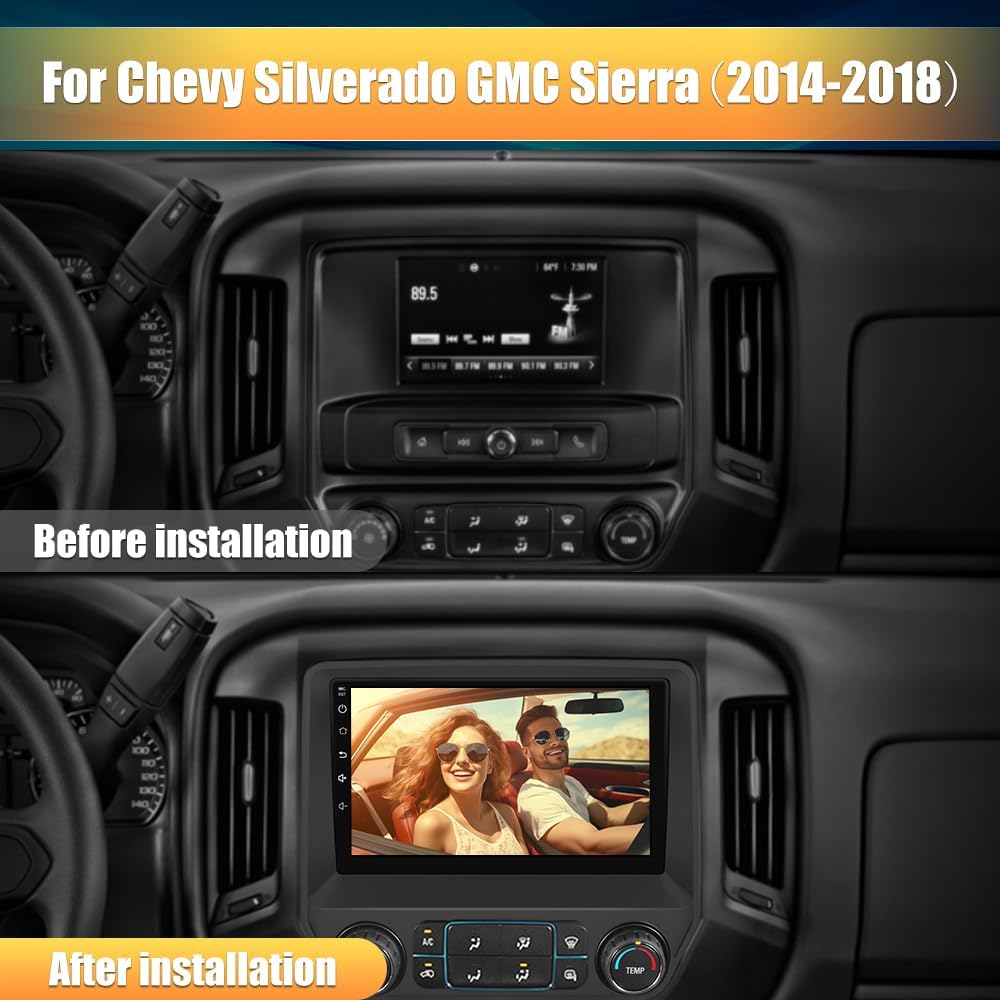
Image: Comparison of the dashboard before and after installing the new car radio stereo.
- Remove the four screws located in the corner: Once the trim is removed, locate and unscrew the four bolts securing the radio unit.
Video: Demonstrates removing the four screws securing the radio unit (00:00:32-00:00:56).
- Pull out the radio and unplug the three plugs behind it: Carefully pull the radio unit forward and disconnect all wiring harnesses from its rear.
Video: Shows how to pull out the radio and disconnect the plugs (00:00:56-00:01:25).
- Remove the climate control unit: Detach the climate control module from the original radio assembly.
Video: Guide to removing the climate control unit from the original radio (00:01:25-00:02:21).
- Install the climate control unit into the new radio trim: Secure the detached climate control module into the new radio's trim panel.
Video: Instructions for installing the climate control unit into the new radio trim (00:02:21-00:02:38).
- Remove the original car CD head unit: This machine is not compatible with the original car CD head unit. If your vehicle has one, please remove it according to the tutorial. If not, you can skip this step.
Video: Demonstrates removing the original car CD head unit (00:02:38-00:02:56).
4.3. Wiring Connections
- Wiring steps for using the original car steering wheel controls: Connect the provided wiring harness for steering wheel controls. Ensure correct connections to maintain functionality.
Video: Detailed steps for connecting the steering wheel control wiring (00:02:56-00:05:47).
- Install the microphone: Route the microphone cable and install the microphone in a suitable location, typically near the rearview mirror or A-pillar, for optimal call clarity.
Video: Instructions for installing the external microphone (00:05:47-00:10:05).
- Install the 4-pin and 6-pin USB cables: Connect the USB cables to the designated ports on the new radio unit and route them to an accessible location, such as the glove compartment or center console.
Video: Guide to installing the 4-pin and 6-pin USB cables (00:10:05-00:11:19).
- Install the GPS antenna: Connect the GPS antenna to the radio unit and place it in a location with a clear view of the sky, such as on the dashboard or under the windshield.
Video: Steps for installing the GPS antenna (00:11:19-00:12:08).
- Install reverse radar speaker: Connect the reverse radar speaker and secure it in a suitable location for audible alerts.
Video: Instructions for installing the reverse radar speaker (00:12:08-00:12:30).
- Connect the decoder box (if your original car radio has a Bose sound system): If your vehicle is equipped with a Bose sound system, you will need to connect the provided fiber optic decoder box. This ensures compatibility with the vehicle's audio system.
Video: Short guide on installing the decoder box for Bose systems (00:00:00-00:00:31).
Video: Detailed explanation on connecting the radio with a Bose audio system (00:00:00-00:03:56).

Image: Wiring diagram for connecting the decoder box with a Bose sound system.
- Completely connect the radio cables and the final installation result: Connect all remaining wiring harnesses to the new radio unit. Carefully place the new radio unit into the dashboard opening and secure it with the previously removed screws. Reattach the decorative trim panel.
Video: Comprehensive installation video for the radio in Sierra/Silverado models (00:00:00-00:17:01).

Image: Overview of the wiring connections for the car radio stereo.

Image: The new car radio stereo seamlessly integrated into the Chevy Silverado dashboard.
5. Setup
After successful installation, reconnect the vehicle's battery and power on the system for initial setup.
- Initial Boot: The system will boot up, displaying the Android logo. This may take a few moments.
- WiFi Connection: Navigate to Settings > Network & Internet > Wi-Fi to connect to a local WiFi network. This is essential for online maps and app downloads.
- GPS Configuration: Ensure the GPS antenna is properly connected and positioned. The system will automatically acquire satellite signals for navigation.
6. Operating Instructions
Your Vratzn car radio stereo offers a wide range of features for an enhanced driving experience.
6.1. Wireless CarPlay & Android Auto
Connect your iPhone or Android device wirelessly via Bluetooth to access smart voice assistants, navigation, calls, messages, and music directly on the car stereo display.

Image: Wireless CarPlay and Android Auto functionality on the car radio display.
6.2. Bluetooth 5.0
Pair your phone via Bluetooth for hands-free calling and wireless audio streaming. The built-in microphone ensures clear communication.

Image: Bluetooth connectivity for phone calls and music playback.
6.3. GPS Navigation
Utilize online maps for real-time navigation. With WiFi connected, you can access GPS navigation anywhere.

Image: Online navigation and WiFi app support on the car radio.
6.4. Steering Wheel Control
Control menus and functions using your vehicle’s original steering wheel controls for a safer driving experience.

Image: Steering wheel control functionality for easy menu navigation.
6.5. Audio Settings (DSP/EQ)
The system features a 48-band EQ and DSP sound effects for customized audio experiences. Adjust settings to suit your personal preferences.
6.6. AHD Backup Camera
The included HD backup camera displays a clear AHD image on the screen when parking, assisting with safe maneuvering.

Image: AHD 720P backup camera display for parking assistance.
7. Troubleshooting
If you encounter any issues, please refer to the following common solutions or contact customer support.
- No Power: Check all power connections and ensure the vehicle's battery is reconnected.
- No Sound: Verify all audio cables are securely connected. If you have a Bose system, ensure the fiber optic decoder box is correctly installed and functioning.
- Backup Camera Not Working: Ensure the AHD backup camera is properly connected to the reversing line input. If the issue persists, contact customer support.
- Steering Wheel Controls Not Responding: Check the steering wheel control wiring connections and ensure the adapter is correctly installed.
- System Freezes/Slow Performance: Restart the device. If the problem continues, consider performing a factory reset (refer to settings menu).
8. Specifications
| Feature | Detail |
|---|---|
| Item Weight | 5.96 pounds (2.71 Kilograms) |
| Package Dimensions | 14.33 x 14.06 x 6.69 inches |
| Operating System | Android 13 |
| Memory Storage Capacity | 64 GB (4GB RAM) |
| Connectivity Technology | Wi-Fi, Bluetooth 5.0 |
| Display Size | 9-inch (1280*720 HD resolution) |
| Voice Command | Microphone, Touchscreen |
| Map Type | Road (Online/Offline support) |
9. Maintenance
To ensure the longevity and optimal performance of your car radio stereo, follow these maintenance guidelines:
- Cleaning: Use a soft, dry cloth to clean the screen and exterior. Avoid abrasive cleaners or solvents.
- Software Updates: Periodically check for software updates to ensure you have the latest features and bug fixes.
- Environmental Conditions: Avoid exposing the unit to extreme temperatures, direct sunlight for prolonged periods, or excessive moisture.
10. Warranty and Support
Your Vratzn car radio stereo comes with a 12-month warranty for peace of mind. We also offer a 30-day hassle-free return and exchange policy.
- Technical Support: We provide after-sales technical support to assist with installation and operational issues.
- Contact: For any inquiries or support, please contact us at Vratzn-US@outlook.com.


Images: Dedicated customer support and professional service for your product.