
1. Introduction
The Avery 5619 Printable Rectangular Labels are designed for versatile use, offering a matte white finish and permanent adhesive. This product features Sure Feed Technology to minimize printer jams and Easy Peel with Pop-Up Edge for convenient label removal. Labels can be customized using Avery Design & Print Online and are compatible with both laser and inkjet printers.

This image illustrates the primary features of Avery 5619 labels, including their matte white finish, smudge-free printing, permanent adhesive, Easy Peel technology, print-to-the-edge capability, and compatibility with both laser and inkjet printers. A sample label is shown applied to a package.
Key Features:
- Matte White Finish: Provides a clean, professional look for your designs.
- Permanent Adhesive: Ensures labels stay securely attached.
- Sure Feed Technology: Designed to improve printer alignment and reduce paper jams.
- Easy Peel with Pop-Up Edge: Allows for quick and hassle-free label removal from the sheet.
- Print-to-the-Edge: Enables full-bleed designs without margins.
- Laser/Inkjet Compatible: Works with most standard laser and inkjet printers.
- Versatile Applications: Suitable for product merchandising, organization, candle labels, and more.
2. Setup
2.1 Printer Compatibility
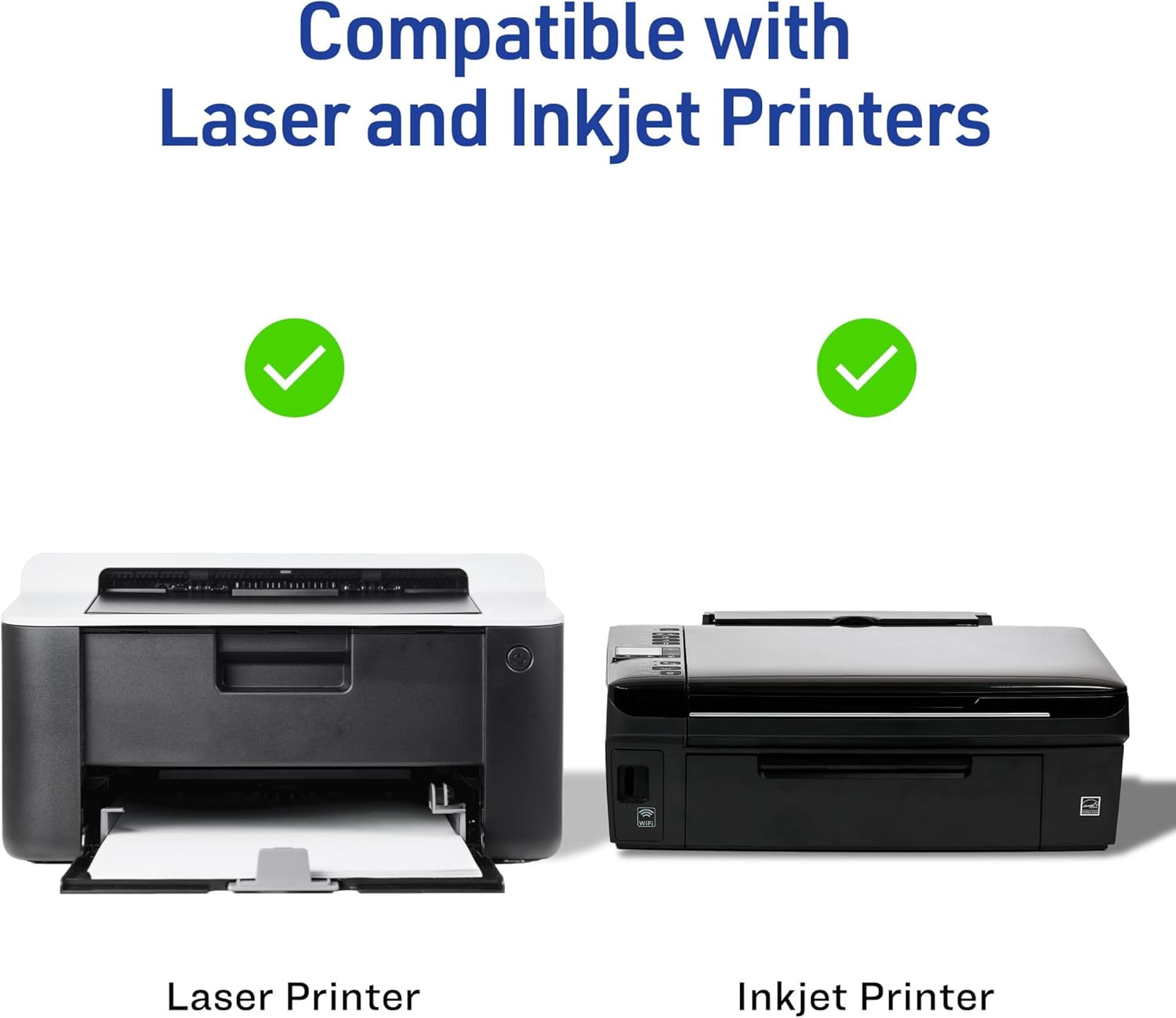
Avery 5619 labels are designed for use with both laser and inkjet printers. Ensure your printer is clean and properly maintained for optimal results.

This image confirms that Avery 5619 labels are compatible with both laser and inkjet printers, offering versatility for various printing setups.
2.2 Designing Your Labels
Avery provides an online design tool to help you create professional labels. It is recommended to use the official Avery Design & Print Online software for best results and template alignment.
- Visit the Avery website and navigate to their Design & Print Online tool.
- Enter the product number 5619 to find the correct template for your labels.
- Customize your labels using the available tools, designs, and templates.
- Ensure your design accounts for the 2" x 3" label size and utilizes the Print-to-the-Edge feature if desired.

This image showcases the Avery Design & Print Online platform, accessible from various devices, which provides templates and design tools for customizing labels without requiring any software download.
2.3 Label Dimensions
Each sheet contains 8 labels, with each label measuring 2 inches by 3 inches. The total pack includes 200 labels across 25 sheets.
This diagram provides the precise dimensions of the Avery 5619 label sheets and individual labels. Each sheet is 8.5 x 11 inches and contains 8 rectangular labels, with each label measuring 2 x 3 inches. The total pack contains 200 labels across 25 sheets.
3. Operating Instructions
3.1 Loading Labels into Your Printer
- Ensure your printer's paper tray is clear of other paper.
- Load the Avery 5619 label sheets into your printer's paper tray according to your printer's instructions. Pay attention to the correct orientation for printing on the label side.
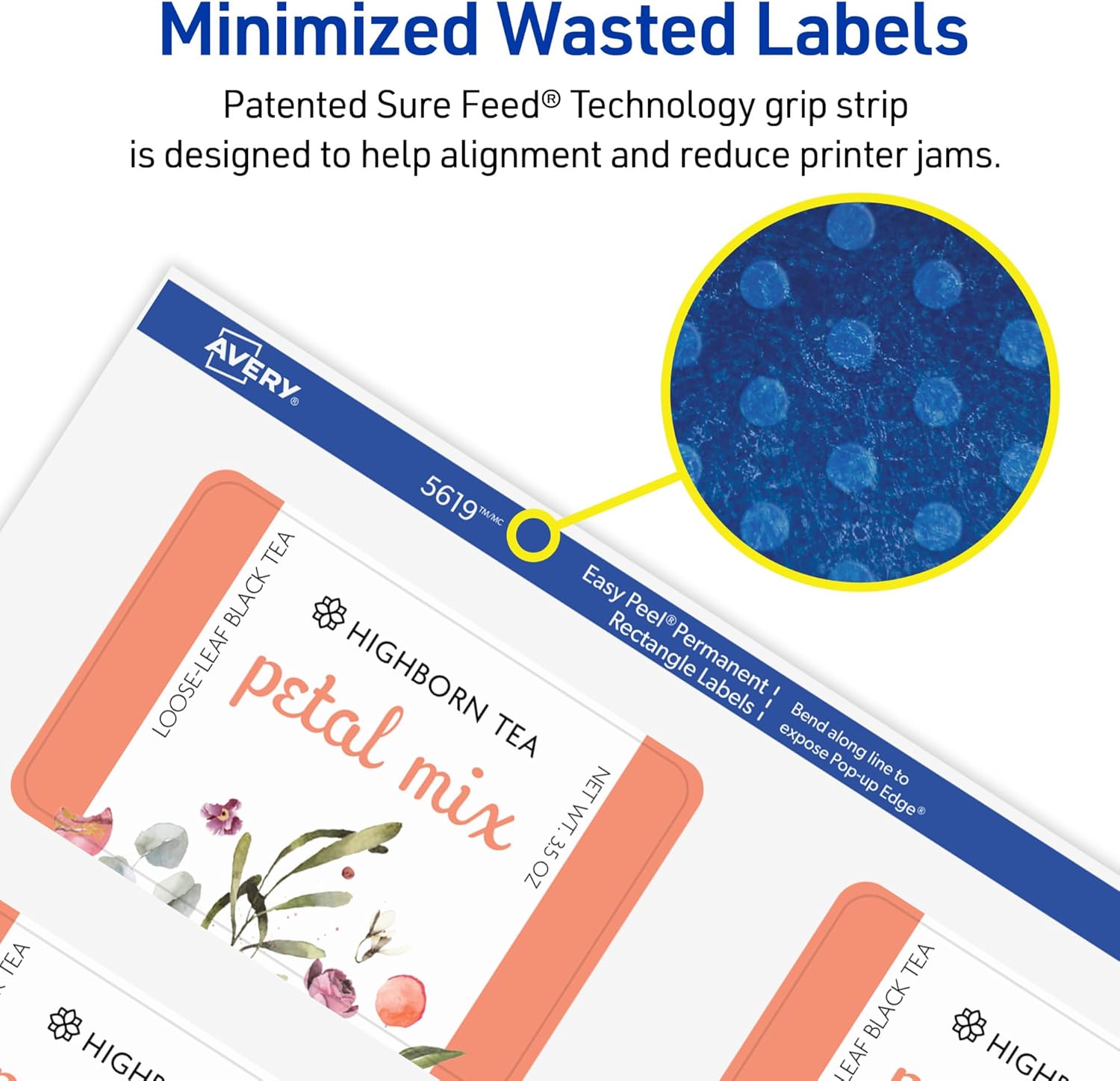
- The patented Sure Feed Technology grip strip helps guide the sheets through the printer, reducing misalignments and jams.

This image demonstrates the patented Sure Feed Technology grip strip on an Avery 5619 label sheet, designed to improve printer alignment and reduce paper jams, minimizing wasted labels.
3.2 Printing Your Labels
- From the Avery Design & Print Online software, select the print option.
- In your printer settings, select the appropriate paper type (e.g., 'Labels', 'Heavyweight', or 'Cardstock') for optimal print quality and to prevent smudging.
- Confirm that the print orientation matches your label design.
- Print a test sheet on plain paper first to check alignment before printing on the actual labels.
- The Print-to-the-Edge feature allows your designs to extend fully to the label's borders without any white margins.

This image demonstrates the Print-to-the-Edge capability of Avery 5619 labels, allowing designs to extend fully to the label's borders without any white margins, as shown on a hot sauce bottle label.
3.3 Peeling and Applying Labels
- Once printed, allow the ink to dry completely before handling, especially for inkjet prints.
- To use the Easy Peel with Pop-Up Edge feature, gently bend the label sheet along the perforations. This will cause the edges of the labels to lift, making them easier to grasp and peel.
- Carefully peel the desired label from the sheet.
- Apply the label to a clean, dry, and smooth surface. Press firmly to ensure permanent adhesion.
This image illustrates the Easy Peel with Pop-Up Edge feature of Avery 5619 labels. By bending the label sheet, the edges of the labels lift, allowing for quick and effortless peeling.
3.4 Handwriting on Labels
For quick, one-of-a-kind personalization, you can handwrite directly on the labels using pens, markers, or other writing instruments. Allow sufficient drying time to prevent smudging.

This image highlights the versatility of Avery 5619 labels, showing them applied to different products such as a tin, a bottle, and a bar of soap, demonstrating their use for product merchandising and branding.
4. Maintenance
To maintain the quality and usability of your Avery 5619 labels, follow these storage guidelines:
- Store unused label sheets in their original packaging to protect them from dust and moisture.
- Keep labels in a cool, dry place, away from direct sunlight and extreme temperatures.
- Avoid storing labels in areas with high humidity, as this can affect the adhesive and paper quality.
5. Troubleshooting
5.1 Printer Jams or Misalignment
- Check Printer Settings: Ensure the correct paper type (e.g., 'Labels', 'Heavyweight') is selected in your printer's settings.
- Load Correctly: Verify that label sheets are loaded properly in the paper tray, following your printer's specific instructions for specialty media.
- Clean Printer: Dust or debris in the printer's paper path can cause jams. Refer to your printer's manual for cleaning instructions.
- Use Sure Feed Technology: The labels are designed with Sure Feed Technology to reduce jams. If issues persist, try printing fewer sheets at a time.
5.2 Poor Print Quality (Smudging, Fading)
- Printer Settings: Double-check that the paper type setting in your printer matches the label material.
- Ink/Toner Levels: Ensure your printer has sufficient ink or toner.
- Drying Time: Allow adequate drying time for inkjet prints before handling to prevent smudging.
- Printer Maintenance: Perform print head cleaning or calibration as recommended by your printer manufacturer.
5.3 Label Adhesion Issues
- Surface Preparation: Ensure the application surface is clean, dry, and free of dust, oil, or grease.
- Application Pressure: Apply firm, even pressure across the entire label surface during application to activate the permanent adhesive.
- Surface Type: While the adhesive is permanent, extremely textured or porous surfaces may affect adhesion.
5.4 Template Alignment Problems
- Use Avery Design & Print Online: This tool is optimized for Avery templates and helps ensure accurate alignment.
- Printer Margins: Check your printer's margin settings. Ensure 'Fit to Page' or 'Scale to Fit' options are disabled, and print at 100% scale.
- Test Print: Always print a test page on plain paper before using your label sheets to verify alignment.
6. Specifications
| Model Number | 5619 |
| Brand | Avery |
| Label Size | 2" x 3" (Rectangular) |
| Number of Labels | 200 |
| Sheets per Pack | 25 (8 labels per sheet) |
| Color | Matte White |
| Adhesive Type | Permanent |
| Printer Compatibility | Laser, Inkjet |
| Material | Blend, Paper |
| Item Weight | 10.4 ounces |
| UPC | 072782056193 |
7. Warranty Information
There is no explicit warranty description provided for the Avery 5619 Printable Rectangular Labels. For specific details regarding product satisfaction or defects, please refer to Avery's general customer service policies or contact them directly.
8. Support
For further assistance, design resources, or troubleshooting, please utilize the following resources:
- Avery Design & Print Online: Visit avery.com/templates for templates, design tools, and software support.
- Avery Customer Service: For product-specific questions or technical support, please visit the official Avery website for contact information.

