
Introduction
Welcome to your new SPC Gravity 5 Tablet. This manual provides essential information for setting up, operating, maintaining, and troubleshooting your device. Please read it carefully to ensure optimal performance and longevity of your tablet.
The SPC Gravity 5 features an 11-inch IPS InCell display, an Octa-Core processor, 4GB of RAM, 128GB of expandable storage, WiFi 6 connectivity, and runs on Android 13. It also includes a 6000 mAh battery for extended use and reverse charging capability, all encased in a sleek metallic body.
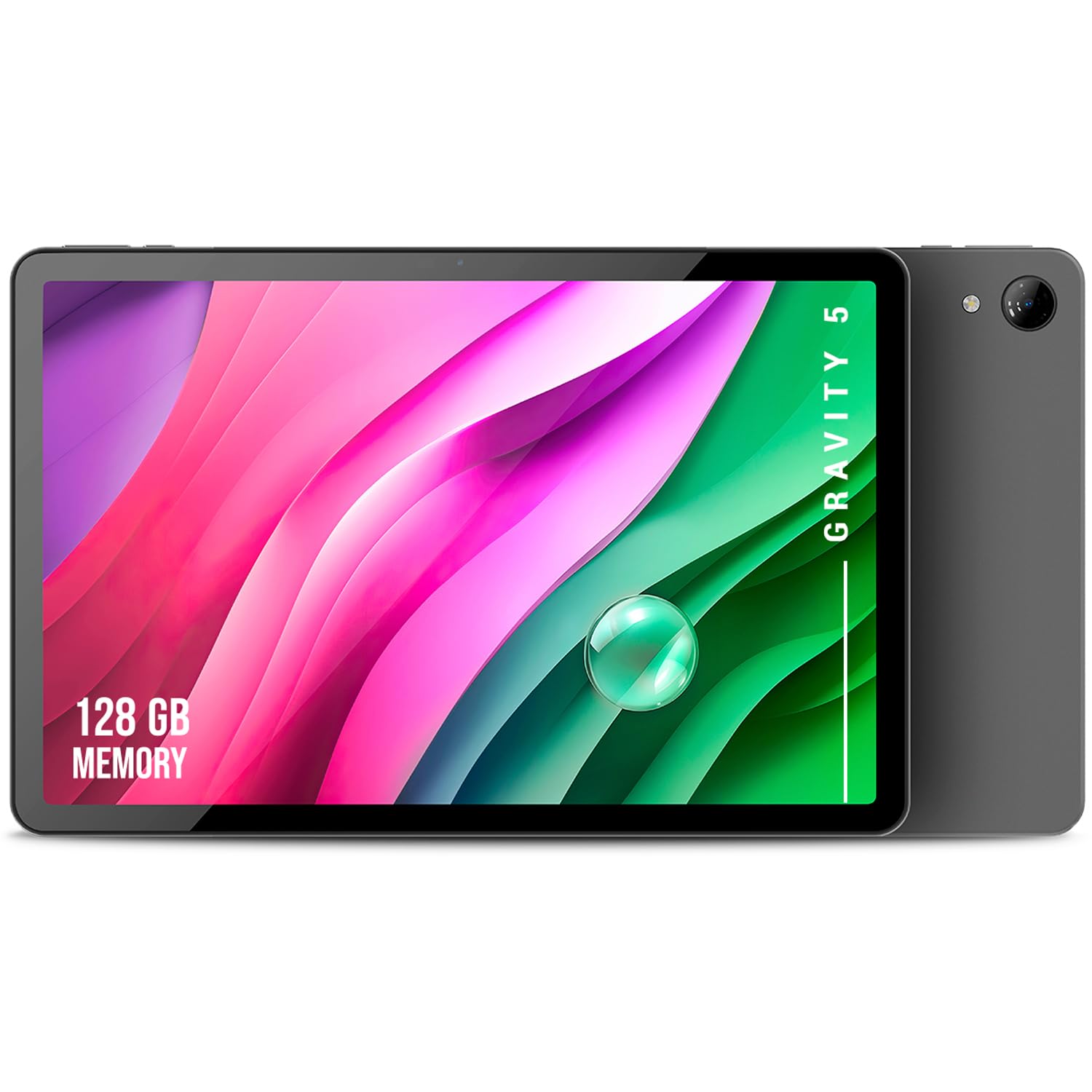
Image: The SPC Gravity 5 Tablet, showcasing its 11-inch display.
What's in the Box
Upon unpacking your SPC Gravity 5 Tablet, please ensure all the following items are present:
- SPC Gravity 5 Tablet
- USB Cable
- Quick Start Guide
Setup
1. Initial Charge
Before first use, it is recommended to fully charge your tablet. Connect the provided USB cable to the tablet's USB-C port and to a compatible power adapter (not included). The charging indicator will show the battery status.

Image: The SPC Gravity 5 Tablet connected via USB cable, illustrating the charging process. The tablet also supports reverse charging for other devices.
2. Powering On/Off
- To Power On: Press and hold the power button (located on the side) until the SPC logo appears on the screen.
- To Power Off: Press and hold the power button, then select "Power off" from the on-screen options.
3. Initial Configuration
Upon first startup, follow the on-screen wizard to configure your tablet. This includes selecting your preferred language, connecting to a Wi-Fi network, and setting up your Google account. A Google account is required to download apps from the Google Play Store.
4. Inserting a Micro SD Card (Optional)
The SPC Gravity 5 supports storage expansion up to 512GB using a Micro SD card. Locate the card slot on the side of the device. Carefully insert the Micro SD card with the gold contacts facing down until it clicks into place. To remove, gently press the card until it springs out.

Image: An icon depicting a Micro SD card, indicating expandable storage capability.
Operating Instructions
1. Touchscreen Navigation
Your tablet's primary interaction is through its touchscreen. Common gestures include:
- Tap: Select an item or open an app.
- Swipe: Scroll through pages or lists.
- Pinch-to-zoom: Zoom in or out on photos and web pages.
- Long-press: Access contextual menus or move icons.
2. Wi-Fi Connectivity
To connect to the internet, navigate to Settings > Network & internet > Wi-Fi. Select your desired network from the list and enter the password if prompted. The tablet supports WiFi 6 for faster and more stable connections.
3. Camera Usage
The SPC Gravity 5 is equipped with a 7-megapixel rear camera and a front camera, suitable for capturing photos, recording videos, and making video calls. Open the Camera app from your home screen or app drawer to access camera functions.

Image: A person holding the SPC Gravity 5 Tablet, engaged in a video call with several people, demonstrating the front camera's use.

Image: A woman holding the SPC Gravity 5 Tablet, with a magnified view of the rear camera module, highlighting its design.
4. Reverse Charging
The SPC Gravity 5 supports reverse charging, allowing you to use its powerful 6000 mAh battery to charge other compatible devices. Connect the tablet to another device using a USB-C to USB-C cable (not included) to initiate charging.
Image: The SPC Gravity 5 Tablet connected to a smartphone via a USB cable, demonstrating its reverse charging capability.
5. Multimedia Experience
Enjoy an immersive multimedia experience on the 11-inch HD+ display. The tablet's 6000 mAh battery provides up to 7.5 hours of continuous use, ideal for watching movies, browsing the web, or playing games.

Image: A man relaxing with headphones while the SPC Gravity 5 Tablet plays media on a nearby table, illustrating its entertainment use.
Maintenance
1. Cleaning
Use a soft, lint-free cloth to gently wipe the screen and body of the tablet. For stubborn smudges, slightly dampen the cloth with water. Avoid using abrasive materials, alcohol, or harsh chemical cleaners, as these can damage the screen and finish.
2. Battery Care
To prolong the lifespan of your tablet's battery, avoid exposing it to extreme temperatures (hot or cold). Do not frequently allow the battery to fully discharge to 0%. It is best to keep the charge level between 20% and 80% when possible.
3. Software Updates
Regularly check for and install system updates to ensure your tablet has the latest features, security patches, and performance improvements. You can usually find this option under Settings > System > System update.
4. Storage Management
Periodically review and delete unnecessary files, photos, videos, and applications to free up internal storage space. This helps maintain the tablet's performance. Consider moving large media files to an inserted Micro SD card.
Troubleshooting
This section addresses common issues you might encounter with your SPC Gravity 5 Tablet.
Device Not Turning On
- Ensure the battery is charged. Connect the tablet to a charger for at least 30 minutes before attempting to power it on again.
- Try a forced restart by holding the power button for 10-15 seconds.
Wi-Fi Connection Issues
- Restart your Wi-Fi router and the tablet.
- Check if other devices can connect to the same Wi-Fi network.
- Verify that you are entering the correct Wi-Fi password.
- Forget the network in tablet settings and reconnect.
Slow Performance
- Close unused applications running in the background.
- Clear cache data from frequently used apps via Settings > Apps > [App Name] > Storage & cache > Clear cache.
- Uninstall rarely used applications to free up RAM and storage.
- Ensure you have sufficient free storage space (at least 10-15% of total storage).
Factory Reset (Last Resort)
If persistent issues occur and cannot be resolved by other troubleshooting steps, you may perform a factory reset. Warning: This action will erase all data on your tablet, including apps, photos, and settings. Ensure you back up all important data before proceeding. To perform a factory reset, go to Settings > System > Reset options > Erase all data (factory reset) and follow the on-screen prompts.
Specifications
Detailed technical specifications for the SPC Gravity 5 Tablet:
| Feature | Detail |
|---|---|
| Model Name | GRAVITY 5 |
| Product Model Number | 97874128N |
| Brand | SPC |
| Screen Size | 11 Inches |
| Maximum Screen Resolution | 1280x800 Pixels (HD+) |
| Screen Type | IPS InCell |
| Processor | Allwinner Octa-Core 1.8 GHz |
| Installed RAM | 4 GB |
| Internal Storage Capacity | 128 GB |
| Expandable Storage | Up to 512 GB (MicroSD) |
| Operating System | Android 13 |
| Battery Capacity | 6000 mAh (Lithium Ion) |
| Average Battery Life | Up to 7.5 Hours |
| Wireless Technology | Bluetooth, Wi-Fi (802.11ax / WiFi 6) |
| Cameras | Rear 7 MP, Front for video calls |
| Connectivity Technology | USB Type-C (supports reverse charging), 3.5mm Audio Jack |
| Product Dimensions (L x W x T) | 25.6 x 16.7 x 0.8 cm |
| Product Weight | 515 Grams |
| Color | Black |
| Material | Metallic body |
Warranty and Support
Warranty Information
This SPC Gravity 5 Tablet is covered by a product warranty in accordance with current applicable law. Please refer to your purchase documentation, such as the receipt or invoice, for specific terms, conditions, and the duration of your warranty. Keep your proof of purchase in a safe place.
Customer Support
For technical assistance, product inquiries, or to make a warranty claim, please contact SPC customer support. You can typically find contact information on the official SPC website (www.spc.es, or relevant regional site) or through the retailer where you purchased the product. When contacting support, please have your product model number (GRAVITY 5, 97874128N) and proof of purchase readily available.


