
KAMRUI H1
KAMRUI Hyper H1 Mini PC User Manual
1. Introduction
This manual provides essential information for setting up, operating, maintaining, and troubleshooting your KAMRUI Hyper H1 Mini PC. Please read this guide thoroughly to ensure proper use and to maximize the performance and longevity of your device.
The KAMRUI Hyper H1 is a compact and powerful mini PC designed for various applications, including office work, multimedia, and light gaming. It features an AMD Ryzen 7 6800H processor, 16GB DDR5 RAM, and a 512GB NVMe SSD, offering efficient performance in a small form factor.
2. Package Contents
Verify that all items listed below are included in your package:
- 1 x KAMRUI Hyper H1 Ryzen 7 6800H Mini PC (16GB DDR5, 512GB M.2 2280 NVMe PCIe3.0x4 SSD)
- 1 x HDMI Cable
- 1 x User Manual
- 1 x Power Adapter
- 1 x VESA Mount with Screws
3. Product Overview
The KAMRUI Hyper H1 Mini PC is engineered for performance and versatility. Its compact design allows it to fit into various environments, from a home office to an entertainment center.

Image: Front and rear view of the KAMRUI Hyper H1 Mini PC, showcasing its compact size and various connectivity ports.
3.1 Key Features
- Processor: AMD Ryzen 7 6800H (8 Cores/16 Threads, up to 4.7GHz) with 16MB L3 Smart Cache.
- Memory: 16GB DDR5 4800MHz RAM, expandable up to 64GB.
- Storage: 512GB M.2 2280 NVMe PCIe3.0x4 SSD.
- Graphics: Integrated AMD Radeon 680M GPU, supporting triple 4K display output.
- Connectivity: Wi-Fi 6 and Bluetooth 5.2 for high-speed wireless connections.
- Operating System: Pre-installed OS for immediate use.

Image: An infographic detailing the key features of the KAMRUI Mini PC H1, including its AMD Ryzen 7 6800H processor, AMD Radeon 680M graphics, Wi-Fi 6, Bluetooth 5.2, triple 4K display support, 16GB DDR5 RAM, 512GB NVMe SSD, efficient cooling, and 28W TDP.
3.2 Ports and Interfaces
The Mini PC offers a comprehensive set of ports for various peripherals and displays.

Image: A diagram illustrating the front and back ports of the KAMRUI Hyper H1 Mini PC. The front includes a power button, 3.5mm audio jack, two USB 3.2 Gen2 Type-A ports, and one USB 3.2 Gen2 Type-C port. The back features four USB 3.2 Gen1 Type-A ports, a 2.5Gbps LAN port, a DisplayPort 2.0, an HDMI 2.0 port, and a DC power input.
- Front Ports: Power Button, 3.5mm Audio Jack, 2x USB 3.2 Gen2 Type-A (10Gbps), 1x USB 3.2 Gen2 Type-C.
- Rear Ports: 4x USB 3.2 Gen1 Type-A (5Gbps), 1x 2.5Gbps LAN, 1x DisplayPort 2.0 (4K@60Hz), 1x HDMI 2.0 (4K@60Hz), 1x DC Power Input.
4. Initial Setup
Follow these steps to set up your KAMRUI Hyper H1 Mini PC:
- Connect Display: Connect your monitor(s) to the Mini PC using the HDMI, DisplayPort, or USB-C video outputs. The device supports up to three 4K displays simultaneously.
- Connect Peripherals: Plug in your keyboard, mouse, and any other USB devices into the available USB ports.
- Connect Network: For a wired connection, connect an Ethernet cable to the LAN port. For wireless, ensure your Wi-Fi network is available.
- Connect Power: Connect the power adapter to the DC input port on the Mini PC, then plug the adapter into a power outlet.
- Power On: Press the power button located on the front of the Mini PC.

Image: A visual representation of the KAMRUI Mini PC connected to three displays, demonstrating its triple 4K display output capability via USB-C, HDMI, and DisplayPort.
5. Operating Instructions
5.1 First Boot and Operating System
Upon first power-on, the Mini PC will boot into its pre-installed operating system. Follow the on-screen instructions to complete the initial setup, including language selection, network configuration, and user account creation.
5.2 Basic Operation
- Power On/Off: Press the power button to turn the PC on. To turn off, use the operating system's shutdown option or press and hold the power button for a few seconds for a forced shutdown (not recommended for regular use).
- Restart: Use the operating system's restart option.
- Sleep Mode: Use the operating system's sleep option to put the PC into a low-power state.
5.3 Wireless Connectivity
The Mini PC supports Wi-Fi 6 and Bluetooth 5.2. To connect to a Wi-Fi network, access the network settings in your operating system, select your desired network, and enter the password. For Bluetooth devices, enable Bluetooth in your settings and pair with your device.

Image: An illustration highlighting the improved performance of Wi-Fi 6 compared to Wi-Fi 5, showing higher upload and download rates, alongside Bluetooth 5.2 connectivity.
6. Memory and Storage Expansion
The KAMRUI Hyper H1 Mini PC offers options for upgrading its memory and storage.
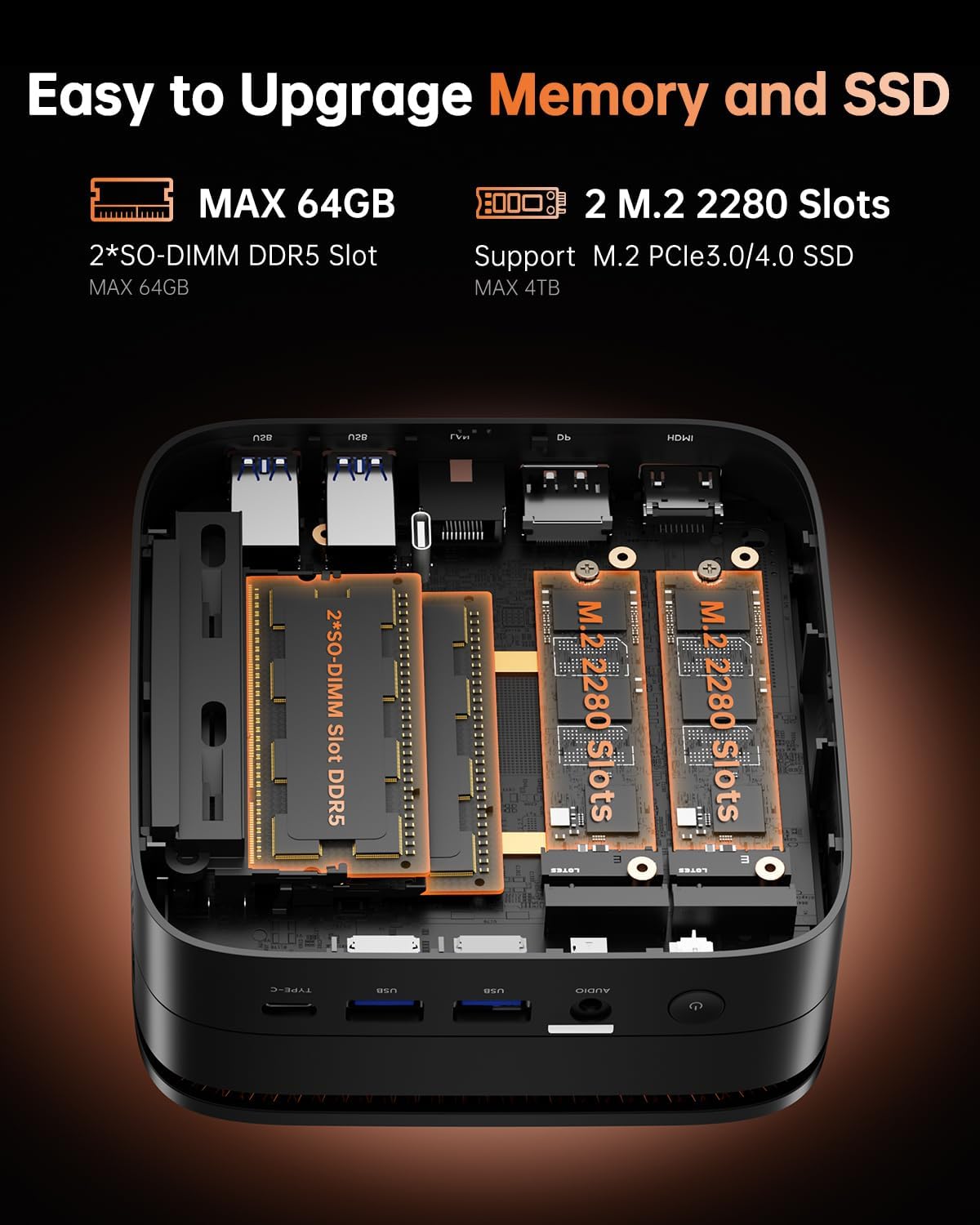
Image: An internal view of the Mini PC, illustrating the two SO-DIMM DDR5 slots for memory expansion up to 64GB and two M.2 2280 slots supporting PCIe 3.0/4.0 SSDs for storage expansion up to 4TB.
- RAM: The device has two SO-DIMM DDR5 slots and supports up to 64GB of DDR5 RAM.
- SSD: It features two M.2 2280 slots, supporting NVMe PCIe 3.0/4.0 SSDs, with a maximum capacity of 4TB.
For detailed instructions on how to open the chassis and perform upgrades, please refer to the full technical service manual or consult a qualified technician.
7. Maintenance and Care
Regular maintenance helps ensure the longevity and optimal performance of your Mini PC.
- Cleaning: Keep the Mini PC clean and free from dust. Use a soft, dry cloth for external surfaces. For vents, use compressed air to gently remove dust buildup. Ensure the device is powered off and unplugged before cleaning.
- Ventilation: Ensure the ventilation openings are not obstructed to prevent overheating. Place the Mini PC in a well-ventilated area.
- Software Updates: Regularly update your operating system, drivers, and applications to ensure security and performance.
- Environmental Conditions: Avoid exposing the Mini PC to extreme temperatures, humidity, or direct sunlight.

Image: An exploded view of the KAMRUI Mini PC H1, highlighting its internal components and efficient heat dissipation design, which contributes to quiet operation.
8. Troubleshooting
This section addresses common issues you might encounter with your Mini PC.
| Problem | Possible Cause | Solution |
|---|---|---|
| No power | Power adapter not connected, faulty outlet, power button issue. | Ensure power adapter is securely connected to both the PC and a working power outlet. Try a different outlet. |
| No display | Monitor not connected, incorrect input source, faulty cable. | Check display cable connections. Ensure monitor is on and set to the correct input source (HDMI, DP, USB-C). Try a different cable or monitor. |
| Slow performance | Too many applications running, insufficient RAM, overheating, outdated drivers. | Close unnecessary applications. Check for background processes. Ensure proper ventilation. Update drivers and OS. Consider RAM upgrade if frequently experiencing slowdowns. |
| Wi-Fi/Bluetooth issues | Drivers not installed, interference, incorrect settings. | Check device manager for driver status. Restart the PC and router. Ensure no physical obstructions. Verify Wi-Fi/Bluetooth is enabled in OS settings. |
If you encounter issues not listed here or require further assistance, please contact KAMRUI customer support.
9. Technical Specifications
| Feature | Specification |
|---|---|
| Processor | AMD Ryzen 7 6800H (8C/16T, up to 4.7 GHz) |
| Graphics | AMD Radeon 680M (Dedicated) |
| RAM | 16 GB DDR5 4800MHz (Expandable to 64 GB) |
| Storage | 512 GB M.2 2280 NVMe PCIe3.0x4 SSD (Supports up to 4TB) |
| Max Screen Resolution | 3840x2160 (4K) |
| Wireless Connectivity | Wi-Fi 6 (2.4 GHz, 5 GHz), Bluetooth 5.2 |
| USB Ports | 2x USB 3.2 Gen2 Type-A, 1x USB 3.2 Gen2 Type-C, 4x USB 3.2 Gen1 Type-A |
| Video Outputs | 1x HDMI 2.0, 1x DisplayPort 2.0, 1x USB-C (supports 4K@60Hz triple display) |
| LAN | 2.5Gbps Ethernet |
| Audio | 3.5mm Audio Jack |
| Operating System | Pre-installed OS |
| Dimensions (LxWxH) | 5.08 x 5.08 x 2.01 inches |
| Weight | 1.06 pounds |
10. Warranty and Support
10.1 Warranty Information
Your KAMRUI Hyper H1 Mini PC comes with a 1-year quality after-sales service warranty from the date of purchase. This warranty covers manufacturing defects and ensures repair or replacement of faulty components under normal usage conditions.
10.2 Customer Support
For technical assistance, warranty claims, or any product-related inquiries, please contact KAMRUI customer support through the following channels:
- Email: Support@kamrui.com
- Phone (US): +1-833-670-1528 (Monday - Friday, 9 AM - 5 PM EST)
- Online: You can also reach out via Amazon by navigating to "Login Amazon" > "Your Account" > "Your order" > "Ask Product Questions".
KAMRUI offers 7x24 hours customer service and offline maintenance services for repairs during the warranty period.
Related documentsH1


Ask a question about this manual
Ask about setup, troubleshooting, compatibility, parts, safety, or missing instructions. Manuals+ will review the question and use this page’s manual context to help answer it.