
Darmoshark SK16
Darmoshark SK16 Macro Mechanical Numeric Keypad User Manual
Model: SK16
1. Introduction
Thank you for choosing the Darmoshark SK16 Macro Mechanical Numeric Keypad. This compact and versatile keypad is designed to enhance your productivity and gaming experience with its tri-mode connectivity, customizable RGB lighting, and hot-swappable mechanical switches. This manual will guide you through the setup, operation, and maintenance of your new device.

Image: Top view of the Darmoshark SK16 keypad, showcasing its unique keycap design and vibrant RGB backlighting.
2. Product Features
- RGB Backlight and Hot-Swappable Gateron Switches: Supports 12 backlight models. Change backlight and brightness by simultaneously pressing the FN key and another key. Features hot-swappable Gateron switches for stable, smooth, and comfortable key functions.
- Plug & Play with Macro Definition: Full key support for macro definition programming via USB Type-C interface. Allows for custom button programming.
- Ergonomic Design: Stepped keypad design for comfortable use and reduced fatigue. Works with Windows 2000 / XP / Vista / 7 / 8 / 10, Android, and Linux operating systems.
- Extreme Durability: Guarantees 50 million keystrokes with double injection molded PBT keys designed to withstand tough conditions.
- Expand Your Desktop: A 16-key mechanical numeric keypad suitable for laptop users, financial professionals, or as an extension for smaller keyboards (87-key, 82-key, 68-key, 61-key) lacking a number section.

Image: The Darmoshark SK16 keypad displaying its dynamic RGB lighting effects.

Image: Close-up view of the hot-swappable switch sockets on the Darmoshark SK16, with individual switches shown detached.
3. Setup Guide
3.1 Package Contents
Before you begin, please verify that all items are present in the package:
- 1 x Darmoshark SK16 Mechanical Keypad
- 1 x USB Type-C Charging Cable
- 1 x Keycap/Switch Puller
- 1 x 2.4G Wireless Receiver
- Adapters (if included)
- Product Manual (this document)

Image: All components included in the Darmoshark SK16 product box, including the keypad, cables, and tools.
3.2 Connectivity Options
The SK16 keypad supports three connection modes: Wired (USB-C), 2.4G Wireless, and Bluetooth.
- Wired Connection:
Connect the provided USB Type-C cable from the keypad to an available USB port on your computer. The keypad will be automatically recognized and ready for use. This mode also charges the keypad's internal battery. - 2.4G Wireless Connection:
Locate the 2.4G wireless receiver, typically stored in a compartment on the bottom of the keypad. Insert the receiver into an available USB port on your computer. Turn on the keypad using the switch located on its side. The keypad should automatically connect to the receiver. - Bluetooth Connection:
Ensure the keypad is powered on and in Bluetooth pairing mode (refer to the operating section for specific instructions on entering pairing mode). On your computer or device, navigate to Bluetooth settings and search for new devices. Select "Darmoshark SK16" (or similar name) from the list to pair.
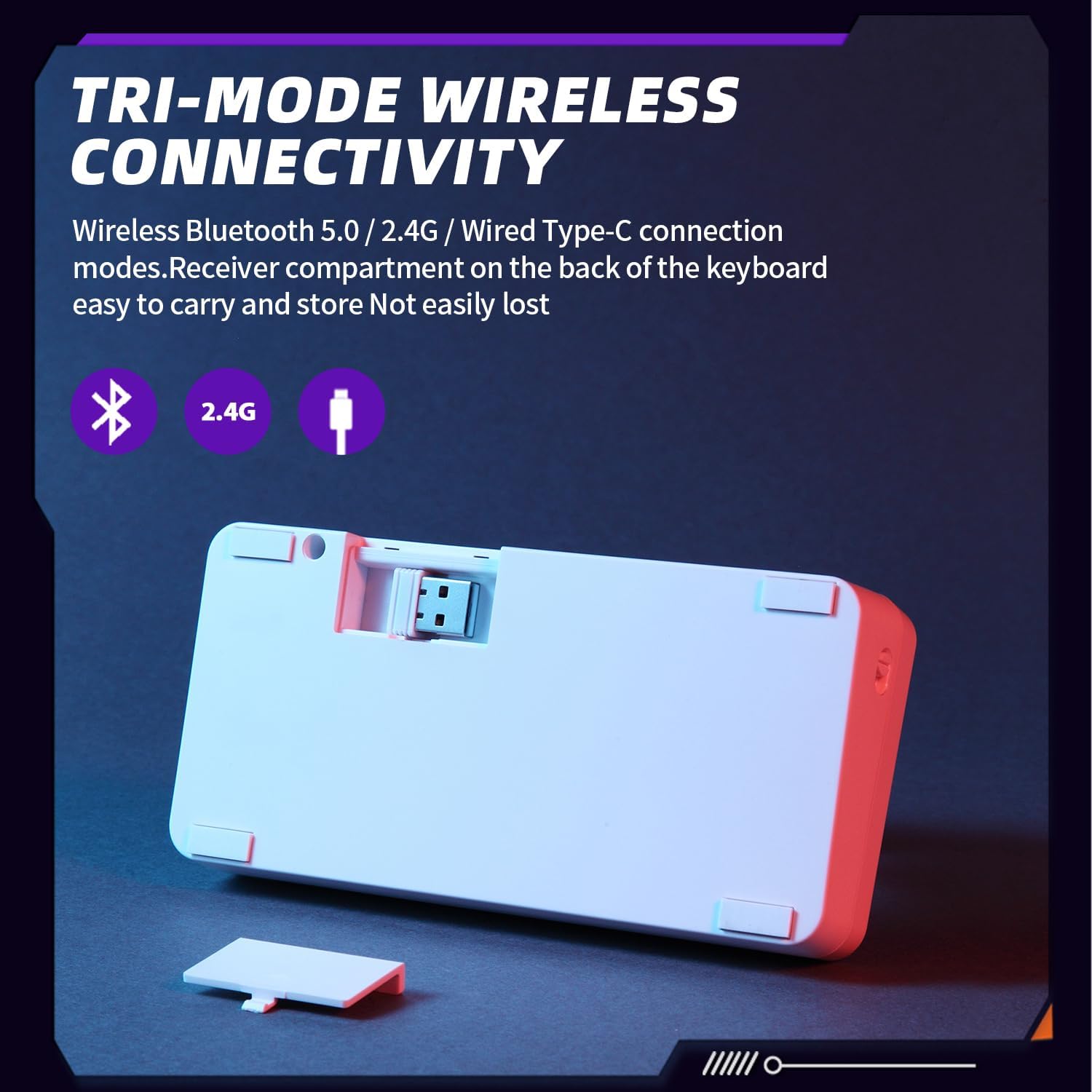
Image: The underside of the Darmoshark SK16 keypad, highlighting the storage compartment for the 2.4G wireless receiver.
4. Operating Instructions
4.1 Power On/Off
Locate the power switch on the side of the keypad. Slide it to the ON position to power on the device. Slide it to the OFF position to power off.
4.2 RGB Backlight Control
The SK16 supports 12 different backlight modes. To cycle through these modes or adjust brightness, use the following key combinations:
- Change Backlight Mode: Press FN + [Key] (specific key may vary, refer to keycap legends or product documentation for exact mapping).
- Adjust Brightness: Press FN + [Up/Down Arrow Key] (or similar designated keys).
4.3 Macro Definition and Customization
The keypad supports full key macro definition programming. This allows you to assign complex sequences of commands or single functions to any key. The SK16 utilizes VIA driver software for advanced customization.
- VIA Driver Software: The VIA driver only supports wired mode use. Connect the keypad via USB-C to your computer. Download and install the VIA software from the official Darmoshark website or the provided QR code/link.
- Programming: Within the VIA software, you can remap keys, create multi-layer macro definitions, and customize lighting effects. Follow the on-screen instructions within the VIA application for detailed programming steps.

Image: A screenshot of the VIA driver software, showing the interface for customizing key mappings and macros for the SK16 keypad.
4.4 Hot-Swapping Switches
The SK16 features a hot-swappable PCB, allowing you to change mechanical switches without soldering. This is compatible with most triangular/pentagonal mechanical shafts on the market.
- Remove Keycap: Use the provided keycap puller to gently remove the keycap from the switch you wish to replace.
- Remove Switch: Use the provided switch puller to grasp the top and bottom clips of the switch. Gently pull the switch straight up to remove it from the PCB.
- Insert New Switch: Align the pins of the new switch with the holes on the PCB. Press the switch firmly and evenly until it clicks into place. Ensure the pins are not bent.
- Replace Keycap: Place the keycap onto the new switch stem and press down gently.
4.5 Volume Knob Functionality
The integrated knob on the keypad typically controls system volume. Rotate clockwise to increase volume, counter-clockwise to decrease volume. Pressing the knob usually mutes/unmutes the audio.
Video: An overview of the Darmoshark SK16 Macro Mechanical Numeric Keypad, demonstrating its features, RGB lighting, and hot-swappable switches.
5. Maintenance
5.1 Cleaning
To maintain the performance and appearance of your keypad:
- Keycaps: Use a soft, damp cloth to wipe keycaps. For deeper cleaning, remove keycaps and wash with mild soap and water, ensuring they are completely dry before reattaching.
- Case: Wipe the keypad case with a soft, dry, or slightly damp cloth. Avoid harsh chemicals or abrasive materials.
- Between Keys: Use compressed air to remove dust and debris from between the keys.
5.2 Battery Care
The keypad contains a Lithium Ion battery. To prolong battery life:
- Avoid exposing the keypad to extreme temperatures.
- Charge the battery regularly, but avoid leaving it fully discharged for extended periods.
- Use only the provided USB Type-C cable for charging.
6. Troubleshooting
If you encounter issues with your Darmoshark SK16 keypad, refer to the following common solutions:
- Keypad Not Responding:
- Ensure the keypad is powered on.
- Check the connection: For wired mode, ensure the USB-C cable is securely connected. For 2.4G wireless, ensure the receiver is plugged in and the keypad is in 2.4G mode. For Bluetooth, ensure it's paired and within range.
- Recharge the battery if using wireless modes.
- Try connecting to a different USB port on your computer.
- RGB Lights Not Working/Incorrect:
- Ensure the keypad is powered on.
- Press the FN key combinations to cycle through lighting modes or adjust brightness.
- If using VIA software, ensure lighting settings are correctly configured and applied.
- Keys Not Registering:
- If a specific key is not working, the switch might be faulty or not properly seated. Try hot-swapping the switch with a known working one.
- Ensure the keycap is properly attached to the switch.
- Connectivity Issues (Wireless):
- 2.4G: Ensure no strong interference sources are nearby (e.g., other wireless devices). Try moving the receiver closer to the keypad.
- Bluetooth: Unpair and re-pair the device. Ensure your computer's Bluetooth drivers are up to date.
7. Specifications
| Product Name | SK16QMK Mechanical Keyboard |
| Model Name | SK16 |
| Manufacturer | Darmoshark |
| Number of Keys | 16 |
| Connectivity Technology | Bluetooth, USB-C (Wired, 2.4G Wireless) |
| Compatible Devices | PC (Windows 2000 / XP / Vista / 7 / 8 / 10, Android/Linux) |
| Keyboard Description | Multi Functional |
| Special Feature | Customizable Display Keys, Hot-Swappable Switches, RGB Backlight |
| Color | White |
| Item Weight | 15.8 ounces |
| Package Dimensions | 7.13 x 4.41 x 2.83 inches |
| Power Source | USB Powered (Internal Lithium Ion Battery included) |
| Keystroke Life | 50 million cycles |

Image: An exploded diagram illustrating the internal components and gasket design of the Darmoshark SK16 keypad.
8. Warranty and Support
8.1 Warranty Information
For detailed warranty information regarding your Darmoshark SK16 Macro Mechanical Numeric Keypad, please refer to the warranty card included with your product or visit the official Darmoshark website. Warranty terms and conditions may vary by region and retailer.
8.2 Customer Support
If you require further assistance, have questions not covered in this manual, or need technical support, please contact Darmoshark customer service through their official website or the contact information provided with your purchase. Ensure you have your product model (SK16) and purchase details ready when contacting support.
Related documentsSK16

Ask a question about this manual
Ask about setup, troubleshooting, compatibility, parts, safety, or missing instructions. Manuals+ will review the question and use this page’s manual context to help answer it.