
Redragon K524-RGB
Redragon K524 RGB Gaming Keyboard Instruction Manual
Model: K524-RGB
1. Introduction
Thank you for choosing the Redragon K524 RGB Gaming Keyboard. This wired 75% portable quiet membrane keyboard is designed to enhance your gaming and work experience with its customizable RGB backlighting, dedicated macro keys, and multimedia controls. This manual provides detailed instructions for setup, operation, maintenance, and troubleshooting to ensure optimal performance.

Image 1: Redragon K524 RGB Gaming Keyboard, showcasing its compact design and vibrant RGB lighting.
2. Package Contents
- Redragon K524 RGB Gaming Keyboard
- USB-A to USB-C Cable
- User Manual (this document)
3. Setup Guide
The Redragon K524 keyboard is a plug-and-play device for basic functionality. For advanced features and customization, software installation is recommended.
3.1 Connecting the Keyboard
- Locate the USB-C port on the keyboard (typically at the top edge).
- Connect one end of the provided USB-A to USB-C cable to the keyboard.
- Connect the USB-A end of the cable to an available USB port on your computer (PC, Laptop, Gaming Console).
- The keyboard will automatically be recognized by your operating system.
3.2 Software Installation (Optional, Recommended)
To unlock full customization for RGB lighting, macro programming, and key remapping, download and install the official Redragon software.
- Visit the official Redragon website or use the provided software link: bit.ly/K524WiredDriver
- Download the driver compatible with your operating system.
- Follow the on-screen instructions to complete the installation.
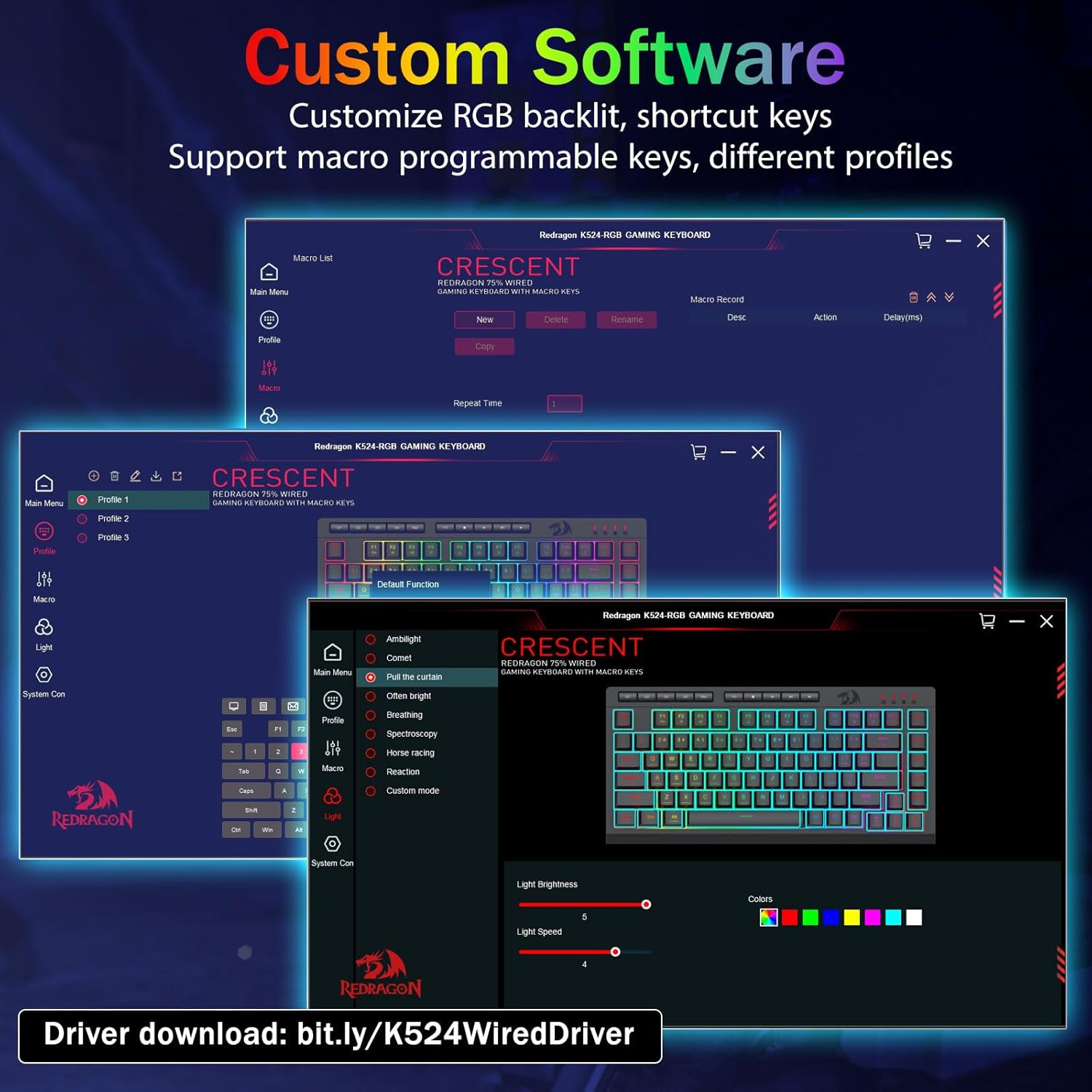
Image 2: Screenshot of the Redragon K524 custom software, showing options for RGB backlight, shortcut keys, and macro programming.
4. Operating Instructions
The Redragon K524 keyboard features a 75% layout, dedicated multimedia keys, and four onboard macro keys for enhanced functionality.
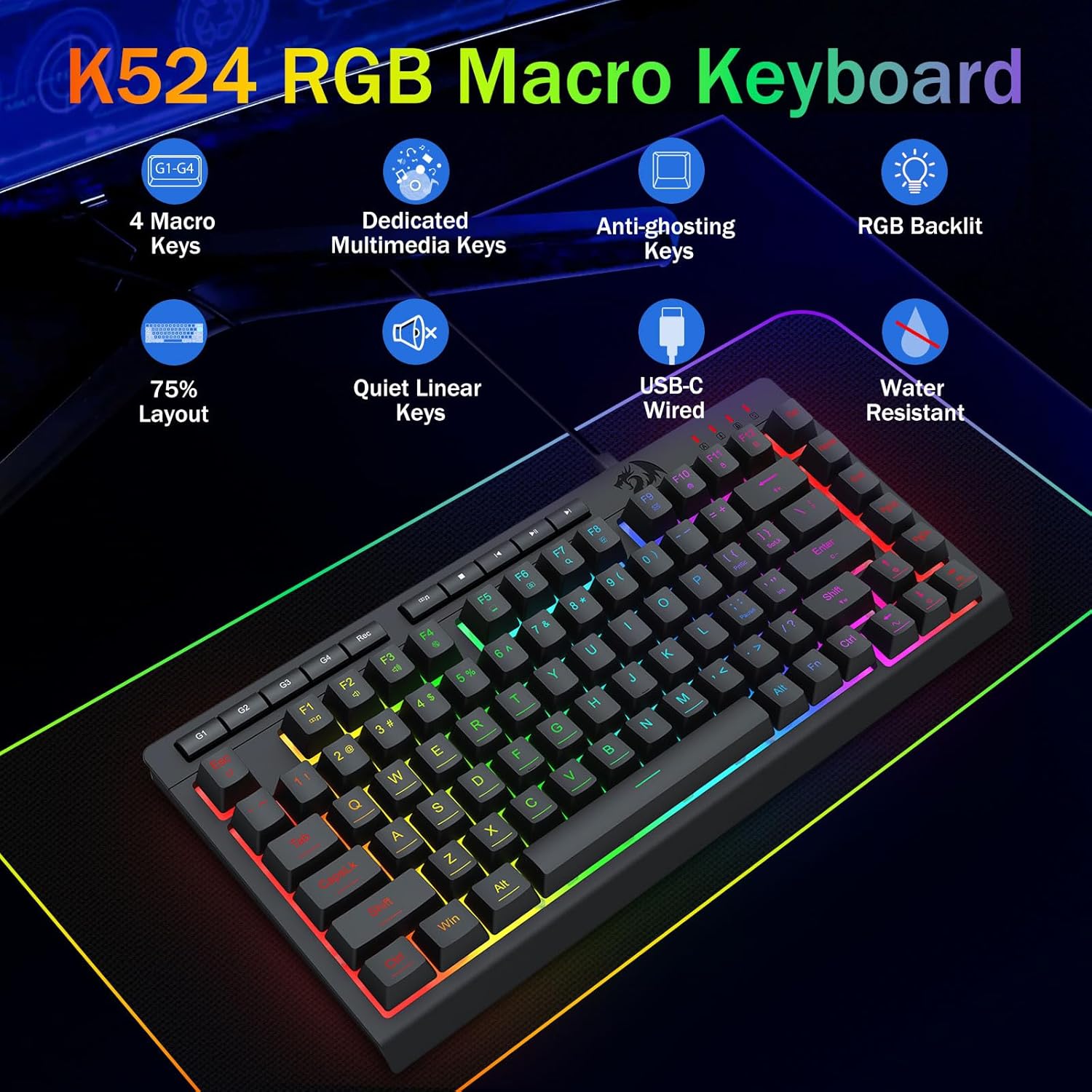
Image 3: Overview of Redragon K524 features including 4 Macro Keys, Dedicated Multimedia Keys, Anti-ghosting, RGB Backlit, 75% Layout, Quiet Linear Keys, USB-C Wired, and Water Resistant design.
4.1 RGB Backlighting Control
The keyboard offers full dynamic RGB backlighting with multiple modes and customization options.
- FN + R_Shift: Switch between 8 pre-set RGB light modes.
- FN + ! / |: Adjust backlight brightness (increase/decrease).
- FN + <-- / -->: Adjust light speed (increase/decrease).
- FN + Enter: Switch backlight color between red, green, blue, yellow, pink, cyan, white, and RGB in some modes.
- DIY Mode: Press FN + BACKSPACE twice to enter DIY mode (LED indicator flashes). Press FN + [1~6] to set backlight color. Press FN + BACKSPACE again to save.

Image 4: Visual guide to controlling RGB backlight modes, brightness, speed, and color selection using FN key combinations.
4.2 Onboard Macro Keys (G1-G4)
The K524 features 4 onboard macro keys (G1~G4) that can be programmed on the fly without additional software.
- Press the [Rec] button to start macro recording.
- Press G1~G4 to select a profile to record the macro. The LED indicator will flash quickly.
- Press the keys you want to record into the macro. The K524 supports a maximum of 64 key macro recordings.
- Press [Rec] again to save the macro.
Deleting Macros:
- Delete all macro settings: Press & hold [FN] + [Rec] for 5 seconds. The LED indicator will flash once, confirming all macro settings are deleted.
- Delete partial macro setting: Press [Rec] (LED indicator flashes slowly). Press the [G] key (G1-G4) you want to delete. The LED indicator flashes quickly. Press [Rec] again to confirm the macro setting is deleted.

Image 5: Close-up view of the G1-G4 dedicated macro keys on the left side of the keyboard.
4.3 Dedicated Multimedia Keys & FN Shortcuts
The keyboard includes dedicated media controls and FN key combinations for quick access to various functions.
- Dedicated Media Controls: Play, pause, skip multimedia tracks directly from the keyboard.
- FN + F1: Media Player
- FN + F2: Volume -
- FN + F3: Volume +
- FN + F4: Mute
- FN + F5: My Computer
- FN + F6: My Favorite
- FN + F7: Search
- FN + F8: Refresh
- FN + F9: E-mail
- FN + F10: Homepage
- FN + F11: Lock Keyboard
- FN + F12: Calculator
- FN + WIN: Lock/unlock Windows Key
- FN + ESC: Hold for 3 seconds to restore factory settings.

Image 6: Highlighting the dedicated multimedia keys and the anti-ghosting feature for simultaneous key presses.
4.4 Anti-Ghosting Keys
The K524 features 26 anti-ghosting keys, allowing for simultaneous key presses without conflicts. This ensures fast and accurate responses, crucial for gaming.
4.5 Quiet Gaming Switch & Floating Keycaps
Experience near-silent operation with the quiet gaming switches, ideal for various environments. The classic volcano switch structure ensures durability with an impressive lifespan of 50 million keystrokes. The floating keycaps design contributes to the soft and quiet typing experience.

Image 7: Close-up of the floating keycaps design, illustrating the quiet membrane switches underneath.
5. Maintenance
To ensure the longevity and optimal performance of your Redragon K524 keyboard, follow these maintenance guidelines:
- Cleaning: Regularly clean the keyboard with a soft, dry cloth. For deeper cleaning, use compressed air to remove dust and debris from between the keycaps. A slightly damp cloth can be used for the surface, but ensure no liquid enters the keyboard.
- Spill-Proof Design: While the keyboard features a splash-proof design, it is not fully waterproof. Avoid submerging the keyboard in liquids. In case of accidental spills, immediately disconnect the keyboard, wipe off the liquid, and allow it to air dry completely before reconnecting.
- Storage: Store the keyboard in a cool, dry place away from direct sunlight and extreme temperatures.
- Cable Care: Avoid bending or twisting the USB cable excessively to prevent damage.
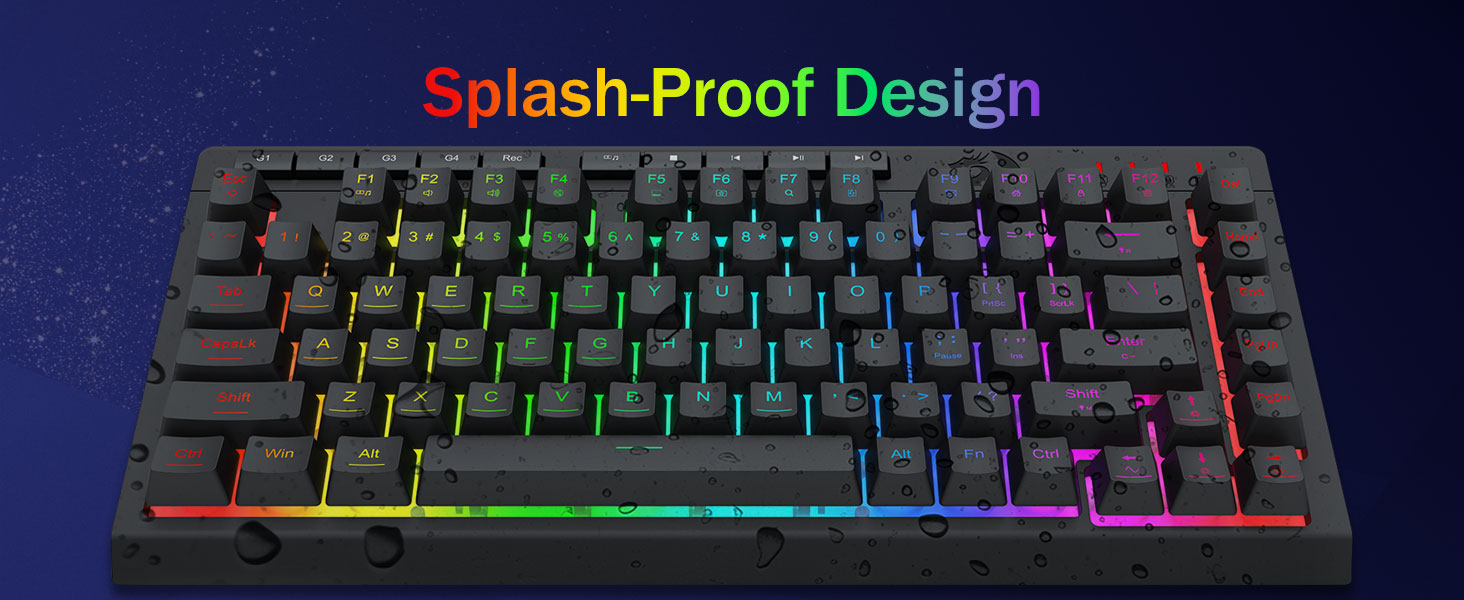
Image 8: Illustration of the keyboard's splash-proof design, showing water droplets on the surface.
6. Troubleshooting
If you encounter issues with your Redragon K524 keyboard, refer to the following common problems and solutions:
- Keyboard not responding:
- Ensure the USB cable is securely connected to both the keyboard and the computer.
- Try connecting the keyboard to a different USB port on your computer.
- Restart your computer.
- Test the keyboard on another computer to rule out system-specific issues.
- Backlight not working or incorrect:
- Ensure the backlight is not turned off (use FN + ! / | to adjust brightness).
- Try cycling through different backlight modes (FN + R_Shift).
- If using custom settings, ensure they were saved correctly.
- Restore factory settings by holding FN + ESC for 3 seconds.
- Macros not recording or playing back:
- Ensure you followed the macro recording steps correctly (Section 4.2).
- Verify that the macro key (G1-G4) was selected before recording.
- If using software, ensure the software is running and the macros are correctly assigned and saved.
- Keys are sticky or unresponsive:
- Clean the affected keys and surrounding areas to remove any debris.
- If a keycap is loose, gently re-seat it.
7. Specifications
| Feature | Detail |
|---|---|
| Model Number | K524-RGB |
| Connectivity | Wired (USB-A to USB-C) |
| Keyboard Type | Membrane Gaming Keyboard |
| Layout | 75% (82 Keys) |
| Backlighting | True RGB Backlight |
| Macro Keys | 4 Onboard Programmable Macro Keys (G1-G4) |
| Anti-Ghosting | 26 Keys Anti-Ghosting |
| Multimedia Keys | Dedicated Multimedia Controls |
| Switch Lifespan | 50 Million Keystrokes |
| Product Dimensions | 13 x 1.3 x 6.1 inches (326mm x 155mm x 40mm) |
| Item Weight | 1.08 pounds (488g) |
| Manufacturer | Redragon |
| Compatible Devices | Gaming Console, Laptop, PC (Windows, Mac) |

Image 9: Diagram showing the compact dimensions of the Redragon K524 keyboard.
8. Warranty and Support
Redragon products are designed for durability and performance. For warranty information, technical support, or further assistance, please refer to the official Redragon website or contact their customer service directly.
- Manufacturer: Redragon
- Official Website: www.redragonzone.com (Please check for regional websites for specific support)
- Software Support: bit.ly/K524WiredDriver
Related documentsK524-RGB


Ask a question about this manual
Ask about setup, troubleshooting, compatibility, parts, safety, or missing instructions. Manuals+ will review the question and use this page’s manual context to help answer it.