
1. Introduction
The MOREGAX A3Pro is a versatile 2-in-1 Bluetooth 5.2 adapter designed to seamlessly integrate wireless audio into your existing devices. It functions as both a Bluetooth transmitter (TX mode) and a Bluetooth receiver (RX mode), allowing you to connect non-Bluetooth audio sources to Bluetooth-enabled devices, or vice versa. This manual provides detailed instructions for setting up, operating, and maintaining your A3Pro device.

Image: The MOREGAX A3Pro Bluetooth Transceiver Adapter, highlighting its dual functionality as a receiver and transmitter.
2. Package Contents
Please check the box for the following items:
- 1x A3Pro Bluetooth Adapter
- 1x AUX 3.5mm Audio Cable
- 1x RCA Audio Cable
- 1x Type-C Charging Cable
- 1x User Manual

Image: A visual representation of all items included in the A3Pro package, including the adapter, various cables, and the user manual.
3. Product Overview
The A3Pro features a compact design with intuitive controls and clear indicator lights for easy operation. It supports both transmitting and receiving audio signals.

Image: A detailed view of the A3Pro device, showing its buttons, ports (RX, TX, DC 5V), and indicator lights (A, B, RX, TX).
3.1. Buttons and Ports
- Power Button / Play/Pause: Long press to power on/off. Short press to play/pause audio.
- Previous Track / Volume Down: Short press for previous track. Long press to decrease volume.
- Next Track / Volume Up: Short press for next track. Long press to increase volume.
- Search Button: Short press to enter pairing mode.
- RX Port: 3.5mm audio input for Receiver (RX) mode.
- TX Port: 3.5mm audio output for Transmitter (TX) mode.
- DC 5V Port: USB Type-C charging port.
3.2. Indicator Lights
- Power Indicator: Shows charging status and battery level.
- A/B Indicators: Indicate connection status for two paired devices.
- RX Indicator: Lights up when in Receiver mode.
- TX Indicator: Lights up when in Transmitter mode.

Image: A visual comparison of the A3Pro's Receiver (RX) and Transmitter (TX) modes, illustrating typical use cases like connecting to speakers or headphones.
4. Specifications
| Feature | Description |
|---|---|
| Model Number | A3Pro |
| Bluetooth Version | 5.2 |
| Bluetooth Chip | Qualcomm |
| Supported Protocols | SBC, AAC, aptX, aptX-LL, aptX-HD |
| Battery Capacity | 300mAh |
| Charging Time | Approx. 1.5 hours |
| Continuous Use Time | Up to 25 hours |
| Bluetooth Working Distance | Approx. 15 meters / 50 feet |
| Dimensions | 4.02 x 3.98 x 1.26 inches |
| Weight | 3.84 ounces (0.11 Kilograms) |
| Special Feature | Volume Control |

Image: An illustration highlighting the A3Pro's upgraded Bluetooth 5.2 chip, emphasizing its 24-bit word depth and 48kHz sampling frequency for high-fidelity audio.

Image: A graphic detailing the A3Pro's 300mAh lithium battery, showcasing its ultra-long standby time and endurance compared to other devices.
5. Setup and Operation
5.1. Charging the Device
Before first use, fully charge the A3Pro using the provided Type-C charging cable. Connect the Type-C end to the DC 5V port on the A3Pro and the USB-A end to a standard USB power adapter (not included) or a computer USB port.
- The power indicator light will show charging status.
- A full charge takes approximately 1.5 hours.
- The device supports charging while in use.
5.2. Transmitter (TX) Mode Setup
In TX mode, the A3Pro transmits audio from non-Bluetooth devices (e.g., TV, MP3 player) to Bluetooth headphones or speakers.
- Connect Audio Source: Plug one end of the 3.5mm AUX cable (or RCA cable if applicable) into the audio output port of your non-Bluetooth device (e.g., TV headphone jack).
- Connect to A3Pro: Plug the other end of the audio cable into the TX port on the A3Pro.
- Power On: Long press the power button on the A3Pro to turn it on. The TX indicator light will illuminate.
- Enter Pairing Mode: Short press the search button on the A3Pro. The TX light will flash, indicating it's in pairing mode.
- Pair with Bluetooth Device: Put your Bluetooth headphones or speaker into pairing mode. They should automatically connect to the A3Pro. Once connected, the A and/or B indicator lights on the A3Pro will turn solid.
- Enjoy Audio: Play audio on your non-Bluetooth source, and it will be wirelessly transmitted to your Bluetooth headphones/speaker.

Image: A step-by-step visual guide demonstrating how to connect the A3Pro in Transmitter (TX) mode to a TV and pair with Bluetooth headphones for wireless listening.

Image: The A3Pro in Transmitter Mode (TX), illustrating its ability to connect to a TV or computer and transmit audio to two pairs of Bluetooth headphones simultaneously.
5.3. Receiver (RX) Mode Setup
In RX mode, the A3Pro receives audio from Bluetooth-enabled devices (e.g., smartphone, tablet) and transmits it to non-Bluetooth speakers or car stereos.
- Connect Audio Output: Plug one end of the 3.5mm AUX cable into the audio input port of your non-Bluetooth speaker or car stereo.
- Connect to A3Pro: Plug the other end of the audio cable into the RX port on the A3Pro.
- Power On: Long press the power button on the A3Pro to turn it on. The RX indicator light will illuminate.
- Enter Pairing Mode: Short press the search button on the A3Pro. The RX light will flash, indicating it's in pairing mode.
- Pair with Bluetooth Device: On your smartphone or tablet, enable Bluetooth and search for "A3Pro" in the list of available devices. Select it to connect. Once connected, the A and/or B indicator lights on the A3Pro will turn solid.
- Enjoy Audio: Play audio on your Bluetooth device, and it will be transmitted to your wired speakers or car stereo.

Image: A step-by-step visual guide demonstrating how to connect the A3Pro in Receiver (RX) mode to a speaker system and pair with a smartphone for wireless music playback.
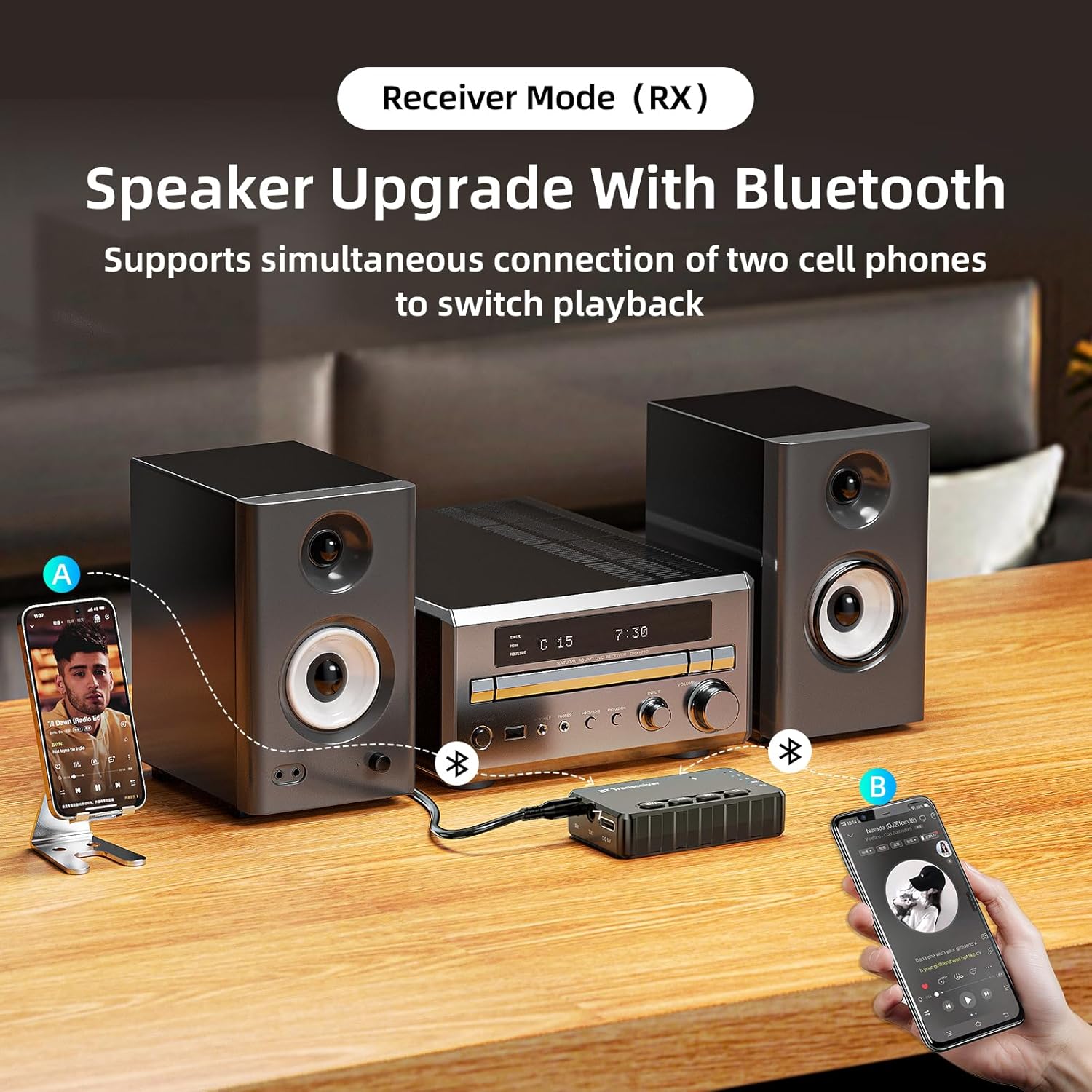
Image: The A3Pro in Receiver Mode (RX), connected to a home stereo system, demonstrating its ability to receive audio from two mobile phones simultaneously, allowing for easy switching of playback.
5.4. Connecting Two Devices Simultaneously (Dual Link)
The A3Pro supports connecting two Bluetooth devices at once, both in TX and RX modes, without compromising sound quality.
- In TX Mode: After connecting the first pair of headphones/speaker, put the A3Pro back into pairing mode (short press search button) and pair the second device. Audio will be transmitted to both.
- In RX Mode: After connecting the first smartphone/tablet, connect the second device via Bluetooth. You can switch playback between the two connected devices.

Image: A graphic illustrating the A3Pro's dual-link capability, showing how two mobile phones can connect in Receiver mode and two Bluetooth headsets can connect in Transmitter mode simultaneously.
5.5. Hands-free Calling (RX Mode)
When used in RX mode with a car audio system or home stereo, the A3Pro can facilitate hands-free calling if your connected audio system supports it.
- Ensure your smartphone is paired with the A3Pro in RX mode.
- Incoming calls will be routed through your connected speakers.
- Use the A3Pro's buttons to answer/end calls (if supported by the device's firmware and connected phone).

Image: The A3Pro integrated into a car's audio system, demonstrating its support for listening to music, making phone calls, and using navigation audio wirelessly.
6. Maintenance
To ensure the longevity and optimal performance of your MOREGAX A3Pro, follow these maintenance guidelines:
- Cleaning: Use a soft, dry cloth to clean the device. Do not use liquid cleaners or aerosols.
- Storage: Store the device in a cool, dry place away from direct sunlight and extreme temperatures.
- Avoid Moisture: Keep the device away from water and high humidity.
- Handle with Care: Avoid dropping or subjecting the device to strong impacts.
7. Troubleshooting
If you encounter issues with your A3Pro, please refer to the following common problems and solutions:
| Problem | Possible Solution |
|---|---|
| Device does not power on. | Ensure the device is charged. Connect it to a power source using the Type-C cable. |
| Cannot pair with a Bluetooth device. |
|
| No sound or poor sound quality. |
|
| Short Bluetooth range. |
|
| Only one mode (TX or RX) works at a time. | The A3Pro is designed to operate in only one mode (TX or RX) at a time. Ensure you are using the correct port for your desired mode. |
8. Warranty and Support
MOREGAX products are designed with quality and customer satisfaction in mind. For any questions, technical support, or warranty claims, please refer to the contact information provided on the product packaging or visit the official MOREGAX website. Please retain your proof of purchase for warranty purposes.