
1. Introduction
Thank you for choosing the Redragon K722 PRO 60% Wireless Gasket RGB Gaming Keyboard. This compact mechanical keyboard is designed for optimal performance and comfort, featuring advanced connectivity options, superior noise dampening, and customizable components. This manual provides detailed instructions to help you set up, operate, and maintain your keyboard.

Image: The Redragon K722 PRO keyboard in a gaming setup, highlighting its compact size and RGB lighting.
2. Product Features
- GASKET Design: The keyboard's body structure utilizes precision-locked covers with gaskets, providing enhanced noise reduction and flexibility. This design ensures even feedback and reduces rigid noise, resulting in a crisp, clean, and softer typing experience.
- 3-Mode Connection: Equipped with Redragon's advanced tri-mode connection technology, the K722 PRO supports USB-C wired, Bluetooth (BT 3.0/5.0), and 2.4Ghz wireless modes for versatile connectivity across various devices.
- 5-Layer Noise Dampening: Features multiple layers of sound-dampening materials, including 3.5mm PO foam, IXPE switch foam, PET sound pad, bottom socket foam, and a silicone bottom pad with a silicone gasket. This significantly reduces hollow noise, creating dampened and ultra-clean typing acoustics.
- Custom Dragon Chant Switch: Features thick-lubed custom linear switches that, combined with the gasket form factor, offer cushioned, rich linear travel with silky, creamy, and comfortable typing feedback.
- 61 Keys Compact Layout: Designed with a 61-key layout, ideal for FPS gamers, providing more desk space for mouse movement without accidental keyboard interference.
- Innovated Round PBT Keycaps: Equipped with durable PBT keycaps that offer a frosted granular feel, resisting grease and sweat stains for long-lasting use.
- Pro Software Supported: Expand customization options by downloading the dedicated software from redragonshop. This software allows for designing new modes and effects, setting macros, and creating shortcuts for enhanced work and gaming efficiency.

Image: An exploded view diagram illustrating the five layers of noise dampening within the keyboard's structure.
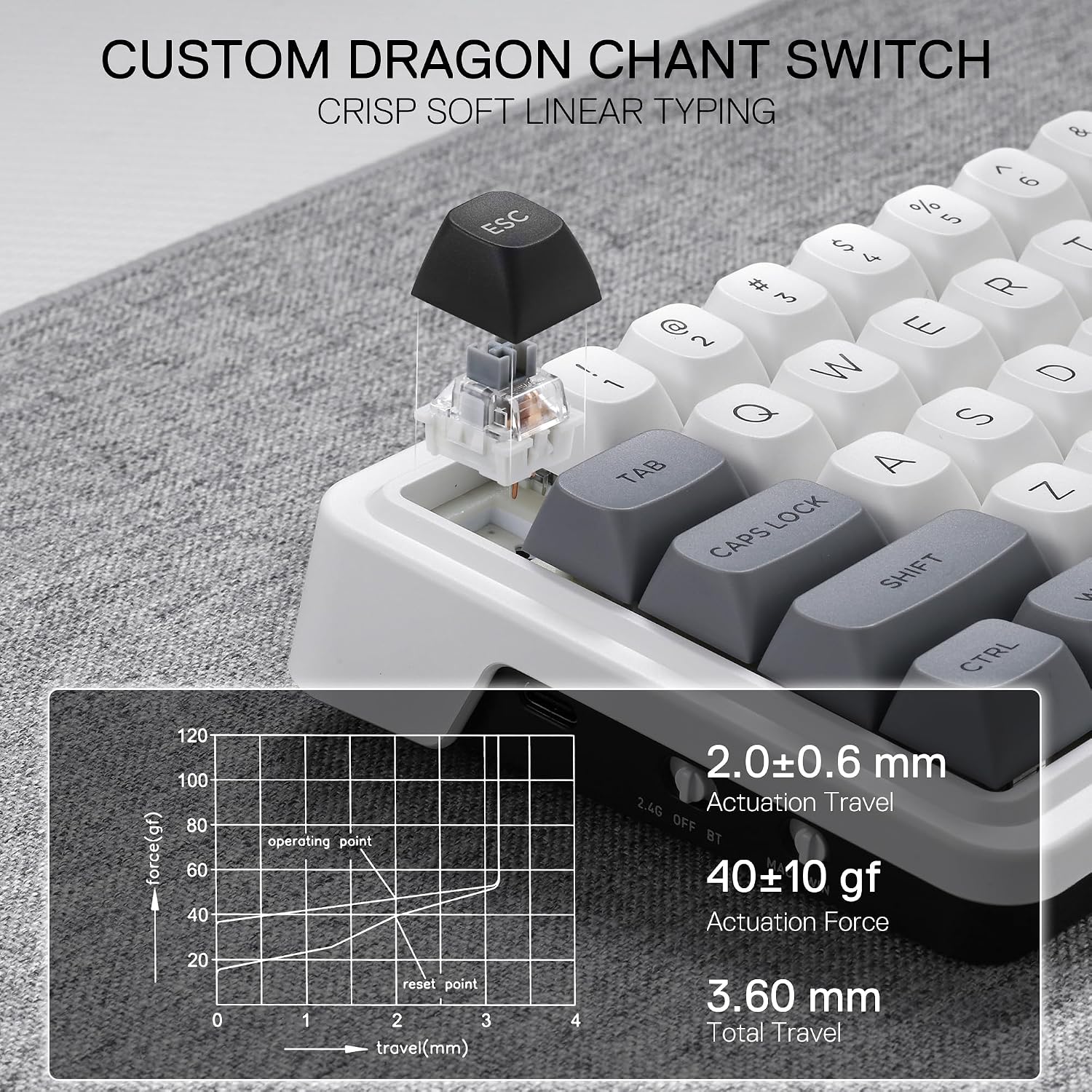
Image: A detailed view of the custom Dragon Chant linear switch, accompanied by a force-travel graph illustrating its actuation characteristics.

Image: A close-up shot of the keyboard's innovative round PBT keycaps, highlighting their texture and durability.
3. Setup
3.1 Connectivity Modes
The Redragon K722 PRO supports three connection modes:
- USB-C Wired: Connect the keyboard directly to your computer using the provided USB-C cable. This mode offers stable, low-latency performance and charges the keyboard's internal battery.
- 2.4Ghz Wireless: For wireless connectivity, plug the 2.4Ghz USB dongle into an available USB port on your device. The keyboard should automatically connect.
- Bluetooth (BT 3.0/5.0): To connect via Bluetooth, ensure your device's Bluetooth is enabled. Put the keyboard into Bluetooth pairing mode (refer to the keyboard's specific key combination for Bluetooth pairing, usually Fn + 1/2/3). Select "Redragon K722 PRO" from your device's Bluetooth settings.
3.2 Operating System Compatibility
The keyboard is compatible with Windows and Mac operating systems. Use the dedicated switch on the side of the keyboard to toggle between Mac and Win modes for optimized key functions.

Image: A close-up of the keyboard's side, showing the physical switch to select between Mac and Windows operating system modes.
3.3 Charging the Keyboard
The keyboard is equipped with a 2500mAh Lithium Polymer battery. Connect the USB-C cable to the keyboard and a power source (e.g., computer USB port, wall adapter) to charge. The RGB lighting can indicate battery status.

Image: The keyboard displaying its 2500mAh battery capacity and visual indicators for battery charge levels (30% and 100%).
4. Operating Instructions
4.1 Basic Key Functions
The K722 PRO features a 61-key layout. Many keys have secondary functions accessible via the 'Fn' key. Refer to the user manual included in the box for a detailed keymap and function combinations.
4.2 RGB Lighting Control
The keyboard features customizable RGB backlighting. You can cycle through various lighting effects and colors directly on the keyboard using specific Fn key combinations. For advanced customization, including per-key lighting and macro programming, download the Redragon Pro Software from the official Redragon website.
4.3 Hot-Swapping Switches
The K722 PRO is hot-swappable, allowing you to easily change mechanical switches without soldering. Use the provided switch/keycap puller tool to remove existing switches and insert new ones. Ensure the new switches are compatible with the keyboard's sockets.

Image: The Redragon K722 PRO keyboard showcasing its hot-swappable design, along with the included switch puller and extra switches.
4.4 Keycap Replacement
To replace keycaps, gently pull them off using the keycap puller tool. Align the new keycap with the switch stem and press down firmly until it clicks into place.
5. Maintenance
5.1 Cleaning the Keyboard
Regular cleaning helps maintain your keyboard's performance and appearance. Use a soft brush or compressed air to remove dust and debris from between the keycaps. For stubborn dirt, dampen a microfiber cloth with a small amount of isopropyl alcohol and gently wipe the keycaps and chassis. Avoid spraying liquids directly onto the keyboard.
5.2 Keycap and Switch Care
When removing or installing keycaps and switches, apply gentle, even pressure to avoid damaging the components. Store extra keycaps and switches in a clean, dry place.
6. Troubleshooting
- Keyboard not responding: Ensure the USB cable is securely connected or the wireless dongle is properly inserted. For Bluetooth, check if the keyboard is paired and within range. Try restarting your computer.
- Keys not registering: If specific keys are not working, try hot-swapping the switch for that key with one of the spare switches provided. Ensure the switch is fully seated.
- RGB lights not working/customizing: Check the keyboard's manual for specific Fn key combinations to control lighting. If using software, ensure it's the correct version and properly installed.
- Connectivity issues (wireless): Ensure the keyboard is charged. Try re-pairing the Bluetooth connection or re-inserting the 2.4Ghz dongle. Avoid interference from other wireless devices.
- Keyboard Reset: If experiencing persistent issues, you may perform a factory reset. Refer to the included user manual for the specific key combination to reset your K722 PRO keyboard.
7. Specifications
| Brand | Redragon |
| Model Number | K722 PRO |
| Number of Keys | 61 |
| Switch Type | Linear (Custom Dragon Chant Switch) |
| Connectivity Technology | 2.4Ghz, BT (Bluetooth 3.0/5.0), USB-C |
| Battery | 1 Lithium Polymer battery (2500mAh, included) |
| Compatible Devices | Gaming Console, Laptop, PC, Tablet |
| Compatible Operating System Family | Windows, Mac |
| Item Weight | 2.05 pounds |
| Package Dimensions | 13.58 x 6.46 x 2.44 inches |
| Special Feature | 61 Keys Gasket Design, 5-Layer Noise Dampening |
8. Warranty and Support
Redragon products are manufactured to high-quality standards. For warranty information, technical support, or to download the latest software for your K722 PRO keyboard, please visit the official Redragon website or contact Redragon customer service. Keep your purchase receipt for warranty claims.


