1. Introduction
This manual provides comprehensive instructions for the Redragon K722 60% Wired Gasket RGB Gaming Keyboard. This compact mechanical keyboard features 61 keys, a hot-swap free-mod socket, 3-layer noise dampening, and quiet custom linear switches, designed for an enhanced gaming and typing experience.

Image: The Redragon K722 keyboard, showcasing its compact 60% layout and vibrant RGB backlighting.
2. Package Contents
Upon opening your Redragon K722 keyboard package, you should find the following items:
- Redragon K722 60% Wired Gasket RGB Gaming Keyboard
- USB-A to USB-C Cable (for wired connectivity)
- Switch/Keycap Puller Tool
- Spare Quiet Custom Linear Switches (4 pieces)
- User Manual (this document)
- Redragon Stickers

Image: Close-up of the spare quiet custom linear switches included with the keyboard.
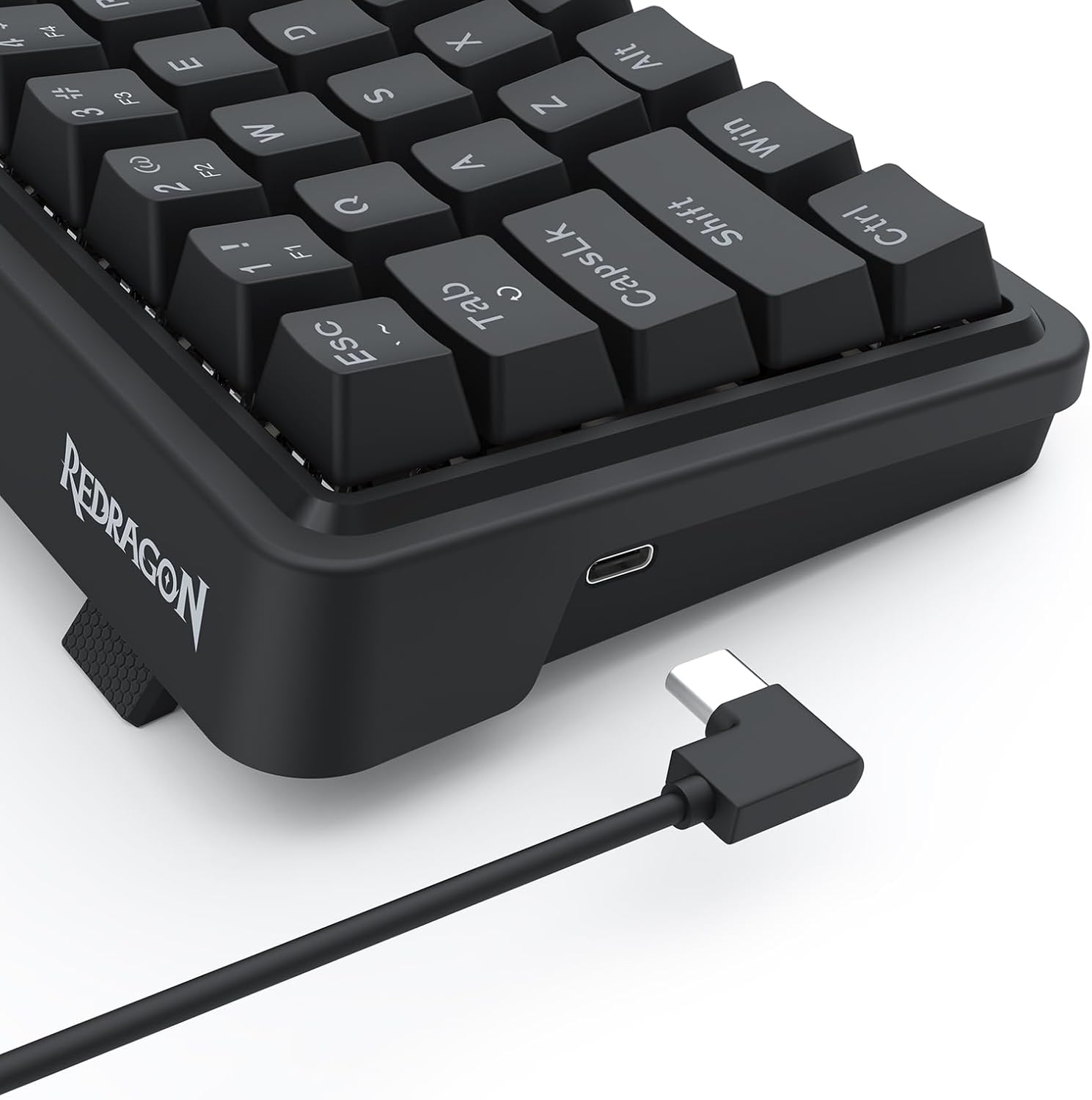
Image: The included USB-C cable with a right-angle connector, shown connected to the keyboard's left-side port.
3. Setup
- Unpacking: Carefully remove the keyboard and all accessories from the packaging.
- Connection: Connect the provided USB-A to USB-C cable to the USB-C port located on the left side of the keyboard. Plug the USB-A end into an available USB port on your computer or gaming console.
- Initial Power-On: The keyboard will automatically power on and the RGB lighting will illuminate upon successful connection.
- Software Installation (Optional): For advanced customization of RGB lighting and macro settings, download the professional software from the official Redragon website. Refer to the included user manual for specific instructions on software installation and usage.

Image: The Redragon K722 keyboard with its USB-C cable connected, ready for use.
4. Operating Instructions
4.1. Key Functions and Layout
The Redragon K722 features a compact 61-key layout. Many keys have secondary functions accessible via the Fn key. Refer to the keycap legends for these functions (e.g., F1-F12, media controls, lighting adjustments).

Image: A clear top-down view of the Redragon K722 keyboard, highlighting its 61-key layout and illuminated RGB keys.
4.2. RGB Lighting Customization
The keyboard features dynamic RGB backlighting. You can cycle through various lighting effects and colors directly from the keyboard using specific key combinations (usually involving the Fn key and designated lighting control keys). For more in-depth customization, including per-key lighting and advanced effects, utilize the dedicated Redragon software.
4.3. Hot-Swap Feature
The K722 is equipped with a true hot-swap free-mod socket, allowing you to easily change mechanical switches without soldering. This feature enables customization of your typing feel and sound. Use the provided switch/keycap puller tool to safely remove and install switches.
Image: A detailed view of the hot-swap sockets on the Redragon K722, demonstrating the ease of switch replacement.
4.4. Gasket Design and Noise Dampening
The keyboard's gasket-mounted design, combined with 3.5mm PO foam, IXPE switch foam, and bottom socket foam, significantly reduces hollow noise and provides a softer, more consistent typing feel. This 3-layer noise dampening system contributes to a quiet and comfortable user experience.
5. Maintenance
- Cleaning: Use a soft, dry cloth to wipe down the keyboard surface. For deeper cleaning, remove keycaps using the provided puller and use compressed air to clear debris from between switches.
- Switch Care: Avoid excessive force when inserting or removing switches to prevent damage to the hot-swap sockets.
- Cable Management: Ensure the USB-C cable is not excessively bent or strained to prolong its lifespan.
6. Troubleshooting
| Problem | Possible Cause | Solution |
|---|---|---|
| Keyboard not responding | Loose cable connection, incorrect USB port, driver issue. | Ensure USB-C cable is securely connected. Try a different USB port. Restart your computer. Check Redragon website for updated drivers. |
| RGB lighting not working | Lighting turned off, software conflict. | Press Fn + designated lighting key to cycle modes. Ensure Redragon software is installed and configured correctly. |
| Keys not registering or double-typing | Faulty switch, debris under keycap. | Remove keycap and switch using the puller. Clear any debris. Replace with a spare switch if necessary. |
7. Specifications
| Feature | Detail |
|---|---|
| Model Name | Ironguard (K722) |
| Connectivity Technology | USB-C (Wired) |
| Keyboard Description | 61 Keys Wired Hot-swap Gaming Keyboard |
| Switch Type | Quiet Custom Linear Switch |
| Backlighting | RGB |
| Special Features | 61 Keys Gasket Design, 3-Layer Noise Dampening, Free-Mod Socket |
| Compatible Devices | Gaming Console, Laptop, PC |
| Item Weight | 1.7 pounds |
| Package Dimensions | 13.39 x 6.3 x 2.44 inches |
8. Warranty and Support
Redragon products are designed for durability and performance. For warranty information, technical support, or to download the latest software and drivers, please visit the official Redragon website or contact their customer service. Keep your purchase receipt for warranty claims.
For more information, visit the Redragon Store.


