
MOKiN UC3915
MOKiN UC3915 USB C Docking Station User Manual
Model: UC3915
Introduction
The MOKiN UC3915 USB C Docking Station is a versatile multiport adapter designed to expand the connectivity of your laptop. This plug-and-play device requires no driver installation and integrates essential ports for various peripherals, external displays, and network connections. It is suitable for home office, gaming, or travel use, providing a comprehensive solution for your connectivity needs.
Key Features
- All-in-One Connectivity: Features 2x 4K HDMI ports, 1x DisplayPort, 2x USB C ports (supporting 100W Power Delivery and 10Gbps data transfer), 1x USB 3.1 port (10Gbps), 3x USB 3.0 ports, 2x USB 2.0 ports, 1x 3.5mm Audio/Mic jack, and 1x Gigabit Ethernet port.
- Triple Monitor Support (Windows): Supports MST/SST (Mirror & Extend Mode) for Windows systems, allowing dual HDMI + DisplayPort to drive three monitors simultaneously, each up to 4K@60Hz with a DP1.4 source.
- Single Extended Monitor Support (macOS): Due to system limitations, macOS supports extending one monitor up to 4K@60Hz.
- High-Speed Data Transfer: USB C and USB 3.1 ports offer 10Gbps data transfer speeds, enabling quick file transfers.
- Power Delivery: Supports 100W Power Delivery (PD) for fast charging your laptop. The hub consumes 13W, providing 87W safe charging to your device.
- Stable Network Connection: Integrated Gigabit Ethernet port (1000Mbps) ensures a stable and lag-free internet connection.
- Audio Connectivity: Built-in 3.5mm Audio/Mic 2-in-1 jack supports headphones, speakers, or microphones for clear sound.
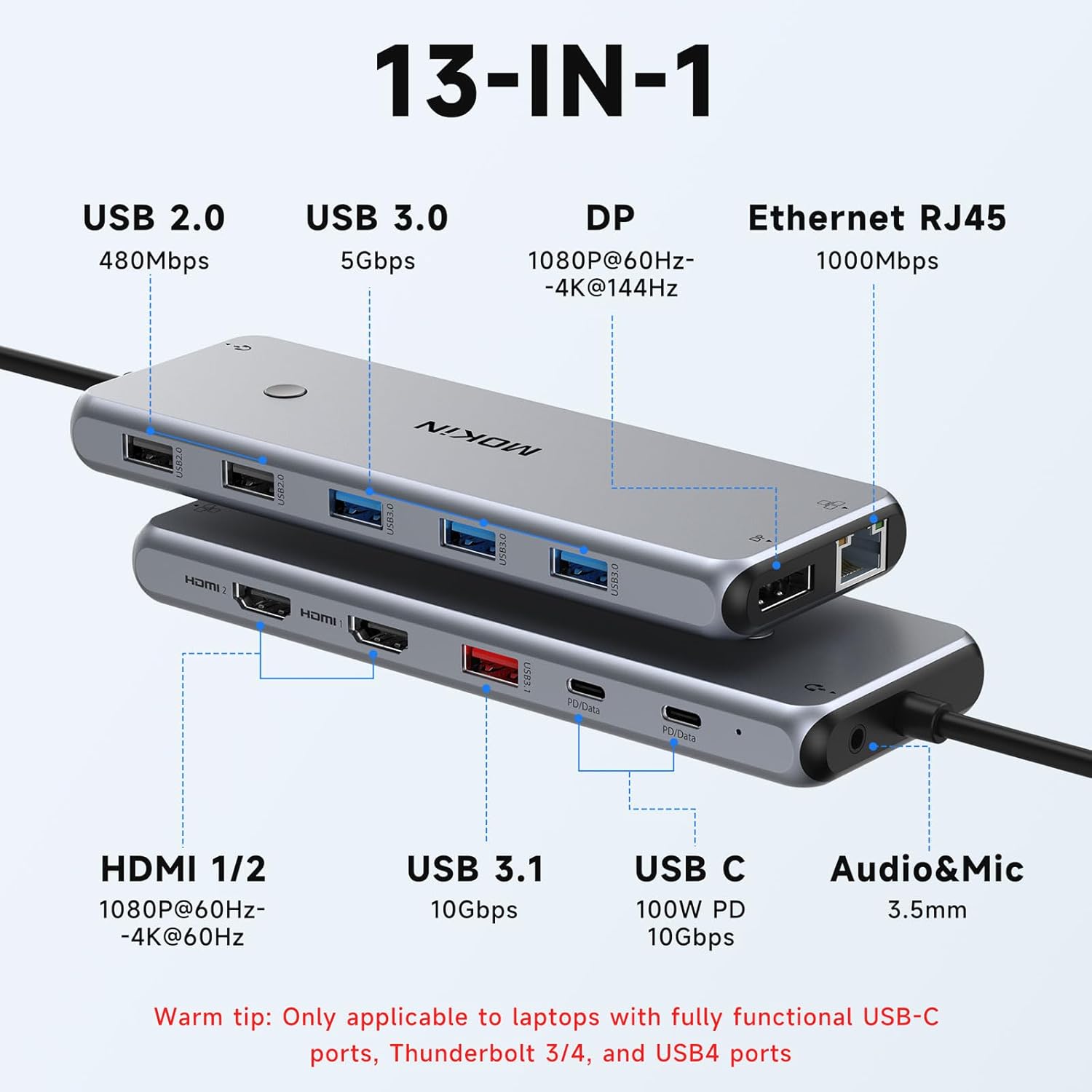
Figure 1: Overview of the MOKiN UC3915 USB C Docking Station with all 13 ports clearly labeled, including USB 2.0, USB 3.0, DisplayPort, Ethernet RJ45, HDMI 1/2, USB 3.1, USB C (PD/Data), and Audio&Mic.
Setup Guide
- Connect to Laptop: Plug the integrated USB-C cable from the docking station into a full-function USB-C port, Thunderbolt 3/4, or USB4 port on your laptop.
- Power Connection (Optional but Recommended): For optimal performance and laptop charging, connect your laptop's power adapter to the PD/Data USB-C port on the docking station.
- Connect Displays: Connect your external monitors to the HDMI 1, HDMI 2, and/or DisplayPort (DP) outputs on the docking station using appropriate cables.
- Connect Peripherals: Plug in your USB devices (keyboard, mouse, external drives) into the available USB 2.0, USB 3.0, or USB 3.1 ports.
- Network Connection: For a stable wired internet connection, connect an Ethernet cable from your router/modem to the RJ45 Gigabit Ethernet port on the docking station.
- Audio Devices: Connect headphones, speakers, or a microphone to the 3.5mm Audio/Mic jack.
Video 1: A demonstration of connecting the MOKiN USB-C Docking Station to a laptop and multiple peripherals, including HDMI, DisplayPort, and USB devices.
Operating Instructions
Display Configuration
The docking station supports various display modes depending on your operating system.
Windows Systems (DP1.4 Source)
For Windows laptops with a DP1.4 source, the docking station supports Mirror Mode (A-AAA) and Extend Mode (A-BBB, A-BCD) across up to three external monitors (2x HDMI + 1x DisplayPort), with each display supporting up to 4K@60Hz.

Figure 2: Illustration of triple monitor configurations for Windows systems, including Mirror Mode and two Extend Modes.
macOS Systems (DP1.4 Source)
Due to macOS system limitations, only one external monitor can be extended (4K@60Hz). Other monitors will mirror the extended display. Mirror Mode (A-AAA) is fully supported.

Figure 3: Illustration of triple monitor configurations for macOS systems, highlighting the limitation of extending only one monitor.
Cast Screen Button
The docking station features a dedicated button to cycle through display options or to turn off/wake up external displays.
- For Windows: Press the button to cycle through PC screen only, Duplicate, Extend, or Second screen only. Long press to turn off/wake up the external display.
- For macOS: Press the button to switch between extend and mirror modes of the external screen. Long press to turn off/wake up the external display.
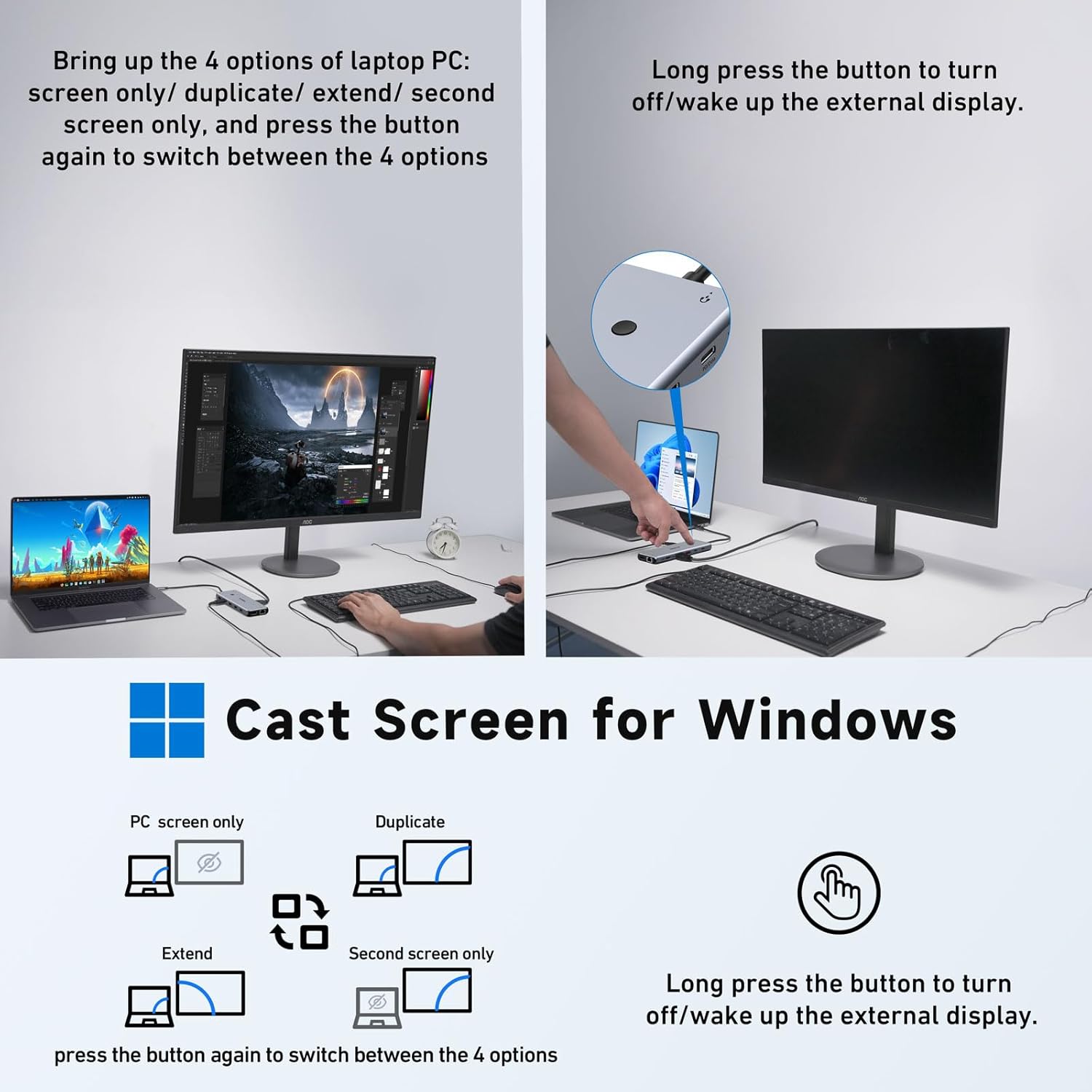
Figure 4: Visual guide for using the Cast Screen button on Windows to manage display modes.

Figure 5: Visual guide for using the Cast Screen button on macOS to manage display modes.
Power Delivery and Data Transfer
The two USB-C ports on the docking station are versatile, supporting both 100W Power Delivery and 10Gbps data transfer. This means you do not need to differentiate between charging-only and data-only USB-C ports.
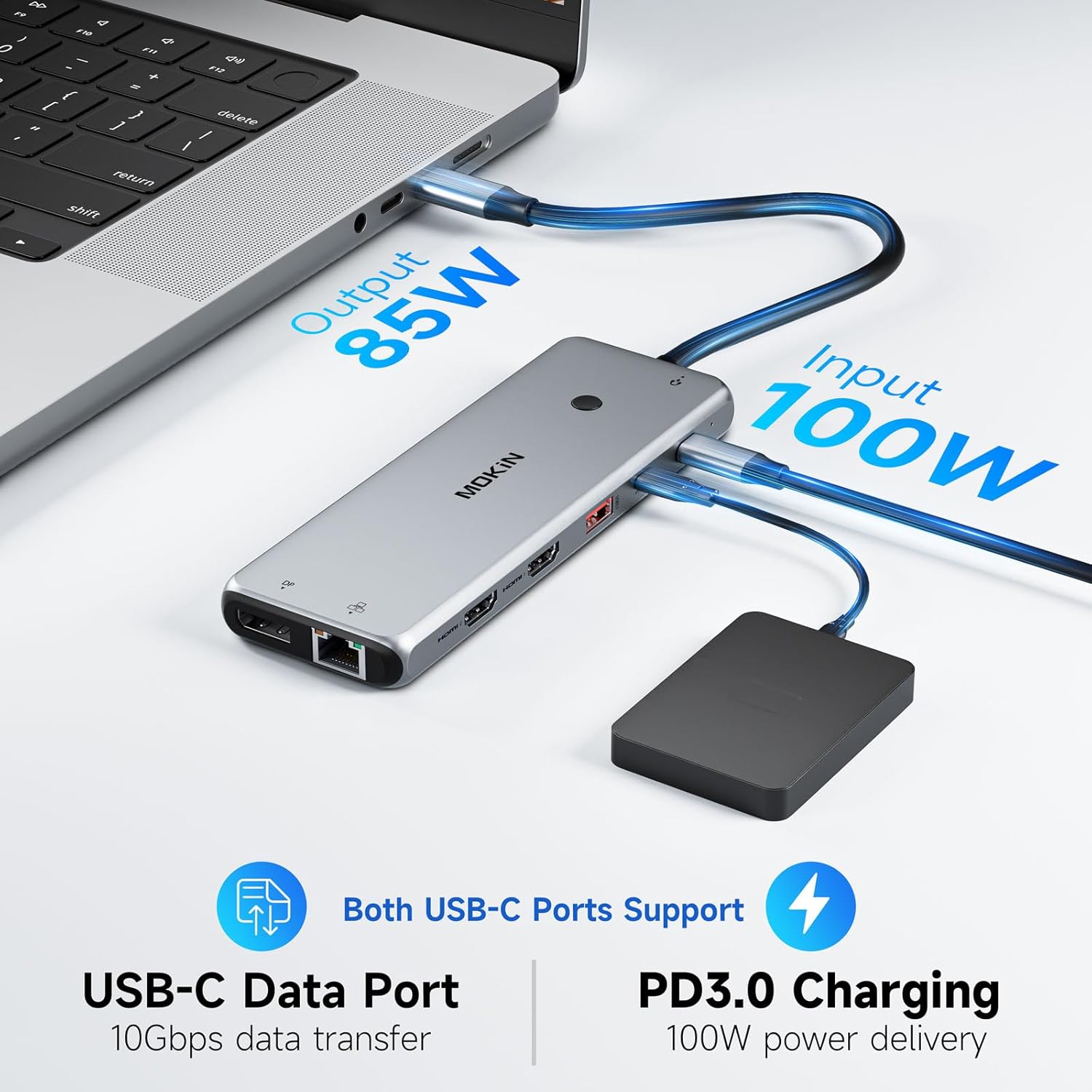
Figure 6: Illustration of 100W Power Delivery charging through the USB-C port, providing 87W to the laptop after hub consumption.

Figure 7: Overview of data transfer speeds for different USB ports on the docking station.
Ethernet and Audio
The Gigabit Ethernet port provides a reliable wired network connection, essential for online meetings, gaming, or 4K video streaming. The 3.5mm Audio/Mic jack allows for convenient connection of audio peripherals.

Figure 8: Connections for Gigabit Ethernet and 3.5mm Audio/Mic ports.
Compatibility
This docking station is designed for laptops with fully functional USB-C ports, Thunderbolt 3/4, and USB4 ports. Ensure your laptop's USB-C port supports video output (DisplayPort Alternate Mode) and Power Delivery for full functionality.

Figure 9: Guide to identifying compatible USB-C port types on your laptop.
Supported Operating Systems include Windows, macOS, Chrome OS, iPad OS, and Android. Compatible devices include Laptops, Computers, All-in-one PCs, Tablets, and Phones.

Figure 10: Overview of supported operating systems and device types.
Maintenance
- Keep the docking station in a dry environment, away from moisture and extreme temperatures.
- Avoid dropping or subjecting the device to strong impacts.
- Clean the exterior with a soft, dry cloth. Do not use liquid cleaners or aerosols.
- Ensure proper ventilation around the device to prevent overheating.
Troubleshooting
No Display Output
- Ensure your laptop's USB-C port supports DisplayPort Alternate Mode (video output). Refer to your laptop's specifications.
- Check all cable connections (USB-C from hub to laptop, HDMI/DP from hub to monitor) are secure.
- Verify that the external monitors are powered on and set to the correct input source (HDMI/DP).
- For Windows, press the Cast Screen button on the hub or use Windows Display Settings (Windows Key + P) to select the desired display mode (Extend, Duplicate, etc.).
- For macOS, ensure your system is updated and check display settings. Remember macOS only supports one extended display.
Charging Issues
- Ensure your laptop's USB-C port supports Power Delivery.
- Use a compatible power adapter connected to the PD/Data USB-C port on the docking station.
- Verify the power adapter provides sufficient wattage for both the hub and your laptop.
Slow Data Transfer
- Ensure you are using USB 3.0 or USB 3.1 ports for high-speed devices. USB 2.0 ports offer lower speeds.
- Check the quality of your USB cables.
Ethernet Connection Unstable
- Verify the Ethernet cable is securely connected to both the hub and your router/modem.
- Check your network settings on your laptop.
Specifications
| Feature | Detail |
|---|---|
| Brand | MOKiN |
| Model Number | UC3915 |
| Color | Grey |
| Hardware Interface | USB Type C |
| Total USB Ports | 7 (1x USB 3.1, 3x USB 3.0, 2x USB 2.0, 1x USB C PD/Data) |
| Number of Ports (Total) | 13 |
| Video Output | 2x HDMI (up to 4K@60Hz), 1x DisplayPort (up to 4K@144Hz) |
| Power Delivery | 100W (87W to laptop after 13W hub consumption) |
| Data Transfer Rate | 10 Gigabits Per Second (USB 3.1/USB C) |
| Ethernet | Gigabit (1000Mbps) |
| Audio | 3.5mm Audio/Mic Jack |
| Compatible Devices | Laptops, Computers, All-in-one PCs, Tablets, Phones |
| Operating System | Windows, macOS, Chrome OS, iPad OS, Android |
| Enclosure Material | Plastic |
| Item Weight | 0.19 Kilograms |
Warranty and Support
MOKiN offers an 18-month product warranty for this docking station. For any issues regarding compatibility, function, or other concerns, please contact MOKiN customer service. 24/7 support is available to assist you with quick solutions.
Related documentsUC3915


Ask a question about this manual
Ask about setup, troubleshooting, compatibility, parts, safety, or missing instructions. Manuals+ will review the question and use this page’s manual context to help answer it.