
1. Introduction
Thank you for choosing the HODO 9-Port USB C Docking Station. This device is designed to expand the connectivity of your USB-C enabled laptop, allowing for multiple external displays, high-speed data transfer, and power delivery through a single USB-C connection. Please read this manual carefully to ensure proper installation and operation.
2. Product Features
The HODO 9-Port USB C Docking Station offers a comprehensive range of ports to enhance your productivity:
- Video Outputs: 2 x HDMI (up to 4K@60Hz), 1 x DisplayPort (up to 8K@30Hz or 4K@144Hz), 1 x VGA (up to 1080P).
- USB Data Ports: 2 x USB 3.0 (5Gbps), 2 x USB 2.0 (480Mbps), 1 x USB-C 2.0 Data Port.
- Power Delivery: 1 x USB-C PD 3.0 port for up to 100W pass-through charging.

3. Setup Instructions
Follow these steps to set up your HODO docking station:
- Connect to Laptop: Plug the integrated USB-C cable from the docking station into a compatible USB-C port on your laptop. Ensure your laptop's USB-C port supports DisplayPort Alternate Mode (DP Alt Mode) for video output.
- Connect Monitors: Connect your external monitors to the desired video output ports (HDMI, DisplayPort, VGA) on the docking station using appropriate cables.
- Connect Peripherals: Plug your USB devices such as keyboard, mouse, external hard drives, or USB flash drives into the available USB-A or USB-C data ports.
- Connect Power (Optional but Recommended): For laptop charging and stable operation, connect your laptop's original USB-C power adapter to the USB-C PD port on the docking station. The docking station supports up to 100W pass-through charging.
4. Operating Instructions
4.1 Display Modes
The docking station supports various display configurations, including Mirror Mode, Extend Mode, and Quad Display. The maximum resolution and refresh rates depend on your laptop's capabilities, particularly if it supports DisplayPort 1.4 with Display Stream Compression (DSC).


Important Note for macOS Users: macOS does not support Multi-Stream Transport (MST). When using multiple external monitors with a macOS device, all external displays will mirror each other, showing the same content. They will not function as independent extended displays.
4.2 High Resolution and Refresh Rate Support
For optimal display performance, especially 8K@30Hz or 4K@144Hz, your laptop must support DisplayPort 1.4 with Display Stream Compression (DSC). Without DP 1.4 DSC, the maximum resolution will be 4K@60Hz.


4.3 Power Delivery (PD)
The USB-C PD port supports up to 100W pass-through charging. This allows you to power your laptop while using the docking station. Please note that a power adapter and cable are not included. For effective charging, use a power supply unit of at least 65W or more.

4.4 Data Transfer
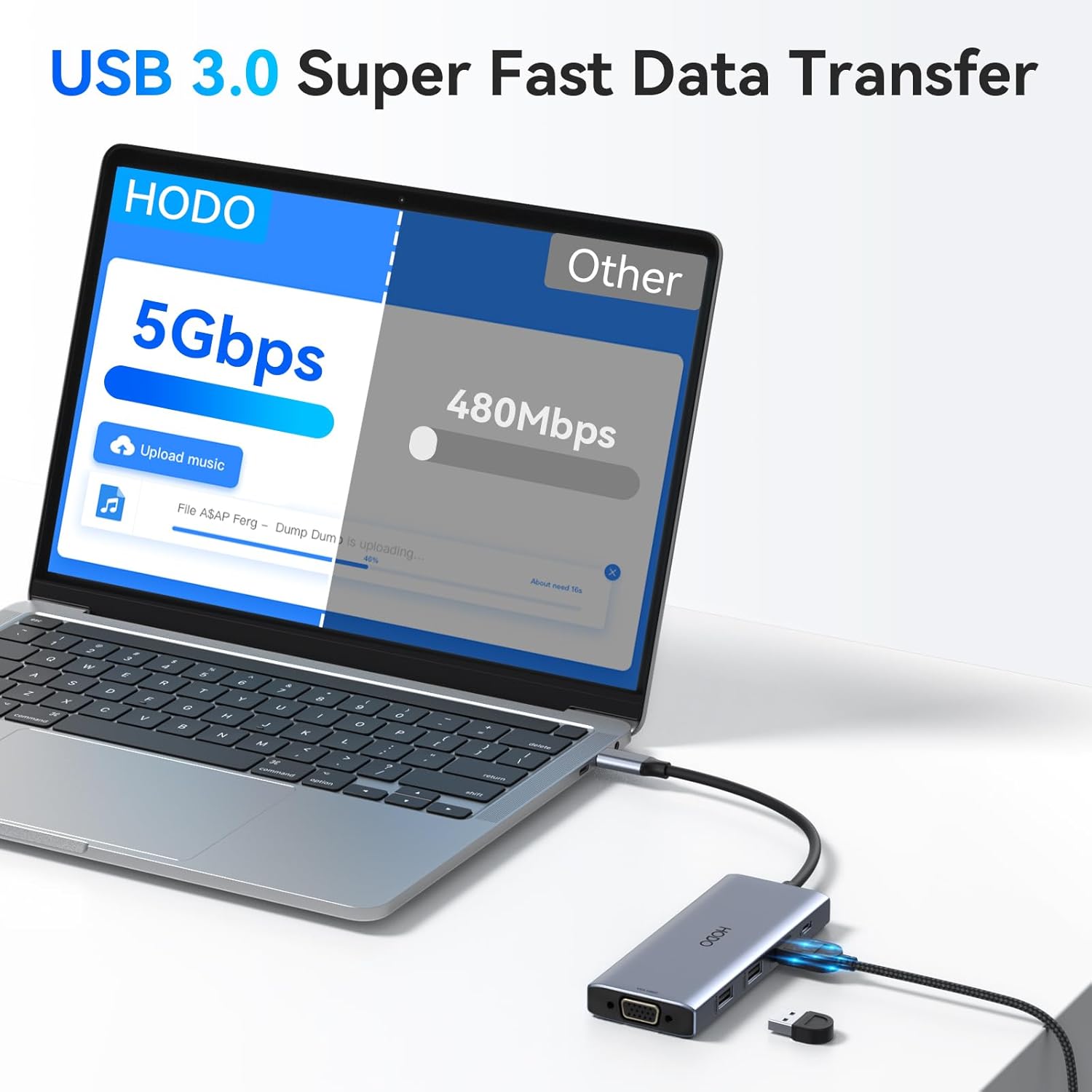
The docking station includes USB 3.0 ports capable of super-fast data transfer speeds up to 5Gbps, ideal for external storage devices. USB 2.0 ports are also available for connecting peripherals like keyboards and mice.
4.5 Indicator Lights
The docking station features two indicator lights to help you monitor its status:
- Working Detection (White Light): Indicates that the hub is connected to the laptop port and is functioning correctly.
- Compatibility Detection (Blue Light): Indicates whether the USB-C port of the laptop you are connected to supports the video output function (DP Alt Mode).

5. Maintenance
To ensure the longevity and optimal performance of your docking station:
- Keep the device clean by wiping it with a soft, dry cloth. Avoid using liquid cleaners or solvents.
- Store the docking station in a cool, dry place away from direct sunlight and extreme temperatures.
- Avoid dropping the device or subjecting it to strong impacts.
- Do not attempt to disassemble or repair the device yourself. Contact customer support if issues arise.
6. Troubleshooting
If you encounter problems with your HODO docking station, please refer to the following common issues and solutions:
- No Display on External Monitor:
- Ensure your laptop's USB-C port supports DisplayPort Alternate Mode (DP Alt Mode). Check your laptop's specifications.
- Verify that all video cables (HDMI, DP, VGA) are securely connected to both the docking station and the monitors.
- Check the monitor input source settings to ensure the correct input is selected.
- Try connecting one monitor at a time to isolate the issue.
- Restart your laptop.
- Laptop Not Charging via PD Port:
- Ensure you are using a compatible USB-C power adapter (at least 65W recommended) and cable.
- Verify the power adapter is securely connected to both the wall outlet and the docking station's PD port.
- Some laptops require their original charger for full power delivery.
- USB Devices Not Recognized or Slow Data Transfer:
- Ensure the docking station is securely connected to your laptop.
- Try connecting the USB device directly to your laptop to confirm it's working.
- For high-bandwidth devices, use the USB 3.0 ports.
- If using multiple power-hungry USB devices, ensure adequate power is supplied to the docking station via the PD port.
- macOS Dual Screen Not Working (Extended Display):
- This is a known limitation of macOS. macOS does not support Multi-Stream Transport (MST), meaning multiple external monitors will mirror each other, not extend independently. This is not a defect of the docking station.
7. Specifications
| Brand | HODO |
| Model | 9-Port USB C Docking Station |
| Hardware Interface | HDMI, DisplayPort, USB 2.0, USB 3.0, USB Type C, VGA |
| Video Output | 2x HDMI (4K@60Hz), 1x DP (8K@30Hz/4K@144Hz), 1x VGA (1080P) |
| USB Ports | 2x USB 3.0 (5Gbps), 2x USB 2.0 (480Mbps), 1x USB-C 2.0 Data |
| Power Delivery | USB-C PD 3.0, up to 100W pass-through |
| Operating System Compatibility | Windows 7/10/11, macOS 10.15 Catalina and above, Chrome OS |
| Special Features | Fast Data Transfer, Heat Resistant, Pass Through Charge, Plug and Play |
| Material | Plastic |
| Item Weight | 100 g |
8. Warranty and Support
HODO products are designed for reliability and performance. For specific warranty information, please refer to the product packaging or the retailer's website where you purchased the device. If you require technical assistance or have questions regarding your docking station, please contact HODO customer support through the contact information provided with your purchase or on the official HODO website.