
1. Introduction
The CYSSJF K-999 Keypad is a specialized call button designed as an accessory for wireless calling systems. It is intended for use with compatible display screens such as the K-302 and K-Q13 models. This keypad cannot function as a standalone device and requires connection to a compatible display unit for operation. Please ensure compatibility with your existing system before use.
2. Product Overview
The K-999 Keypad features a digital display and a set of numeric and function buttons for initiating and managing calls within a wireless calling system.

This image illustrates the main components of the K-999 Keypad. It highlights the digital display for 'customer number' and 'counter number'. The 'ZONE' button allows selection from 0-9/A-F for 16 different areas. The 'F1' button is used to cancel a call, and the 'ENT' button is for initiating a call.
- Digital Display: Shows the 'customer number' and 'counter number'.
- Numeric Keypad (0-9, *, #): For entering customer numbers.
- ZONE Button: Used to select one of 16 different areas (0-9/A-F).
- F1 Button: Cancels the current call.
- ENT Button: Initiates a call.
- LAST, DIGIT, ON/OFF, NEXT Buttons: For navigation and control.
- CLEAR Button: Clears the current input.
3. Setup
Follow these steps to set up your K-999 Keypad:
- Attach the Antenna: Locate the antenna connector on the back of the K-999 Keypad. Carefully screw the provided antenna onto this connector until secure.
- Connect Power: Insert the power cable into the power input jack on the back of the keypad. Connect the other end of the power cable to a suitable electrical outlet. The keypad is designed for wired electric power.
- Pair with Display Unit: The K-999 Keypad must be paired with a compatible display unit (e.g., K-302/K-Q13 screens) to function. Refer to the instruction manual of your display unit for specific pairing procedures.

This image displays the detachable antenna, which connects to the K-999 Keypad to enable wireless communication with compatible display units.
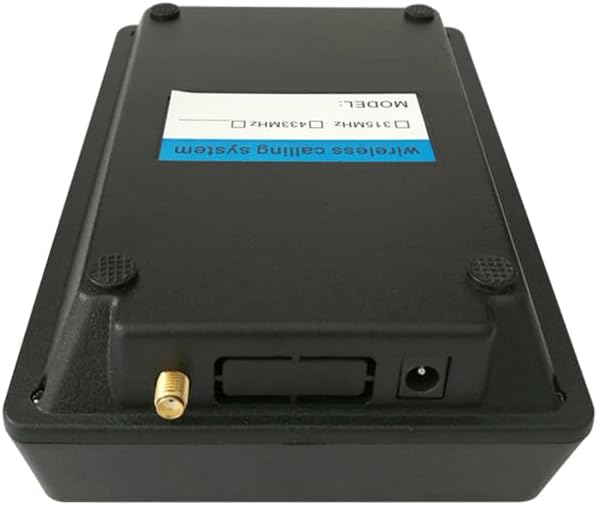
The back of the K-999 Keypad features the connection port for the antenna and the power input jack. A label indicates it is part of a wireless calling system and supports 315MHz or 433MHz frequencies.
4. Operating Instructions
Once the K-999 Keypad is set up and paired with a display unit, you can begin using it to make calls.
Making a Call:
- Enter Customer Number: Use the numeric keypad (0-9) to enter the desired customer number. The number will appear on the digital display.
- Select Zone (Optional): If your system uses zones, press the ZONE button to cycle through the available zones (0-9/A-F). The selected zone will be indicated on the display.
- Initiate Call: Press the ENT button to send the call to the paired display unit.
Canceling a Call:
- To cancel an active call, press the F1 button.
Clearing Input:
- If you make an error while entering a number, press the CLEAR button to clear the current input.
Navigation Buttons:
- Use LAST and NEXT buttons to navigate through call history or settings if supported by your system.
- The DIGIT and ON/OFF buttons may be used for specific system configurations; refer to your display unit's manual for details.
5. Maintenance
Proper maintenance ensures the longevity and optimal performance of your K-999 Keypad.
- Cleaning: Use a soft, slightly damp cloth to clean the keypad surface. Avoid using abrasive cleaners, solvents, or harsh chemicals, as these can damage the device.
- Environment: Keep the keypad in a dry environment, away from direct sunlight, extreme temperatures, and excessive moisture.
- Power Connection: Periodically check that the power cable is securely connected to both the keypad and the power outlet.
- Antenna: Ensure the antenna remains securely attached and is not bent or damaged.
6. Troubleshooting
If you encounter issues with your K-999 Keypad, refer to the following common troubleshooting steps:
- Keypad Not Powering On:
- Check that the power cable is securely connected to the keypad and a working electrical outlet.
- Verify that the power outlet is functional.
- Calls Not Registering on Display Unit:
- Ensure the K-999 Keypad is properly paired with your display unit (K-302/K-Q13). Refer to the display unit's manual for pairing instructions.
- Check that the antenna is securely attached to the keypad.
- Verify that the display unit is powered on and within range of the keypad.
- Incorrect Number/Zone Displayed:
- Press the CLEAR button and re-enter the desired customer number and zone.
- Keypad Buttons Unresponsive:
- Disconnect and reconnect the power to the keypad to perform a soft reset.
- Ensure no debris is obstructing the buttons.
- Compatibility Issues:
- Remember that the K-999 is an accessory and requires specific compatible display units (K-302/K-Q13). It cannot be used alone.
7. Specifications
| Model | K-999 |
| Type | Keypad Call Button |
| Brand | CYSSJF |
| Power Source | Wired Electric |
| Included Components | 1 K-999 KEYPAD |
| Manufacturer | Quanzhou Shuojiang Electronic Commerce Co., Ltd. |
| Wireless Frequencies | 315MHz / 433MHz |
| ASIN | B0DSDNWBMR |
8. Warranty and Support
For warranty information, please refer to the documentation provided at the time of purchase or contact your retailer. For technical support or inquiries regarding compatibility, please contact CYSSJF customer service through their official channels or the retailer from whom you purchased the product.

