
Introduction
This manual provides essential instructions for the setup, operation, and maintenance of your My Arcade Gamestation Retro Gamepad. This wireless controller is designed for use with the Atari Gamestation Go and Atari Gamestation Mega consoles, enhancing your retro gaming experience with integrated controls and SmartGlow technology.
Product Features
- Officially licensed Atari controller.
- Connects wirelessly to Atari Gamestation Go and Atari Gamestation Mega consoles.
- Features an integrated paddle, trak-ball, and keypad for versatile gameplay.
- SmartGlow technology illuminates controls relevant to the current game, providing intuitive guidance.
- Powered by a built-in rechargeable battery, offering over 12 hours of playtime.
- Includes a charge cable for convenient recharging.
- Wireless range of up to 30 feet (9.1 meters).
- Supports connection of up to two gamepads for two-player gaming.
Package Contents
Verify that all items are present in your package:
- My Arcade Gamestation Retro Gamepad (Model DGUNL-7152)
- USB Charge Cable
- User Manual (this document)
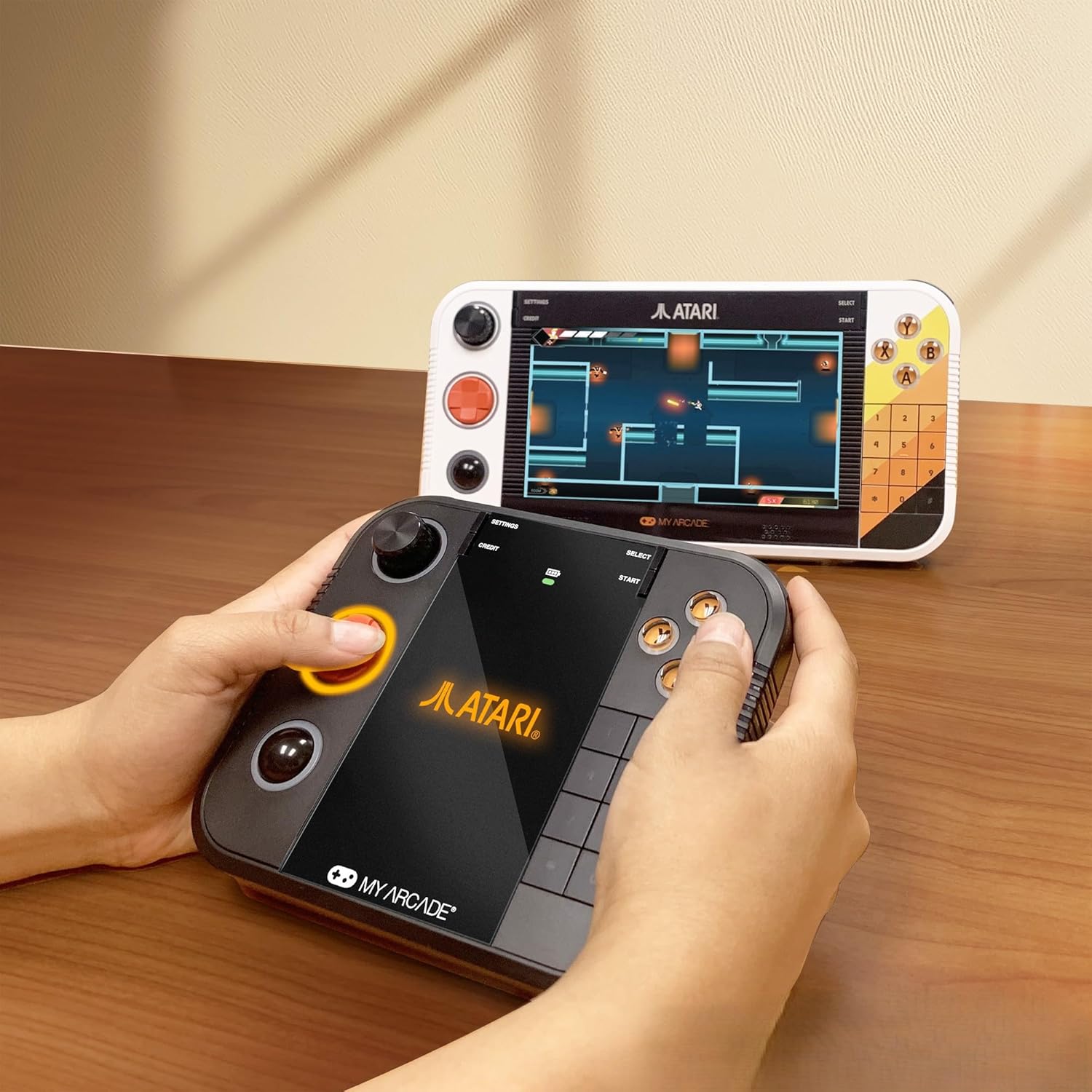
Image: Front view of the My Arcade Gamestation Retro Gamepad.
Setup Instructions
Charging the Gamepad
Before initial use, fully charge the gamepad. Connect the included USB charge cable to the 5VIN port on the gamepad and to a compatible USB power source (e.g., computer USB port, USB wall adapter). The charging indicator light will show the charging status.

Image: Side view of the gamepad, highlighting the 5VIN charging port.
Pairing with Gamestation Go/Mega
To connect your Gamestation Retro Gamepad wirelessly to your Atari Gamestation Go or Gamestation Mega console:
- Ensure your Atari Gamestation Go or Gamestation Mega console is powered on.
- On the Gamestation Retro Gamepad, simultaneously press and hold the SELECT and START buttons. This will put the gamepad into pairing mode.
- The gamepad should automatically sync and connect wirelessly with your console.
- If pairing is unsuccessful, try repeating step 2. Alternatively, you may need to initiate pairing from your Gamestation Go/Mega console by holding its SELECT and START buttons (refer to your console's manual for specific instructions).

Image: A user operating the Gamestation Retro Gamepad alongside a Gamestation Go console.
The gamepad has a wireless range of up to 30 feet (9.1 meters) from the console. Up to two gamepads can be connected for two-player gaming.
Operating Instructions
Controls Overview
The Gamestation Retro Gamepad features a comprehensive set of controls designed for various retro games:
- D-Pad: For directional movement in games.
- Action Buttons (A, B, X, Y): For in-game actions.
- Paddle: A rotary control for games requiring precise rotational input.
- Trak-Ball: A spherical input device for games that utilize trackball mechanics.
- Keypad (0-9, *, #): For games requiring numerical input or specific functions.
- L1/L2, R1/R2 Shoulder Buttons: Additional action buttons.
- SELECT/START: Game menu and start functions.

Image: Back view of the gamepad, showing the ergonomic design.
SmartGlow Technology
The gamepad features SmartGlow technology, which illuminates the specific controls needed for the game you are currently playing. This provides visual cues, making gameplay more intuitive, especially for games with unique control schemes.
PC Compatibility (Wired Only)
The Gamestation Retro Gamepad can also be used with a PC via a wired USB connection. When connected to a PC, the trackball functions as a mouse pointer, and the paddle (spinner) can control mouse X-axis movement. This allows for playing compatible PC games, such as the Atari Recharged series on platforms like Steam.
Video: Demonstrates the My Arcade Gamestation Retro Gamepad's features, including SmartGlow technology, wireless connectivity, and compatibility with Atari Gamestation Go and Mega consoles. It shows the integrated paddle, trackball, and keypad in action during gameplay.
Maintenance
Battery Care
The gamepad is equipped with a built-in rechargeable battery. To ensure optimal battery life:
- Charge the gamepad fully before first use.
- Avoid completely draining the battery frequently.
- Store the gamepad in a cool, dry place when not in use for extended periods.
- Use only the provided USB charge cable or a compatible replacement.
Cleaning
Wipe the gamepad with a soft, dry cloth. Do not use liquid cleaners or abrasive materials.
Troubleshooting
- Gamepad not pairing: Ensure the console is on. Try holding SELECT and START on the gamepad to enter pairing mode. If issues persist, try holding SELECT and START on the console itself (refer to console manual). Ensure the gamepad is charged.
- Lag or unresponsiveness: Ensure the gamepad is within the 30-foot wireless range of the console. Check for potential interference from other wireless devices. Ensure the gamepad battery is sufficiently charged.
- SmartGlow not working: Verify that the gamepad is properly paired and connected to the console. Ensure the game being played supports SmartGlow functionality.
- Gamepad not recognized by PC: Ensure the gamepad is connected via a wired USB cable. Some PC games may require specific controller configurations or drivers.
Specifications
| Model Number | DGUNL-7152 |
| Product Dimensions | 6.13 x 1.5 x 5.38 inches |
| Item Weight | 14.1 ounces |
| Battery Type | 1 C battery (included, built-in rechargeable) |
| Connectivity | Wireless (Atari Gamestation Go/Mega), Wired USB (PC) |
| Wireless Range | Up to 30 feet (9.1 meters) |
| Manufacturer | My Arcade |
Warranty and Support
For warranty information or technical support, please refer to the official My Arcade website or contact their customer service directly. Specific warranty terms and conditions may vary by region and retailer.


