
CHORTAU B-T006N
CHORTAU 4K+1080P Dual Dash Cam User Manual
Model: B-T006N
1. Introduction and Overview
This manual provides detailed instructions for the installation, operation, and maintenance of your CHORTAU 4K+1080P Dual Dash Cam. This advanced dashboard camera system is designed to capture high-quality video footage from both the front and rear of your vehicle, enhancing driving safety and providing crucial evidence in case of incidents.
Key features include 4K Ultra HD front recording, 1080P Full HD rear recording, built-in Wi-Fi for smartphone app control, 24/7 parking surveillance, G-sensor for collision detection, seamless loop recording, and enhanced night vision with WDR technology.

Figure 1.1: CHORTAU 4K+1080P Dual Dash Cam components and app interface.
2. What's in the Box
Please check the package contents carefully. If any items are missing or damaged, contact customer support.
- 1 x 4K Main Dash Cam
- 1 x 1080P Rear Camera (with 18ft cable)
- 1 x Type-C Car Charger (11.5ft cable)
- 1 x 64 GB Memory Card
- 1 x User Manual
- 1 x Pin (for reset)
- 1 x Car Wire Trim Tool
- 1 x 3M Adhesive
- 2 x Electrostatic Stickers
- After-sales cards

Figure 2.1: Package Contents.
3. Setup and Installation
3.1 Installing the Memory Card
Insert the provided 64GB memory card into the dash cam's TF card slot until it clicks into place. Ensure the card is inserted correctly to avoid damage. For optimal performance, it is recommended to format the memory card within the dash cam settings before first use and periodically thereafter.
3.2 Mounting the Front Dash Cam
- Clean the windshield area where you intend to mount the dash cam.
- Apply one of the electrostatic stickers to the cleaned area. This helps in easy removal and prevents residue.
- Attach the 3M adhesive to the dash cam's removable mount base.
- Firmly press the mount base onto the electrostatic sticker on the windshield, ensuring a secure fit.
- Slide the main dash cam unit onto the mounted base. The detachable design allows for easy removal of the camera body if needed.
3.3 Installing the Rear Camera
The 1080P rear camera can be mounted either on the interior rear window or externally near the license plate. The rear camera is waterproof.
- Interior Mounting: Attach the rear camera to the inside of your rear windshield using the provided adhesive.
- Exterior Mounting: Secure the rear camera near your license plate. Ensure the camera's view is unobstructed.
Route the 18ft rear camera cable neatly along the vehicle's interior trim to the front dash cam. Connect the rear camera cable to the designated port on the main dash cam unit.

Figure 3.1: Easy Installation and Detachable Design.

Figure 3.2: Removable Mount Base and Electrostatic Stickers.

Figure 3.3: Waterproof Rear Camera Mounting Options.
3.4 Power Connection
Connect the Type-C car charger to the dash cam's power input port and plug the other end into your vehicle's cigarette lighter socket. The dash cam will automatically power on and begin recording when the vehicle's ignition is turned on.
4. Operating Instructions
4.1 Basic Operation
- Power On/Off: The dash cam powers on automatically with vehicle ignition. To manually power on/off, press and hold the power button.
- Recording: Once powered on, the dash cam automatically starts recording. A red dot indicator on the screen confirms recording is active.
4.2 Recording Modes and Features
4.2.1 Dual Channel Recording
The dash cam records simultaneously from both the front and rear cameras. The front camera captures 4K UHD video with a 170-degree wide angle, while the rear camera records 1080P FHD video with a 140-degree wide angle, covering multiple lanes and reducing blind spots.

Figure 4.1: Dual Channel Recording Coverage.
4.2.2 Seamless Loop Recording
When the memory card reaches its storage limit, the loop recording function automatically overwrites the oldest unlocked video files to ensure continuous recording. Recording intervals can typically be set to 1, 2, or 3 minutes in the settings.

Figure 4.2: Seamless Loop Recording.
4.2.3 G-Sensor (Emergency Lock)
The built-in G-sensor detects sudden impacts or collisions. When triggered, it automatically locks the current video footage, preventing it from being overwritten by loop recording. This ensures critical accident evidence is securely saved.

Figure 4.3: Built-in G-sensor for Emergency Lock.
4.2.4 24/7 Parking Monitor
With the parking monitor feature enabled, the dash cam will automatically start recording if it detects motion or a collision while your vehicle is parked. For continuous 24/7 parking surveillance, a hardwire kit (not included) is required to provide constant power to the dash cam.

Figure 4.4: 24/7 Parking Monitor and G-Sensor.
4.2.5 Super Night Vision with WDR
The dash cam is equipped with an F1.8 aperture lens and Wide Dynamic Range (WDR) technology, which optimizes video quality in low-light conditions. This ensures clearer recordings at night, making license plates and road signs more discernible by balancing exposure in both bright and dark areas.
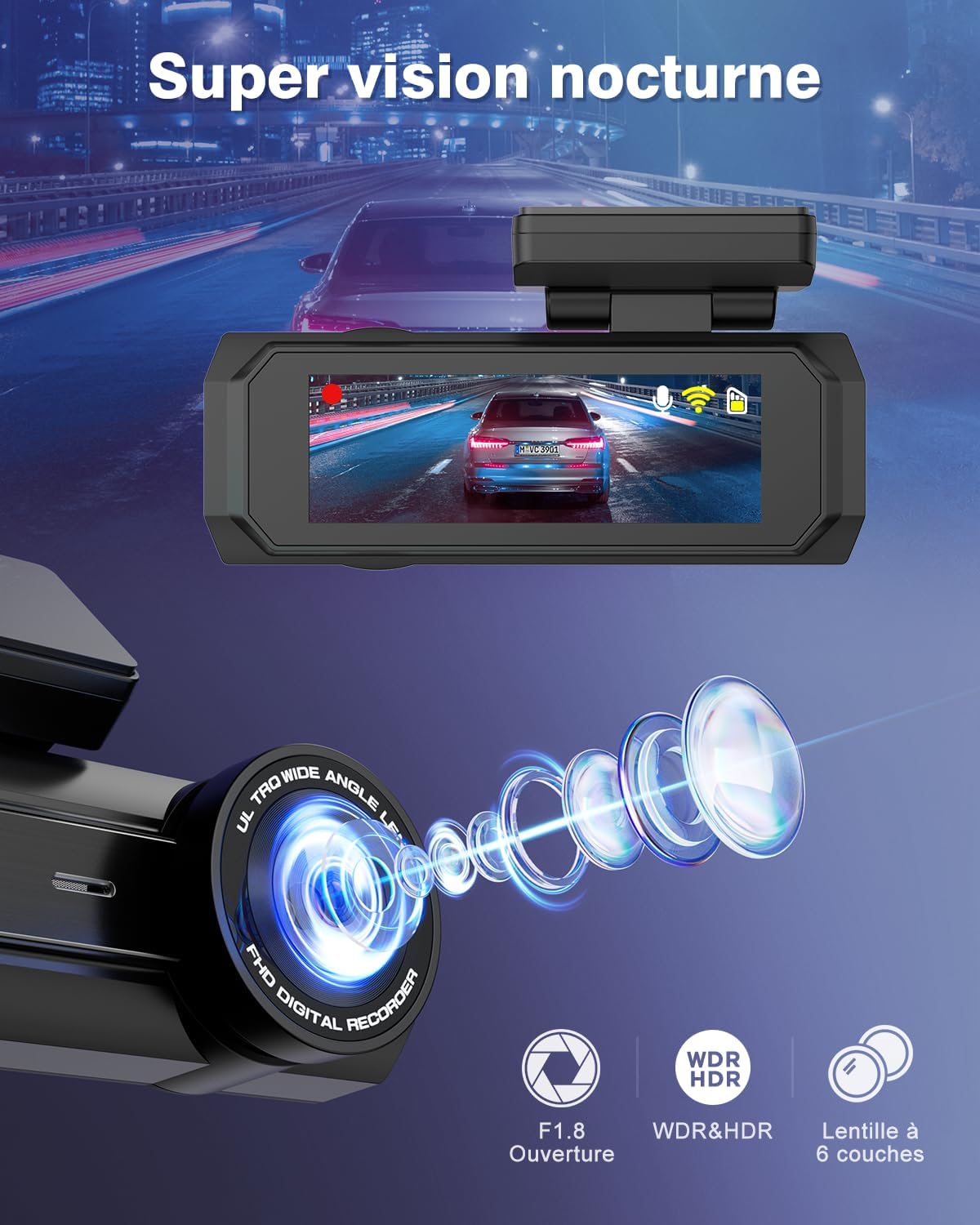
Figure 4.5: Super Night Vision with WDR.
4.2.6 Time-Lapse Recording
When time-lapse recording is selected (requires hardwire kit), the dash cam records at a low frame rate (e.g., 1/2/5fps). This mode is ideal for extended parking surveillance, preserving video quality while significantly saving memory card space.

Figure 4.6: Time-Lapse Recording for Parking Monitor.
4.2.7 Smart Voice Prompts
The dash cam provides smart voice prompts to inform you of its current status, such as "Start Recording," "Recording Stopped," "Formatted," or "Successfully take a photo." This ensures you are aware of the device's operation without needing to look at the screen.

Figure 4.7: Smart Voice Prompts.
4.2.8 Screen Saver Function
To avoid distraction while driving, the dash cam features a screen saver function that can be set to activate after a few minutes (e.g., 3 minutes). The screen will turn off, but recording will continue uninterrupted. You can tap the screen to reactivate it.

Figure 4.8: Screen Saver Function.
4.3 Wi-Fi and App Control
The dash cam has built-in Wi-Fi, allowing you to connect it to your smartphone via the free Viidure APP (available for Android and iOS). This enables convenient control and management of your recordings.
- Real-time View: See what the dash cam is recording live on your phone.
- Playback: Review recorded videos directly on your smartphone.
- Download: Transfer video files from the dash cam to your phone.
- Share: Easily share video clips to social media platforms.
- Settings: Adjust dash cam settings directly from the app.

Figure 4.9: Built-in Wi-Fi and Smart APP Control.
5. Maintenance
- Cleaning: Use a soft, dry cloth to clean the dash cam lenses and screen. Avoid abrasive cleaners or solvents.
- Memory Card Formatting: It is recommended to format the memory card every 2-4 weeks to maintain optimal recording performance and prevent data corruption. This can be done through the dash cam's settings menu or via the Viidure app.
- Temperature Range: The dash cam is designed to operate within a wide temperature range, typically from -22°F (-30°C) to 176°F (80°C). Avoid exposing the device to extreme temperatures outside this range for prolonged periods.

Figure 5.1: Anti-High & Low Temperature Resistance.
6. Troubleshooting
| Problem | Possible Cause | Solution |
|---|---|---|
| Dash cam does not power on. | No power from car charger; loose connection; faulty charger. | Check car charger connection and vehicle's cigarette lighter socket. Try another power source. |
| Recording stops or freezes. | Memory card full or corrupted; low-quality memory card; firmware issue. | Format the memory card. Use a high-speed (Class 10 or U3) memory card. Update firmware if available. |
| Wi-Fi connection issues. | Incorrect Wi-Fi password; app not updated; interference. | Ensure correct Wi-Fi password. Update Viidure app. Restart dash cam and phone. |
| Poor video quality. | Dirty lens; protective film still on lens; incorrect resolution settings. | Clean the lens. Remove any protective film. Check video resolution settings. |
| G-sensor too sensitive/not sensitive enough. | G-sensor sensitivity setting. | Adjust G-sensor sensitivity in the dash cam settings. |
If you encounter issues not listed here, please refer to the Warranty & Support section for assistance.
7. Specifications
| Feature | Detail |
|---|---|
| Model Name | B-T006N |
| Video Capture Resolution | Front: 2160p (4K UHD), Rear: 1080p (FHD) |
| Front Camera Angle | 170 degrees |
| Rear Camera Angle | 140 degrees |
| Display Screen | 2.99'' IPS |
| Connectivity Technology | Wi-Fi |
| Special Features | Built-In Microphone, Built-In Speaker, Loop Recording, G-Sensor, Night Vision, Parking Monitor, App Control |
| Mounting Type | Windshield Mount |
| Power Source | Car Charger (Type-C) |
| Battery | 1 Lithium Ion battery (included) |
| Product Dimensions | 22 x 16 x 5.5 cm; 70 g |
| Color | Black |
8. Warranty and Support
CHORTAU provides a 12-month warranty for this dash cam, covering manufacturing defects and malfunctions under normal use. Additionally, we offer lifetime technical support to assist you with any questions or issues you may encounter.
For technical assistance, warranty claims, or any other inquiries, please refer to the contact information provided on the 'After-sales cards' included in your package or visit the official CHORTAU website.
Related documentsB-T006N

Ask a question about this manual
Ask about setup, troubleshooting, compatibility, parts, safety, or missing instructions. Manuals+ will review the question and use this page’s manual context to help answer it.