
1. Introduction
Thank you for choosing the HOU Magnetic Detachable Keyboard Case. This product is designed to enhance your iPad experience by providing a protective case, a versatile stand, and a functional keyboard with a precision touchpad. Please read this manual carefully to ensure proper use and maintenance of your device.
2. Compatibility
This keyboard case is compatible with the following iPad models:
- iPad Air 11 (M3 2025): Models A3266/A3267/A3270
- iPad Air 11 (M2 2024): Models A2902/A2903/A2904
- iPad Air 5th Gen (10.9"): Models A2591/A2589/A2588
- iPad Air 4th Gen (10.9"): Models A2325/A2324/A2316/A2072
- iPad Pro 11 (2022): Models A2435/A2759/A2761/A2762
- iPad Pro 11 (2021): Models A2377/A2459/A2301/A2460
- iPad Pro 11 (2020): Models A2228/A2068/A2230/A2231
- iPad Pro 11 (2018): Models A1980/A2013/A1934/A1979

Image: iPad Compatibility Chart. Please verify your iPad model number for correct fit.
3. Package Contents
The package includes:
- 1 x HOU Keyboard
- 1 x HOU Protective Case
- 1 x USB-C Charging Cable (for keyboard)
- 1 x User Manual
4. Setup Instructions
4.1 Attaching the iPad to the Case
- Gently insert your iPad into the protective case, ensuring all edges are securely covered. The case is designed for a snug fit to provide 360-degree protection.
- Ensure the camera cutout and port openings align correctly with your iPad's features.
4.2 Attaching the Keyboard
The keyboard attaches magnetically to the case.
- Place the keyboard on a flat surface.
- Align the magnetic strip on the case (with the iPad inserted) with the corresponding area on the keyboard. The magnets will automatically snap the keyboard into place.

Image: Magnetic Keyboard Attachment. The keyboard and case connect securely via magnets.
4.3 Bluetooth Pairing
To connect the keyboard to your iPad via Bluetooth:
- Ensure the keyboard is charged.
- Turn on the keyboard using the power switch, usually located on the side. A status indicator light will illuminate.
- On your iPad, go to Settings > Bluetooth.
- Turn on Bluetooth. Your iPad will search for nearby devices.
- Locate "HOU Keyboard" (or similar name) in the list of devices and tap to connect.
- If prompted, enter the pairing code displayed on your iPad using the keyboard and press Enter.
- Once connected, the status indicator on the keyboard will change, and the keyboard will appear as "Connected" on your iPad.
5. Operating Instructions
5.1 Keyboard Features
- Backlighting: The keyboard features multi-color backlighting with adjustable brightness. Use the dedicated backlight key (often a sun icon or similar) to cycle through colors and brightness levels.
- Shortcut Keys: The keyboard includes a row of dedicated iOS shortcut keys for quick access to functions like Home, Search, Brightness, Volume, Media Control, and Keyboard Hide/Show.
- X-shaped Keys: The keys are designed with an X-shaped mechanism for responsive and comfortable typing.
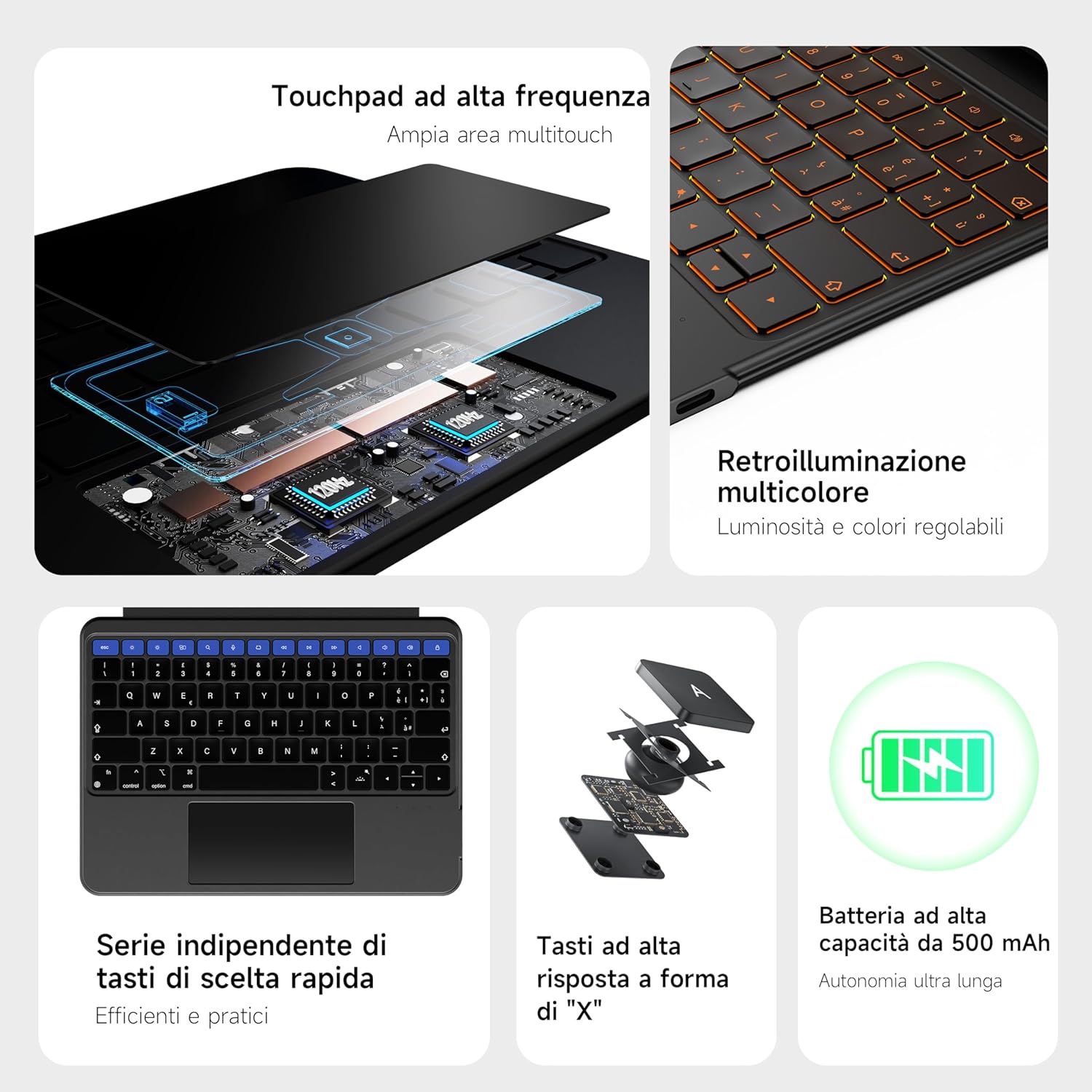
Image: Keyboard Features. High-frequency touchpad, multi-color backlight, and dedicated shortcut keys.

Image: Italian Keyboard Layout (78 Keys). Features large keys and a spacious touchpad.
5.2 Touchpad Gestures
The precision touchpad supports various iOS gestures for efficient navigation:
- Single Finger Tap: Click/Select
- Two Fingers Swipe (Up/Down): Scroll content
- Two Fingers Pinch (In/Out): Zoom in/out
- Three Fingers Swipe (Up): Go to Home Screen
- Three Fingers Swipe (Left/Right): Switch between open apps
- Three Fingers Swipe (Down): Access Dock
- Four Fingers Swipe (Up): View Control Center

Image: Enhanced Touchpad. The touchpad surface is 35% larger with a 120Hz refresh rate for smooth response.
5.3 Magnetic Detachment and Viewing Modes
The magnetic design allows for flexible usage scenarios:
- Detachable Keyboard: The keyboard can be easily detached from the case, allowing you to use the iPad as a standalone tablet for drawing, reading, or media consumption.
- 360° Rotating Stand: The integrated stand allows for 360-degree rotation, enabling both vertical and horizontal viewing orientations. The adjustable angle (90°-170°) provides optimal viewing for various activities like video conferencing, presentations, or streaming.
- Pencil Holders: The case includes both a magnetic slot for Apple Pencil (USB-C version) for charging and an elastic holder for secure storage.

Image: Magnetic Detachable Design. The keyboard and case can be easily separated or combined.

Image: Key Features. Illustrates 360-degree rotation, adjustable stand, magnetic combination, full protection, and dual pencil slot.

Image: Various Usage Modes. Shows the case in laptop, tablet, and drawing modes.

Image: Apple Pencil Magnetic Charging Area. The case allows for magnetic charging of the Apple Pencil.

Image: Elastic Pencil Holder. A secure elastic loop for storing your Apple Pencil.
6. Maintenance
To ensure the longevity and optimal performance of your HOU Keyboard Case:
- Cleaning: Use a soft, damp cloth to wipe the exterior of the case and keyboard. Avoid harsh chemicals or abrasive materials.
- Storage: When not in use, store the keyboard case in a cool, dry place away from direct sunlight and extreme temperatures.
- Charging: Charge the keyboard regularly to maintain battery health. Avoid overcharging or completely draining the battery.
- Protection: While the case offers protection, avoid dropping the iPad or exposing it to excessive force.

Image: Keyboard Charging Port. The keyboard features a USB-C charging port.
7. Troubleshooting
If you encounter issues with your HOU Keyboard Case, refer to the following common solutions:
- Keyboard not connecting via Bluetooth:
- Ensure the keyboard is powered on and fully charged.
- Turn off and on your iPad's Bluetooth.
- Forget the device in iPad's Bluetooth settings and re-pair.
- Restart your iPad and the keyboard.
- Keys not responding:
- Check if the keyboard is connected via Bluetooth.
- Ensure the keyboard is charged.
- Clean around the keys to remove any debris.
- Touchpad not working:
- Ensure the keyboard is connected.
- Check iPad settings for touchpad functionality (Settings > Accessibility > Touch > AssistiveTouch).
- Restart the keyboard and iPad.
- Backlight not working:
- Ensure the keyboard is charged.
- Press the backlight key to cycle through modes.
If the issue persists after trying these steps, please contact customer support.
8. Specifications
| Brand | HOU |
| Compatible Devices | iPad Air, iPad Pro |
| Connectivity Technology | Bluetooth |
| Keyboard Description | Multifunction |
| Special Feature | Rotatable, Backlit |
| Color | Black |
| Material | Silicone |
| Included Components | Keyboard, Case |
| Power Source | Battery Powered |
| Item Weight | 850 g |
| Package Dimensions | 29.1 x 20.3 x 2.7 cm |
9. Warranty and Support
9.1 Warranty Information
HOU products are covered by a standard manufacturer's warranty against defects in materials and workmanship. The specific duration and terms of the warranty may vary by region and retailer. Please retain your proof of purchase for warranty claims.
9.2 Customer Support
For technical assistance, troubleshooting, or warranty inquiries, please contact HOU customer support through the retailer where you purchased the product or visit the official HOU website for contact information.
Please provide your product model number and a detailed description of the issue when contacting support.


