
Gavonde X9
Gavonde Digital Camera User Manual
Model: X9 (S100)
1. Introduction
Thank you for choosing the Gavonde Digital Camera. This manual provides essential information for setting up, operating, and maintaining your camera. Please read it thoroughly to ensure optimal performance and longevity of your device.
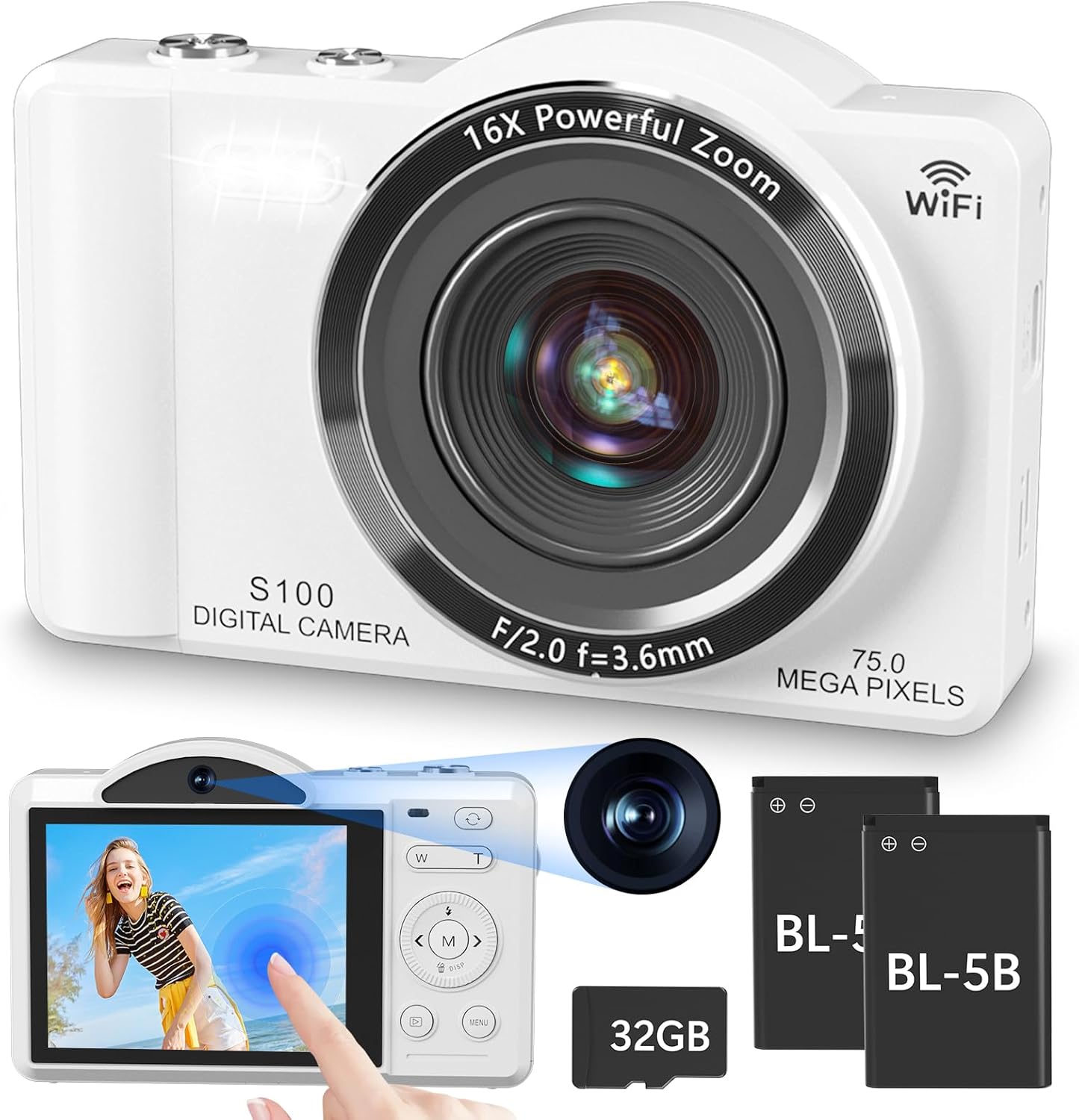
Image 1.1: The Gavonde S100 Digital Camera, showcasing its sleek white design, 16X powerful zoom lens, and WiFi capability. The image also highlights the included 32GB SD card and two BL-5B batteries, along with a touchscreen interface demonstrating its ease of use.
2. Package Contents
Please verify that all items are present in your package:
- Digital Camera (1)
- Type-C USB Cable (1)
- 32GB TF Card (1)
- Lanyard (1)
- 1200mAh Battery (2)
- Camera Bag (1)
- Cleaning Cloth (1)
- User Manual (1)

Image 2.1: A visual representation of the complete package contents for the Gavonde Digital Camera, including the camera itself, a 32GB TF card, two 1200mAh batteries, a cleaning cloth, the user manual, a camera bag, a lanyard, and a Type-C USB cable.
3. Product Overview
Familiarize yourself with the camera's components and controls:

Image 3.1: A detailed diagram illustrating the various buttons and ports on the Gavonde Digital Camera. Key components labeled include the shooting button, power on/off button, front and rear camera switch button, digital zoom in/out (W/T) buttons, Up/Fill light shortcut button, Right/Timing photo shortcut button, M Button, Menu/Menu return button, Down/Delete button, Playback button, Left/Continuous photo shortcut button, USB port, Display screen, Tripod interface, Battery Compartment Cover, Rear camera, Front camera, Fill light, and Charging/Working indicator light.
4. Setup
4.1 Battery Installation
- Open the battery compartment cover located at the bottom of the camera.
- Insert the 1200mAh Lithium-Ion battery into the compartment, ensuring the correct orientation. The battery should slide in smoothly.
- Close the battery compartment cover until it clicks securely.

Image 4.1: A visual guide demonstrating the correct and incorrect ways to install the battery into the Gavonde Digital Camera. The correct method shows the battery inserted with the arrow pointing inwards, while the incorrect method shows it inserted in reverse. A note emphasizes that incorrect installation prevents charging and operation without a power connection.
4.2 Memory Card Installation
- Locate the memory card slot, usually next to the battery compartment.
- Insert the 32GB TF (microSD) card into the slot with the gold contacts facing down, until it clicks into place.
- To remove, gently press the card until it pops out.
4.3 Initial Charging
Before first use, fully charge the camera battery. Connect the camera to a power source using the provided Type-C USB cable. The charging indicator light will illuminate during charging and turn off when complete.
5. Operating Instructions
5.1 Power On/Off
Press and hold the Power On/Off button to turn the camera on or off.
5.2 Basic Photo and Video Capture
To capture a photo, lightly press the shutter button halfway to focus (the focus box will turn from white to green), then press fully to take the shot. To record video, switch to video mode and press the shutter button to start/stop recording.

Image 5.1: Two young women smiling and making peace signs, demonstrating the camera's ability to capture high-quality 4K video and 75MP photos. The image highlights the camera's primary functions for both still photography and video recording.
5.3 Using the Touchscreen
The 2.8-inch IPS touchscreen allows for intuitive navigation and setting adjustments. Tap icons and swipe to access different menus and modes.

Image 5.2: A split image showcasing the Gavonde Digital Camera's dual-lens design and 2.8-inch IPS touchscreen. The top portion illustrates a user holding the camera to take a selfie with the front lens, while the bottom portion shows a finger interacting with the touchscreen, highlighting its ease of operation.
5.4 Switching Cameras (Front/Rear)
The camera features innovative dual cameras. Use the dedicated switch button to toggle between the front and rear lenses for selfies or standard photography.

Image 5.3: An illustration of the Gavonde Digital Camera's dual-camera functionality, showing a user taking a selfie with the front camera and another user taking a photo with the rear camera, emphasizing its versatility for different shooting scenarios.
5.5 Zoom Function
Use the W/T buttons to adjust the 16X digital zoom. 'W' zooms out (Wide), and 'T' zooms in (Telephoto).

Image 5.4: A visual demonstration of the Gavonde Digital Camera's 16X digital zoom capability, showing a lighthouse at different zoom levels (4X, 8X, 16X). Below, it illustrates the camera's autofocus function with a dog, showing a clear, focused image with autofocus 'ON' and a blurred image with autofocus 'OFF'.
5.6 Autofocus
The camera features an upgraded autofocus function. When taking a photo, lightly press the shutter button halfway; the focus box will change from white to green when focus is achieved. Then, press the shutter button fully to capture the image.
5.7 Shooting Modes
The camera offers 8 shooting modes:
- Video: Standard video recording.
- Photo: Standard still image capture.
- Slow Motion: Records video at a higher frame rate for slow-motion playback.
- Loop Recording: Continuously records video, overwriting the oldest footage.
- Time Lapse: Captures images at set intervals to create a time-lapse video.
- Auto: Automatically adjusts settings for optimal results.
- Burst: Captures multiple photos in quick succession.
- Timer: Sets a delay before taking a photo (e.g., 2s, 5s, 10s, 15s, 30s).
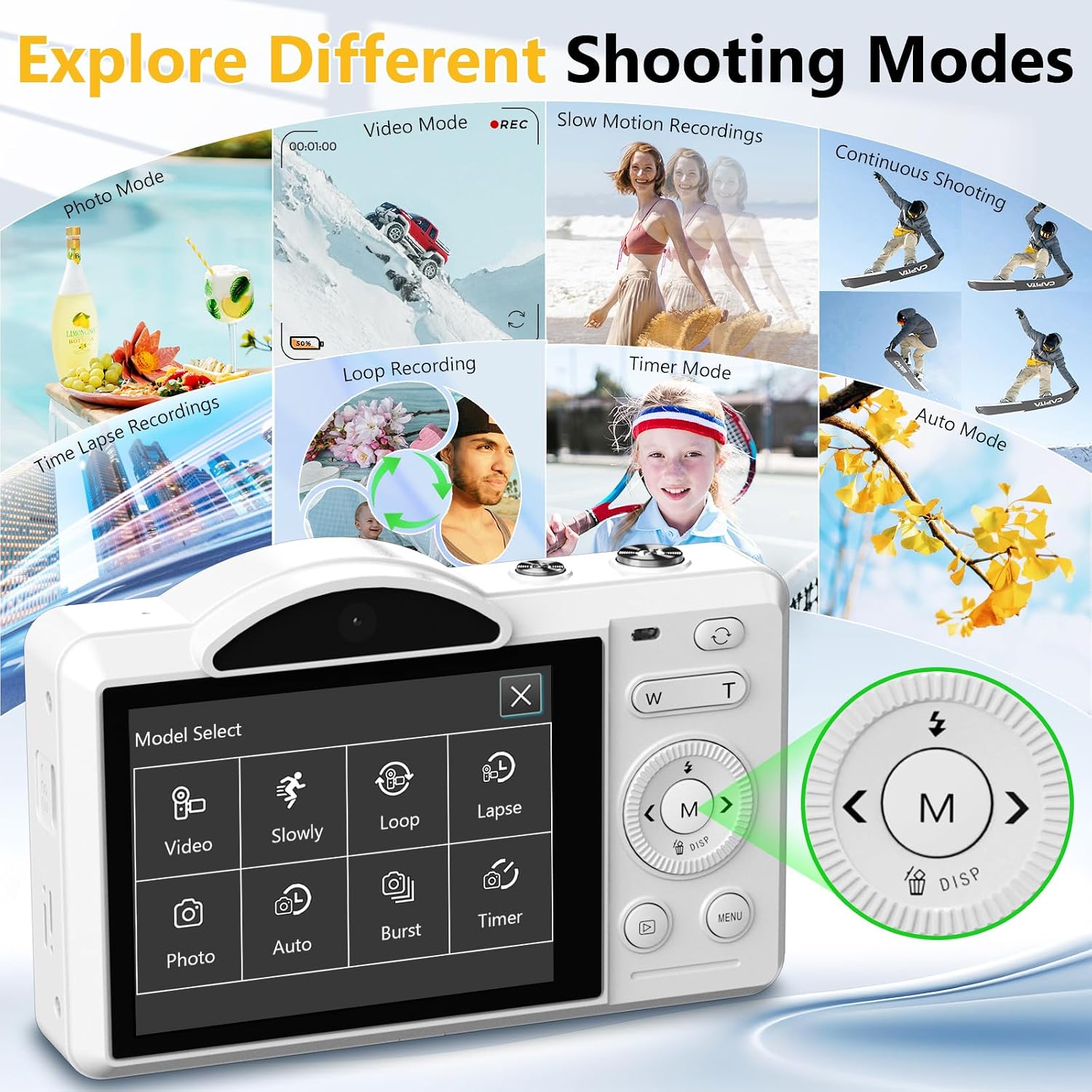
Image 5.5: A comprehensive display of the Gavonde Digital Camera's various shooting modes, including Photo Mode, Video Mode, Slow Motion Recordings, Continuous Shooting, Loop Recording, Time Lapse Recordings, Timer Mode, and Auto Mode. The image also shows the camera's menu interface for selecting these modes.
5.8 Special Features
- Beauty Mode: Enhances facial features for more flattering portraits.
- Smile Capture: Automatically takes a photo when a smile is detected.
- 18 Creative Filters: Apply various artistic effects (e.g., Normal, Black and White, Negative, Nostalgia, Red, Green).
- Framing Grid: Utilize grid lines (Crosshatch, Rule of Thirds, Golden Ratio) on the display to assist with composition.
- Built-in Flash: Provides illumination in low-light conditions.

Image 5.6: A visual overview of the Gavonde Digital Camera's advanced features, including a built-in flash (with ON/OFF examples), Beauty mode (showing before and after effects), Smiling Face Capture, and a display of 18 creative filters, demonstrating the camera's versatility.
5.9 Webcam Function
Connect the camera to your computer via the USB cable to use it as a webcam for video calls or live streaming.

Image 5.7: An illustration demonstrating the Gavonde Digital Camera's capability to function as a webcam when connected to a laptop, showing a family engaged in a video call. The image also highlights the camera's compact, pocket-sized dimensions (4.05''L x 0.82''W x 2.44''H) for easy portability.
5.10 WiFi Connectivity & File Transfer
The camera has a built-in WiFi function for instant photo and video transfer to your smartphone. Scan the QR code provided on the camera screen or in the manual to download the corresponding app. Connect your phone to the camera's WiFi network (SSID: 4K-WIFI, Password: 12345678) to transfer files.

Image 5.8: A visual representation of the Gavonde Digital Camera's wireless WiFi function. It shows a user holding a smartphone displaying the camera's app interface for photo transfer, alongside the camera itself displaying its WiFi information and a QR code for app download. Social media icons indicate easy sharing capabilities.
For app download, visit: https://qr03.cn/BA45q0
5.11 Downloading Files via USB or Card Reader
You can also transfer files by connecting the camera directly to a computer via USB cable or by using a card reader to access the TF card.

Image 5.9: A diagram illustrating three methods for downloading files from the Gavonde Digital Camera: via WiFi connection to a smartphone, via USB connection to a laptop, and via a card reader (not included) to a laptop or smartphone, all showing successful file transfer.
6. Maintenance
6.1 Cleaning
Use the provided cleaning cloth to gently wipe the camera body and screen. For the lens, use a specialized lens cleaning solution and cloth. Avoid harsh chemicals or abrasive materials.
6.2 Battery Care
To prolong battery life, avoid extreme temperatures. If the camera will not be used for an extended period, remove the batteries.
6.3 Storage
Store the camera in a cool, dry place, away from direct sunlight and excessive humidity. Use the camera bag for protection during transport.
7. Troubleshooting
- Camera does not power on: Ensure batteries are correctly installed and fully charged. Try using the second battery.
- Cannot take photos/videos: Check if the memory card is inserted correctly and has sufficient free space. Ensure the camera is not in playback mode.
- Images are blurry: Ensure autofocus is enabled and the camera has successfully focused before taking the shot. Clean the lens if necessary.
- WiFi connection issues: Verify the WiFi password (12345678) and ensure the camera's WiFi is enabled. Restart both the camera and your smartphone.
- No audio in videos: This camera does not support audio recording.
- Camera freezes: Remove and reinsert the battery to reset the camera.
8. Specifications
| Feature | Detail |
|---|---|
| Model Name | S100 |
| Model Number | X9 |
| Photo Resolution | Up to 75 MP |
| Video Resolution | 4K/30FPS, 2.7K/30FPS, 1080P/60FPS, 1080P/30FPS, 720P/120FPS, 720P/60FPS, 720P/30FPS |
| Digital Zoom | 16X |
| Screen Size | 2.8 Inches IPS Touch Screen |
| Photo Sensor Technology | CMOS |
| Supported File Format | JPG, MP4 |
| External Memory | 32GB TF Card included (Supports up to 256GB) |
| Battery Type | 2 x 1200mAh Lithium-Ion (BL-5B) |
| Connectivity | Wi-Fi, USB 2.0 |
| Dimensions (L x W x H) | 4.05'' x 0.82'' x 2.44'' |
| Weight | Approx. 0.31 lb |
| Special Features | Dual Lens, Touchscreen, Autofocus, Built-in Flash, Webcam Function, 8 Shooting Modes, 18 Filters, Smile Capture, Framing Grid |
| Audio Recording | No |
| Image Stabilization | No |
9. Warranty and Support
Gavonde provides high-quality products and professional customer support. If you encounter any issues or have questions regarding your camera, please do not hesitate to reach out to our customer service team. We aim to provide a satisfying solution within 24 hours.

Image 9.1: A representative image of Gavonde's customer support, featuring a smiling customer service agent with a headset, symbolizing 24-hour online assistance.
Ask a question about this manual
Ask about setup, troubleshooting, compatibility, parts, safety, or missing instructions. Manuals+ will review the question and use this page’s manual context to help answer it.