
Introduction
This manual provides detailed instructions for the setup, operation, and maintenance of your YDSWRDN 7078 GPS Navigator. This device is designed to provide reliable navigation for various vehicle types, including cars, trucks, and RVs, with features such as voice guidance, custom routing, and lifetime map updates.
Package Contents
Verify that all items listed below are present in your package:
- GPS Navigator Unit
- Car Charger
- USB Cable
- Suction Cup Bracket
- Rear Bracket
- Sunshade
- User Manual (this document)
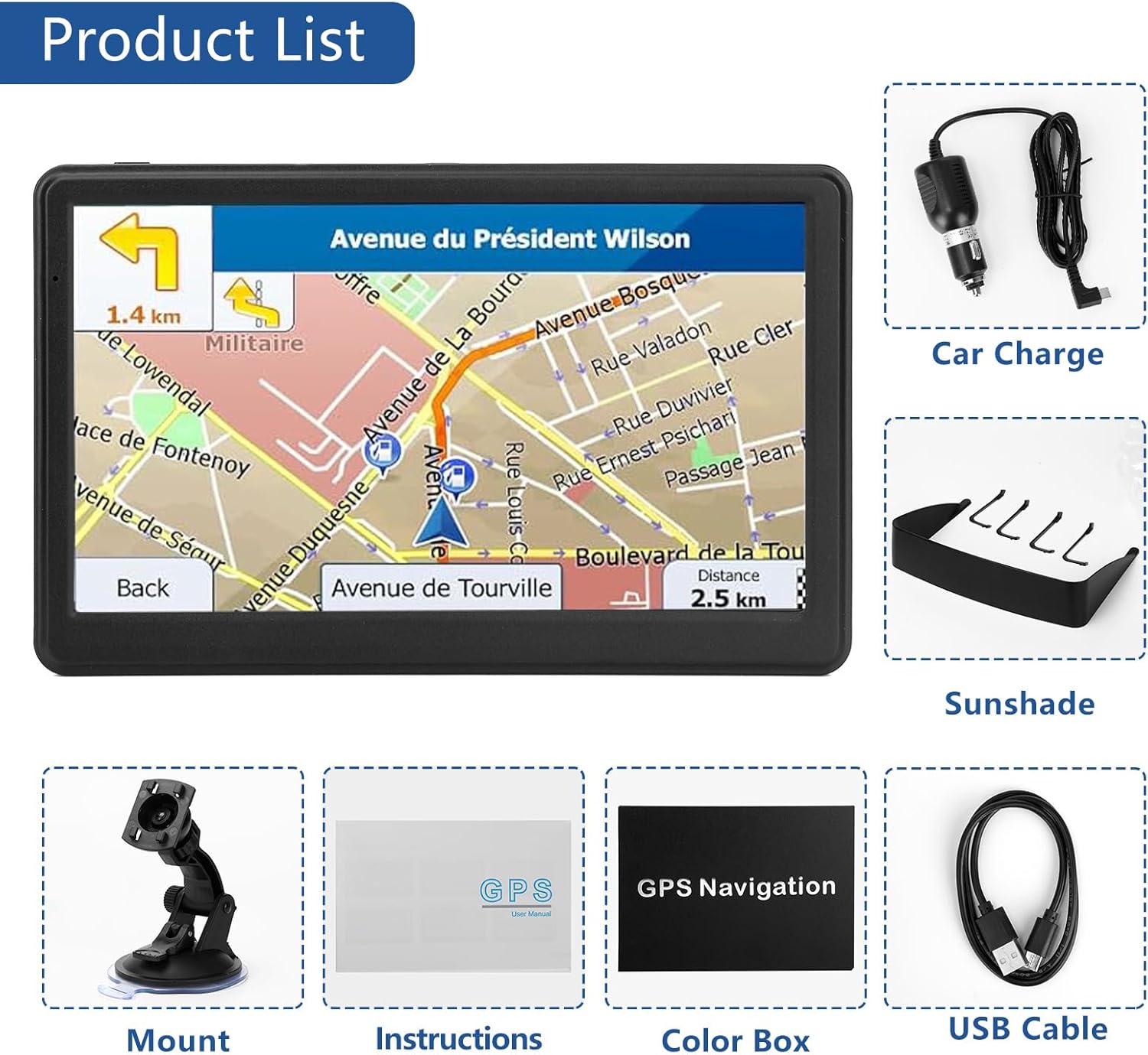
Figure 1: Included Package Contents
Setup
- Mounting the Device:
Attach the suction cup bracket to the rear bracket, then secure the GPS Navigator unit to the bracket. Choose a suitable location on your dashboard or windshield that does not obstruct your view of the road. Ensure the suction cup is firmly attached to a clean, smooth surface.

Figure 2: Adjustable Mounting Options
- Powering On:
Connect the car charger to the GPS Navigator's USB-C port and plug the other end into your vehicle's 12-24V power outlet. The device will typically power on automatically. If not, press and hold the power button located on the top right side of the unit.

Figure 3: Device Ports and Controls
- Initial Settings:
Upon first use, you may be prompted to select your language, time zone, and other basic preferences. Follow the on-screen instructions to complete the initial setup.
Operating Instructions
1. Map Updates
The GPS Navigator comes preloaded with the latest North American maps (USA, Canada, Mexico) and includes free lifetime map updates. Updates are typically released annually in March-April. To update your maps:
- Connect the GPS Navigator to a computer using the provided USB cable.
- Access the map update software or website as instructed in the full user manual (page 9).
- Follow the on-screen prompts to download and install the latest map data.

Figure 4: Map Update Process
2. Route Planning and Navigation
To begin navigation, enter your destination using one of the following methods:
- Address: Enter the street address, city, and state.
- Zip Code/Postcode: Enter the postal code for the destination area.
- Coordinates: Input specific GPS coordinates.
- Points of Interest (POI): Search for nearby gas stations, restaurants, parking lots, etc.
- Favorites: Select from previously saved destinations.
After entering your destination, the device will calculate the best route. You can choose from four route options: Fast, Green, Short, or Convenient.

Figure 5: Customized Navigation Routes
3. Intelligent Voice Guidance
The GPS Navigator provides clear, turn-by-turn voice directions, road name broadcasting, and real-time alerts. These alerts include:
- Speed camera reminders
- Current speed and lane assistance
- Speed limit warnings
- Red light warnings
- Estimated arrival time
- Deviation from route and rerouting notifications

Figure 6: Intelligent Voice Guidance in Use

Figure 7: Speed and Hazard Warnings
4. Custom Truck Routing
For truck drivers, the GPS Navigator offers customized routing based on your vehicle's specific dimensions (weight, length, height, width). This feature helps avoid roads with restrictions, ensuring a safe and compliant journey.
To set up custom truck routing:
- Navigate to the "Settings" menu on your device.
- Select "Vehicle Profile" or "Truck Settings".
- Enter the accurate weight, length, height, and width of your truck.
- Save your profile. The navigation system will now calculate routes considering these parameters.
Maintenance
- Cleaning: Use a soft, dry cloth to clean the screen and exterior of the device. Avoid abrasive cleaners or solvents.
- Storage: When not in use for extended periods, store the GPS Navigator in a cool, dry place, away from direct sunlight and extreme temperatures.
- Battery Care: The device includes a 12V battery. To prolong battery life, avoid fully discharging the battery frequently. Charge the device regularly.
Troubleshooting
| Problem | Possible Cause | Solution |
|---|---|---|
| Device does not power on. | Low battery or power connection issue. | Ensure the car charger is securely connected and the vehicle's power outlet is functional. Charge the device for at least 30 minutes. |
| No GPS signal. | Obstructed view of the sky, device indoors. | Move the device to an open area with a clear view of the sky. Ensure the vehicle is not parked in an underground garage or tunnel. |
| Maps are outdated. | Map updates not performed. | Refer to the "Map Updates" section (page 9 of the full manual) to download and install the latest maps. |
| Voice guidance stopped working. | Volume too low, mute enabled, or software glitch. | Check the device's volume settings. Ensure the mute function is disabled. Restart the device. If the issue persists, contact customer support. |
| Accidentally restored factory settings. | User error. | Contact customer support for assistance with resetting the device and restoring necessary configurations. |
Specifications
| Feature | Detail |
|---|---|
| Model Name | 7078 |
| Display Size | 7 Inches |
| Item Weight | 1.57 pounds (0.71 Kilograms) |
| Package Dimensions | 8.27 x 5.87 x 3.23 inches |
| Batteries | 1 x 12V battery (included) |
| Vehicle Service Type | Bicycle, Bus, Car, RV, Truck |
| Special Feature | Touchscreen |
| Connectivity Technology | USB |
| Map Type | America (USA, Canada, Mexico) |
| Included Components | GPS Navigator, Car Charger, USB Cable, Suction Cup Bracket, Rear Bracket, Sunshade, Owner's Manual |
| Mounting Type | Dashboard Mount |
Warranty and Support
The product comes with a 1-year warranty. For any technical assistance, troubleshooting not covered in this manual, or warranty claims, please contact our professional customer support team. Contact information can be found on the product packaging or our official website.
If you require assistance after accidentally restoring factory settings, please contact us directly for guidance.