
SEUNKWANG V3
EWEADN V3 Wireless Keyboard and Mouse User Manual
Model: V3
1. Introduction
Thank you for choosing the EWEADN V3 Wireless Keyboard and Mouse Combo. This product is designed to enhance your computing experience with its versatile connectivity options, comfortable design, and durable construction. Please read this manual carefully to ensure proper setup and operation.
Key features include:
- Dual-Mode Connectivity: Seamlessly switch between Bluetooth 5.0 and 2.4GHz wireless modes.
- Rechargeable Battery: Built-in battery for both keyboard and mouse, eliminating the need for disposable batteries.
- Durable Metal Panel: Thickened metal panel with a frosted matte finish for enhanced durability and scratch resistance.
- Blue Backlight: Single warm blue backlight with 5 adjustable brightness levels for improved visibility in various lighting conditions.
- Ergonomic Design: Concave and convex water drop keycaps and adjustable tilt for comfortable typing.
- Silent Operation: Reduced typing noise and silent mouse clicks for a quiet working environment.
- Universal Compatibility: Works with Windows, Linux, Chrome, and Mac operating systems.
2. Package Contents
- EWEADN V3 Wireless Keyboard
- EWEADN V3 Wireless Mouse
- USB 2.4G Receiver (stored in the mouse)
- Type-C Charging Cable
- User Manual
3. Setup and Connection
3.1. Locating the USB Receiver
The 2.4G USB receiver for both the keyboard and mouse is conveniently stored in the bottom compartment of the mouse. Gently open the cover on the underside of the mouse to retrieve it.

Figure 3.1: USB 2.4G Receiver location on the mouse.
3.2. 2.4G Wireless Connection
- Remove the USB 2.4G receiver from the mouse.
- Plug the USB receiver into an available USB port on your computer.
- Ensure both the keyboard and mouse are powered on.
- On the keyboard, press the FN + 1 key combination to switch to 2.4G mode.
- The keyboard and mouse should automatically connect to your computer.

Figure 3.2: Dual-mode connectivity options.
3.3. Bluetooth Wireless Connection
The keyboard supports two Bluetooth channels (BT1 and BT2).
- Ensure both the keyboard and mouse are powered on.
- On the keyboard, press the FN + 2 or FN + 3 key combination to switch to Bluetooth mode (BT1 or BT2). The indicator light will flash, indicating pairing mode.
- On your computer or device, enable Bluetooth and search for new devices.
- Select "EWEADN V3 Keyboard" and "EWEADN V3 Mouse" from the list of available devices to pair.
- Follow any on-screen prompts to complete the pairing process.

Figure 3.3: Compatibility with multiple devices via 2.4G and Bluetooth.
4. Operating Instructions
4.1. Keyboard Functions
- Backlight Control:
- Press FN + PGUP to increase backlight brightness (5 levels).
- Press FN + PGDN to decrease backlight brightness.
- Press FN + SCLK to turn the backlight ON/OFF.
- Anti-Ghosting: The keyboard supports 26-key anti-ghosting, allowing multiple keys to be pressed simultaneously without conflict.
- Ergonomic Design: The keyboard features a 7° tilt angle when the footrests are extended, providing a more comfortable typing experience.

Figure 4.1: Keyboard backlight control functions.
4.2. Mouse Functions
- Adjustable Sensitivity: The mouse has 3 levels of adjustable sensitivity (DPI). Use the DPI button on the mouse to cycle through settings.
- Silent Clicks: Designed for quiet operation, minimizing click noise.
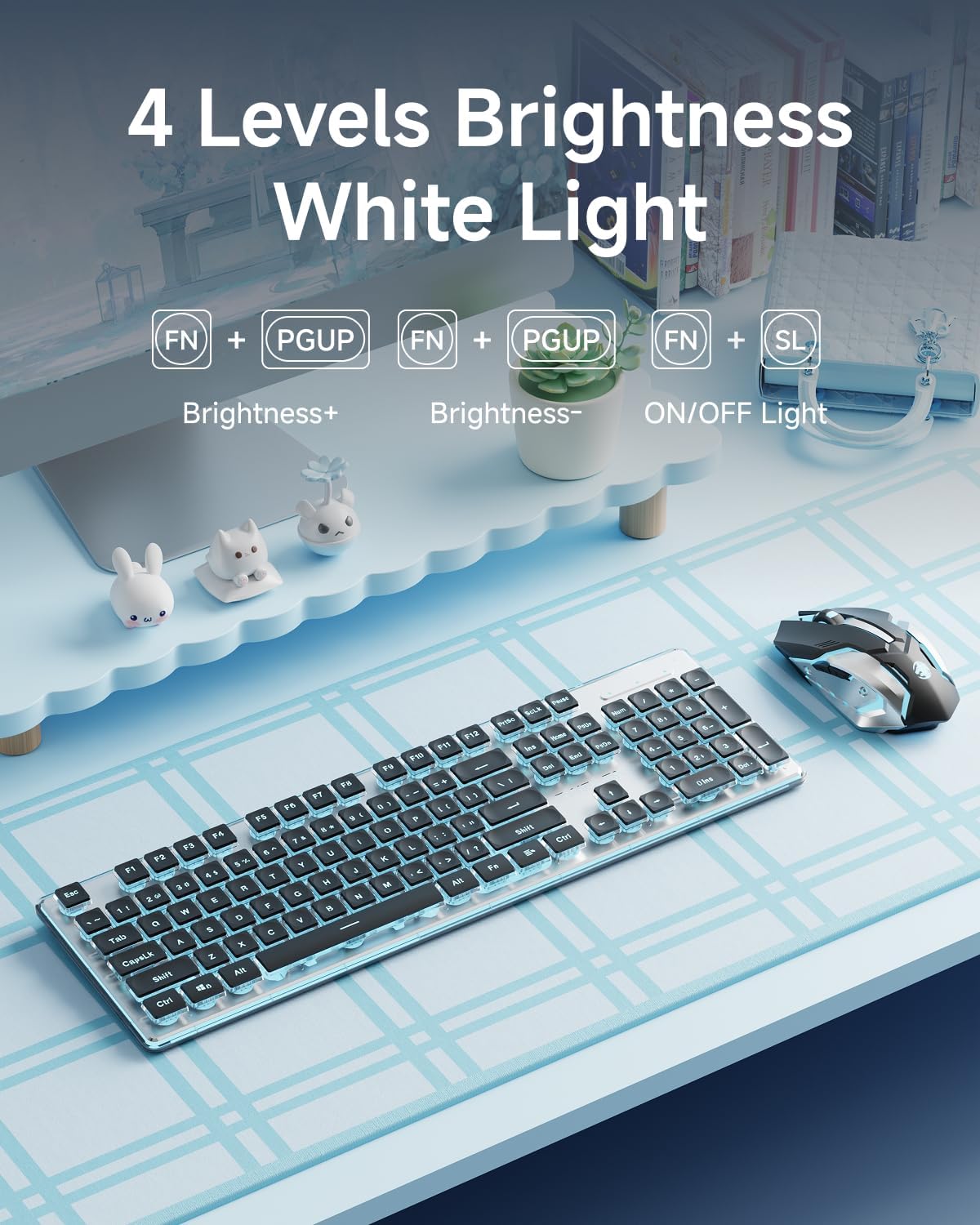
Figure 4.2: Wireless mouse features including adjustable sensitivity.
4.3. Charging
Both the keyboard and mouse are rechargeable via the included Type-C cable. Connect the cable to the charging port on the device and a USB power source (e.g., computer USB port, USB wall adapter).
- The keyboard and mouse can be used uninterrupted while charging.
- The keyboard has a 2000mAh battery capacity for extended use.
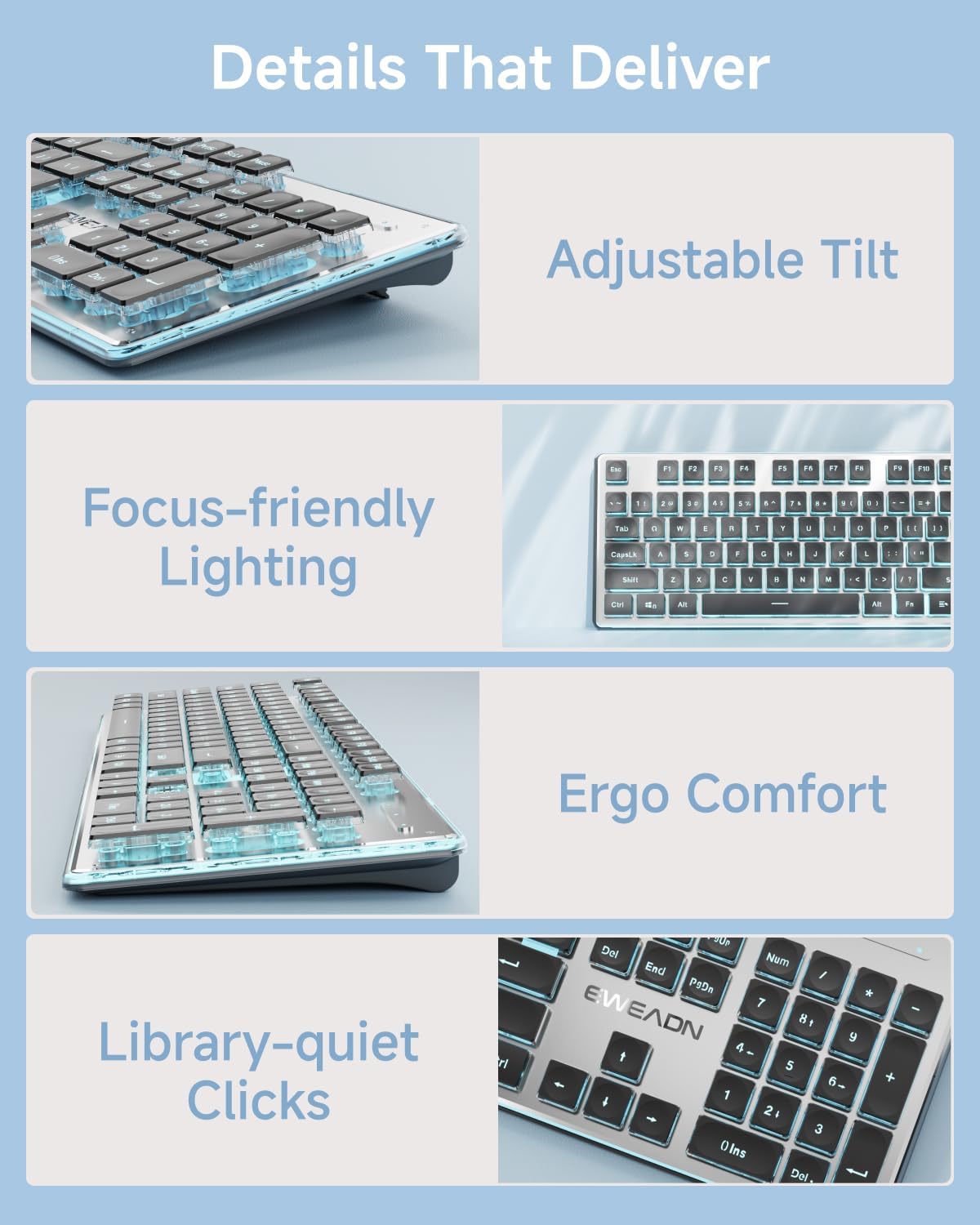
Figure 4.3: Rechargeable battery for long-lasting performance.
5. Maintenance
To ensure the longevity and optimal performance of your EWEADN V3 keyboard and mouse, follow these maintenance guidelines:
- Cleaning: Use a soft, dry, lint-free cloth to wipe down the surfaces of the keyboard and mouse. For stubborn dirt, slightly dampen the cloth with water or a mild, non-abrasive cleaner. Avoid excessive moisture.
- Keycap Cleaning: The water drop keycaps can be carefully removed for deeper cleaning if necessary. Ensure the keyboard is powered off before removing keycaps.
- Avoid Liquids: Do not spill liquids on the keyboard or mouse. While the design offers some spill resistance, direct exposure to liquids can cause damage.
- Storage: When not in use for extended periods, store the devices in a cool, dry place away from direct sunlight and extreme temperatures.
- Charging: Charge the devices regularly to maintain battery health, even if not used frequently. Avoid completely draining the battery for prolonged periods.
6. Troubleshooting
| Problem | Possible Cause | Solution |
|---|---|---|
| Keyboard/Mouse not connecting (2.4G) | USB receiver not plugged in, low battery, incorrect mode. |
|
| Keyboard/Mouse not connecting (Bluetooth) | Not in pairing mode, Bluetooth disabled on device, already paired to another device. |
|
| Backlight not working or dim | Backlight off, low brightness setting, low battery. |
|
| Keys sticking or random typing | Dust/debris under keys, software glitch, low battery. |
|
7. Specifications
| Feature | Detail |
|---|---|
| Model Number | V3 |
| Brand | SEUNKWANG |
| Manufacturer | EWEADN |
| Connectivity Technology | 2.4G Wireless, Bluetooth 5.0, USB (for charging) |
| Keyboard Dimensions | 17.72 x 1.97 x 8.66 inches |
| Item Weight | 1.8 pounds |
| Keyboard Battery Capacity | 2000mAh |
| Backlight | Blue, 5 adjustable brightness levels |
| Key Rollover | 26-key Anti-ghosting |
| Compatible Devices | Laptop, PC, Gaming Console, Tablet, Smartphone |
| Compatible OS | Windows, Linux, Chrome, Mac |
8. Warranty and Support
EWEADN provides comprehensive support for its products. Your EWEADN V3 Wireless Keyboard and Mouse Combo comes with a 48-month brand support period.
For any questions, troubleshooting assistance, or warranty claims, please contact our expert support team:
- Email Support: eweadnkeyboard@outlook.com
We are committed to providing excellent customer service and ensuring your satisfaction with EWEADN products.
Ask a question about this manual
Ask about setup, troubleshooting, compatibility, parts, safety, or missing instructions. Manuals+ will review the question and use this page’s manual context to help answer it.