
1. Introduction
This user manual provides comprehensive instructions for the MISONDA 10-inch IPS Android 14 Car Radio, model BX-5Q33-D05. This multimedia system is designed for Opel Vivaro A and Renault Trafic vehicles manufactured between 2010 and 2014. It features an Android 14 operating system, a 10-inch IPS touchscreen, 4GB RAM, 64GB ROM, and supports various functions including Wireless Carplay, Android Auto, GPS navigation, Bluetooth 5.0, Digital Sound Processor (DSP), Wi-Fi connectivity, split screen functionality, and steering wheel control. Please read this manual thoroughly before installation and operation to ensure proper use and optimal performance.

Image 1.1: Overview of key features including Android 14, Bluetooth, Wireless Carplay, Android Auto, memory specifications, processor, and IPS screen technology.
2. Setup and Installation
2.1 Package Contents
Before beginning installation, verify that all components are present in the package:
- Main Head Unit (10.1-inch display)
- Installation Frame
- Power Socket A
- Power Socket B
- RCA Output Socket A
- RCA Output Socket B
- RCA Output Socket C
- RCA Output Socket D
- USB Cables (2)
- User Manual (Instructions)
- GPS Antenna
- Rear Camera
- External Microphone
- Install Brackets
- Canbus Decoder (if applicable for your vehicle model)
2.2 Installation Overview
The car radio is designed for direct fitment in Opel Vivaro A and Renault Trafic models from 2010-2014. Professional installation is recommended. Ensure the vehicle's power is disconnected before starting the installation process.

Image 2.1: Visual representation of the car radio dimensions, included accessories, and a comparison of the dashboard before and after installation in a compatible vehicle.
2.3 Wiring Connections
Connect the power harness, RCA cables, USB cables, GPS antenna, external microphone, and rear camera according to the provided wiring diagram (usually included in the physical manual or with the wiring harness). Ensure all connections are secure to prevent intermittent issues.
2.4 Initial Power-On
After installation, reconnect the vehicle's power. The unit should power on automatically or by pressing the power button. Follow the on-screen prompts for initial setup, including language selection and time zone.
3. Operating Instructions
3.1 Android System Navigation
The unit runs on Android 14. Navigate the interface using the touchscreen. Swipe to access different screens, tap icons to open applications, and use the back/home buttons as you would on an Android smartphone.
3.2 Wireless Carplay and Android Auto
Connect your smartphone wirelessly via Bluetooth to enable Carplay (for iOS devices) or Android Auto (for Android devices). This allows access to navigation, calls, messages, and music directly from your phone's interface on the car radio screen.

Image 3.1: Features including Wireless Carplay, Android Auto, Bluetooth 5.0, and the 64-band Equalizer/DSP for audio customization.
3.3 GPS Navigation
The unit comes with pre-loaded offline maps. For real-time traffic and updated routes, connect to Wi-Fi and use online navigation applications. The GPS antenna ensures accurate positioning.

Image 3.2: Demonstrates Steering Wheel Control (SWC) functionality, GPS navigation, and FM/RDS radio features.
3.4 Bluetooth 5.0
Pair your phone via Bluetooth for hands-free calling, contact synchronization, and audio streaming (A2DP). Access the Bluetooth menu to search for devices and connect.
3.5 Radio (FM/RDS)
Access the Radio application to tune into FM stations. The RDS (Radio Data System) feature displays station information where available. You can save your favorite stations for quick access.
3.6 Wi-Fi Connectivity
Connect the car radio to a Wi-Fi hotspot (e.g., from your smartphone) to access online content, download apps, and use real-time services.

Image 3.3: Features including Wi-Fi 5.0, AUX input, split screen mode, and Mirror Link compatibility for both iOS and Android devices.
3.7 Split Screen Function
The split screen feature allows you to run two applications simultaneously on the display, such as navigation and music playback.
3.8 Mirror Link
Use Mirror Link to display your smartphone's screen on the car radio. This supports two-way control between your phone and the head unit.
3.9 Steering Wheel Control (SWC)
Configure the steering wheel controls to manage functions like volume, track changes, and answering calls, enhancing driving safety and convenience.
3.10 Digital Sound Processor (DSP)
The integrated DSP allows for advanced audio customization, including equalization and sound field adjustments, to optimize sound quality for your vehicle's interior.
3.11 Optional Features
The unit supports several optional features that may require additional hardware (sold separately):
- DAB+ (Digital Audio Broadcasting): For high-quality digital radio reception.
- 360° Camera System: Provides a comprehensive view around the vehicle for enhanced parking and maneuvering.
- 4G LTE Connectivity: For independent internet access via a SIM card.
- AHD Camera: Supports high-definition rear-view cameras for clear images.
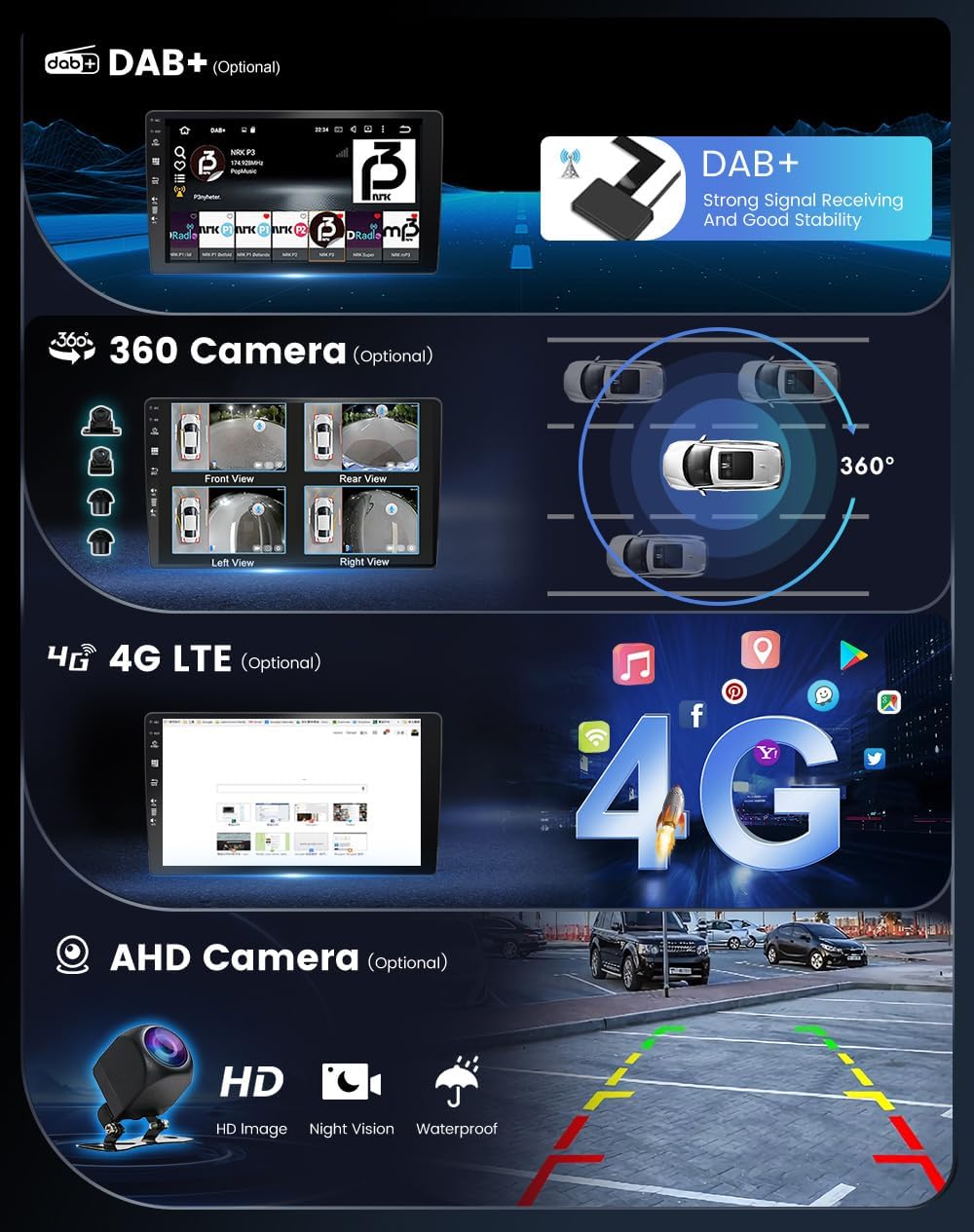
Image 3.4: Overview of optional features including DAB+ radio, 360-degree camera, 4G LTE, and AHD camera support.
4. Maintenance
4.1 Screen Cleaning
To clean the IPS touchscreen, use a soft, lint-free cloth slightly dampened with water or a screen-cleaning solution. Avoid abrasive materials or harsh chemicals that could damage the screen surface.
4.2 Software Updates
Periodically check for software updates to ensure optimal performance and access to new features. Updates can typically be performed via Wi-Fi or USB, following instructions provided by the manufacturer.
4.3 General Care
Avoid exposing the unit to extreme temperatures, direct sunlight for prolonged periods, or excessive moisture. Ensure proper ventilation around the unit to prevent overheating.
5. Troubleshooting
If you encounter issues with your MISONDA car radio, refer to the following common problems and solutions:
- No Power: Check all power connections and the vehicle's fuse box. Ensure the ignition is on.
- No Sound: Verify speaker connections, check volume levels, and ensure the mute function is not active. Check audio settings in the DSP.
- GPS Not Working: Ensure the GPS antenna is properly connected and has a clear view of the sky. Check GPS settings in the system.
- Bluetooth Connection Issues: Ensure Bluetooth is enabled on both the car radio and your smartphone. Try unpairing and re-pairing the devices.
- Screen Unresponsive: Try restarting the unit. If the issue persists, a factory reset might be necessary (note: this will erase all user data).
- Poor Radio Reception: Check the antenna connection. Ensure you are in an area with good signal strength.
For persistent issues not resolved by these steps, please contact customer support.
6. Specifications
| Model Number | BX-5Q33-D05 |
| Operating System | Android 14 |
| Processor | 8-core Cortex A53, 2.5 GHz |
| RAM | 4 GB |
| ROM | 64 GB |
| Screen Size | 10.1 inches |
| Display Type | IPS Touchscreen |
| Screen Resolution | 1024*600 pixels |
| Radio Chip | TDA7786 |
| Amplifier Chip | TDA7851 |
| Output Power | 4 x 45 Watts |
| Bluetooth Version | 5.0 |
| Operating Temperature | -40°C to 80°C |
| Video Encoding | AVI |
7. Warranty & Support
7.1 Product Warranty
MISONDA products are covered by a standard manufacturer's warranty against defects in materials and workmanship. The specific duration and terms of the warranty may vary. Please retain your proof of purchase for warranty claims.
7.2 Customer Support
For technical assistance, troubleshooting, or warranty inquiries, please contact the seller or MISONDA customer support through the platform where the product was purchased. Provide your model number (BX-5Q33-D05) and a detailed description of the issue to facilitate faster service.