
1. Introduction
This manual provides detailed instructions for the installation, operation, and maintenance of your SMART KIT EU-OSK105 WiFi Module. This module enables remote control and smart home integration for compatible Munoclima, Midea, and Kaysun air conditioning units. Please read this manual thoroughly before use to ensure proper functionality and safety.
2. Safety Information
- Ensure the air conditioning unit is powered off and disconnected from the main power supply before installing or removing the WiFi module.
- Do not attempt to disassemble or modify the module. This may void the warranty and cause damage.
- Keep the module away from water, moisture, and extreme temperatures.
- Use only with compatible air conditioning units as specified.
- If you encounter any issues, refer to the troubleshooting section or contact customer support.
3. Product Overview
The SMART KIT EU-OSK105 is a compact USB-style WiFi module designed to add smart connectivity to your air conditioner. It allows you to control your AC unit remotely via a smartphone application and integrate it with virtual assistants like Alexa and Google Assistant.

Figure 1: Close-up view of the SMART KIT EU-OSK105 WiFi module, showing 'NetHome Plus EU-OSK105' branding and regulatory markings.
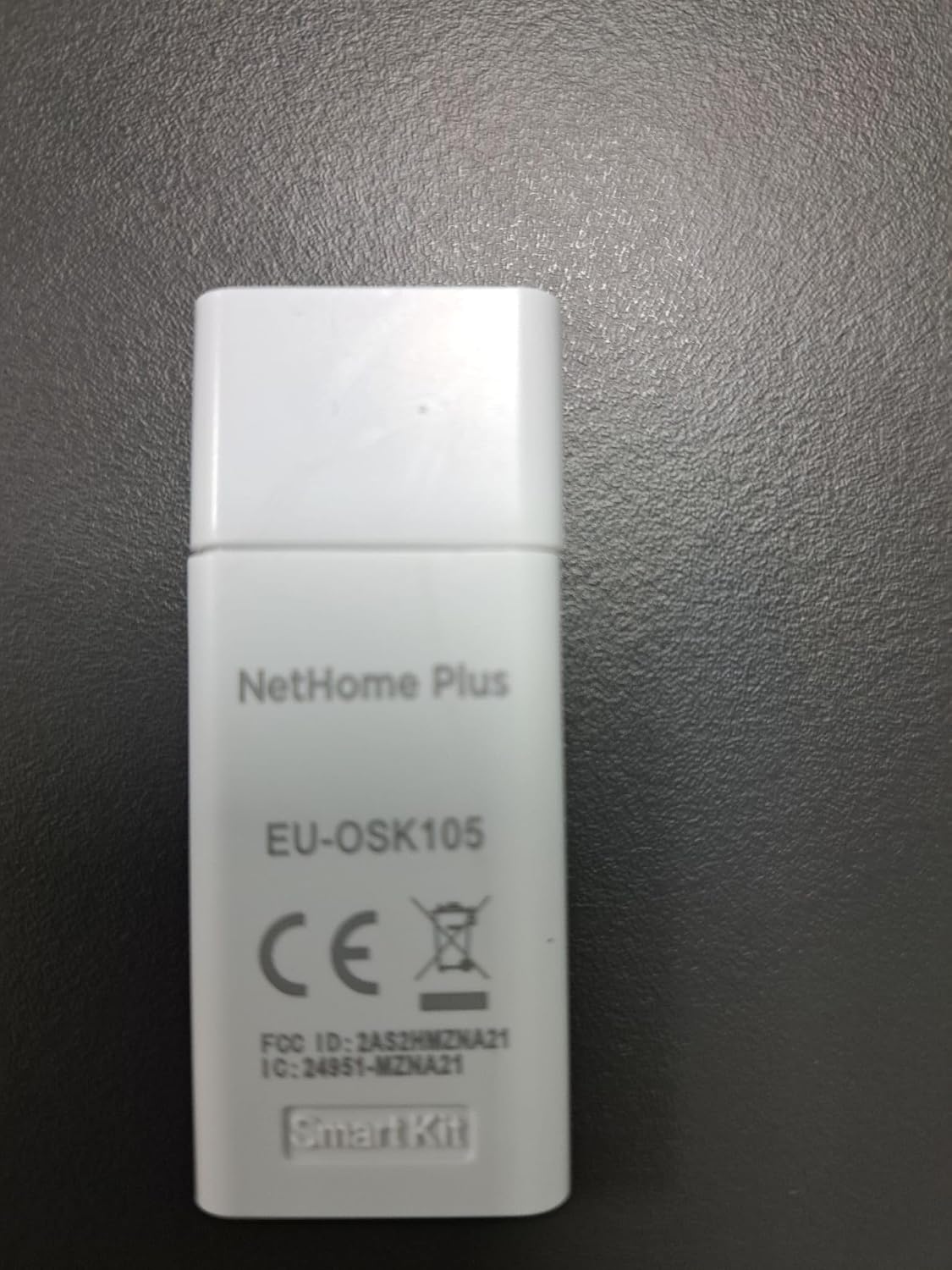
Figure 2: The SMART KIT EU-OSK105 WiFi module with its protective cap in place, displaying 'Smart Kit' and a QR code.

Figure 3: The SMART KIT EU-OSK105 WiFi module with its cap removed, revealing the USB connector and a QR code for setup.
4. Specifications
| Feature | Specification |
|---|---|
| Model | EU-OSK105 |
| Compatibility | Mundoclima, Midea, Kaysun H6, H7, H6M, H9M, H11 series AC units (OSK103 and OSK105 compatible) |
| Wireless Type | 802.11a |
| Frequency | Dual-band (5 GHz) |
| Connectivity Technology | Wi-Fi |
| Special Features | Remote Access |
| Compatible Devices | Smartphone (Android & Apple) |
| Material | Plastic |
5. Setup
5.1. Physical Installation
- Ensure your air conditioning unit is turned off and unplugged from the power outlet.
- Locate the USB port on your air conditioning unit. This is typically found under the front panel or a dedicated cover.
- Carefully remove the protective cap from the SMART KIT EU-OSK105 module.
- Insert the module firmly into the designated USB port on your AC unit. Ensure it is fully seated.
- Close the AC unit's panel or cover.
- Plug in and power on your air conditioning unit.
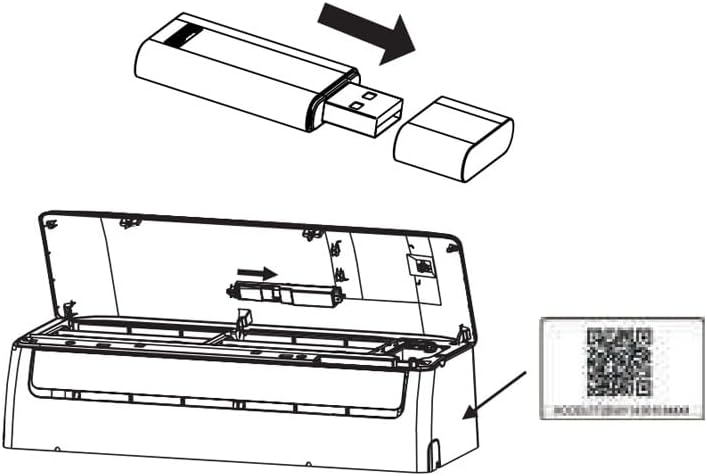
Figure 4: Diagram illustrating the process of inserting the USB WiFi module into the dedicated port of an air conditioning unit. A QR code is also shown, likely for app pairing.
5.2. App Download and Account Creation
- Download the compatible control application for your smartphone. You can typically find this by searching for 'NetHome Plus' or scanning the QR code provided on the module or packaging. A direct link is also available: Download App.
- Install the application on your Android or Apple device.
- Open the app and follow the on-screen instructions to create a new user account. This usually involves providing an email address or phone number and setting a password.
5.3. Device Pairing
- Once logged into the app, tap the '+' icon to add a new device.
- Select 'Add Device' from the options.
- Follow the in-app instructions to connect your WiFi module to your home's Wi-Fi network. This may involve selecting your Wi-Fi network (ensure it's 2.4 GHz or a dual-band network compatible with 5 GHz), entering the password, and confirming the connection on the AC unit (e.g., by pressing a specific button or waiting for an indicator light).
- Once successfully paired, your air conditioner will appear in the device list within the app.

Figure 5: Screenshot of the mobile application's 'Welcome Home' screen, displaying the '+' icon to add a device and options for 'Add Device' or 'Add Share Device'.
6. Operating
After successful pairing, you can control your air conditioner remotely using the smartphone application.
6.1. Basic Controls
- Power On/Off: Toggle the power button within the app to turn your AC unit on or off.
- Mode Selection: Choose operating modes such as Cool, Heat, Fan, Dry, or Auto.
- Temperature Setting: Adjust the desired temperature using the up/down controls.
- Fan Speed Control: Select fan speeds (e.g., Low, Medium, High, Auto).
6.2. Advanced Features
- ECO Mode: Activate energy-saving mode for optimized power consumption.
- Horizontal Blade Setting: Adjust the horizontal airflow direction.
- Weekly Timer: Program specific on/off times and settings for different days of the week.
6.3. Voice Assistant Integration
The SMART KIT EU-OSK105 supports integration with Amazon Alexa and Google Assistant. Refer to the respective voice assistant app's instructions for connecting third-party smart home devices. Typically, you will need to enable the 'NetHome Plus' skill or service and link your account.

Figure 6: Screenshot of the mobile application's 'Welcome Home' screen, displaying a list of connected devices including an AC unit, dehumidifier, humidifier, and air-to-water system, with their current status and controls.
7. Maintenance
The SMART KIT EU-OSK105 WiFi module requires minimal maintenance.
- Keep the module and its surroundings clean and free from dust. Use a soft, dry cloth for cleaning.
- Avoid exposing the module to direct sunlight or high humidity.
- Do not use harsh chemicals or abrasive cleaners.
8. Troubleshooting
If you encounter issues with your SMART KIT EU-OSK105, try the following solutions:
- Module not recognized: Ensure the module is fully inserted into the AC unit's USB port. Power cycle the AC unit.
- Cannot connect to Wi-Fi:
- Verify your Wi-Fi network is 2.4 GHz or a compatible dual-band network.
- Check your Wi-Fi password for accuracy.
- Ensure the module is within range of your Wi-Fi router.
- Restart your Wi-Fi router.
- App not controlling AC:
- Confirm the AC unit is powered on and the module is properly installed.
- Check your smartphone's internet connection.
- Ensure the app is updated to the latest version.
- Try unpairing and re-pairing the device in the app.
- Voice assistant not working: Ensure the 'NetHome Plus' skill/service is enabled and linked correctly in your Alexa or Google Assistant app.
9. Warranty and Support
For warranty information and technical support, please refer to the documentation provided with your purchase or contact the retailer. Keep your proof of purchase for warranty claims.