
TOPTRO TR23
TOPTRO TR23 Mini Projector User Manual
Model: TR23
1. Introduction
The TOPTRO TR23 Mini Projector is a portable and versatile device designed for high-quality visual and audio experiences. Its compact size, durable metal body, and ergonomic handle make it easy to transport for various uses, from home entertainment to outdoor events. Featuring 1080P support, 5G WiFi, Bluetooth 5.2, and intuitive touch controls, the TR23 delivers clear images and immersive sound.
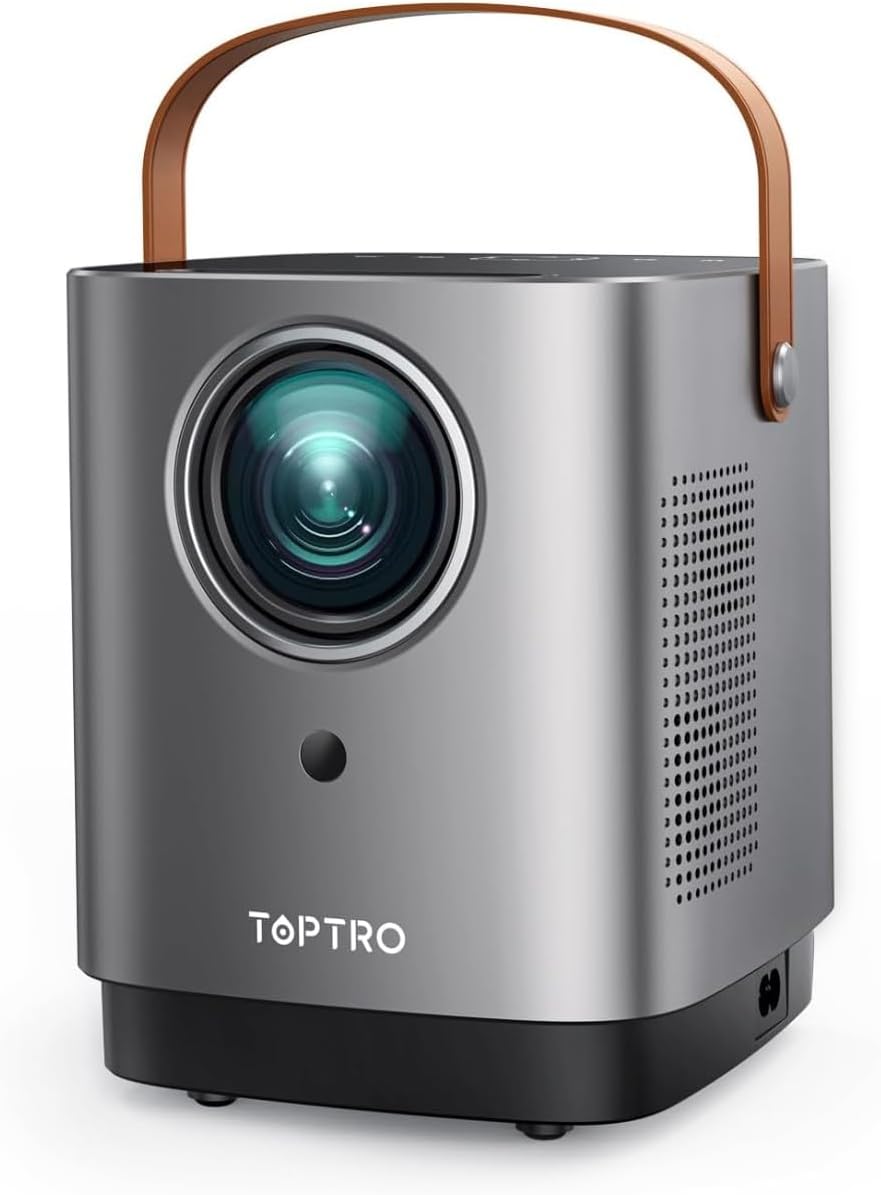
Figure 1.1: TOPTRO TR23 Mini Projector with its unique handle design.
2. What's in the Box
Upon unboxing your TOPTRO TR23 Mini Projector, please ensure all the following items are included:
- 1* TR23 Projector
- Power Cord
- Remote Control
- HDMI Cable
3. Specifications
| Feature | Description |
|---|---|
| Brand | TOPTRO |
| Model Number | TR23 |
| Display Resolution | Native 1280 x 720 (Supports 1080P Full HD) |
| Connectivity Technology | Bluetooth 5.2, 5G Wi-Fi, HDMI, USB, AV, 3.5mm Audio Jack |
| Brightness | Upgraded 50% (2025 model) |
| NTSC Color Gamut | 98% |
| Contrast Ratio | 20000:1 |
| Speaker | Built-in 2*6W Hi-Fi Speakers with SRS sound system |
| Noise Level | Below 35dB |
| Weight | 2 pounds |
| Dimensions | 8 x 6 x 3.5 inches |
| Mounting Options | Front/Rear/Ceiling (360° image flip) |
4. Setup
4.1 Initial Placement
Place the projector on a stable, flat surface. Consider the desired screen size and projection distance. The TR23 supports a 1.33:1 projection ratio, allowing for large images even in smaller spaces.

Figure 4.1: The portable design with an ergonomic handle makes placement flexible.
4.2 Power Connection
Connect the provided power cord to the projector's power input and then to a wall outlet. The projector will power on or enter standby mode.
4.3 Focusing the Image
The TR23 features a precision manual focus system. Rotate the focus ring on the projector lens until the projected image appears sharp and clear on your screen or wall.

Figure 4.2: Achieve crystal-clear image quality with manual focus.
4.4 Mounting Options
The projector supports front, rear, and ceiling mounting. Utilize the 360° image flip feature in the settings to adjust the projection orientation as needed for your chosen setup.
5. Operating Instructions
5.1 Intuitive Touch Control
The projector features a sleek mirrored touch panel with LED backlighting for easy navigation, even in low-light conditions. Use the touch controls or the provided remote control to access menus and settings.

Figure 5.1: The touch screen provides effortless control.
5.2 Wireless Connectivity (5G Wi-Fi & Bluetooth)
The TR23 supports ultra-fast 5G Wi-Fi for seamless screen casting and Bluetooth 5.2 for audio output.
- 5G Wi-Fi Screen Mirroring: Connect your iOS (AirPlay) or Android/Windows (Miracast) device to the projector's 5G Wi-Fi network for low-latency screen mirroring. This is ideal for sharing photos, videos, and presentations from your mobile device.
- Bluetooth Audio: Pair the projector with external Bluetooth speakers or headphones for an enhanced audio experience. The built-in 2*6W Hi-Fi speakers with SRS sound system also provide rich, cinema-quality sound.

Figure 5.2: Enjoy seamless screen mirroring with 5G Wi-Fi.

Figure 5.3: Connect to external Bluetooth speakers for immersive audio.
5.3 Wired Connectivity
The projector is equipped with USB, HDMI, AV, and audio ports for wide compatibility:
- HDMI: Connect TV Sticks, TV Boxes, Chromecast, laptops, PCs, PS5, and other HDMI-enabled devices.
- USB: Play media directly from a USB flash drive.
- AV: Connect older devices using an AV cable.
- 3.5mm Audio Jack: Connect wired external speakers or headphones.
5.4 Media Playback
The projector supports various media formats. Navigate through the media browser using the remote or touch controls to select and play your desired content.
Video 5.1: Real-shot high-definition image quality demonstration from the TOPTRO TR23 projector.
Video 5.2: Overview of the TOPTRO TR23 projector's features and design.
6. Maintenance
6.1 Cleaning the Lens
Gently wipe the projector lens with a soft, lint-free cloth designed for optical surfaces. Avoid using abrasive cleaners or excessive force, which can scratch the lens.
6.2 Dust Prevention
The TR23 features a full-sealed optical engine to minimize dust accumulation. However, regularly clean the exterior of the projector with a dry, soft cloth to prevent dust from entering ventilation areas.
6.3 Heat Dissipation
The projector is equipped with an intelligent temperature control chip and an upgraded fan for efficient heat dissipation, ensuring reliable performance and extending device lifespan. Ensure adequate ventilation around the projector and do not block the air vents.
7. Troubleshooting
7.1 No Picture / Black Screen
- Check Power: Ensure the power cord is securely connected and the projector is turned on.
- Input Source: Verify that the correct input source (HDMI, USB, AV, Screen Mirroring) is selected.
- Cable Connection: If using HDMI or AV, ensure the cables are firmly connected to both the projector and the source device.
7.2 Screen Mirroring Issues (Netflix, Prime Video, Disney+)
Due to copyright compatibility issues, direct screen mirroring from apps like Netflix, Prime Video, and Disney+ is not supported and may result in a black screen with sound only. This is not a malfunction.
- Solution: To stream content from these platforms, use an external streaming device such as a Fire TV Stick, Roku, or Chromecast connected to the projector's HDMI port.
- Laptop Connection: For Windows laptops, connect via an HDMI cable. For Mac laptops, you may need a Type-C to HDMI adapter in addition to an HDMI cable to view content from these apps.
7.3 Blurry Image
- Adjust Focus: Use the manual focus ring on the lens to sharpen the image.
- Projection Distance: Ensure the projector is within the optimal projection distance for your desired screen size.
7.4 No Sound
- Volume Level: Check the projector's volume settings and ensure it's not muted.
- External Audio: If using external Bluetooth speakers, ensure they are properly paired and their volume is adjusted. If using wired external speakers, check the cable connection.
- Source Device: Verify the audio output settings on your source device.
8. Warranty and Support
TOPTRO provides a 2-year after-sales service for your peace of mind. For any inquiries, technical assistance, or support, please contact the TOPTRO team:
Email: service@toptro.com
The support team is available 24/7 to assist you.
Related documentsTR23


Ask a question about this manual
Ask about setup, troubleshooting, compatibility, parts, safety, or missing instructions. Manuals+ will review the question and use this page’s manual context to help answer it.