
1. Introduction
This manual provides detailed instructions for setting up, operating, and maintaining your BenQ EW2790U 27-inch 4K monitor. Please read this manual thoroughly before using the monitor to ensure proper functionality and to prevent damage.
2. Safety Information
Always follow these basic safety precautions to reduce the risk of fire, electric shock, and injury:
- Do not expose the monitor to rain or moisture.
- Do not open the monitor casing; refer servicing to qualified personnel.
- Ensure proper ventilation around the monitor.
- Use only the power cord and adapter provided by BenQ.
- Unplug the monitor during lightning storms or when unused for long periods.
3. Package Contents
Verify that all items are present in your package:
- BenQ EW2790U 27-inch 4K Monitor
- Power Cord
- HDMI Cable
- USB-C Cable
- Quick Start Guide
- Warranty Card
4. Setup
4.1 Assembling the Stand
- Place the monitor face down on a soft, clean surface to prevent scratches.
- Attach the stand base to the stand neck and secure it with the provided screw.
- Align the stand assembly with the mounting slot on the back of the monitor and push until it clicks into place.

Figure 4.1: Assembled BenQ EW2790U monitor.
4.2 Connecting Cables
Connect the necessary cables to the monitor and your computer:
- Power: Connect the power cord to the monitor's power input and then to a power outlet.
- Video:
- HDMI: Connect an HDMI cable from your computer's HDMI output to one of the monitor's HDMI ports (HDMI 1, 2, or 3).
- USB-C: Connect a USB-C cable from your computer's USB-C port to the monitor's USB-C (65W) port for video, data, and power delivery.
- USB Downstream: Connect USB-A devices to the USB-A 3.2 downstream ports on the monitor.
- Audio: Connect headphones to the headphone jack if desired.

Figure 4.2: Rear view of BenQ EW2790U showing connectivity ports.

Figure 4.3: Detailed view of BenQ EW2790U input/output ports.
4.3 Adjusting Ergonomics
The EW2790U monitor offers various adjustments for comfortable viewing:
- Height Adjustment: Raise or lower the monitor to your preferred eye level.
- Tilt: Adjust the screen's vertical angle.
- Swivel: Rotate the screen horizontally.
- Pivot: Rotate the screen 90 degrees for portrait mode.

Figure 4.4: BenQ EW2790U monitor pivot adjustment.
5. Operating the Monitor
5.1 Power On/Off
Press the Power key located on the bottom right of the monitor to turn it on or off.

Figure 5.1: Monitor controls: Scenario hotkey, 5-way controller, and Power key.
5.2 On-Screen Display (OSD) Menu
Use the 5-way controller on the bottom bezel to navigate the OSD menu and adjust settings such as brightness, contrast, color mode, and input source.
5.3 Scenario Hotkey
The Scenario hotkey allows quick access to custom or preset optimal monitor settings for various uses like work, studying, gaming, or watching movies.
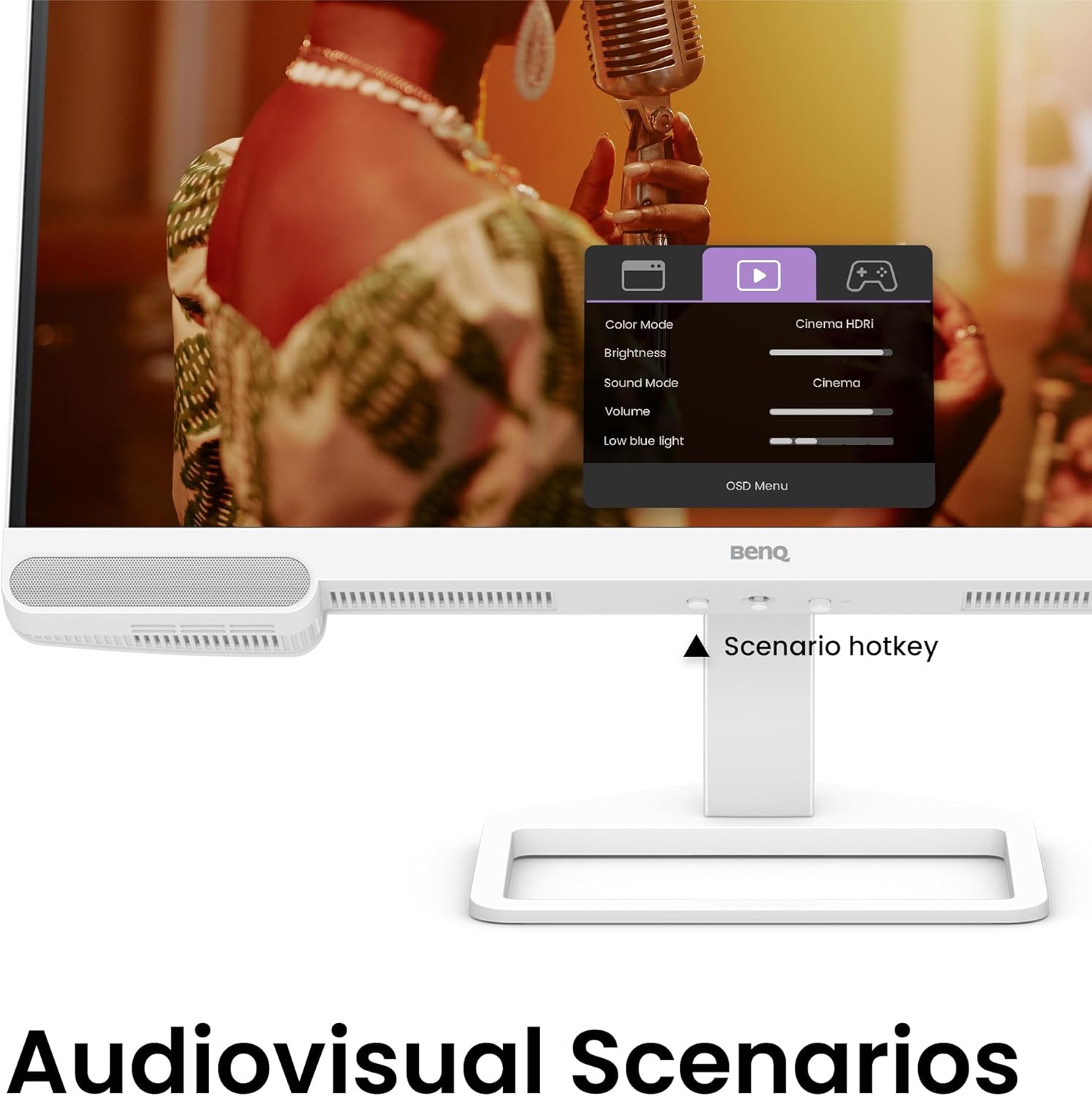
Figure 5.2: OSD menu accessed via Scenario hotkey.
5.4 AI Contrast Technology
The exclusive AI Contrast technology intelligently adjusts the contrast based on the displayed content, optimizing image quality without affecting other areas of the screen.

Figure 5.3: Demonstration of AI Contrast technology.
5.5 Built-in Speakers
The monitor includes a pair of 5W built-in speakers for audio output. Adjust the volume through the OSD menu or your connected device.

Figure 5.4: BenQ EW2790U built-in 5W speakers.
6. Maintenance
6.1 Cleaning the Monitor
- Always unplug the monitor before cleaning.
- Use a soft, lint-free cloth lightly dampened with water or a mild, non-abrasive cleaner.
- Do not spray cleaner directly onto the screen.
- Avoid using alcohol, ammonia, or abrasive cleaners, as they may damage the screen or casing.
6.2 Storage
Store the monitor in a cool, dry place away from direct sunlight and extreme temperatures. If storing for an extended period, consider using the original packaging for protection.
7. Troubleshooting
| Problem | Possible Cause | Solution |
|---|---|---|
| No image on screen | Power cable disconnected; Video cable disconnected; Incorrect input source selected. | Ensure power and video cables are securely connected. Press the Scenario hotkey to select the correct input source. |
| Image is blurry or distorted | Incorrect resolution; Loose video cable. | Set the display resolution to 3840x2160. Check video cable connections. |
| No sound from speakers | Volume too low; Muted; Incorrect audio output selected on computer. | Adjust volume via OSD menu or computer settings. Ensure monitor is selected as audio output device. |
| AI Contrast not working as expected | Feature disabled; Specific content not optimized. | Check OSD settings to ensure AI Contrast is enabled. Performance may vary with different content. |
8. Specifications
| Feature | Detail |
|---|---|
| Screen Size | 27 Inches |
| Resolution | 3840x2160 (4K UHD) |
| Aspect Ratio | 16:9 |
| Color Coverage | 95% P3 |
| AI Contrast Technology | Yes |
| Built-in Speakers | 2 x 5W |
| Connectivity | 1x USB Type-C (65W), 3x HDMI (2.0), USB-C 3.2 downstream, USB-A 3.2 downstream, Headphone Jack |
| Ergonomic Design | Height Adjustment, Tilt, Swivel, Pivot |
| Item Weight | 21.4 pounds |
| Product Dimensions (LxWxH) | 17 x 8 x 21 inches |
9. Warranty and Support
Your BenQ EW2790U monitor is covered by a manufacturer's warranty. Please refer to the warranty card included in your package for specific terms and conditions. For technical support, product registration, or service inquiries, please visit the official BenQ website or contact their customer service department.
Official BenQ Website: www.benq.com


