
Taiahiro BK6301
Taiahiro Wireless Gaming Keyboard and Mouse Combo User Manual
Model: BK6301
Introduction
This manual provides detailed instructions for the setup, operation, and maintenance of your Taiahiro Wireless Gaming Keyboard and Mouse Combo. This combo features a 98-key RGB backlit mechanical keyboard with blue switches and an ergonomic wireless gaming mouse, offering versatile connectivity options (USB-C, 2.4G, Bluetooth 5.0) for various devices.
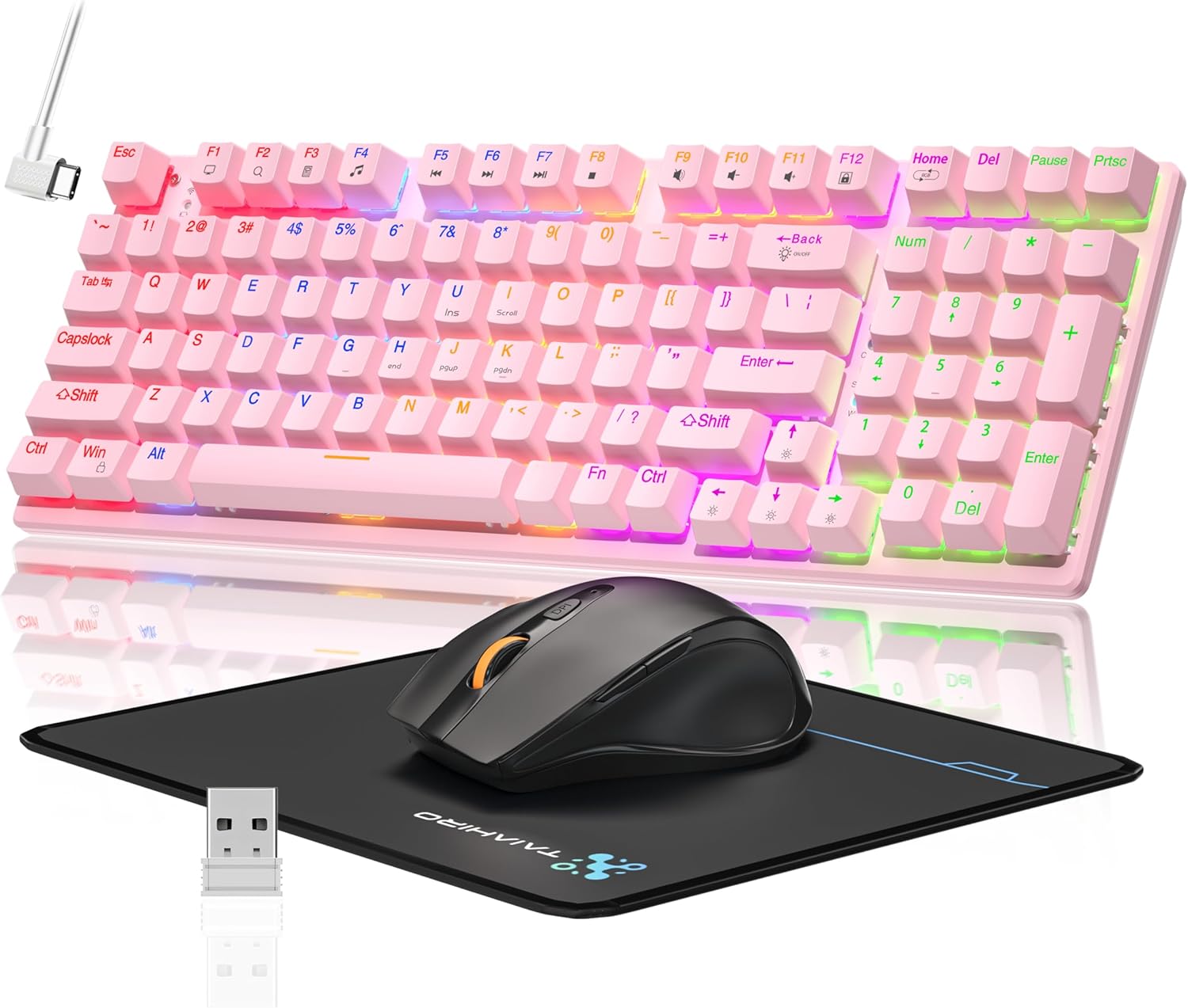
Image: The Taiahiro Wireless Gaming Keyboard and Mouse Combo, featuring a pink 98-key mechanical keyboard with RGB backlighting, a black ergonomic mouse, and a mouse pad. A USB receiver is also visible.
Package Contents
- Wireless Mechanical Keyboard
- Wireless Gaming Mouse
- USB-C Cable
- 2.4G USB Receiver
- Mouse Pad
- User Manual (this document)
Setup
Keyboard Setup
The keyboard supports three connectivity modes: USB-C wired, 2.4G wireless, and Bluetooth 5.0.
- USB-C Wired Connection: Connect the provided USB-C cable from the keyboard to an available USB port on your computer. The keyboard will be recognized automatically.
- 2.4G Wireless Connection:
- Locate the 2.4G USB receiver, typically stored in the mouse or keyboard compartment.
- Plug the 2.4G USB receiver into an available USB port on your computer.
- Ensure the keyboard's mode switch (usually on the back or side) is set to 2.4G mode.
- The keyboard should connect automatically.
- Bluetooth 5.0 Connection:
- Ensure the keyboard's mode switch is set to Bluetooth mode.
- On your device (PC, laptop, tablet, smartphone), enable Bluetooth and search for new devices.
- Select "Taiahiro Keyboard" (or similar name) from the list of available devices.
- Follow any on-screen prompts to complete pairing.

Image: A pink mechanical keyboard connected to various devices (monitor, laptop, tablet) illustrating its triple-mode connectivity via Bluetooth, 2.4GHz, and USB-C.
Mouse Setup
The mouse supports 2.4G wireless and Bluetooth connectivity.
- 2.4G Wireless Connection:
- Insert 1 AA battery (not included) into the mouse.
- Plug the 2.4G USB receiver (shared with keyboard) into an available USB port on your computer.
- Ensure the mouse's power switch is turned ON.
- The mouse should connect automatically.
- Bluetooth Connection:
- Insert 1 AA battery (not included) into the mouse.
- Ensure the mouse's power switch is turned ON and set to Bluetooth mode.
- On your device, enable Bluetooth and search for new devices.
- Select "Taiahiro Mouse" (or similar name) from the list of available devices.
- Follow any on-screen prompts to complete pairing.

Image: A wireless gaming mouse highlighting its 4 adjustable DPI levels and showing the battery compartment with a tiny USB receiver and space for a 1AA battery.
Operating Instructions
Keyboard Functions
- RGB Backlighting: The keyboard features 8 different RGB lighting modes.
- Press Fn + Home to cycle through lighting modes.
- Press Fn + ↑/↓ to adjust brightness (5 levels).
- Press Fn + ←/→ to adjust breathing speed (5 levels).
- Multimedia Keys: Use the Fn key in combination with F-keys for multimedia controls (e.g., Fn+F1 for media player, Fn+F2 for volume down, etc.). Refer to the keycap legends for specific functions.
- Adjustable Feet: The keyboard has adjustable feet on the underside to change the typing angle for ergonomic comfort.
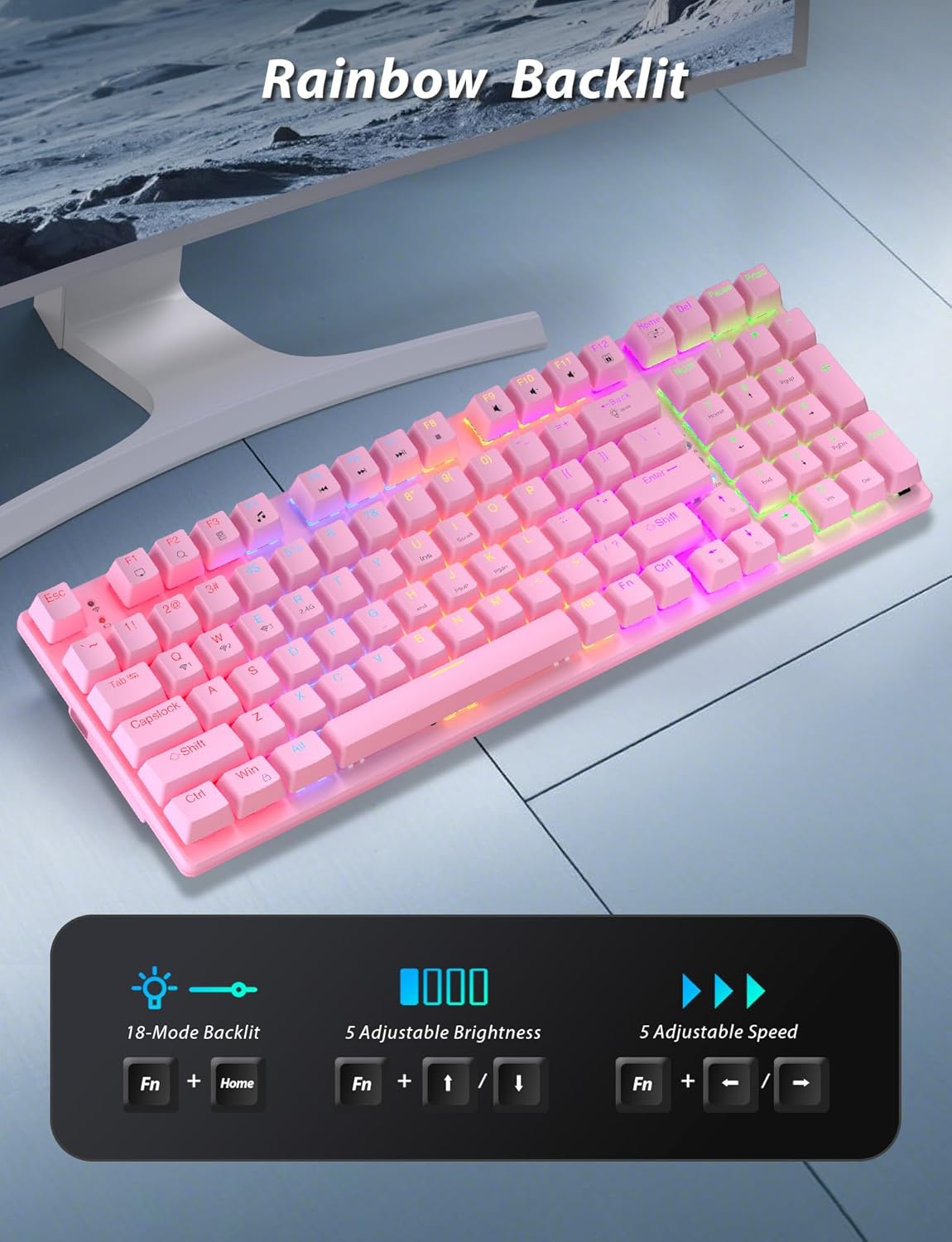
Image: A pink mechanical keyboard displaying its rainbow backlit keys, with an overlay showing the key combinations (Fn + Home, Fn + ↑/↓, Fn + ←/→) for controlling 8 modes, 5 adjustable brightness levels, and 5 adjustable speeds.

Image: A close-up view of the side of the pink mechanical keyboard, showing its ergonomic sloped design and the adjustable feet extended for comfortable typing. The accompanying mouse is also shown on a mousepad.
Mouse Functions
- DPI Adjustment: The mouse features 4 adjustable DPI levels (800/1600/2400/3200). Press the DPI button (usually located behind the scroll wheel) to cycle through the sensitivity settings.
- Ergonomic Design: The contoured shape of the mouse is designed to fit comfortably in your hand, reducing fatigue during extended use.
- Anti-skid Scroll Wheel: Provides precise scrolling control.
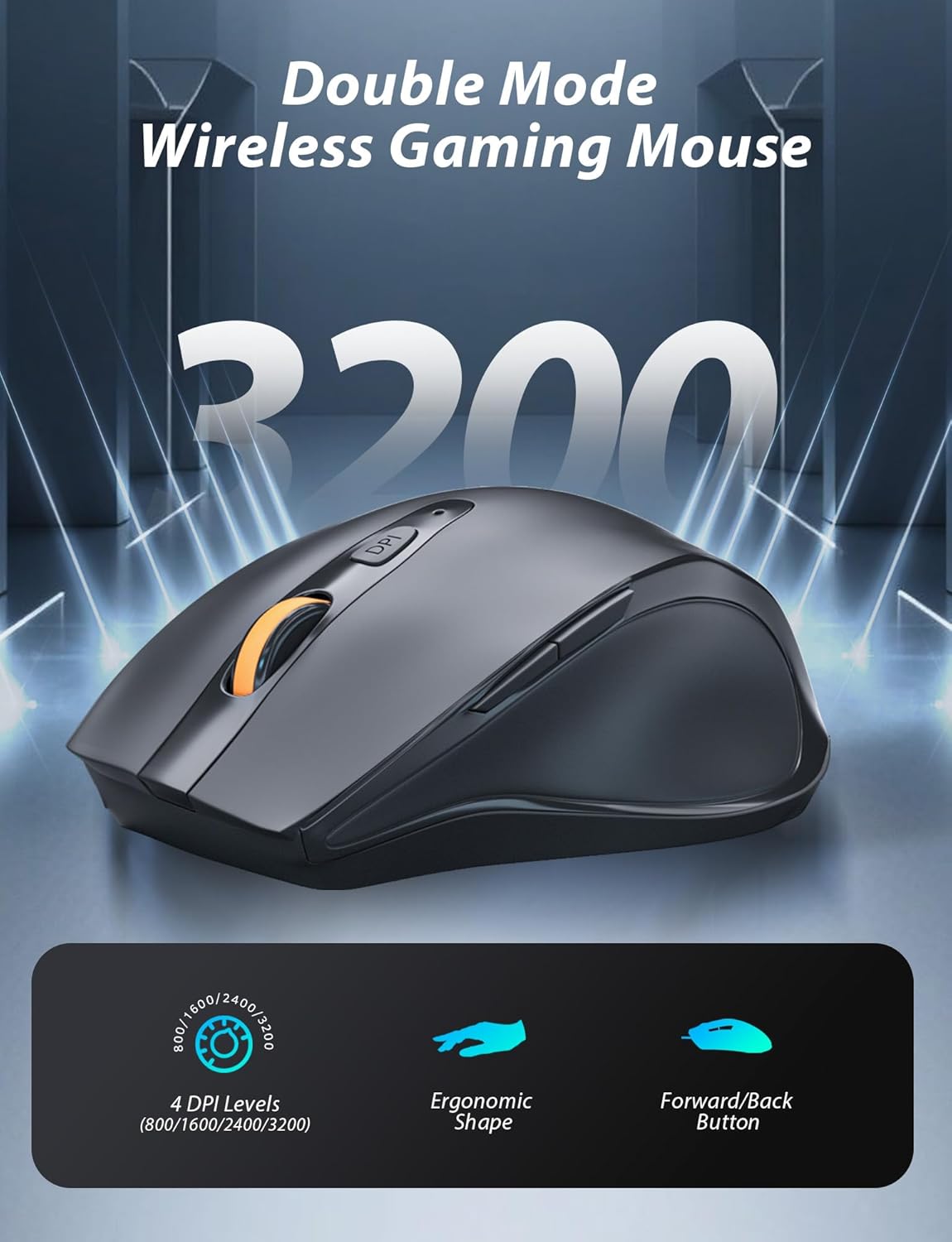
Image: A wireless gaming mouse with a prominent scroll wheel and DPI button, illustrating its 4 adjustable DPI levels (800/1600/2400/3200), ergonomic shape, and forward/back buttons.
Maintenance
- Cleaning: Use a soft, dry cloth to clean the surfaces of the keyboard and mouse. For deeper cleaning, a slightly damp cloth can be used, ensuring no liquid enters the internal components. Avoid harsh chemicals or abrasive materials.
- Battery Replacement: For the mouse, replace the AA battery when performance degrades. For the keyboard, recharge via the USB-C cable when the battery indicator shows low power.
- Storage: When not in use for extended periods, store the combo in a cool, dry place away from direct sunlight and extreme temperatures.
Troubleshooting
| Problem | Solution |
|---|---|
| Keyboard/Mouse not connecting via 2.4G. |
|
| Keyboard/Mouse not connecting via Bluetooth. |
|
| RGB backlighting not working or dim. |
|
| Mouse cursor erratic or unresponsive. |
|
Specifications
| Feature | Detail |
|---|---|
| Model Number | BK6301 |
| Keyboard Type | 98-Key Mechanical Keyboard |
| Switch Type | Blue Switches |
| Keyboard Connectivity | USB-C (Wired), 2.4G Wireless, Bluetooth 5.0 |
| Mouse Connectivity | 2.4G Wireless, Bluetooth |
| Mouse DPI Levels | 800/1600/2400/3200 |
| Backlighting | RGB (8 Modes, 5 Brightness, 5 Speed) |
| Compatible Devices | PC, Laptop, Smartphone, Tablet (Windows, macOS, Android) |
| Keyboard Key Life | 50 Million Clicks |
| Keyboard Dimensions | Approx. 14.96 x 5.51 x 3.15 inches (from Package Dimensions) |
| Item Weight | 2.72 pounds (combo weight) |
| Mouse Battery | 1 x AA battery (not included) |
| Keyboard Battery | 1 x C battery (included) Note: This seems unusual for a keyboard, usually Li-ion. Based on input "1 C batteries required. (included)". Will state as per input. |

Image: A close-up view of the mechanical blue switches on the keyboard, showing the keycap removed and the switch mechanism, along with specifications like 50,000,000 keystrokes life, key force, and stroke travel.
Warranty and Support
Taiahiro products are designed for reliability and performance. For warranty information or technical support, please refer to the contact details provided on the product packaging or visit the official Taiahiro website. Keep your purchase receipt for warranty claims.
For further assistance, you may contact Taiahiro customer service through their official channels. Please provide your product model number (BK6301) and a detailed description of the issue when seeking support.
Related documentsBK6301


Ask a question about this manual
Ask about setup, troubleshooting, compatibility, parts, safety, or missing instructions. Manuals+ will review the question and use this page’s manual context to help answer it.