
Introduction
This manual provides comprehensive instructions for the setup, operation, maintenance, and troubleshooting of your Sophos XGS 108W (Gen2) Wireless Security Appliance. The Sophos XGS 108W is designed to deliver high-performance network security for small to mid-size businesses, combining wired and wireless protection capabilities.
It features 6 x 2.5 GE copper ports, 1 x SFP fiber port, and Wi-Fi 6 connectivity, supporting up to 12.5 Gbps throughput. Advanced security features like Deep Packet Inspection (DPI), Intrusion Prevention System (IPS), SD-WAN, and Secure VPN are included to defend against hidden and advanced threats. Management is centralized via Sophos Central.
Product Overview
The Sophos XGS 108W (Gen2) is a compact yet powerful security appliance. Below are images illustrating its front and rear panels, highlighting key components and ports.
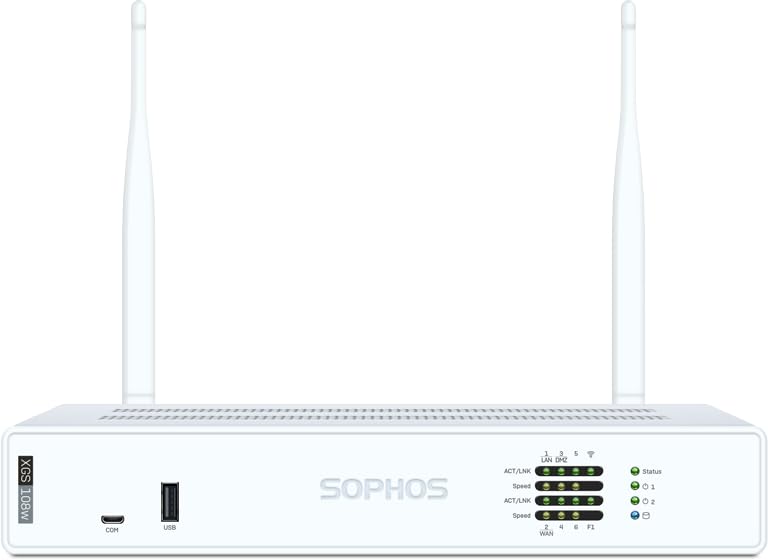
Figure 1: Front view of the Sophos XGS 108W (Gen2) Wireless Security Appliance. This view shows the Sophos branding and status indicators.
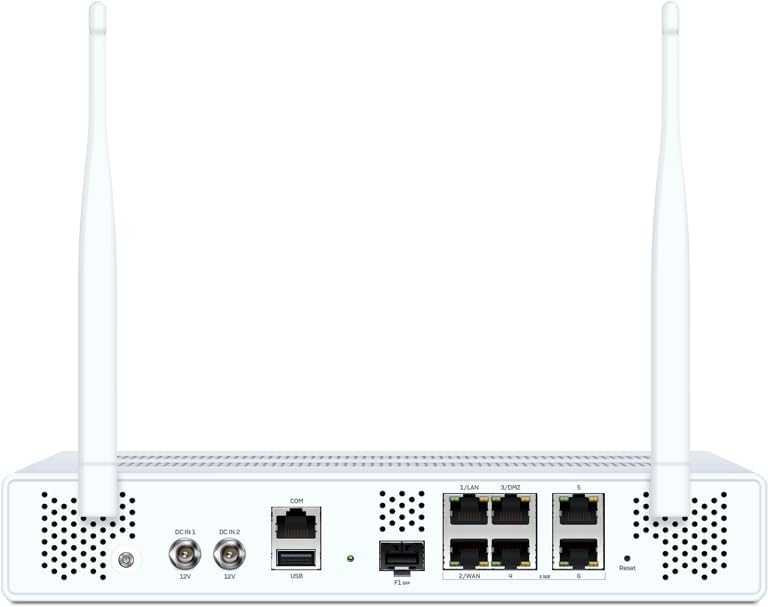
Figure 2: Rear view of the Sophos XGS 108W (Gen2) Wireless Security Appliance, detailing the various ports including 2.5 GE copper ports, SFP fiber port, USB, and power inputs.
Setup Instructions
1. Unpacking and Inspection
Carefully remove the Sophos XGS 108W appliance from its packaging. Verify that all components are present and undamaged. The package should typically include:
- Sophos XGS 108W (Gen2) Appliance
- Power Adapter(s)
- Ethernet Cable(s)
- Quick Start Guide (if applicable)
2. Physical Installation
Choose a suitable location for the appliance. Ensure adequate ventilation and avoid placing it near heat sources or in direct sunlight. The device is designed for desktop placement.
- Connect Antennas: If your model includes external Wi-Fi antennas, screw them securely into the designated connectors on the rear panel.
- Connect Network Cables:
- Connect your internet source (modem or upstream router) to the WAN port (typically labeled 2/WAN).
- Connect your internal network devices (switches, computers) to the LAN ports (labeled 1/LAN, 3/DMZ, etc.).
- For fiber connectivity, insert an SFP module into the SFP port and connect the fiber optic cable.
- Connect Power: Connect the power adapter to the DC IN port(s) on the rear panel and then plug it into a power outlet. The appliance will power on automatically.
3. Initial Configuration
Once powered on, the appliance will boot up. You can access the management interface via a web browser from a computer connected to one of the LAN ports. Refer to the Quick Start Guide for the default IP address and login credentials.
Note: It is highly recommended to change default passwords immediately after initial login for security purposes.
Operating Instructions
The Sophos XGS 108W operates on Sophos OS, providing a robust and secure platform for network management. Key operational aspects include network configuration, security feature management, and centralized administration.
1. Network Configuration
- WAN Setup: Configure your internet connection settings (DHCP, Static IP, PPPoE) through the web interface.
- LAN Setup: Define IP address ranges, DHCP server settings, and VLANs for your internal networks.
- Wi-Fi 6 Configuration: Set up your wireless networks (SSIDs), security protocols (WPA3 recommended), and channel settings for optimal wireless performance.
2. Security Features (Xstream Protection)
The XGS 108W with Xstream Protection offers advanced security capabilities:
- Deep Packet Inspection (DPI): Inspects encrypted traffic (TLS inspection) to detect hidden threats.
- Intrusion Prevention System (IPS): Protects against sophisticated attacks and exploits.
- Cloud Sandboxing: Analyzes suspicious files in a secure cloud environment to identify zero-day threats.
- Email Filtering: Blocks spam, phishing, and malware delivered via email.
- SD-WAN & VPN: Configure secure site-to-site and remote access VPNs, and optimize network traffic with SD-WAN policies.

Figure 3: Diagram illustrating the comprehensive protection layers of Sophos Firewall, including cloud sandboxing, web protection, and secure connectivity.

Figure 4: Detailed breakdown of Xstream Protection features, covering network, web, and zero-day protection, along with DNS protection and Sophos Central Management.
3. Sophos Central Management
The XGS 108W is managed through Sophos Central, a unified cloud management platform. This allows for centralized policy management, reporting, and threat response across all your Sophos products.
- Access Sophos Central via a web browser using your Sophos account credentials.
- Monitor network activity, view security alerts, and generate reports.
- Apply security policies and manage device settings remotely.

Figure 5: Screenshot of the Sophos Central Control Center interface, showing various dashboards and monitoring tools for network security.
Video 1: An official video from Sophos's seller, BlueAlly, providing an overview of the XGS Series 2nd Gen Desktop Appliances, highlighting their features and benefits.
Maintenance
1. Firmware Updates
Regularly update the appliance firmware to ensure optimal performance, security, and access to the latest features. Firmware updates can typically be managed through the Sophos Central interface or directly via the local web administration console.
- Check for available updates in Sophos Central.
- Follow the on-screen prompts to download and install updates.
- Ensure a stable power supply during the update process to prevent interruptions.
2. Configuration Backup and Restore
It is recommended to regularly back up your appliance configuration. This allows for quick restoration in case of a system failure or misconfiguration.
- Access the backup/restore options in the web administration interface.
- Save configuration files to a secure external location.
3. Cleaning
Keep the appliance clean and free from dust to maintain proper airflow and prevent overheating. Use a soft, dry cloth for cleaning. Do not use liquid cleaners or aerosols directly on the device.
Troubleshooting
This section addresses common issues you might encounter with your Sophos XGS 108W appliance.
1. Power and LED Indicators
| LED Indicator | Status | Description/Action |
|---|---|---|
| Power LED | Solid Green | Appliance is powered on and operating normally. |
| Power LED | Off | Appliance is off or not receiving power. Check power connections. |
| Status LED | Varies (e.g., blinking, solid) | Refer to the Sophos documentation for specific status LED patterns and their meanings. |
| Port LEDs | Solid/Blinking | Indicates network activity and link status. No light means no link. |
2. Network Connectivity Issues
- No Internet Access:
- Verify WAN cable connection and modem status.
- Check WAN configuration in the appliance's web interface.
- Ensure DNS settings are correct.
- Local Network Access Problems:
- Confirm LAN cable connections.
- Check IP address and DHCP settings for connected devices.
- Verify firewall rules are not blocking internal traffic.
- Wi-Fi Connection Issues:
- Ensure Wi-Fi is enabled on the appliance.
- Check SSID, password, and security settings.
- Verify signal strength and channel interference.
3. Performance Degradation
- Monitor CPU and memory usage through Sophos Central or the local interface.
- Review traffic logs for unusual activity or high bandwidth consumption.
- Ensure firmware is up to date.
Specifications
Detailed technical specifications for the Sophos XGS 108W (Gen2) Wireless Security Appliance.

Figure 6: Technical specifications table for the Sophos XGS 108W (Gen2), including performance metrics, physical interfaces, and environmental details.
| Feature | Detail |
|---|---|
| Brand | Sophos |
| Model Name | XGS 108W |
| Model Number | XY108Z36ZZPCUS |
| Frequency Band Class | Dual-Band |
| Wireless Standard | 802.11ax (Wi-Fi 6) |
| Connectivity Technology | Wi-Fi, Ethernet, Optical Fiber Port |
| Operating System | Sophos OS |
| Security Protocol | WPA3 |
| Number of Ports | 7 (6 x 2.5 GE Copper, 1 x SFP) |
| Data Transfer Rate | 12500 Megabits Per Second (12.5 Gbps) |
| Coverage | Broad Enterprise Coverage |
| Dimensions (H x W x D) | 44 x 250 x 174 mm |
| Weight | 1.8 kg / 3.97 lbs (unpacked) |
Warranty and Support
Your Sophos XGS 108W (Gen2) Wireless Security Appliance comes with a manufacturer's warranty. The specific terms and duration of the warranty, including any Xstream Protection subscriptions, are detailed in your purchase agreement and product documentation.
For technical assistance, product support, or warranty claims, please contact Sophos support directly. You can find contact information and additional resources on the official Sophos website:
Sophos Official Support Website
Ensure you have your product's serial number and purchase details available when contacting support.


