
Tera P150
Tera P150 Android 12 Barcode Scanner PDA User Manual
Model: P150
1. Introduction
This manual provides essential information for the proper setup, operation, and maintenance of your Tera P150 Android 12 Barcode Scanner PDA. Please read this manual thoroughly before using the device to ensure optimal performance and longevity.

Image 1.1: The Tera P150 Android Barcode Scanner PDA, showcasing its sleek design and user interface.
2. Setup
2.1 Package Contents
Verify that all items are present in the package:
- Tera P150 Android Barcode Scanner PDA
- Protective Case
- Screen Protector
- Hand Strap
- USB Cable
- Charger Adapter
- User Manual (Quick Start Guide)

Image 2.1: All components included in the Tera P150 product package.
2.2 Battery Installation and Charging
- Locate the battery compartment on the rear of the device.
- Insert the 5000 mAh removable battery, ensuring proper alignment of the contacts.
- Secure the battery cover.
- Connect the USB cable to the device and the charger adapter, then plug into a power outlet.
- Allow approximately 3 hours for a full charge.

Image 2.2: The removable 5000 mAh battery, designed for extended use.
2.3 Powering On/Off
Press and hold the power button located on the side of the device until the screen illuminates (for power on) or a power-off menu appears (for power off).
3. Operating Instructions
3.1 Android 12 Operating System
The Tera P150 operates on Android 12, offering an intuitive user interface, enhanced performance, and improved privacy controls. Navigate using touch gestures similar to other Android devices.

Image 3.1: The Tera P150 displaying multiple applications, demonstrating seamless multitasking capabilities with Android 12.
3.2 Barcode Scanning with Zebra SE4710
The device integrates a Zebra SE4710 scanner engine for efficient barcode reading. To scan:
- Open the scanning application on the device.
- Point the scanner window at the barcode.
- Press the dedicated scan button (if available) or trigger the scan via the on-screen interface.
- Ensure the red laser or illumination covers the entire barcode for accurate capture.

Image 3.2: A user operating the Tera P150 to scan barcodes in a warehouse environment, highlighting the integrated Zebra SE4710 scanner.
3.3 Touch Screen Operation
The 5.5-inch full touch screen supports operation with gloves and wet hands, enhancing usability in various work conditions. The display offers a resolution of 1440 x 720 pixels.
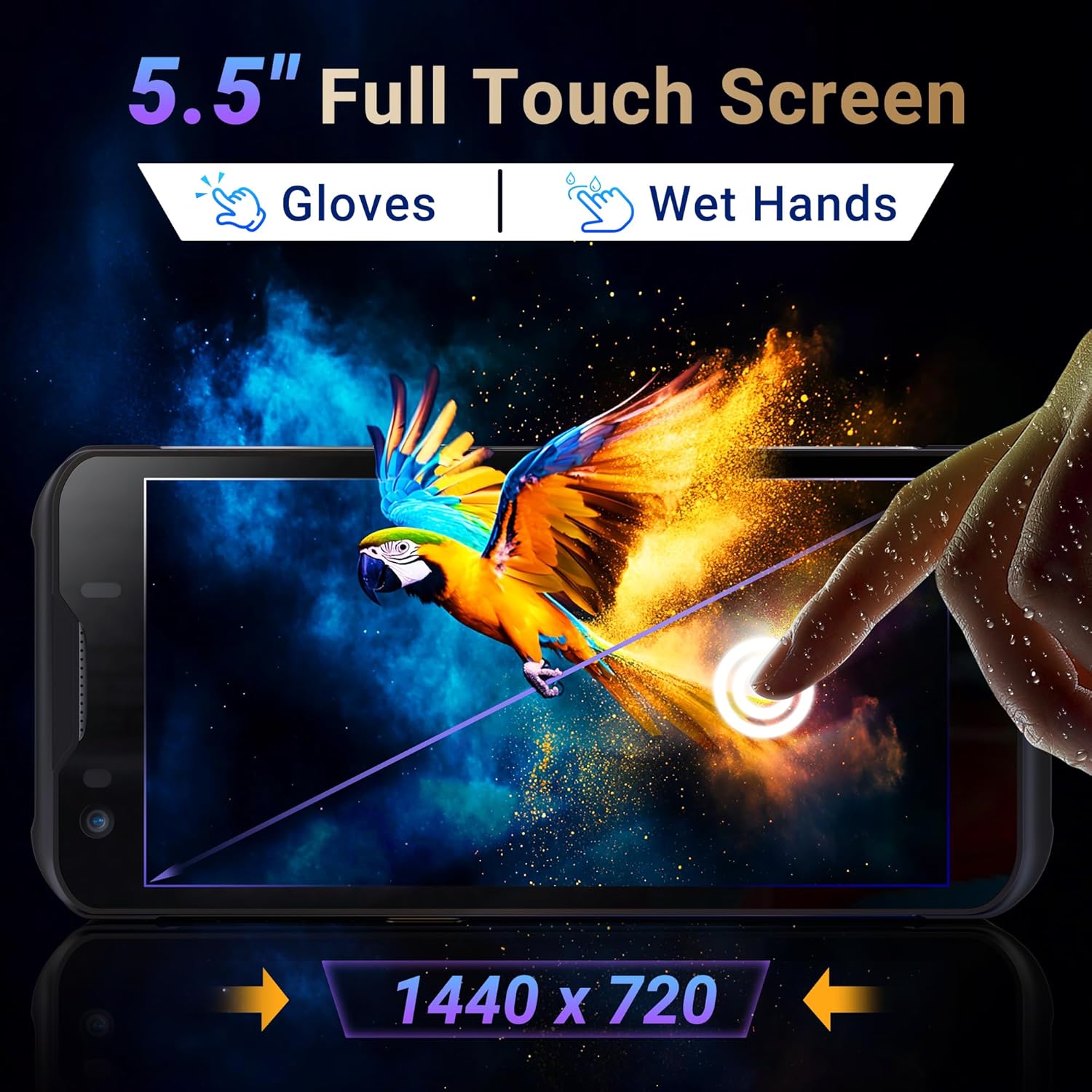
Image 3.3: The Tera P150's 5.5-inch full touch screen, illustrating its responsiveness and clarity.
3.4 Camera Functionality
The device is equipped with a 13.0 MP rear camera and a 5.0 MP front camera for documentation and communication purposes.

Image 3.4: Close-up view of the Tera P150, highlighting the 13.0 MP rear camera and 5.0 MP front camera.
4. Maintenance
4.1 Rugged Design and IP67 Rating
The Tera P150 features an IP67 rating, indicating resistance to dust and water ingress. It is also designed to withstand drops from up to 4.9 feet (1.5 meters), making it suitable for demanding environments.

Image 4.1: Visual representation of the Tera P150's IP67 water and dust resistance, and its 4.9ft drop resistance.
Video 4.1: Demonstration of the Tera P150's IP67-rated protection, showcasing its durability against water and drops.
4.2 Cleaning
Use a soft, damp cloth to clean the device. Avoid harsh chemicals or abrasive materials that could damage the screen or casing.
5. Troubleshooting
5.1 Device Not Powering On
- Ensure the battery is correctly installed and fully charged.
- Connect the device to the charger and attempt to power on.
5.2 Scanning Issues
- Verify the barcode is clean and undamaged.
- Ensure adequate lighting conditions.
- Check the scanning application settings.
5.3 Performance Lag
- Close unnecessary background applications.
- Clear cache and temporary files.
- Restart the device.
6. Specifications
| Feature | Detail |
|---|---|
| Model Number | P150 |
| Operating System | Android 12 |
| Processor | MTK CPU |
| RAM | 4GB |
| ROM (Storage) | 64GB |
| Barcode Scanner | Zebra SE4710 |
| Display | 5.5-inch Full Touch Screen |
| Durability Rating | IP67, 4.9 ft Drop Resistant |
| Battery | 5000 mAh Removable |
| Rear Camera | 13.0 MP |
| Front Camera | 5.0 MP |
| Connectivity | 4G, GPS, USB |
| Item Weight | 1.3 pounds |
| Package Dimensions | 7.6 x 4.2 x 2.9 inches |
Video 6.1: An overview of the Tera P150's key features, including its IP67 rating, 4GB RAM, 64GB storage, Android 12 OS, and 5.5-inch touch screen.
7. Warranty Information
Please refer to the warranty card included with your product for detailed warranty terms and conditions. Keep your proof of purchase for any warranty claims.
8. Support
For technical assistance, troubleshooting, or further inquiries, please contact Tera customer support. Contact information can be found on the official Tera website or in the quick start guide.
Related documentsP150


Ask a question about this manual
Ask about setup, troubleshooting, compatibility, parts, safety, or missing instructions. Manuals+ will review the question and use this page’s manual context to help answer it.