
1. Introduction
Thank you for purchasing the Lafocuse 12-inch LED Digital Wall and Desk Clock. This clock is designed to provide clear time, date, day, and temperature information with versatile placement options and convenient remote control operation. Please read this manual carefully before use to ensure proper setup and functionality.
2. Safety Information
- Ensure the clock is connected to a stable power source. This clock operates solely via a power cable; an adapter is not included.
- Keep the device away from water or high humidity environments.
- Do not attempt to disassemble or repair the clock yourself. Contact customer support for assistance.
- Use only the specified button cell battery for the memory function. Incorrect battery type may cause damage.
- Keep the remote control away from children to prevent accidental ingestion of small parts.
3. Package Contents
Verify that all items are present in your package:
- Lafocuse 12-inch LED Digital Clock (Model ZH0153A)
- Remote Control
- USB Power Cable
- User Manual
- Button Cell Battery (for memory function)
4. Product Overview
The Lafocuse Digital Clock features a large LED display for easy readability. It shows time, date, day of the week, and temperature. The back panel includes control buttons and connection ports.
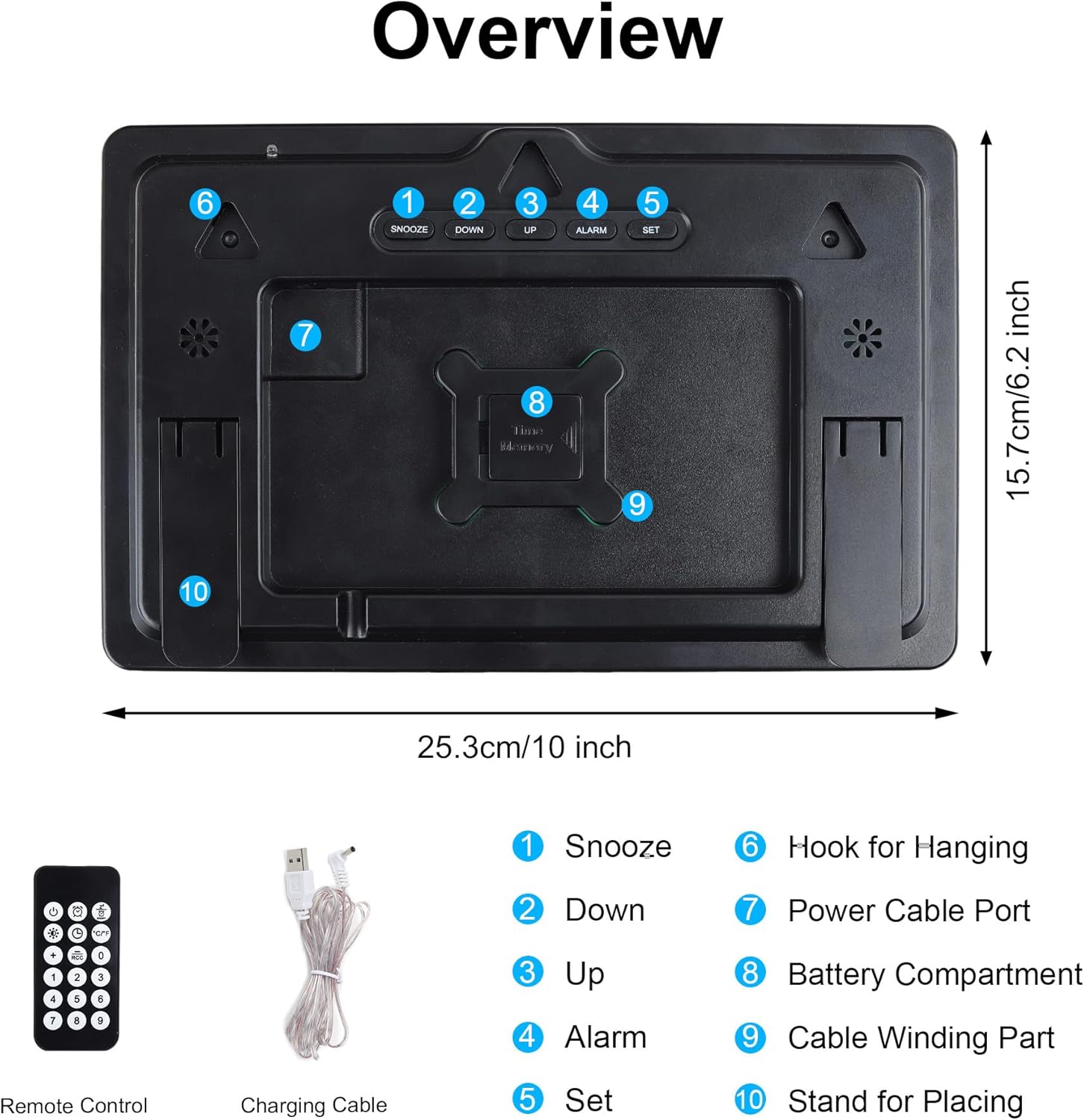
Figure 1: Back Panel Overview and Accessories
- Snooze Button: Activates snooze during an alarm.
- DOWN Button: Decreases values during setting, navigates menus.
- UP Button: Increases values during setting, navigates menus.
- ALARM Button: Enters alarm setting mode.
- SET Button: Enters time/date setting mode, confirms settings.
- Hook for Hanging: Used for wall mounting.
- Power Cable Port: Connects the USB power cable.
- Battery Compartment: For the button cell memory battery.
- Cable Winding Part: For organizing the power cable.
- Stand for Placing: Used for desk placement.

Figure 2: Front Display of the Digital Clock
5. Setup
5.1 Power Connection
- Connect the provided USB power cable to the Power Cable Port (7) on the back of the clock.
- Plug the other end of the USB cable into a compatible USB power adapter (not included) or a USB port.
- The clock will power on and display the default time.
5.2 Memory Battery Installation
A button cell battery is included to retain time and alarm settings during a power outage.
- Locate the Battery Compartment (8) on the back of the clock.
- Open the compartment and insert the button cell battery, ensuring correct polarity (+/-).
- Close the battery compartment securely.
5.3 Mounting Options
The clock can be placed on a desk or mounted on a wall.

Figure 3: Wall Mounting and Desk Placement Options
Desk Placement:
Extend the built-in stand (10) on the back of the clock to place it securely on any flat surface.
Wall Mounting:
Use the three durable hooks (6) on the back of the clock to hang it on screws or nails securely fastened to a wall.
6. Operating Instructions
The clock can be operated using the buttons on the back or the included remote control.

Figure 4: Remote Control Operation
6.1 Setting Time and Date
- Press the SET button on the back of the clock or the remote control. The hour digits will flash.
- Use the UP or DOWN buttons to adjust the hour.
- Press SET again to move to minute setting. Adjust minutes with UP or DOWN.
- Continue pressing SET to cycle through year, month, and day settings, adjusting each with UP or DOWN.
- After setting the day, press SET one last time to confirm and exit the setting mode.
6.2 Setting the Alarm
- Press the ALARM button on the back of the clock or the remote control. The alarm hour digits will flash.
- Use the UP or DOWN buttons to set the alarm hour.
- Press ALARM again to move to alarm minute setting. Adjust minutes with UP or DOWN.
- Press ALARM one last time to confirm and activate the alarm. An alarm icon will appear on the display.
- To deactivate the alarm, press the ALARM button again until the alarm icon disappears.
6.3 Snooze Function
When the alarm sounds, press the SNOOZE button (1) on the back of the clock or the corresponding button on the remote control. The alarm will pause for 5 minutes and then sound again. To stop the alarm completely, press any other button on the clock or remote.

Figure 5: Snooze Function in Use
6.4 Brightness Adjustment
The clock offers 4 levels of brightness and an automatic photosensitive function.

Figure 6: Adjustable Brightness Levels
Manual Adjustment:
Press the brightness control button on the remote control to cycle through the 4 brightness levels (High, Medium, Low, Off).
Automatic Photosensitive Function:
Activate the photosensitive function via the remote control. The clock will automatically adjust its brightness based on ambient light conditions, ensuring it is not too bright in dark environments.

Figure 7: Automatic Photosensitive Brightness
6.5 12/24 Hour Mode
Press the 12/24H button on the remote control to switch between 12-hour and 24-hour time display formats.
6.6 Temperature Display
The clock automatically displays the ambient temperature. No specific setting is required for this function.
7. Features
- Large 12-inch LED Display: Provides clear visibility of time, date, day, and temperature from various angles.
- Dual Placement Options: Can be easily mounted on a wall or placed on a desk.
- Remote Control: Conveniently adjust settings and manage alarms from a distance.
- Memory Function: Built-in button cell battery preserves time and alarm settings during power interruptions.
- Adjustable Brightness: Four manual brightness levels and an automatic photosensitive mode to suit different environments.
- Snooze Function: Allows for an additional 5 minutes of sleep after the alarm sounds.
- Temperature Display: Shows ambient temperature in Celsius.
8. Maintenance
8.1 Cleaning
Wipe the clock surface with a soft, dry cloth. Do not use abrasive cleaners or solvents, as they may damage the display or casing.
8.2 Battery Replacement (Memory Function)
If the clock consistently loses its settings after a power outage, the button cell memory battery may need replacement. Refer to Section 5.2 for installation instructions.
9. Troubleshooting
| Problem | Possible Cause | Solution |
|---|---|---|
| Clock does not turn on. | No power connection or faulty cable/adapter. | Ensure the USB power cable is securely connected and the power adapter is working. This clock requires constant power via cable. |
| Settings are lost after power outage. | Memory battery is dead or not installed correctly. | Replace the button cell memory battery or ensure it is installed with correct polarity. |
| Remote control is not working. | Remote battery is dead or line of sight is blocked. | Replace the remote control battery. Ensure there are no obstructions between the remote and the clock. |
| Display is too bright/dim. | Brightness setting needs adjustment. | Manually adjust brightness using the remote or activate the automatic photosensitive function. |
10. Specifications
- Model: ZH0153A
- Display Type: LED Digital
- Screen Size: 12 inches
- Dimensions (L x W x H): 25 x 3.81 x 15.7 cm (approximately 10 x 1.5 x 6.2 inches)
- Weight: 530 grams
- Material: Plastic
- Power Source: USB Cable (adapter not included)
- Memory Battery: Button Cell (included)
- Brightness Levels: 4 manual levels + Automatic Photosensitive
- Functions: Time, Date, Day, Temperature, Alarm, Snooze, 12/24H Mode
11. Warranty and Support
Lafocuse products are manufactured with high-quality standards. For any questions, technical support, or warranty claims, please contact your retailer or Lafocuse customer service. Please retain your proof of purchase for warranty purposes.