
OSCAL
OSCAL PowerMax 2400 Portable Power Station User Manual
Model: PM2400 + PM200 Solar Panel
Introduction
This manual provides essential information for the safe and efficient operation of your OSCAL PowerMax 2400 Portable Power Station and PM200 Solar Panel. Please read this manual thoroughly before using the product to ensure proper function and to prevent damage or injury. Keep this manual for future reference.
Safety Instructions
Adhering to these safety guidelines is crucial for preventing electric shock, fire, or serious injury.
- Do not disassemble, repair, or modify the unit. Incorrect reassembly may cause fire or electric shock.
- Do not place the unit near fire or expose it to direct sunlight.
- Do not charge, use, or store the unit in a bathroom or in an area exposed to water or moisture.
- Use only the original charger and cables provided with the unit.
- Do not use the unit if it is damaged or has been dropped.
- Keep the unit out of reach of children and pets.
- Ensure proper ventilation during use and charging to prevent overheating.
- Operate the PowerMax 2400 within the specified temperature range of -4°C to 113°C (-4°F to 113°F).
- The unit is equipped with UPS uninterruptible power supply. Ensure proper connection for critical devices.
Package Contents
Verify that all items are present in your package:
- OSCAL PowerMax 2400 Portable Power Station
- PM200 Solar Panel
- AC Charging Cable
- Car Charging Cable
- Solar Charging Cable
- User Manual (this document)
- Warranty Card
Product Overview
Familiarize yourself with the components and display of your PowerMax 2400.

Figure 1: OSCAL PowerMax 2400 Power Station and PM200 Solar Panel. This image shows the main PowerMax 2400 unit alongside the foldable PM200 solar panel, illustrating the complete portable power solution.
Display Panel Indicators
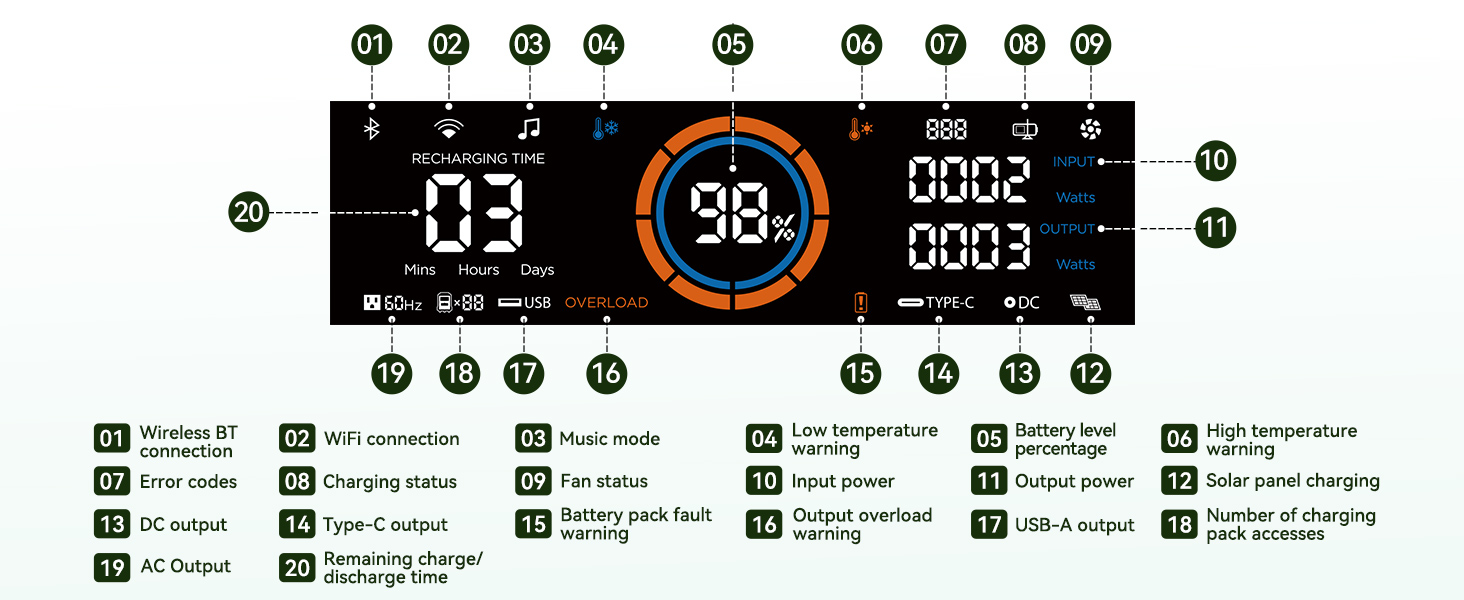
Figure 2: PowerMax 2400 Display Panel with Labeled Indicators. This diagram highlights the various icons and readings on the power station's display, including battery level, input/output wattage, charging status, and warning indicators.
- Wireless BT connection indicator
- WiFi connection indicator
- Music mode indicator
- Low temperature warning
- Battery level percentage
- High temperature warning
- Error codes
- Charging status
- Fan status
- Input power (Watts)
- Output power (Watts)
- Solar panel charging indicator
- DC output indicator
- Type-C output indicator
- Battery pack fault warning
- Output overload warning
- USB-A output indicator
- Number of charging pack accesses
- AC output indicator
- Remaining charge/discharge time (Mins, Hours, Days)
Ports and Connections

Figure 3: PowerMax 2400 Ports and Wireless Charging Pads. This image details the various input and output ports available on the power station, including AC outlets, USB-A, USB-C, DC5521, car cigarette lighter port, Anderson connector, and the dual 15W wireless charging pads.
- 4 x 2400W AC Ports
- 4 x 18W USB-A Ports
- 2 x 100W USB-C PD Ports
- 2 x 60W DC5521 Ports
- 1 x 240W Car Cigarette Lighter Port
- 1 x 240W Anderson Connector
- 2 x 15W Wireless Charging Pads
Setup
Initial Charging
Before first use, fully charge the PowerMax 2400. This can be done via AC wall outlet, solar panels, or a car charger.
- AC Charging: Connect the AC charging cable to the AC input port on the PowerMax 2400 and then to a wall outlet. The display will show charging status. A full charge takes approximately 1.5 hours.
- Solar Charging: Unfold the PM200 Solar Panel and place it in direct sunlight. Connect the solar charging cable from the PM200 to the solar input port on the PowerMax 2400. Ensure the panel is positioned for maximum sun exposure.
- Car Charging: Connect the car charging cable to the car charger port on the PowerMax 2400 and then to your vehicle's 12V cigarette lighter socket.
Connecting the PM200 Solar Panel
The PM200 Solar Panel is designed to seamlessly integrate with the PowerMax 2400 for efficient solar charging.
- Unfold the PM200 solar panel completely.
- Locate the solar output cable on the PM200.
- Connect this cable to the designated solar input port on the PowerMax 2400.
- Position the solar panel to face the sun directly for optimal charging performance.
Operating Instructions
Turning On/Off
- To turn on the PowerMax 2400, press and hold the main power button for a few seconds until the display illuminates.
- To turn off the unit, press and hold the main power button again until the display turns off.
Using AC Outputs
The PowerMax 2400 provides 4 AC outlets with a total output of 2400W (4800W peak).
- Press the "AC ON/OFF" button to activate the AC outlets. The AC indicator on the display will light up.
- Plug your AC devices into the outlets.
- To conserve power, turn off the AC outlets when not in use by pressing the "AC ON/OFF" button again.
Using DC and USB Outputs
The unit features various DC and USB ports for charging smaller devices.
- DC Outputs: Press the "DC ON/OFF" button to activate the DC5521 ports and the car cigarette lighter port.
- USB Outputs: The USB-A and USB-C ports are typically always active when the unit is on. The 100W USB-C PD ports support fast charging for compatible devices.
- Wireless Charging: Place your Qi-compatible devices on the 15W wireless charging pads located on top of the unit.
Uninterruptible Power Supply (UPS) Function
The PowerMax 2400 can function as an Uninterruptible Power Supply (UPS) for critical devices.
- Connect the PowerMax 2400 to a wall outlet using the AC charging cable.
- Plug your devices (e.g., computers, network equipment) into the AC outlets of the PowerMax 2400.
- In case of a power outage, the PowerMax 2400 will automatically switch to battery power within 5-8 milliseconds, providing seamless power to connected devices.

Figure 4: UPS Functionality. This icon represents the uninterruptible power supply feature, ensuring continuous power during outages.
Smart App Control (Wi-Fi & Bluetooth)
Control and monitor your PowerMax 2400 remotely using the OSCAL application.
- Download the "OSCAL" application from your smartphone's app store.
- Ensure your PowerMax 2400 is powered on.
- Open the app and follow the on-screen instructions to pair your device via Wi-Fi or Bluetooth.
- Once connected, you can monitor power usage, control outputs, and adjust settings remotely.

Figure 5: Smart App Control. This image displays the PowerMax 2400 alongside a smartphone screen showing the OSCAL app interface, demonstrating remote monitoring and control capabilities via Wi-Fi or Bluetooth.
LED Light Modes
The PowerMax 2400 features multiple LED light modes for various situations.
- Press the "LED" button to cycle through the modes:
- Breathing Light Mode: Gentle pulsating light.
- Dim Mode: Low brightness for ambient lighting.
- Bright Mode: High brightness for illumination.
- Flashing Mode: For signaling or attention.
- SOS Mode: Standard Morse code signal for emergencies.
- To activate Morse Code Signal Light, press and hold the LED button for 3 seconds.
HD Stereo Speakers
The PowerMax 2400 includes integrated HD stereo speakers for audio playback.
- Activate music mode via the display panel or the OSCAL app.
- Connect your audio source via Bluetooth or other available methods (if applicable).
- Adjust volume and playback controls as needed.
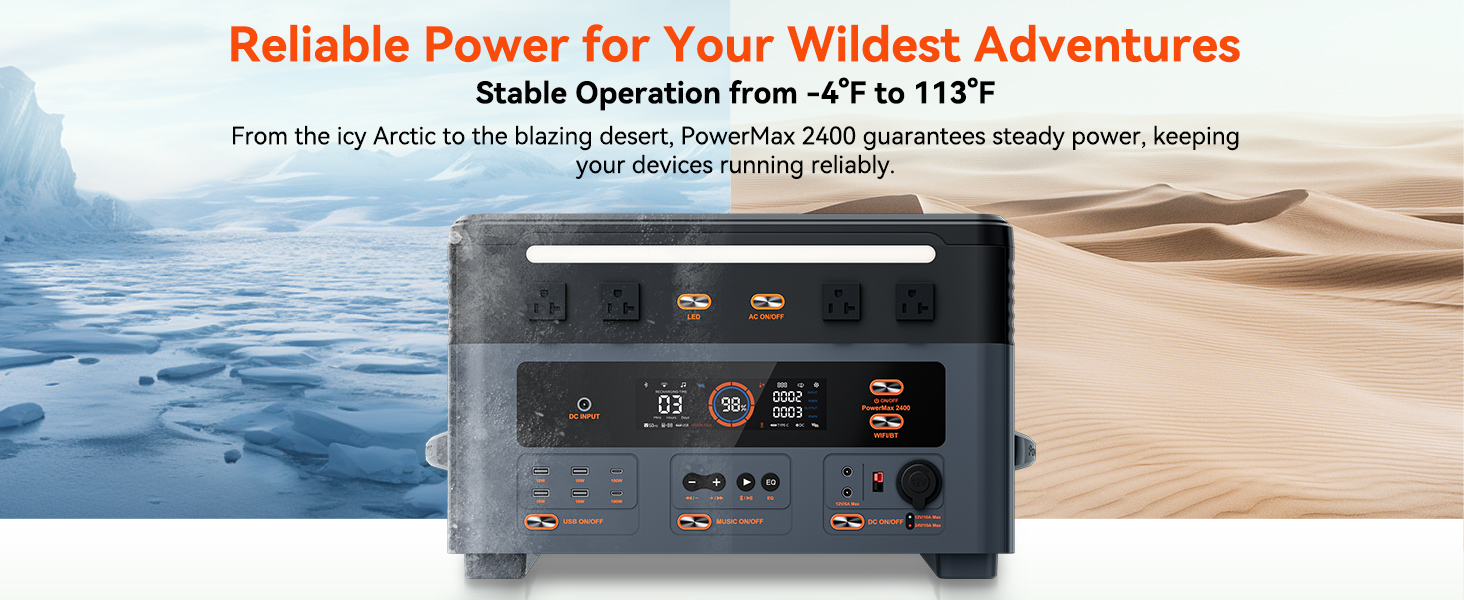
Figure 6: HD Stereo Speakers. This image highlights the integrated speakers on the PowerMax 2400, emphasizing its capability to provide quality sound for outdoor activities.
Maintenance
Proper maintenance ensures the longevity and optimal performance of your PowerMax 2400.
- Cleaning: Use a dry, soft cloth to wipe the exterior of the unit. Do not use abrasive cleaners or solvents.
- Storage: If storing the unit for an extended period, charge it to approximately 50-80% every 3-6 months to maintain battery health. Store in a cool, dry place away from direct sunlight and extreme temperatures.
- Battery Care: The LiFePO4 battery is designed for long life (up to 3500 cycles). Avoid fully discharging the battery frequently to maximize its lifespan.
- Ventilation: Ensure the ventilation openings are clear of dust and debris to prevent overheating.
Troubleshooting
Refer to the table below for common issues and their solutions.
| Problem | Possible Cause | Solution |
|---|---|---|
| Unit does not turn on. | Battery is completely discharged. | Connect to AC power and charge for at least 30 minutes. |
| AC outlets not working. | AC output is not activated or overloaded. | Press the "AC ON/OFF" button. Reduce the total wattage of connected devices. Check for overload warning on display. |
| Solar charging is slow or not working. | Insufficient sunlight, panel not positioned correctly, or dirty panel. | Ensure direct sunlight exposure. Adjust panel angle. Clean the solar panel surface. Check solar charging cable connection. |
| Unit displays an error code. | Internal fault or specific warning. | Refer to the display panel indicators section for error code meanings. If persistent, contact customer support. |
| App connection issues. | Bluetooth/Wi-Fi off, app not updated, or pairing issue. | Ensure Bluetooth/Wi-Fi is enabled on your phone and the power station. Restart the app and the power station. Try re-pairing. |
Specifications
Detailed technical specifications for the OSCAL PowerMax 2400.
| Feature | Detail |
|---|---|
| Model Name | PowerMax 2400 |
| Battery Type | LiFePO4 |
| Capacity | 1872Wh |
| AC Output | 2400W (Rated), 4800W (Peak) |
| AC Charging Time | Approx. 1.5 hours (Full Charge) |
| USB-A Output | 4 x 18W |
| USB-C PD Output | 2 x 100W |
| DC5521 Output | 2 x 60W |
| Car Cigarette Lighter Output | 1 x 240W |
| Wireless Charging | 2 x 15W Pads |
| UPS Switchover Time | 5-8 ms |
| Operating Temperature | -4°C to 113°C (-4°F to 113°F) |
| Dimensions (L x W x H) | 18.26" x 11.42" x 11.1" |
| UPC | 810175528977 |
Warranty and Support
Your OSCAL PowerMax 2400 is backed by a comprehensive warranty and dedicated customer support.
- Warranty Period: The product comes with a 2-year warranty from the date of purchase. Please refer to the included warranty card for detailed terms and conditions.
- Customer Support: For technical assistance, troubleshooting, or warranty claims, please contact OSCAL customer support through the official website or the contact information provided on your warranty card.
Related documents


Ask a question about this manual
Ask about setup, troubleshooting, compatibility, parts, safety, or missing instructions. Manuals+ will review the question and use this page’s manual context to help answer it.