
Introduction
The Rapoo MT760Mini is a versatile wireless mouse designed for multi-device productivity. It supports Bluetooth 5.0/3.0 and 2.4GHz multi-mode connections, allowing seamless switching between up to four devices. Key features include adjustable DPI, M+ Cross-Computer Technology, 11 programmable buttons, ergonomic design, and wireless charging capability. This manual provides detailed instructions for setup, operation, maintenance, and troubleshooting to ensure optimal use of your device.
What's in the Box
- 1 x Wireless Mouse
- 1 x USB-C Charging Cable (USB-A to USB-C)
- 2 x USB Dongles
- 1 x User Manual
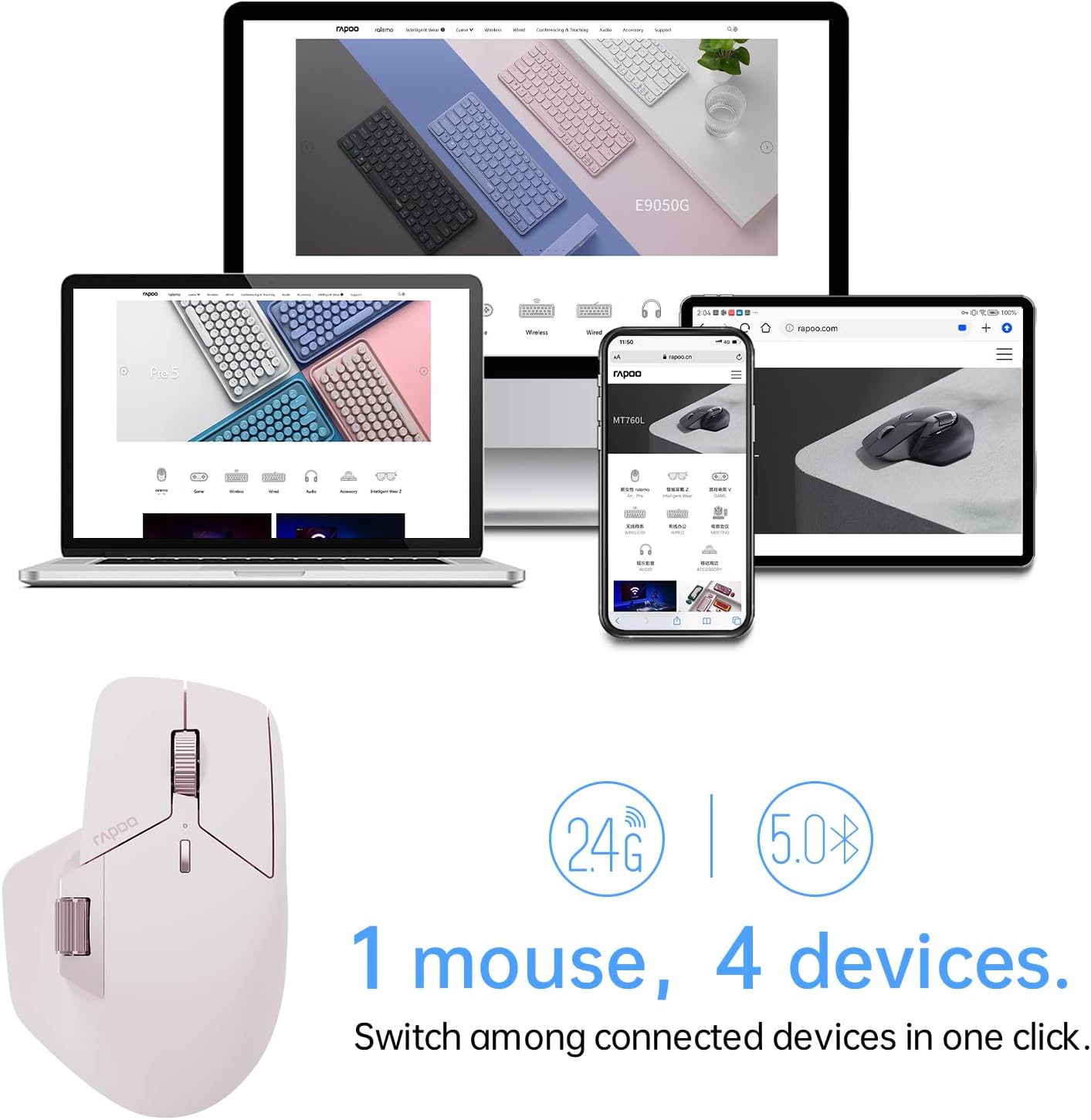
Image: The Rapoo MT760Mini mouse, USB-C charging cable, and two USB dongles laid out on a wooden surface.
Product Features
Multi-Mode Wireless Connection
The MT760Mini supports Bluetooth 5.0, Bluetooth 3.0, and 2.4GHz wireless connections. This allows you to connect and switch between up to four different devices (e.g., desktop computer, laptop, tablet, smartphone) with ease.

Image: The Rapoo MT760Mini mouse positioned in front of a laptop, tablet, and smartphone, demonstrating its ability to connect to multiple devices.
Adjustable DPI
The mouse features 7 adjustable DPI levels: 800, 1000, 1200, 1600, 2400, 3200, and 4000. You can switch between these preset values using the dedicated DPI button to match your preference and task requirements. Further adjustments in 50-interval steps are possible via the mouse driver software.

Image: The Rapoo MT760Mini mouse highlighting the DPI switch button and illustrating the 7 adjustable DPI levels from 800 to 4000.
M+ Cross-Computer Technology
Utilize M+ Cross-Computer Technology to seamlessly control multiple computers by moving the cursor to the edge of your screen. The mouse automatically switches between screens, enabling efficient multi-tasking and easy transfer of text, images, and files between devices. This feature requires the mouse driver to be installed and all connected computers to be on the same Wi-Fi or Ethernet network.

Image: A visual representation of M+ Cross-Computer Technology, showing a mouse cursor moving between two computer screens to copy and paste a folder.
Ergonomic Design
The mouse features an ergonomic bow-back design with thumb support, providing a comfortable palm grip. Its anti-slip and anti-sweat surface ensures comfort and ease of use during long periods of work, reducing hand strain.

Image: A hand demonstrating the comfortable grip on the Rapoo MT760Mini mouse, emphasizing its ergonomic shape and thumb support.
11 Programmable Buttons
The MT760Mini is equipped with 11 programmable buttons, including a Hall magnetic induction side scroll wheel and a center scroll wheel with a 1,000,000 times scale feel. These buttons can be customized via the driver software to assign shortcuts, media keys, or macros, streamlining your workflow and boosting efficiency.

Image: An annotated diagram of the Rapoo MT760Mini mouse, labeling its 11 programmable buttons such as Left button, Scroll right/left, Forward/Back, Roller forward/middle/backward, Right button, Switch over DPI, and DIY key.
Wireless Charging & Ultra-Long Battery Life
The mouse is powered by an 800mAh Li-Po battery and supports USB-C quick charging. A full charge can last up to 90 days. It is also compatible with most Qi wireless charging mouse pads, allowing for effortless power boosts during use. (Note: P3 Wireless Charging Module sold separately).

Image: The Rapoo MT760Mini mouse being wirelessly charged on a pad, with text highlighting Qi wireless charging, 800mAh Li-Po battery, and USB-C fast charging capabilities.
Works on Most Surfaces
Equipped with a high-performance laser sensor, the MT760Mini provides precise and accurate tracking on various surfaces, including wood, cloth, leather, resin, and paper.

Image: The Rapoo MT760Mini mouse resting on a stack of various materials like wood, fabric, and leather, illustrating its ability to track on most surfaces.
Product Dimensions
The MT760Mini is designed to be compact and portable, with dimensions suitable for various hand sizes and grip styles.

Image: A side-by-side comparison of the Rapoo MT760 and MT760Mini mice, displaying their respective weights and dimensions for size reference.
Setup and Connection
2.4GHz Wireless Connection
- Remove the USB dongle from its storage slot on the bottom of the mouse.
- Plug the USB dongle into an available USB port on your computer.
- Turn on the mouse using the power switch on the bottom. The mouse should automatically connect.

Image: A screenshot of the Rapoo pairing utility, illustrating the three steps to pair the USB receivers with the mouse via 2.4GHz connection.
Bluetooth Connection
- Turn on the mouse using the power switch on the bottom.
- Press the device switching button on the bottom of the mouse to select a Bluetooth channel (1, 2, or 3). The indicator light for the selected channel will blink.
- On your device (computer, laptop, tablet, or smartphone), go to Bluetooth settings and search for new devices.
- Select "Rapoo MT760Mini" from the list of available devices to pair.
Driver Installation
To unlock the full functionality of your MT760Mini mouse, including programmable buttons and M+ Cross-Computer Technology, it is recommended to install the official Rapoo mouse driver. Visit the Rapoo support website to download the latest driver for your operating system.

Image: A screenshot of the Rapoo Download Center, showing the option to download the MT760/MT760 mini Mouse Driver.
Operating Instructions
Switching Between Devices
Use the device switching button located on the bottom of the mouse to cycle through connected devices (1, 2, 3 for Bluetooth, and 2.4G for the USB dongle connection). The corresponding indicator light will illuminate to show the active connection.
Adjusting DPI
Press the DPI switch button (usually located near the scroll wheel) to cycle through the preset DPI levels. Observe the cursor speed change to find your preferred setting.
Using Scroll Wheels
The MT760Mini features both a main scroll wheel and a Hall magnetic induction side scroll wheel. Use the main scroll wheel for vertical scrolling and the side scroll wheel for horizontal scrolling or other assigned functions.

Image: A close-up view of the Rapoo MT760Mini mouse, highlighting the Hall magnetic induction side scroll wheel.
Customizing Buttons
After installing the Rapoo mouse driver software, you can customize the functions of the 11 programmable buttons. Open the software, navigate to the button settings, and assign desired actions such as shortcuts, media controls, or macros.

Image: A screenshot of the Rapoo mouse driver software, displaying the programmable button settings and parameter adjustments.
M+ Cross-Computer Setup
To enable M+ Cross-Computer Technology, ensure the mouse driver is installed on all computers you wish to connect. Connect all computers to the same Wi-Fi or Ethernet network. Within the driver software, activate and configure the M+ Cross-Computer settings to enable seamless cursor movement and file transfer between screens.

Image: A screenshot of the Rapoo mouse driver software, illustrating the M+ Cross-Computer settings with options for 'Current device' and 'Not online' devices, and modes for LAN or offline operation.
Maintenance
To ensure the longevity and optimal performance of your Rapoo MT760Mini mouse, follow these maintenance guidelines:
- Cleaning: Use a soft, dry cloth to wipe the mouse regularly. For stubborn dirt, slightly dampen the cloth with water or a mild cleaning solution. Avoid harsh chemicals or abrasive materials.
- Sensor Care: Keep the optical sensor on the bottom of the mouse clean and free from dust or debris. Use a cotton swab or compressed air if necessary.
- Storage: When not in use for extended periods, turn off the mouse to conserve battery life. Store it in a cool, dry place away from direct sunlight and extreme temperatures.
- Charging: Always use the provided USB-C charging cable or a compatible Qi wireless charging pad. Avoid using damaged cables or non-certified chargers.
Troubleshooting
If you encounter issues with your Rapoo MT760Mini mouse, refer to the following common troubleshooting steps:
- Mouse not responding:
- Ensure the mouse is turned on.
- Check the battery level and charge the mouse if necessary.
- For 2.4GHz connection, ensure the USB dongle is securely plugged into your computer. Try a different USB port.
- For Bluetooth connection, ensure Bluetooth is enabled on your device and the mouse is paired correctly. Try re-pairing the mouse.
- Switch to a different connection mode (2.4GHz or Bluetooth) to see if the issue persists.
- Cursor movement is erratic or imprecise:
- Clean the optical sensor on the bottom of the mouse.
- Try using the mouse on a different surface or a mouse pad.
- Adjust the DPI setting to a lower value.
- Programmable buttons not working:
- Ensure the Rapoo mouse driver software is installed and up to date.
- Check the button assignments within the driver software.
- Try restoring the mouse to default settings via the driver software.
- M+ Cross-Computer Technology not functioning:
- Verify that the mouse driver is installed on all connected computers.
- Ensure all computers are connected to the same Wi-Fi or Ethernet network.
- Check the M+ settings within the driver software to ensure it is enabled and configured correctly.
Restore Default Settings
If issues persist, you may restore the mouse to its factory default settings through the driver software. This will clear all custom configurations.

Image: A screenshot from the Rapoo driver software, displaying a confirmation prompt for restoring factory settings, warning that current settings will be cleared.
Specifications
| Feature | Detail |
|---|---|
| Product Dimensions | 4.52 x 2.97 x 0.1 inches |
| Item Weight | 10.8 ounces |
| Item Model Number | MT760Mini |
| Batteries | 2 AA batteries required (included) |
| Brand | Rapoo |
| Color | Pink |
| Connectivity Technology | Bluetooth, Radio Frequency (2.4GHz) |
| Special Features | 7 Adjustable DPI, M+ Cross-Computer Technology, 11 Programmable Buttons, Up to 4 Devices, Wireless Charging Enabled |
| Movement Detection Technology | Laser |
| Manufacturer | Shenzhen Rapoo Technology Co., Ltd. |
Warranty and Support
For warranty information, technical support, or any product-related inquiries, please contact Rapoo customer service. Refer to the packaging or the official Rapoo website for contact details and warranty terms specific to your region.
Video Demonstration
Video: An official demonstration of the Rapoo MT760 Multi Device Wireless Mouse, showcasing its various features and multi-device connectivity.


