
Beyution RC933 FUB1 Voice Remote Control User Manual
Model: RC933 FUB1
1. Introduction
This manual provides detailed instructions for the Beyution RC933 FUB1 Voice Remote Control. This remote is designed as a replacement for TCL Mini LED Smart Android TV Q10B models and features voice control functionality. Please read this manual carefully to ensure proper setup and operation of your new remote control.
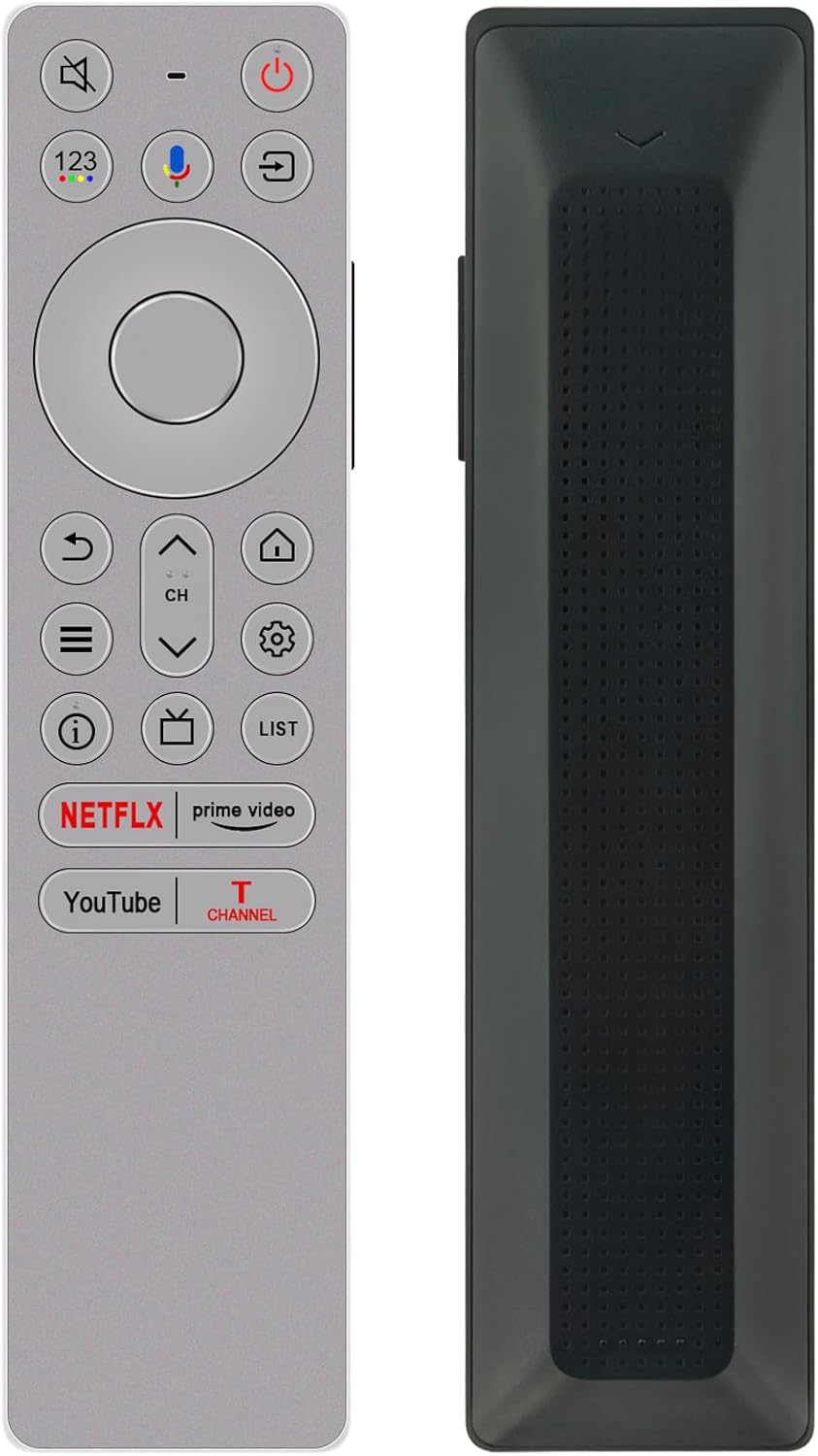
Image 1.1: Front and side view of the RC933 FUB1 Voice Remote Control. The remote is silver-grey with clearly labeled buttons for navigation, volume, channel, and dedicated streaming services.
2. Product Features
- Model: RC933 FUB1
- Special Function: Integrated Voice Search for intuitive control.
- Compatibility: Specifically designed for TCL Mini LED Smart Android TV Q10B.
- Operating Distance: Effective range of up to 10 meters (approximately 33 feet) with stable performance.
- Material: Constructed from durable ABS plastic and soft rubber for comfortable grip and resilience.
- Ergonomic Design: Lightweight and easy to grip, with responsive buttons.

Image 2.1: The RC933 FUB1 remote control displayed alongside a television, illustrating its key attributes: no complex setup required for basic functions, soft plastic buttons for comfortable use, and durable ABS material construction.
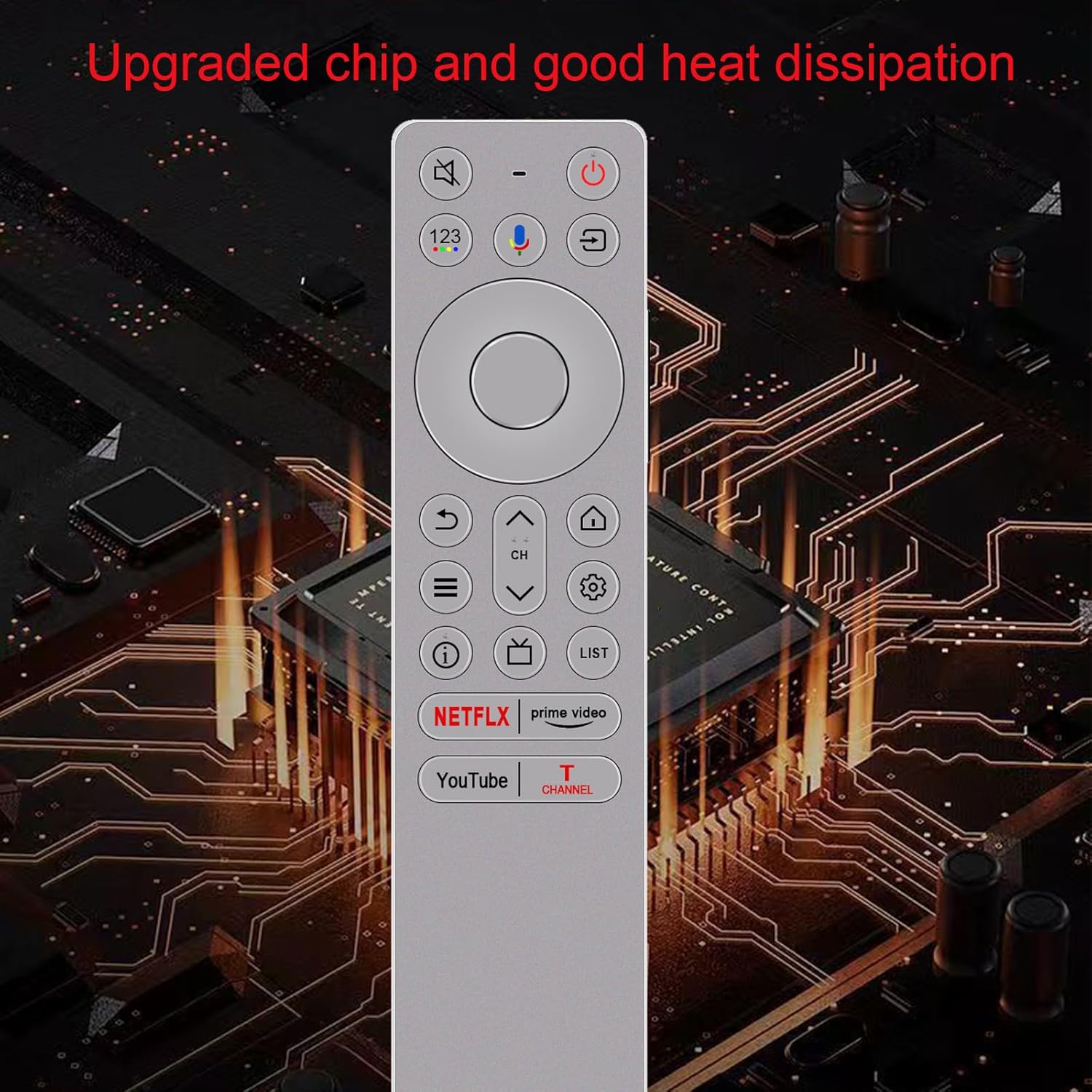
Image 2.2: The remote control positioned over a circuit board, emphasizing its upgraded internal chip and efficient heat dissipation for reliable performance.
3. Setup and Pairing
3.1. Battery Installation
The RC933 FUB1 remote control requires two (2) AAA batteries for operation. Ensure correct polarity when inserting the batteries.
- Locate the battery compartment cover on the back of the remote control.
- Slide the cover downwards or press the latch to open it.
- Insert two AAA batteries, matching the (+) and (-) terminals as indicated inside the compartment.
- Replace the battery compartment cover, ensuring it clicks securely into place.
3.2. Pairing for Voice Function
While basic functions may work immediately, the voice search feature requires pairing the remote control with your TCL Smart TV. A network connection is necessary for the voice recognition function to operate.
- Ensure your TCL Smart TV is powered on and connected to the internet.
- Point the remote control towards your TV.
- Follow the on-screen instructions on your TCL TV to initiate the pairing process for a new remote control. This usually involves navigating to the TV's settings menu (e.g., Settings > Remotes & Accessories > Add Accessory).
- Once prompted by the TV, press and hold the Voice button (microphone icon) on the remote control for a few seconds until the TV confirms successful pairing.
- A confirmation message should appear on your TV screen.
If pairing is unsuccessful, try repeating the steps or refer to your TV's user manual for specific pairing instructions.
4. Operating Instructions
4.1. Basic Functions
The remote control features standard buttons for TV operation:
- Power Button (U): Turns the TV on or off.
- Navigation Pad (Circle with Up/Down/Left/Right): Used to navigate menus and select items.
- OK/Select Button (Center of Navigation Pad): Confirms selections.
- Volume Up/Down (-/+): Adjusts the TV volume.
- Channel Up/Down (CH): Changes TV channels.
- Back Button (Curved Arrow): Returns to the previous screen or menu.
- Home Button (House Icon): Accesses the TV's home screen.
- Settings Button (Gear Icon): Opens the TV's settings menu.
- Input/Source Button (Rectangle with Arrow): Changes the input source.
- Mute Button (Speaker with Slash): Mutes or unmutes the TV audio.
- Dedicated Streaming Buttons (Netflix, Prime Video, YouTube, T Channel): Provides quick access to these applications.
4.2. Using Voice Search
The voice search function allows for convenient control and content discovery using spoken commands.
- Ensure the remote is paired with your TV and the TV has an active internet connection.
- Press and hold the Voice button (microphone icon) on the remote control.
- While holding the button, speak your command clearly into the microphone located on the remote. For example, you can say:
- "Open Netflix"
- "Search for action movies"
- "What's the weather like?"
- "Turn up the volume"
- Release the Voice button once you have finished speaking. The TV will process your command.

Image 4.1: The RC933 FUB1 remote control with a visual emphasis on the voice search button, indicated by a blue circle and a microphone icon, demonstrating its primary function.
5. Maintenance
5.1. Cleaning the Remote Control
To maintain the remote control's appearance and functionality:
- Use a soft, dry cloth to wipe the surface of the remote control.
- For stubborn dirt, slightly dampen the cloth with water or a mild, non-abrasive cleaner.
- Avoid using harsh chemicals, solvents, or abrasive materials, as these can damage the remote's finish or internal components.
5.2. Battery Replacement
Replace batteries when the remote control's performance degrades or it stops responding. Always replace both batteries at the same time with new AAA batteries.
- Follow the battery installation steps outlined in Section 3.1.
- Dispose of used batteries responsibly according to local regulations.
- If the remote will not be used for an extended period, remove the batteries to prevent leakage and potential damage.
6. Troubleshooting
If you encounter issues with your remote control, please refer to the following common solutions:
- Remote Not Responding:
- Check if the batteries are correctly inserted and have sufficient charge. Replace them if necessary.
- Ensure there are no obstructions between the remote control and the TV's IR receiver.
- Try re-pairing the remote control with the TV (refer to Section 3.2).
- Voice Function Not Working:
- Confirm that the remote is successfully paired for voice control (Section 3.2).
- Verify that your TCL Smart TV has an active internet connection. Voice recognition requires network access.
- Speak clearly and hold the Voice button while speaking.
- Buttons Are Sticky or Unresponsive:
- Clean the remote control as described in Section 5.1.
- Ensure no liquids have entered the remote. If so, discontinue use and allow it to dry completely.
- Short Operating Distance:
- Replace the batteries with new ones.
- Ensure there are no strong electromagnetic interferences nearby.
7. Specifications
| Feature | Detail |
|---|---|
| Product Model | RC933 FUB1 |
| Compatible Devices | TCL Mini LED Smart Android TV Q10B |
| Special Features | Voice Search, Ergonomic Design |
| Maximum Operating Distance | 10 Meters (approx. 33 feet) |
| Material | ABS Plastic |
| Color | Grey |
| Power Source | 2 x AAA Batteries (not included) |
| Product Dimensions | 5 x 1 x 0.5 inches (12.7 x 2.54 x 1.27 cm) |
| Item Weight | 1.9 ounces (53.86 grams) |

Image 7.1: The RC933 FUB1 remote control displaying its physical dimensions, indicating a width of 4 cm (1.57 inches) and a length of 17 cm (6.69 inches).
8. Warranty and Support
For any questions, concerns, or issues regarding your Beyution RC933 FUB1 Voice Remote Control, please contact our customer support.
If you find that your device model is not included in our compatibility list, or if the remote control you receive is damaged or does not work as expected, please reach out to us. We are committed to providing a satisfactory solution.
Contact Information: Please refer to the seller's contact details on the platform where the product was purchased (e.g., Amazon seller page) for direct assistance.