
Introduction
Thank you for choosing the ProtoArc EKM04 Ergonomic Keyboard Mouse Combo. This 3-in-1 wireless combo is designed to provide maximum comfort and productivity for various computing environments, from spacious office setups to compact workspaces. It features a split ergonomic keyboard, a separate numeric keypad, and an ergonomic mouse, all connecting via a single 2.4GHz USB receiver. This manual provides detailed instructions for setup, operation, maintenance, and troubleshooting to ensure optimal performance and longevity of your device.

Image: The ProtoArc EKM04 combo, showcasing the ergonomic split keyboard, the separate numeric keypad, and the contoured wireless mouse.
Product Overview
The ProtoArc EKM04 combo includes three primary components designed for ergonomic comfort and wireless convenience:
- Ergonomic Split Keyboard: Features a curved and split keyset design to promote a natural wrist and forearm posture. It includes a leather surface palm rest for extended comfort and two adjustable tilt legs for customized typing angles.
- Separate Numeric Keypad: Provides flexibility for workspace arrangement, allowing users to position it independently from the main keyboard for improved productivity.
- Ergonomic Wireless Mouse: Sculpted to fit the hand naturally, reducing wrist strain. It offers 2400 DPI for precise control and includes convenient forward and backward buttons for web browsing.
- Single USB Receiver: A single 2.4GHz USB receiver connects all three components wirelessly, ensuring a stable connection up to 33 feet (10 meters).

Image: Demonstrates the versatility of the 3-in-1 combo, showing it used with desktops and laptops in various configurations.

Image: Highlights the curved, ergonomic split design of the keyboard, promoting a more natural typing posture.

Image: Shows the standalone numeric keypad, emphasizing its flexibility for workspace customization.

Image: Illustrates the ergonomic sculpted design of the mouse, showing how it comfortably fits the hand.
Setup
1. Unboxing and Initial Inspection
Carefully remove all components from the packaging. Inspect the keyboard, numeric keypad, mouse, and USB receiver for any signs of damage. Ensure all parts are present.
2. Connecting the USB Receiver
- Locate the USB receiver, typically stored in a compartment on the mouse or keyboard for safe transport.
- Plug the USB receiver into an available USB port on your desktop computer, PC, or laptop.
- The devices are plug-and-play; no additional drivers are required. The keyboard, numeric keypad, and mouse should automatically connect within a few seconds.
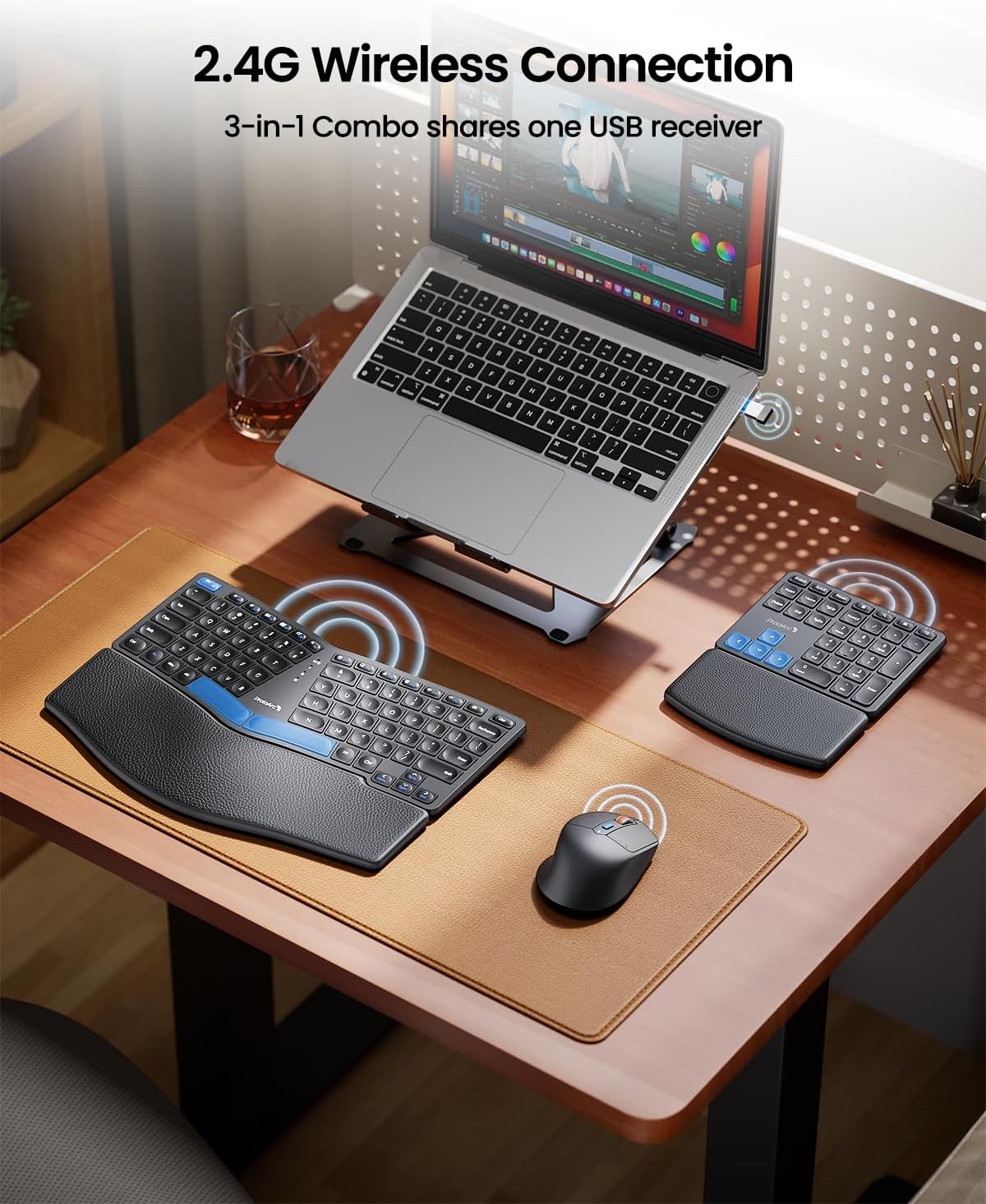
Image: Shows the 2.4G wireless connection setup, with the USB receiver plugged into a laptop and signals indicating connection to the keyboard, keypad, and mouse.
3. Charging the Devices
The keyboard, numeric keypad, and mouse are rechargeable via a Type-C USB cable. It is recommended to fully charge them before first use.
- Connect the provided Type-C USB cable to the charging port on each device and to a USB power source (e.g., computer USB port, USB wall adapter).
- A full charge typically takes approximately 2 hours.
- The devices offer a standby time of up to 250 hours on a full charge.

Image: Illustrates the Type-C rechargeable feature, showing the charging ports on the keyboard, keypad, and mouse, along with battery life indicators.
4. Adjusting Keyboard Tilt
The keyboard features two adjustable tilt legs on the bottom of the palm rest. These can be extended to position the keyboard at a comfortable angle, helping to maintain a relaxed and comfortable typing posture, especially when standing.

Image: Depicts the two adjustable tilt legs located on the underside of the keyboard, demonstrating how they can be used to elevate the keyboard for ergonomic comfort.
Operating Instructions
Keyboard Usage
- The split design encourages a natural hand and wrist position. Place your hands so that your wrists rest comfortably on the integrated leather palm rest.
- The scooped scissors-switch keys are designed for quick response and comfortable typing.
Numeric Keypad Usage
- Position the separate numeric keypad to your preferred side (left or right) for optimal workflow and space utilization.
- Use it for data entry, calculations, or any tasks requiring frequent number input.
Mouse Usage
- The ergonomic sculpted design of the mouse is intended to reduce wrist strain. Grip the mouse comfortably.
- The mouse operates at 2400 DPI, providing precise cursor control.
- Utilize the forward and backward buttons on the side of the mouse for convenient navigation during web browsing or file exploration.
Maintenance
Cleaning
- To clean the keyboard, numeric keypad, and mouse, use a soft, dry, lint-free cloth.
- For stubborn dirt or grime, slightly dampen the cloth with water or a mild, non-abrasive cleaning solution. Avoid excessive moisture.
- The leather palm rest can be wiped clean with a damp cloth.
- Do not immerse any part of the device in liquid.
Battery Care
- Recharge the devices when the battery indicator shows low power to ensure uninterrupted use.
- Avoid fully depleting the battery frequently, as this can reduce its overall lifespan.
- If storing the devices for an extended period, charge them to about 50% and store them in a cool, dry place.
Troubleshooting
| Problem | Possible Cause | Solution |
|---|---|---|
| Device not responding | Low battery; USB receiver disconnected; Out of range; Interference. | Charge the device. Ensure USB receiver is securely plugged in. Move device closer to receiver (within 33ft). Remove potential sources of interference (e.g., other wireless devices). |
| Lag or delayed response | Weak signal; Interference. | Ensure clear line of sight between device and receiver. Minimize other 2.4GHz wireless devices nearby. |
| Charging not working | Faulty cable; Faulty USB port; Device issue. | Try a different Type-C USB cable. Use a different USB port or power adapter. Contact support if issue persists. |
| Mouse cursor erratic | Dirty sensor; Uneven surface. | Clean the mouse sensor with a soft cloth. Use the mouse on a clean, flat, opaque surface or a mouse pad. |
Specifications
- Model: EKM04
- Brand: ProtoArc
- Connectivity Technology: 2.4GHz Wireless (USB Receiver)
- Wireless Range: Up to 33 feet (10 meters)
- Power Source: Rechargeable (Type-C USB)
- Full Charge Time: Approximately 2 hours
- Standby Time: Up to 250 hours
- Mouse DPI: 2400 DPI
- Compatible Devices: Desktop, PC, Laptop
- Operating System Compatibility: Windows
- Color: Black
- Item Weight: 3.3 pounds (approx. 1.5 kg)
- Package Dimensions: 16.54 x 10.24 x 1.97 inches (approx. 42 x 26 x 5 cm)
- Manufacturer: ProtoArc
- First Available Date: January 2, 2025
Warranty and Support
ProtoArc products are manufactured with high-quality standards. For specific warranty information regarding your EKM04 Ergonomic Keyboard Mouse Combo, please refer to the warranty card included with your product or visit the official ProtoArc website. If you encounter any issues or require technical assistance, please contact ProtoArc customer support through their official channels. Keep your purchase receipt for warranty claims.
For the latest support information and FAQs, please visit the ProtoArc Store on Amazon or the manufacturer's official website.


