
1. Introduction
This manual provides essential information for setting up, operating, and maintaining your JVC LT-55NQ7165C AI Vision Series QLED Google TV. Please read it thoroughly before use to ensure proper functionality and safety.

The JVC LT-55NQ7165C is a 55-inch 4K Ultra HD QLED Google TV, featuring a 60Hz refresh rate, AI Vision technology, and integrated smart functionalities. It offers a vibrant display with HDR and HLG support, powerful 60 Watts Dolby Atmos sound, and extensive connectivity options.
Overview of JVC AI Vision Series QLED Android TV features.
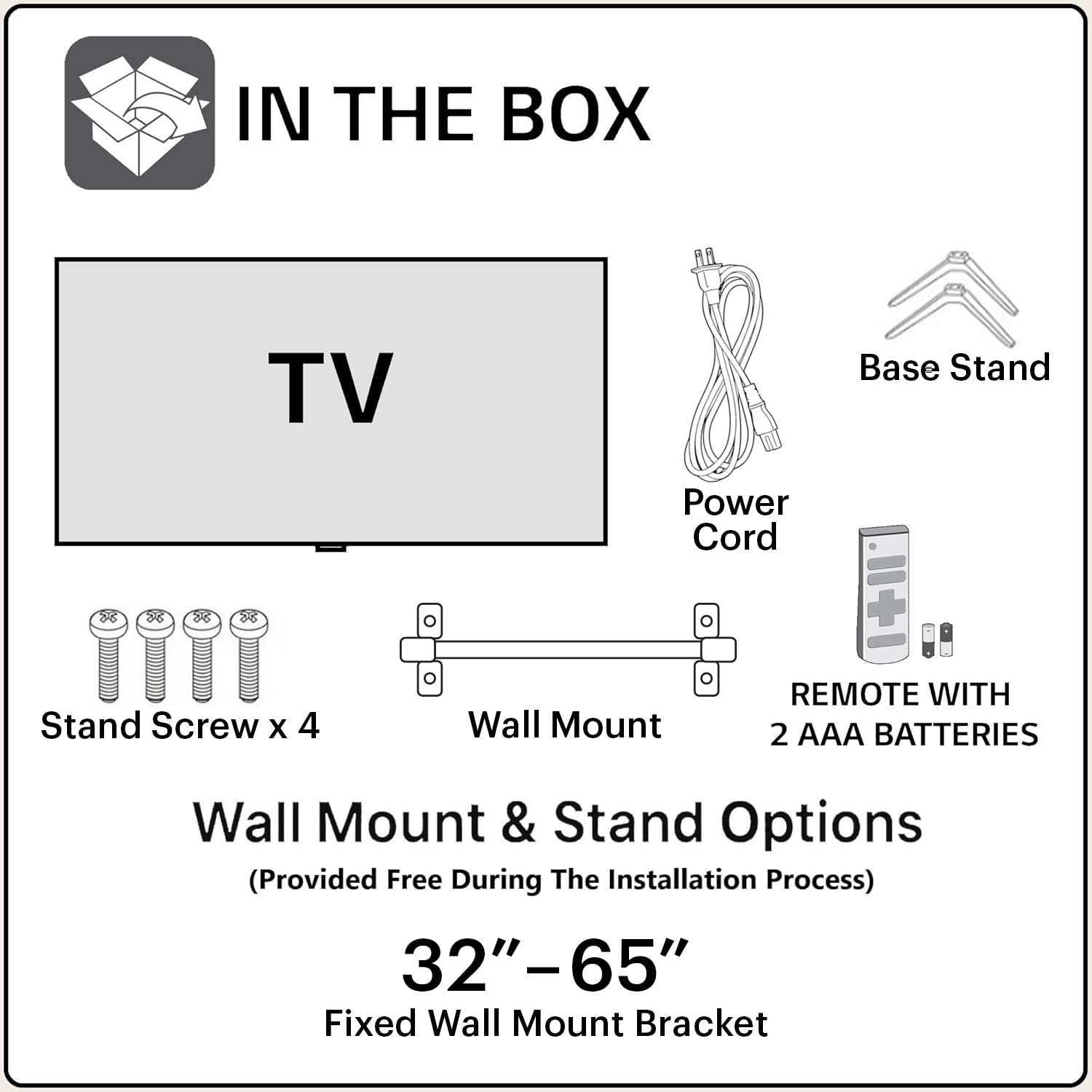
2. What's in the Box
Upon opening the package, verify that all the following components are included:
- 1N JVC LT-55NQ7165C LED TV
- 1N Remote Control (with 2 AAA batteries included)
- 1N Wall Mount Bracket
- 1N Table Top Stand (Base Stand)
- 4x Stand Screws
- 1N Power Cord
- User Manual (this document)
3. Setup and Installation
Your JVC TV offers both table-top and wall-mount installation options. Ensure the TV is placed on a stable surface or securely mounted to a wall.
3.1. Table-Top Installation
- Carefully place the TV screen-down on a soft, clean surface to prevent scratches.
- Attach the two base stands to the bottom of the TV using the provided screws. Ensure they are firmly secured.
- Place the TV on a flat, stable surface, ensuring adequate ventilation around the unit.
3.2. Wall-Mount Installation
For wall-mount installation, it is recommended to seek professional assistance. The provided wall mount bracket is suitable for this model.
- Identify a suitable wall location, ensuring it can support the weight of the TV.
- Follow the instructions provided with the wall mount bracket to securely attach it to the wall.
- Carefully attach the TV to the wall mount bracket. Ensure all connections are secure before releasing the TV.
Caution: Improper wall mounting can result in serious injury or damage to your TV. Always follow safety guidelines.
3.3. Initial Power-On
- Connect the power cord to the TV and then to a power outlet.
- Insert the included AAA batteries into the remote control.
- Press the power button on the remote control or on the TV to turn it on.
- Follow the on-screen instructions for initial setup, including language selection, network connection, and Google account login.
4. Connectivity
The JVC LT-55NQ7165C offers a variety of ports for connecting external devices and network access.

- HDMI Ports (3): Connect gaming consoles, set-top boxes, Blu-ray players, and other HDMI-enabled devices. Supports ALLM (Auto Low Latency Mode) and eARC (Enhanced Audio Return Channel).
- USB Ports (2): Connect hard drives, USB flash drives, and other USB devices for media playback.
- Dual Band Wi-Fi: Connect to your home network wirelessly (2.4GHz / 5GHz).
- Ethernet (LAN) Port: For a wired internet connection.
- Bluetooth 5.0: Connect wireless headphones, speakers, or other Bluetooth accessories.
- Optical Audio Output: Connect to external sound systems or soundbars for high-quality audio.

5. Operating Your TV
5.1. Remote Control
The included remote control allows you to navigate the TV's features. It includes dedicated buttons for popular streaming services and Google Assistant voice control.

- Power Button: Turns the TV on or off.
- Google Assistant Button: Activates voice commands.
- Navigation Pad: For menu navigation.
- Volume Up/Down: Adjusts audio volume.
- Channel Up/Down: Changes TV channels.
- Netflix, Prime Video, YouTube Buttons: Direct access to these streaming applications.
5.2. Google TV Features
Your JVC TV runs on the Google TV operating system, providing access to a vast library of content and smart features.
- App Access: Download and install over 10,000 apps and games from the Google Play Store, including Netflix, Prime Video, YouTube, Zee5, Disney+ Hotstar, SonyLIV, MX Player, JioCinema, Apple TV, and Voot.
- Google Assistant: Use voice commands to search for content, control smart home devices, get answers, and more. Press the Google Assistant button on your remote and speak into the microphone.
- Screen Mirroring (Chromecast built-in): Cast content from your compatible smartphone, tablet, or computer directly to your TV screen.
- Personalized Recommendations: Google TV learns your preferences and suggests content tailored to you.


5.3. Display Features
Experience stunning visuals with the TV's advanced display technologies.
- 4K Ultra HD Resolution: Enjoy incredibly sharp and detailed images with 3840 x 2160 pixels.
- QLED Technology: Quantum Dot LED display delivers vibrant colors and improved brightness.
- HDR (High Dynamic Range) & HLG: Provides enhanced contrast, brightness, and a wider color gamut for a more lifelike picture.
- AI Vision Series: AI-powered processing optimizes picture quality for various content types.
- 1.1 Billion Colours: Experience a rich and extensive color palette.
- 60Hz Refresh Rate: Smooth motion for most content.


5.4. Audio Features
Immerse yourself in rich and clear audio with the TV's integrated sound system.
- 60 Watts Output: Powerful audio delivery for an engaging listening experience.
- Dolby Digital Plus & Dolby Atmos: Provides immersive, multi-dimensional sound that moves around you.
- DTS-TruSurround: Enhances surround sound effects for a cinematic audio experience.

5.5. Gaming
The TV is designed to enhance your gaming experience with features like ALLM (Auto Low Latency Mode) and a responsive display.

6. Troubleshooting
Refer to this section for common issues and their solutions.
6.1. No Power
- Ensure the power cord is securely connected to both the TV and a working power outlet.
- Check if the power outlet is functioning by plugging in another device.
- Verify that the remote control batteries are correctly inserted and not depleted.
6.2. No Picture / Poor Picture Quality
- Check all cable connections (HDMI, antenna, etc.) to ensure they are secure.
- Select the correct input source using the remote control.
- Adjust picture settings (brightness, contrast, color) in the TV menu.
- If using an external device, check its output settings.
6.3. No Sound / Poor Sound Quality
- Ensure the volume is not muted or set too low.
- Check audio cable connections to external sound systems.
- Adjust audio settings in the TV menu.
- If using external speakers, ensure they are powered on and functioning correctly.
6.4. Network Connection Issues
- Ensure your Wi-Fi router is on and functioning.
- Restart your router and modem.
- Go to the TV's network settings and try reconnecting to your Wi-Fi network.
- If using a wired connection, ensure the Ethernet cable is securely connected.
7. Specifications
| Feature | Detail |
|---|---|
| Model Name | LT-55NQ7165C |
| Screen Size | 55 Inches (140 cm) |
| Display Technology | QLED, IPS Display |
| Resolution | 4K Ultra HD (3840 x 2160) |
| Refresh Rate | 60 Hz |
| Special Features | Dolby Digital Plus, HDR, DTS-TruSurround, Google Assistant, Dolby Atmos, AI Vision Series |
| Operating System | Google TV |
| RAM | 2 GB |
| Storage (ROM) | 16 GB |
| Audio Output | 60 Watts |
| Connectivity | Dual Band Wi-Fi, 3 HDMI, 2 USB, Bluetooth 5.0, Optical, Ethernet |
| Product Dimensions (LxWxH) | 124 x 12 x 71 cm |
| Item Weight | 10.4 kg |
| Power Source | AC |
| Viewing Angle | 178 Degrees |
| Image Contrast Ratio | 4000:1 |

8. Warranty and Support
Your JVC LT-55NQ7165C TV comes with a standard manufacturer's warranty.
- Product Warranty: 1 year from the date of purchase.
- Remote Accessories Warranty: 6 months from the date of purchase.
To avail warranty services, please retain your purchase invoice. The user manual can also be accessed from the brand's website under the product details section.
Warranty Exclusions: The warranty does not cover light bleeding and dot issues (Mura issues) occurring on a certain Grey scale, as per the Mura Inspection standard, this is considered acceptable. As per ND (Neutral Density) Filter 2% guideline, this is not considered a panel defect.
For further assistance or technical support, please refer to the contact information provided on the official JVC website or your purchase documentation.

