
Google G3AL9; GPLE9
Google Nest Cam with Floodlight Instruction Manual
Model: G3AL9; GPLE9
1. Product Overview
The Google Nest Cam with Floodlight is an advanced outdoor security camera system designed to enhance the safety and monitoring of your home's exterior. It integrates a high-definition camera with powerful LED floodlights, providing clear visibility and intelligent detection capabilities.
This system is engineered to differentiate between people, animals, and vehicles, sending precise alerts directly to your Google Home app. The floodlights automatically activate upon detecting important activity, illuminating the area for improved visibility and deterrence. Users can access live HD video, review recorded events, and communicate via the built-in two-way audio feature.

Figure 1: Google Nest Cam with Floodlight and included replacement cable.
2. What's in the Box
Verify that all components are present before beginning installation:
- Nest Camera
- Floodlight Unit
- Replacement Cable
- Mounting Plate
- Power Adapter
3. Setup and Installation
3.1 Pre-installation Requirements
- Power Source: The Nest Cam with Floodlight is designed to replace an existing outdoor light fixture and requires hardwiring to a circuit. It is not powered by battery for the floodlight function. If no existing wiring is available, professional installation is recommended.
- Wi-Fi Connectivity: A stable 2.4 GHz or 5 GHz Wi-Fi network is required for full functionality, including mobile notifications, remote control, and video streaming.
- Google Account: A free Google Account is necessary to use the Google Home app, which is required to set up and manage your Nest Cam with Floodlight. This device is not compatible with the legacy Nest app.
3.2 Installation Steps
- Turn Off Power: Before beginning any electrical work, ensure the power to the existing light fixture's circuit is turned off at the circuit breaker.
- Remove Existing Fixture: Carefully remove your old outdoor light fixture from its mounting location.
- Mounting Plate Installation: Secure the Nest Cam Floodlight mounting plate to the junction box using the provided screws. Ensure it is firmly attached.
- Wire Connections: Connect the electrical wires from your home's circuit to the corresponding wires on the Nest Cam Floodlight. Typically, this involves connecting live, neutral, and ground wires. If unsure, consult a qualified electrician.
- Attach Floodlight Unit: Secure the floodlight unit to the mounting plate.
- Attach Nest Cam: Connect the Nest Cam to the floodlight unit. The floodlight provides power to the camera.
- Restore Power: Once all connections are secure and the unit is mounted, restore power at the circuit breaker.
- App Setup: Download the Google Home app on your smartphone or tablet. Follow the in-app instructions to add your new Nest Cam with Floodlight. This will involve scanning a QR code on the device and connecting it to your Wi-Fi network.

Figure 2: Nest Cam with Floodlight installed and operating at night.
4. Operating Instructions
4.1 Google Home App Features
The Google Home app is your central control hub for the Nest Cam with Floodlight. Through the app, you can:
- Live HD Video: View a real-time, 1080p HDR video feed of your camera's view, day or night, with night vision capabilities.
- Intelligent Alerts: Receive notifications for detected people, animals, and vehicles. The system's intelligence helps reduce irrelevant alerts.
- Floodlight Control: Manually turn the floodlights on or off, adjust their brightness, and set customized routines for automatic activation based on motion or time of day.
- Two-Way Audio: Use the built-in speaker and microphone to talk to visitors or deter unwanted guests from your location.
- Event Video History: Access up to 3 hours of free event video history. For extended recording, a Nest Aware or Nest Aware Plus subscription is available (sold separately), offering up to 10 days of 24/7 recording and 60 days of event video history.
- Offline Storage: In the event of a Wi-Fi outage or power loss, the Nest Cam can store up to an hour of recorded events locally, which will upload to the cloud once connectivity is restored.
- Familiar Face Alerts: With a Nest Aware subscription, the camera can recognize familiar faces and send specific alerts (feature availability may vary by region).
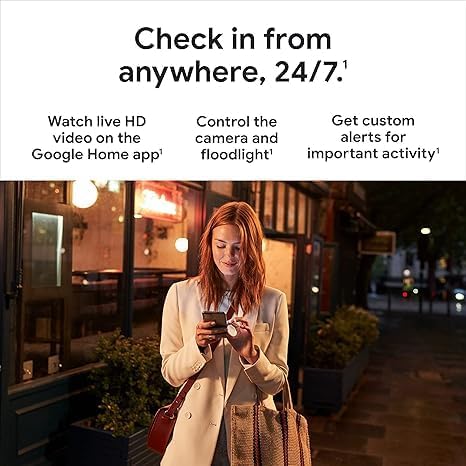
Figure 3: Example of intelligent alerts in the Google Home app.
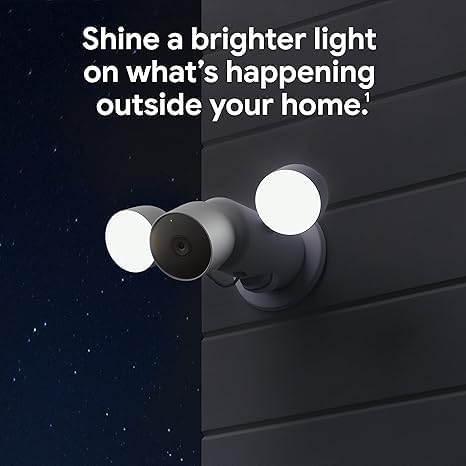
Figure 4: Monitoring your home remotely via the Google Home app.
5. Maintenance
To ensure optimal performance and longevity of your Nest Cam with Floodlight, consider the following maintenance tips:
- Cleaning Lenses and Lights: Periodically wipe the camera lens and floodlight surfaces with a soft, damp cloth to remove dust, dirt, or water spots that may obstruct the view or dim the lights. Avoid abrasive cleaners.
- Weather Protection: While the device is waterproof, ensure its mounting location provides adequate protection from direct, prolonged exposure to extreme weather conditions if possible, to minimize wear and tear.
- Software Updates: Keep your Google Home app updated to the latest version to ensure access to new features, security enhancements, and bug fixes for your Nest Cam.
6. Troubleshooting
If you encounter issues with your Nest Cam with Floodlight, try the following steps:
- No Power/Lights Not Turning On:
- Check the circuit breaker to ensure power is supplied to the fixture.
- Verify all electrical connections are secure. If unsure, consult an electrician.
- Wi-Fi Disconnection:
- Ensure your home Wi-Fi network is active and functioning correctly.
- Restart your Wi-Fi router.
- Check the signal strength in the Google Home app; consider relocating your router or using a Wi-Fi extender if the signal is weak.
- Alerts Not Received/Incorrect Alerts:
- Verify notification settings within the Google Home app are correctly configured.
- Adjust activity zones in the app to focus on areas of interest and reduce false alerts.
- Ensure the camera lens is clean and unobstructed.
- Poor Video Quality:
- Check your internet upload speed; a stable and sufficient speed is crucial for HD video streaming.
- Clean the camera lens.
- Two-Way Audio Issues:
- Ensure microphone and speaker permissions are enabled for the Google Home app on your mobile device.
- Check volume settings in the app.
For further assistance, refer to the help section within the Google Home app or visit the official Google Nest support website.
7. Specifications
| Feature | Detail |
|---|---|
| Model Name | Google Nest Cam; Floodlight |
| Model Number | G3AL9; GPLE9 |
| Indoor/Outdoor Usage | Outdoor |
| Compatible Devices | Smartphone, Tablet, Television |
| Power Source | Hardwired (replaces existing light fixture) |
| Connectivity Protocol | Wi-Fi |
| Controller Type | Amazon Alexa, Google Assistant, Nest (via Google Home app) |
| Mounting Type | Wall Mount |
| Video Capture Resolution | 1080p HDR |
| Color | White |
| Night Vision Range | 20 Feet |
| Frame Rate | 30 frames per second |
| Voltage | 240 Volts |
| Wattage | 24 Watt-hours |
| Water Resistance Level | Waterproof |
| Item Weight | 3.4 Pounds (approx. 1.54 kg) |
| Optical Zoom | 6x |
| Video Encoding | H.264 |
| Low Light Technology | Night Color |
| Alert Type | Motion Only (with intelligent detection for people, animals, vehicles) |
| Light Source Type | LED |
| UPC | 197051800250 |
| Product Dimensions (L x W x H) | 6.5 x 12.4 x 3.66 inches |
8. Warranty and Support
For information regarding product warranty, please refer to the warranty documentation included with your purchase or visit the official Google Nest support website. Google provides comprehensive support resources, including FAQs, troubleshooting guides, and contact options for technical assistance.
You can also find extensive support and community forums through the Google Home app's help section, which offers direct access to product-specific information and troubleshooting steps.
Online Support: support.google.com/nest
Related documentsG3AL9; GPLE9


Ask a question about this manual
Ask about setup, troubleshooting, compatibility, parts, safety, or missing instructions. Manuals+ will review the question and use this page’s manual context to help answer it.