
Introduction
This manual provides essential instructions for setting up, operating, and maintaining your Gwenland Smart Ring Health Tracker. Please read this guide thoroughly to ensure optimal performance and longevity of your device.
Getting Started (Setup)
1. Determine Your Ring Size
Accurate sizing is crucial for comfortable wear and precise data collection. Measure your finger or consider using a sizing kit to find the correct fit. The ring should fit snugly without rotating freely.

Image Description: A visual guide displaying different ring sizes (8-13) with corresponding inner diameter and perimeter measurements in millimeters and inches. It also illustrates two methods for measuring finger size: using non-elastic paper strips and a ruler, or using a dedicated ring sizing kit. A hand wearing the smart ring is shown on the right.
2. Download the RJing App
The Gwenland Smart Ring requires the companion RJing app for full functionality and data synchronization. The app is compatible with Android 5.0 and iOS 10.0 and above systems, with no subscription fees.

Image Description: A multi-panel image illustrating the steps to get the smart ring ready. It shows scanning a QR code or searching for the 'RJing' app, granting permissions, setting up personal information, connecting to the 'SR08' Bluetooth device, registering an account, and finally, the app's main data display.
Download the RJing app: http://download.keeprapid.com/jring.html
3. Initial Charging and Activation
Before first use, fully charge your smart ring. The device comes with a compact charging case and a charging cable. Place the ring into the charging case to begin charging. The case itself can hold a charge to power the ring for several days.
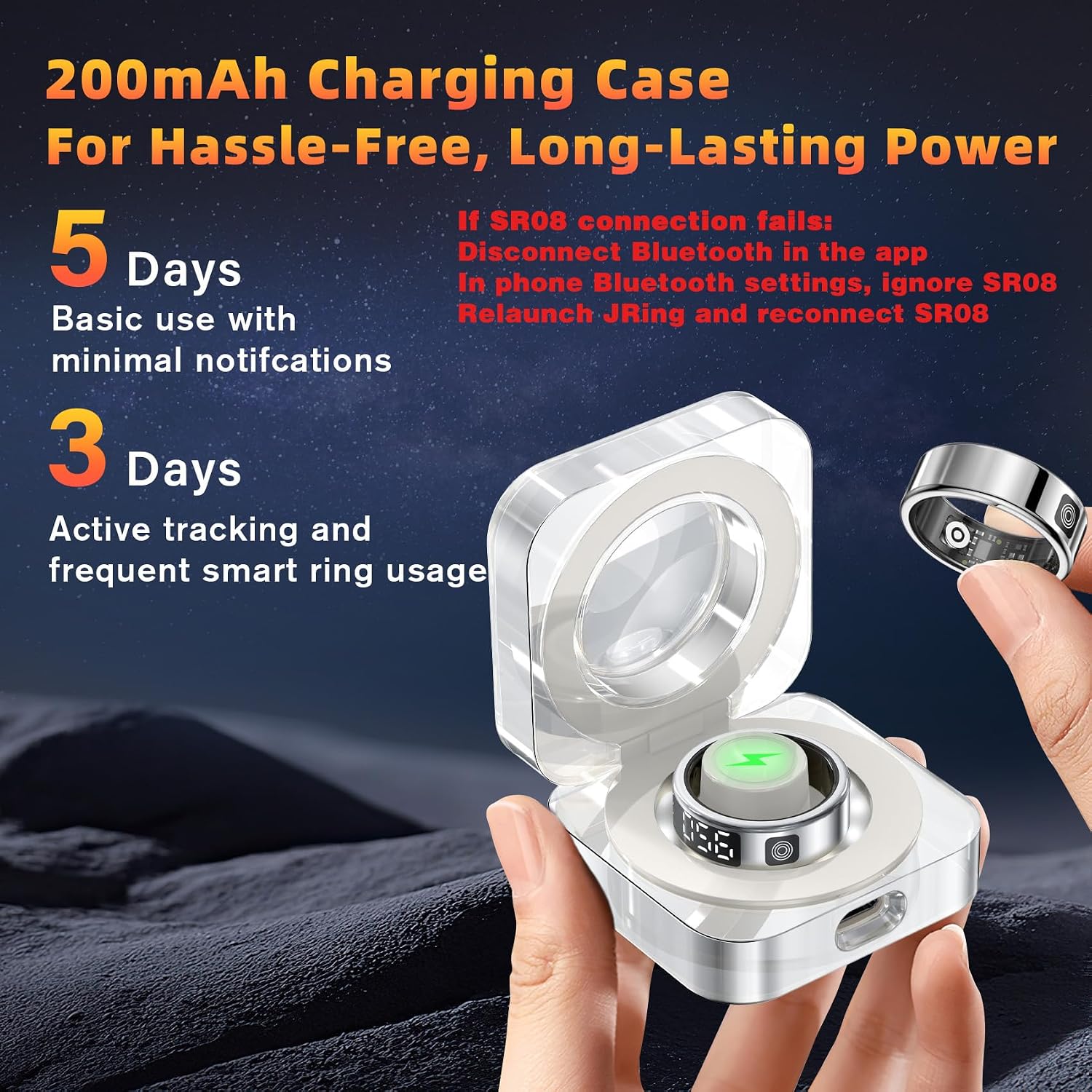
Image Description: A transparent charging case with the smart ring placed inside, showing a green lightning bolt icon indicating charging. The text highlights '200mAh Charging Case For Hassle-Free, Long-Lasting Power' and mentions 5 days of basic use and 3 days of active tracking.
4. Connect to the App via Bluetooth
Once charged, enable Bluetooth on your smartphone. Open the RJing app and follow the on-screen instructions to pair your smart ring. The app will guide you through the connection process.
Operating Your Smart Ring
1. Touch Display and Data Access
The smart ring features an LED display and intuitive touch control. Tap the side of the ring to cycle through various data points without needing your phone.
- Single Tap: Show time
- Double Tap: Show step count
- Triple Tap: Display heart rate
- Four Taps: Display blood oxygen (SpO2)
- Five Taps: Show sleep data
- Six Taps: Display battery level

Image Description: A circular diagram illustrating the 'Touch mode' for quick data access on the smart ring. Icons for Time, Steps, Heart Rate, SpO2 Levels, Sleep Time, and Battery Level are shown around a central fingerprint icon, with a hand tapping the ring's side to display '02:33' (time).
2. Health Monitoring
The smart ring continuously monitors key health metrics throughout the day and night.
- Heart Rate: 24/7 real-time heart rate tracking.
- Blood Oxygen (SpO2): Scheduled blood oxygen saturation monitoring.
- Sleep Monitoring: Tracks sleep duration, quality, and stages.
- Activity Tracking: Records steps, distance, and calories burned for various sports.

Image Description: A person sleeping with the smart ring on, alongside a graphical representation of sleep data from the app. The app displays total sleep time, sleep quality (Fair), and duration of deep, light, and awake sleep stages.

Image Description: A person holding a basketball, wearing the smart ring, with a smartphone screen displaying 'Multi-Sport Fitness Activity Tracking'. Data shown includes steps (3,940), calories (150.00 Kcal), distance (3.25 Km), and duration (00:48).
3. Gesture Control and Remote Photography
Enhance your interaction with your smartphone using the ring's gesture control features.
- Gesture Swipe: Use built-in motion functions to swipe through videos (e.g., TikTok).
- Remote Camera: Control your mobile phone to take photos remotely by shaking your finger while wearing the ring.

Image Description: A hand wearing the smart ring is shown interacting with a smartphone displaying a video. The text 'Gesture swipe video' indicates the ring's ability to control video playback with finger movements.

Image Description: A group of people posing for a photo, with a hand wearing the smart ring holding a smartphone. The text 'Remote Photography' indicates the ring's function to trigger the phone's camera with a gesture.
Care and Maintenance
1. Waterproof Durability
The Gwenland Smart Ring is IP68 waterproof, allowing it to be worn during swimming, showering, hand washing, and intense workouts without concern for water damage.

Image Description: A person swimming underwater, wearing the smart ring, with text indicating 'IP68 Class Waterproof' and icons for Swim, Sweat, Rain, Hand Washing, and Bathing.
2. Charging Your Device
Charge the smart ring using the provided charging case and cable. The case itself can store power to recharge the ring multiple times on the go. A full charge takes approximately 1 hour and provides 3 to 5 days of continuous use, or 10-15 days of standby time.

Image Description: The smart ring charging case is shown open with the ring inside, indicating charging. The text 'Long Battery Life' highlights the 200mAh charging case and its ability to provide extended power.
3. General Care
To maintain the accuracy of readings, ensure the sensors on the ring are positioned against the pad of your index or middle finger while wearing it. Clean the ring regularly with a soft, dry cloth.

Image Description: A hand wearing the smart ring on the index finger, with an inset diagram showing the optimal placement of the oxygen/heart rate sensor against the finger pad for accurate readings.
Troubleshooting
1. Cannot Synchronize Data with RJing App
If you encounter issues connecting or synchronizing data:
- Disconnect the Bluetooth connection in the RJing app.
- Go to your phone's Bluetooth settings, locate the device named 'SR08', and click 'Ignore this device'.
- Relaunch the RJing app and re-establish a connection with the Bluetooth 'SR08' device.
- Check if synchronization can be completed successfully.
2. Display Issues / Excessive Power Consumption
Frequent tapping of the touch screen keys will consume more power. You can turn off the smart screen when it is not in use to conserve battery life.
- Press the touchscreen button until the interface that toggles between "LCD" and "OFF" is displayed.
- Press and hold the touchscreen button for three seconds; the display will be switched off.
- If you need to activate the smart ring again, press and hold the touchscreen button for three seconds.

Image Description: A 'Warm Reminder' section detailing how to turn off the smart screen to save power and steps to troubleshoot synchronization issues with the RJing app, including disconnecting and reconnecting Bluetooth.
Product Specifications
| Feature | Specification |
|---|---|
| Item Model Number | SR08 |
| Package Dimensions | 7.4 x 2.99 x 1.26 inches |
| Item Weight | 5.6 ounces (0.16 Kilograms) |
| Batteries | 1 AAA batteries required (included) |
| Standing Screen Display Size | 0.2 Inches |
| Operating System Compatibility | Android 5.0 & iOS 10.0 and above |
| Special Features | Touchscreen, Gesture Control, Multisport Tracker, Daily Workout Memory, Wireless Charging |
| Connectivity Technology | Bluetooth |
| Wireless Communication Standard | Bluetooth |
| Battery Cell Composition | Lithium Polymer |
| GPS | GPS Via Smartphone |
| Shape | Round |
| Manufacturer | Gwenland |
Warranty and Support
Gwenland offers dedicated after-sales service for its products. If you encounter any usage or quality issues after purchasing your smart ring, please contact us for technical support.
For further assistance, refer to the contact information provided with your product packaging or visit the official Gwenland website.
Product Overview Video
Watch this video for a visual overview of the Gwenland Smart Ring's features and functionality.
Video Description: An official product video from Gwenland showcasing the Smart Ring Fitness Tracker with LED Display Screen, highlighting its various features and how it functions.


