
1. Introduction
Thank you for choosing the Hutehoute Keyless Entry Smart Door Lock FDS04. This smart deadbolt lock offers enhanced security and convenience with built-in Wi-Fi, app remote control, and real-time alerts. This manual provides detailed instructions for installation, operation, and maintenance to ensure optimal performance and longevity of your device.
The FDS04 model is designed for durability with IP65 waterproof rating, making it suitable for various door types including garage, side, office, or basement doors.
2. Product Overview

Image 2.1: Front view of the Hutehoute FDS04 Smart Lock keypad and a smartphone displaying the associated control app.
Key Features:
- Built-in Wi-Fi: No bridge required for remote control via app.
- App Remote Control: Manage access, receive real-time notifications, and view event history.
- Durable Keypad: Tested for 200,000 cycles for reliable access.
- Extended Battery Life: Up to 9-12 months operation with low battery reminders.
- IP65 Waterproof: Higher protection against heavy rain and outdoor elements compared to IP54.
- Easy Installation: Designed for quick setup in 10-15 minutes without drilling.
- Voice Control Compatibility: Works with Alexa and Google Home.
3. Package Contents
Ensure all components are present before beginning installation:
- Exterior Keypad Assembly
- Interior Assembly (with battery compartment)
- Deadbolt Latch
- Mounting Plate
- Strike Plate
- Screws and Fasteners
- 2 Physical Keys
- Installation Template
- User Manual (this document)

Image 3.1: All components included in the Hutehoute FDS04 Smart Lock package.
4. Installation Guide
The Hutehoute FDS04 Smart Lock is designed for easy installation, typically taking 10-15 minutes. No additional drilling is required for standard door preparations.
4.1. Preparation
- Ensure your door is compatible with a standard deadbolt.
- Remove any existing deadbolt hardware from your door.
- Use the provided template to verify hole alignment if necessary.

Image 4.1: Door frame template for precise installation measurements.
4.2. Installing the Deadbolt Latch
- Insert the deadbolt latch into the edge of the door.
- Ensure the "UP" arrow on the latch is pointing upwards.
- Secure the latch with the provided screws.
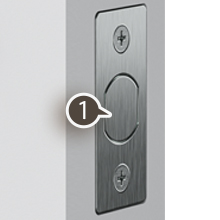
Image 4.2: Inserting the deadbolt latch into the door edge.
4.3. Installing the Exterior Keypad Assembly
- Feed the cable from the exterior keypad through the door hole, underneath the deadbolt latch.
- Align the keypad assembly with the door holes and press it firmly against the door.
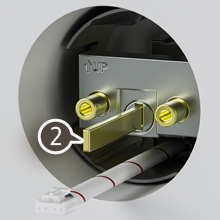
Image 4.3: Routing the cable and positioning the exterior keypad.
4.4. Installing the Interior Mounting Plate
- Route the cable through the rectangular hole in the mounting plate.
- Secure the mounting plate to the door using the long screws, ensuring it's flush against the door.

Image 4.4: Securing the interior mounting plate.
4.5. Installing the Interior Assembly
- Connect the cable from the exterior keypad to the corresponding port on the interior assembly.
- Align the interior assembly with the mounting plate and secure it with the short screws.
- Ensure the thumb turn operates smoothly. The lock automatically recognizes left and right door orientation.
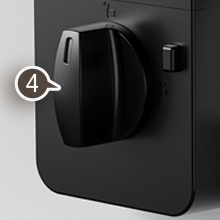
Image 4.5: Final step of connecting and securing the interior lock unit.
4.6. Battery Installation
- Remove the battery cover from the interior assembly.
- Insert 4 AA batteries (not included) according to the polarity markings.
- Replace the battery cover.
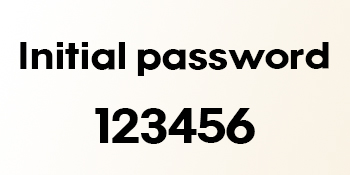
Image 4.6: The initial default password is 123456. Change this immediately after setup.
Note: The lock will perform an automatic door handing process after battery installation. Ensure the door is open during this process.
Installation Video:
Video 4.1: Detailed installation guide for the Hutehoute Smart Door Lock. This video demonstrates the step-by-step process of setting up the lock on a door, including attaching components and connecting wires.
5. Operating Instructions
5.1. Keypad Operation
- To Unlock: Enter your user code (default is 123456) followed by the unlock button.
- To Lock: Press the lock button on the keypad.
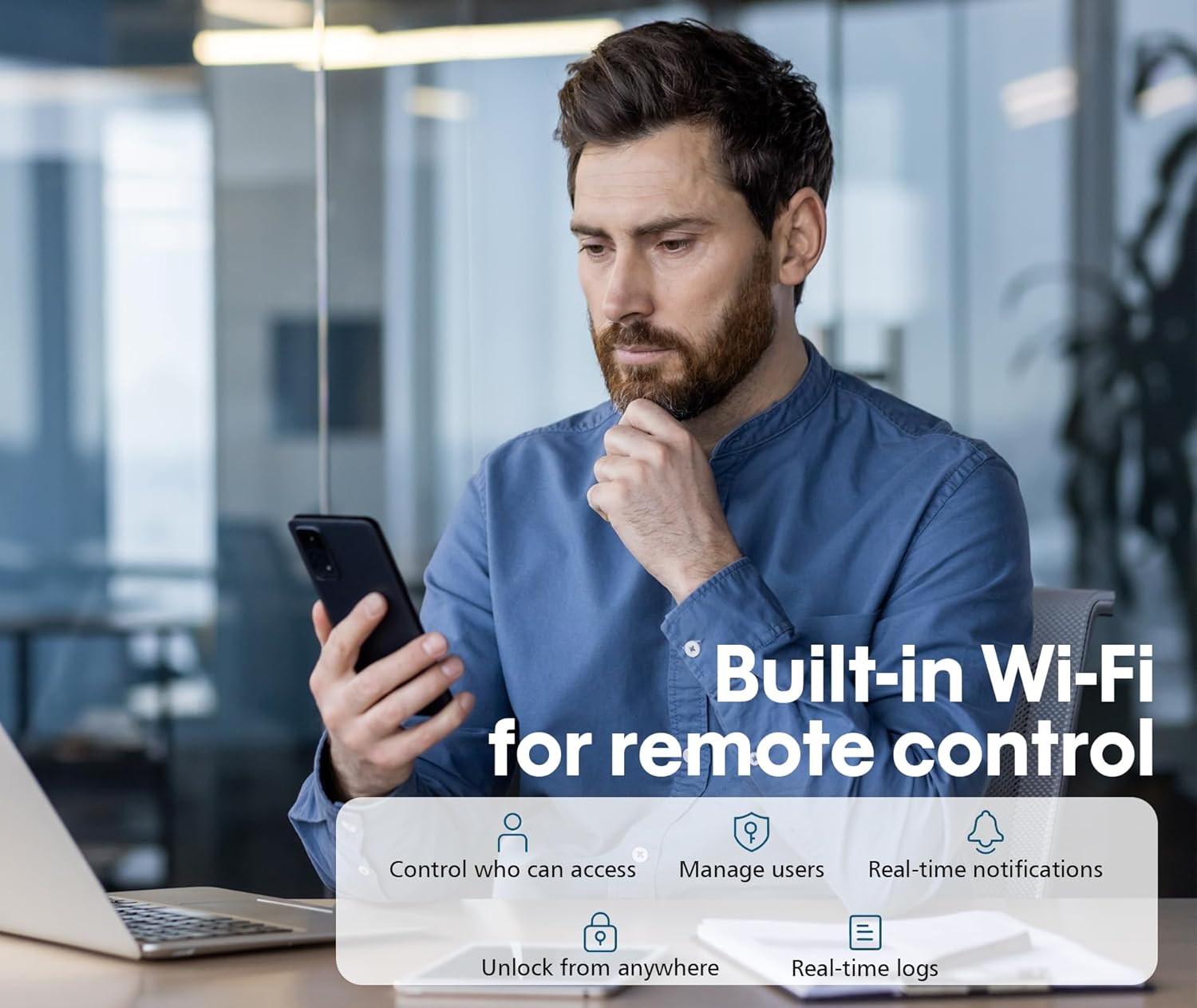
Image 5.1: The illuminated keypad for manual code entry.
5.2. App Remote Control (Tuya Smart App)
- Download the "Tuya Smart" app from your smartphone's app store.
- Register an account and add your Hutehoute FDS04 Smart Lock as a new device.
- Follow the in-app instructions to connect the lock to your home Wi-Fi network.
- Once connected, you can remotely lock/unlock, manage user access, set temporary passwords, and view real-time event logs.

Image 5.2: Remote unlock and real-time notification features via the Tuya Smart app.
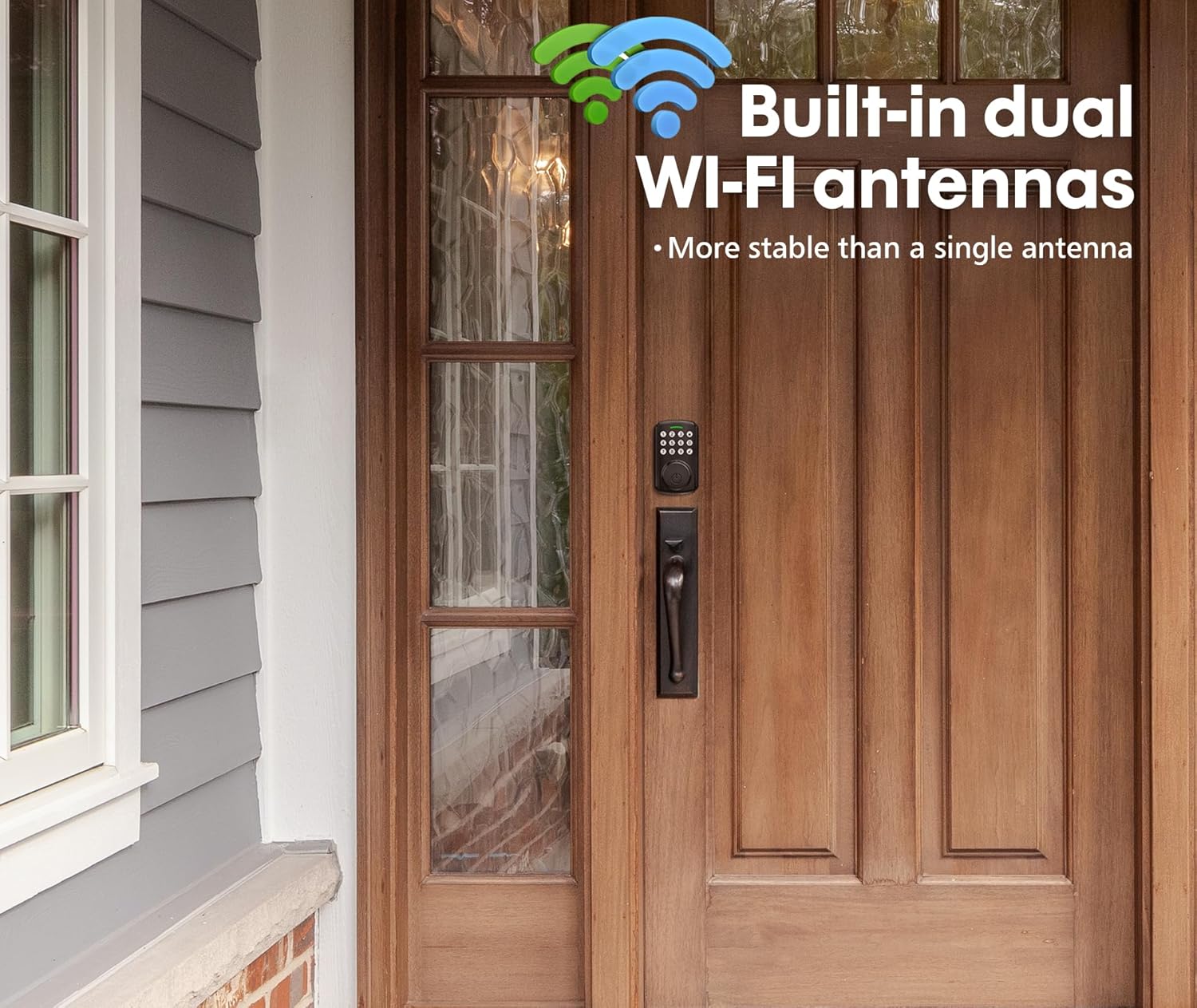
Image 5.3: One-click unlock functionality within the app.
5.3. Voice Control Integration
- The Hutehoute FDS04 is compatible with Amazon Alexa and Google Home.
- Enable the "Tuya Smart" skill/action in your Alexa or Google Home app.
- Link your Tuya Smart account to your voice assistant.
- You can then use voice commands like "Alexa, lock the front door" or "Hey Google, unlock the side door" (voice PIN may be required for unlocking).

Image 5.4: Voice control functionality with Alexa.
Operating Videos:
Video 5.1: An honest review of the WiFi Door Lock, demonstrating its features and app connectivity. This video shows the keypad in action and the app interface for locking/unlocking.
Video 5.2: A short demonstration of the lock's functionality, showing it works well. This video is a preview and provides a quick look at the lock in use.
6. Maintenance
6.1. Battery Replacement
- The lock operates for 9-12 months on 4 AA batteries.
- The app will provide low battery notifications.
- To replace, remove the interior cover, replace the 4 AA batteries, and reattach the cover.
6.2. Cleaning
- Clean the lock's exterior with a soft, damp cloth.
- Avoid abrasive cleaners or solvents that could damage the finish or electronic components.
6.3. Weather Resistance
The Hutehoute FDS04 Smart Lock features an IP65 waterproof rating, offering superior protection against heavy rain and outdoor conditions compared to standard IP54 rated devices. This ensures reliable operation in various weather environments.
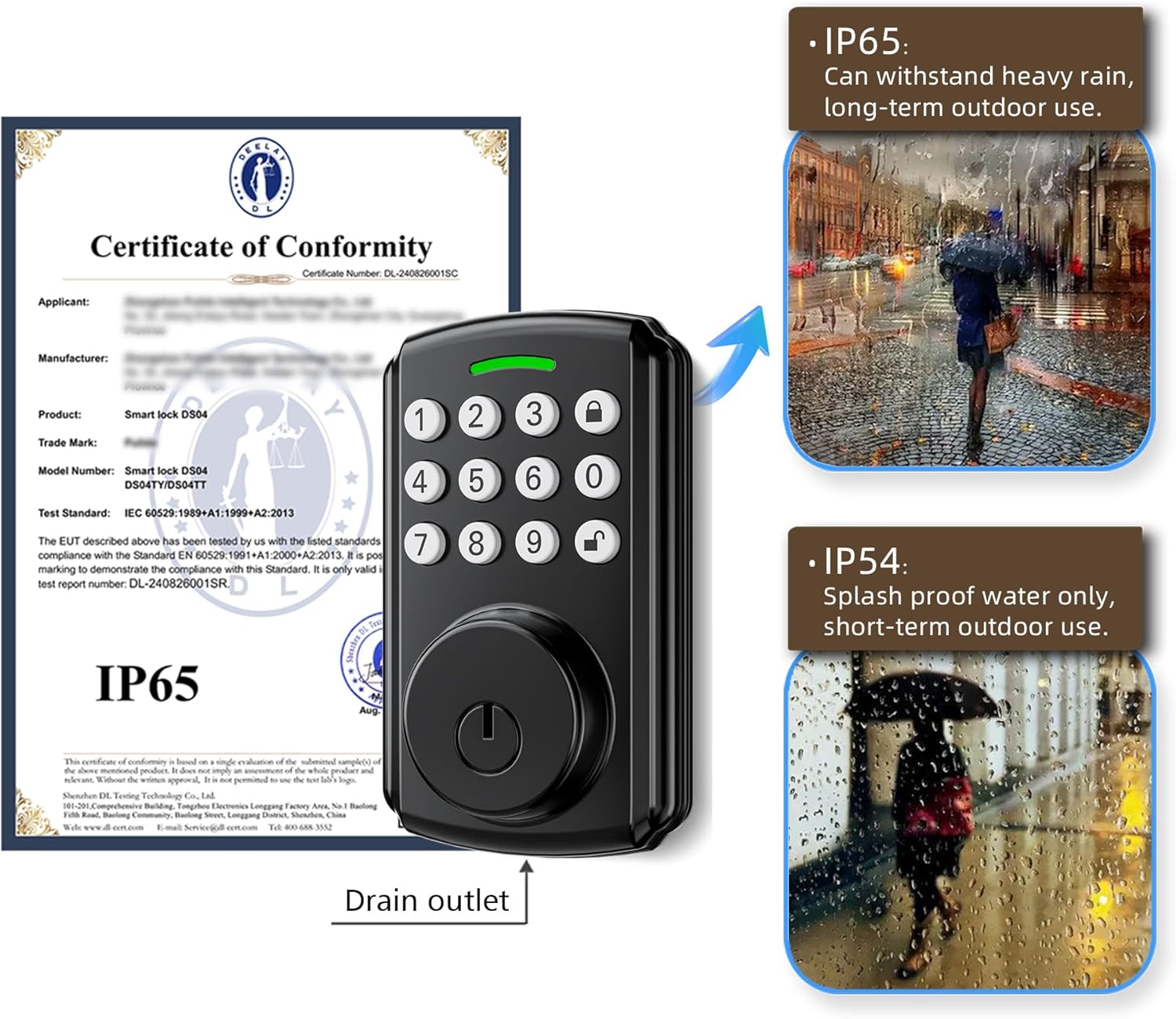
Image 6.1: IP65 waterproof rating for enhanced outdoor durability.
7. Troubleshooting
- Lock not responding: Check battery levels in the app or replace batteries. Ensure the lock is properly installed and all connections are secure.
- App connectivity issues: Verify your home Wi-Fi network is active and the lock is within range. Restart the app and try reconnecting.
- Keypad not working: Ensure the keypad is clean and free from debris. Re-enter the code carefully.
- Incorrect door handing: The lock automatically detects door handing. If issues occur, refer to the app or manufacturer's support for re-calibration instructions.
For further assistance, please refer to the support section.
8. Specifications
| Feature | Detail |
|---|---|
| Brand | Hutehoute |
| Model Name | FDS04 |
| Lock Type | Deadbolt |
| Connectivity Protocol | Wi-Fi |
| Control Method | App, Remote, Keypad, Physical Key |
| Waterproof Rating | IP65 |
| Material | Metal |
| Item Dimensions (L x W x H) | 5.7 x 2.7 x 2.7 inches |
| Item Weight | 1.61 pounds (0.73 Kilograms) |
| Batteries Required | Yes (4 AA batteries) |
| Battery Life | 9-12 months |
| UPC | 739437249118 |
9. Warranty and Support
9.1. Warranty Information
Specific warranty details for the Hutehoute FDS04 Smart Door Lock are typically provided with the product packaging or can be found on the official Hutehoute website. Please retain your proof of purchase for warranty claims.
9.2. Customer Support
For technical assistance, troubleshooting, or any product-related inquiries, please contact Hutehoute customer support through their official website or the contact information provided in your product packaging.
Manufacturer: Hutehoute
Website: Hutehoute Brand Page on Amazon