
1. Introduction
This manual provides comprehensive instructions for the setup, operation, and maintenance of your GUSGU G910 Pro 4K Ultra HD Webcam. Designed for high-quality video communication and streaming, this webcam features 4K resolution, auto-focus, an integrated ring light, and a privacy cover for enhanced user experience and security.
2. What's in the Box
- GUSGU G910 Pro 4K Webcam x1
- USB Cable (integrated)
- USB-A to USB-C Adapter
- User Manual
- Mini Tripod
3. Product Features
3.1. Ultra HD 4K Resolution
The GUSGU G910 Pro webcam delivers crisp 3840x2160P images and videos, utilizing an advanced 12-megapixel CMOS sensor and a high-performance encoding chip for superior visual clarity.

Image: The webcam features a UHD 1/2" CMOS Sensor for 4K video capture.
3.2. AI-Powered Auto Focus
Equipped with AI-powered auto-focus, the G910 Pro ensures that your subject remains sharp and clear, automatically adjusting to keep you in focus during video calls and streams.

Image: A visual representation of the AI-powered auto-focus feature, keeping the subject sharp.
3.3. Integrated Ring Light
The webcam includes a built-in ring light with both white and warm color options, each offering 3 levels of brightness. This feature helps to illuminate your face, enhancing video quality in various lighting conditions.
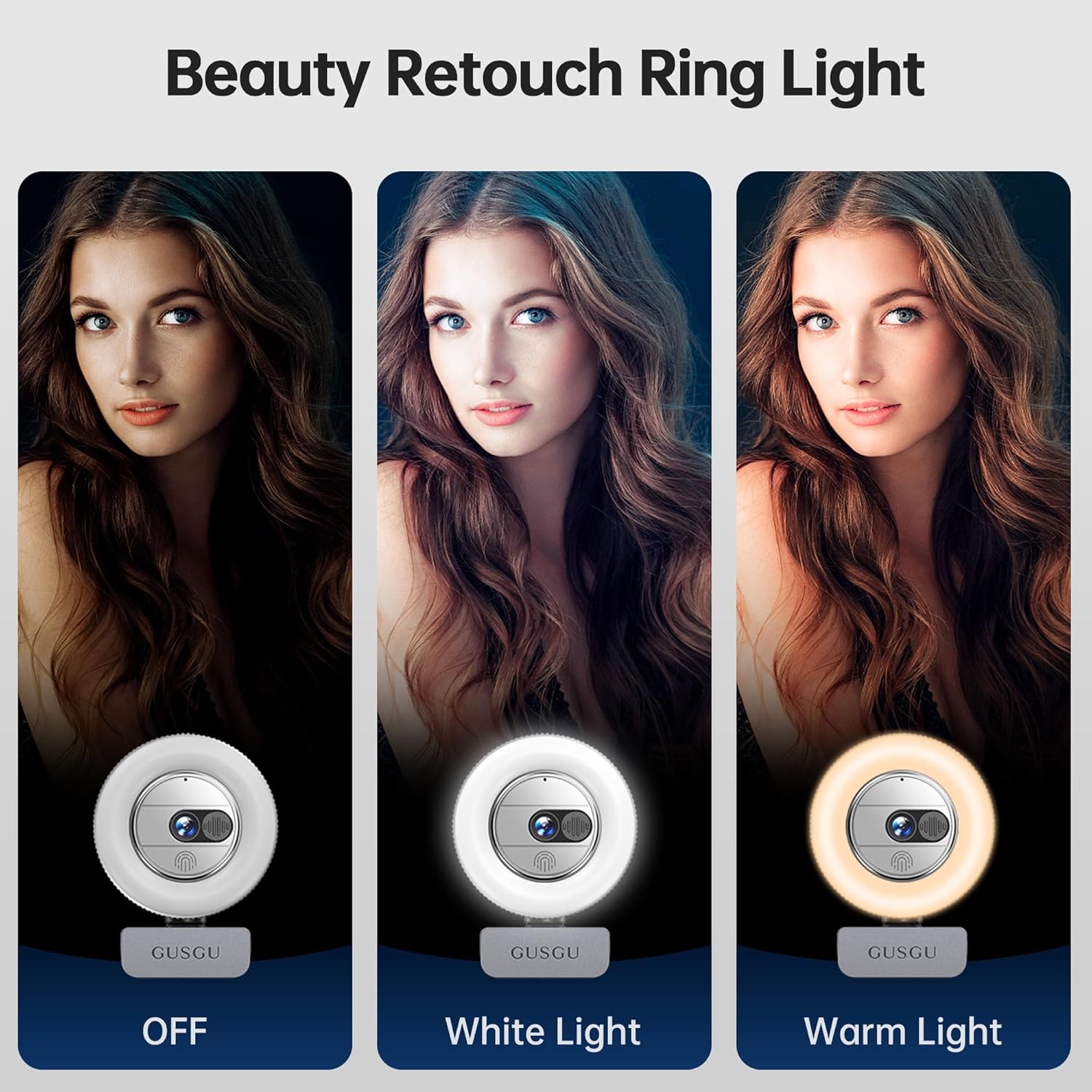
Image: Demonstrates the ring light's different color temperatures (white and warm) and brightness levels.
Video: A demonstration of the webcam's built-in ring light, showing how to activate it and cycle through different brightness and color temperature settings (white and warm).
3.4. Built-in Privacy Cover
For enhanced privacy and security, the G910 Pro features a built-in privacy cover that can be easily slid to block the camera lens when not in use.

Image: Illustrates the webcam's integrated privacy cover, showing its open and closed states.
Video: A short demonstration of the webcam's privacy cover being slid open and closed.
3.5. Noise-Canceling Microphone
The webcam integrates a noise-canceling microphone to capture clear audio, reducing background distractions for effective communication.

Image: Shows the webcam in use on a laptop, highlighting its noise-canceling microphone feature.
3.6. Wide Compatibility
The GUSGU G910 Pro is compatible with various operating systems including Windows, macOS, and Android. It supports popular video conferencing and streaming applications such as Zoom, Teams, Meet, Skype, WhatsApp, FaceTime, YouTube, Facebook, and Twitch.

Image: Displays the webcam alongside icons of various compatible operating systems and applications.
4. Setup Guide
- Connect the Webcam: Plug the integrated USB cable from the webcam into an available USB port on your computer. If your computer only has USB-C ports, use the provided USB-A to USB-C adapter.
Video: Demonstrates connecting the webcam via USB and using the USB-C adapter.
- Mount the Webcam:
- On a Monitor/Laptop: Unfold the clip at the base of the webcam and securely attach it to the top of your monitor or laptop screen. Adjust the angle as needed.
- On a Tripod: The webcam's base is compatible with a standard tripod mount. Attach the provided mini tripod or any compatible tripod to the webcam for desktop placement.
Video: Shows the webcam being unboxed, highlighting the USB-C adapter and demonstrating how to attach it to a monitor or use it with a tripod.
- Plug-and-Play: The webcam is plug-and-play. Your computer should automatically detect and install the necessary drivers. No additional software installation is typically required.
5. Operating Instructions
- Using the Privacy Cover: To activate the privacy cover, slide the physical cover over the lens. Slide it back to expose the lens when you are ready to use the camera.
- Adjusting the Ring Light: The ring light is touch-sensitive. Tap the top of the webcam to cycle through the 3 brightness levels for white light, then 3 brightness levels for warm light, and finally to turn the light off.
- Auto Focus: The webcam's AI-powered auto-focus feature operates automatically, ensuring your image remains clear without manual adjustment.
- Wide Angle View: The 80-degree wide-angle lens captures a broad field of view, reducing the need to constantly adjust the webcam's position.
6. Specifications
| Feature | Detail |
|---|---|
| Brand | GUSGU |
| Model Number | G910P |
| Video Capture Resolution | 3840*2160p (4K Ultra HD) |
| Photo Sensor Technology | CMOS |
| Focus Mode | Auto Focus |
| Ring Light | White & Warm colors, 3 brightness levels each |
| Microphone | Integrated, Noise-Canceling |
| Privacy Feature | Built-in Privacy Cover |
| Connectivity Technology | USB |
| Item Weight | 6.4 ounces |
| Product Dimensions | 1 x 2.6 x 2.6 inches |
7. Troubleshooting
- Camera Not Detected: Ensure the USB cable is securely connected to both the webcam and your computer. Try a different USB port or restart your computer.
- Poor Video Quality: Check your lighting conditions. Utilize the built-in ring light to improve illumination. Ensure the privacy cover is fully open.
- No Audio/Poor Audio: Verify that the webcam's microphone is selected as the input device in your operating system's sound settings and in your video conferencing application.
- Auto Focus Issues: Ensure there are no obstructions in front of the lens. The auto-focus feature is designed to work automatically.
8. Maintenance
- Cleaning the Lens: Use a soft, lint-free cloth specifically designed for camera lenses to gently wipe the lens. Avoid abrasive materials or harsh chemicals.
- General Cleaning: Wipe the body of the webcam with a soft, dry cloth. Do not immerse the device in water or use excessive moisture.
- Storage: When not in use, engage the privacy cover to protect the lens from dust and scratches. Store the webcam in a cool, dry place.
9. Warranty and Support
The GUSGU G910 Pro 4K Ultra HD Webcam comes with a 3-year replacement warranty.
For any inquiries or support needs, please feel free to contact us. We typically respond within 12 hours.
Contact information can be found on the product packaging or the official GUSGU website.